
Quick Answer: To change mouse pointer speed on Windows 11, press Windows key + I, go to Bluetooth & devices, select Mouse, and drag the Mouse pointer speed slider. The default setting is 10 out of 20. Most people land somewhere between 8 and 14, depending on screen size.
A mouse that feels too fast on a 4K screen or too slow across two monitors usually just needs a speed adjustment. Windows ships with a default pointer speed of 10, and that number works fine for a single standard monitor. It doesn’t work for everyone else.
Below are five ways to fix it, starting with the simplest option and working toward the more advanced, command-line methods. Pick whichever one matches comfort level — there’s no wrong way to get there.
Method 1: Settings App (Easiest, Recommended for Most People)
This is the fastest route for anyone who isn’t comfortable digging through menus.
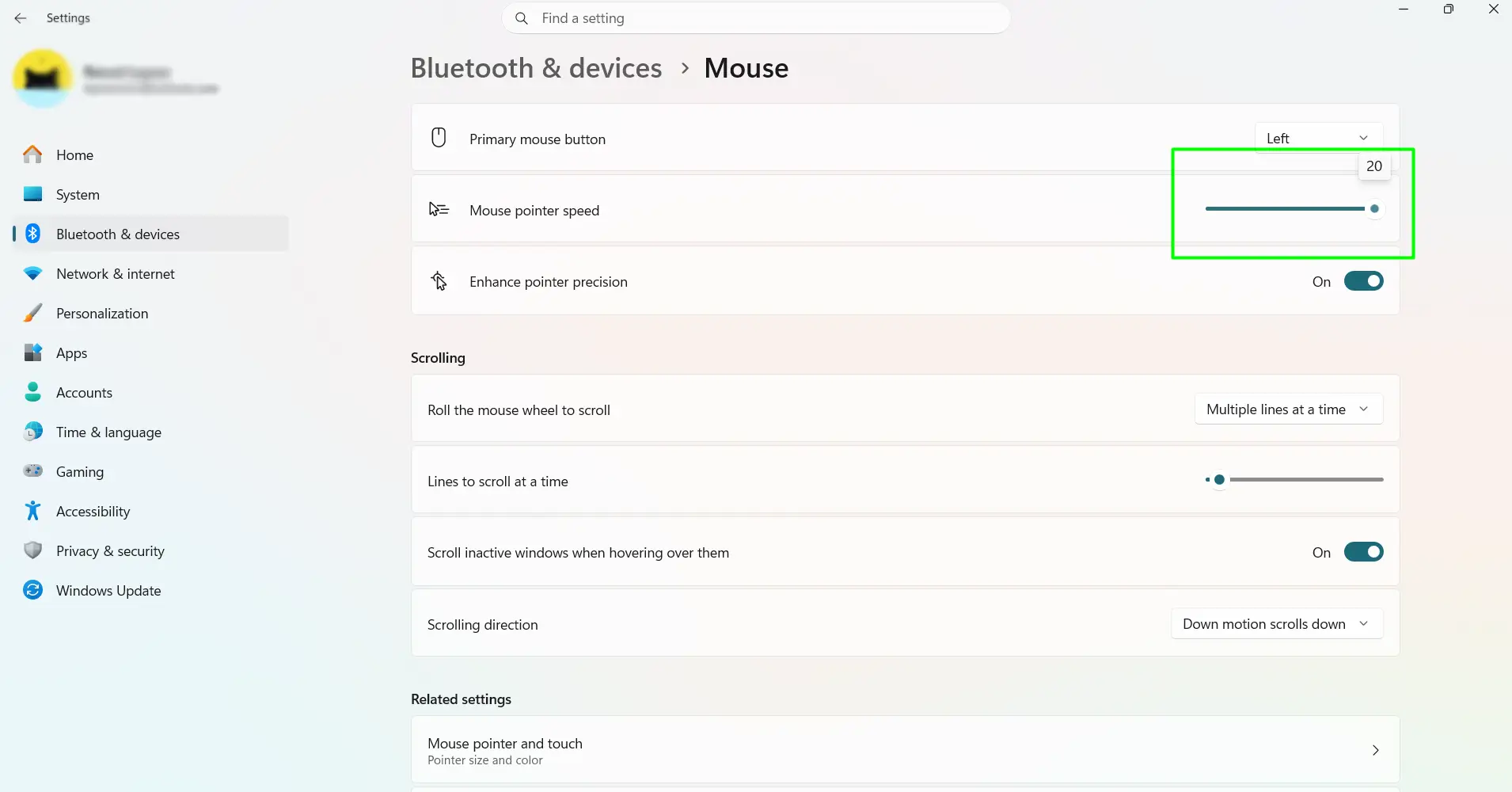
- Press Windows key + I to open Settings.
- Click Bluetooth & devices, then click Mouse.
- Drag the Mouse pointer speed slider left to slow it down, right to speed it up.
- Test it by moving the mouse around. No need to save or restart anything — it applies right away.
Using Windows 10 instead? The path is almost identical: Windows key + I → Devices → Mouse → adjust the Cursor speed slider. Same range, same default, just a different menu name.
Method 2: Windows Search (Fastest Shortcut)
Skip the menus entirely and just search for it.
- Press Windows key + S to open Search.
- Type mouse settings and press Enter.
- Drag the Mouse pointer speed slider to the desired position.
Typing “change mouse pointer speed” or “adjust pointer speed” works too — Windows recognizes all of these and opens the same screen.
Method 3: Control Panel (Best for Turning Off Mouse Acceleration)
This method takes a few extra clicks, but it’s the only one that lets you turn off pointer precision (also known as mouse acceleration) at the same time.
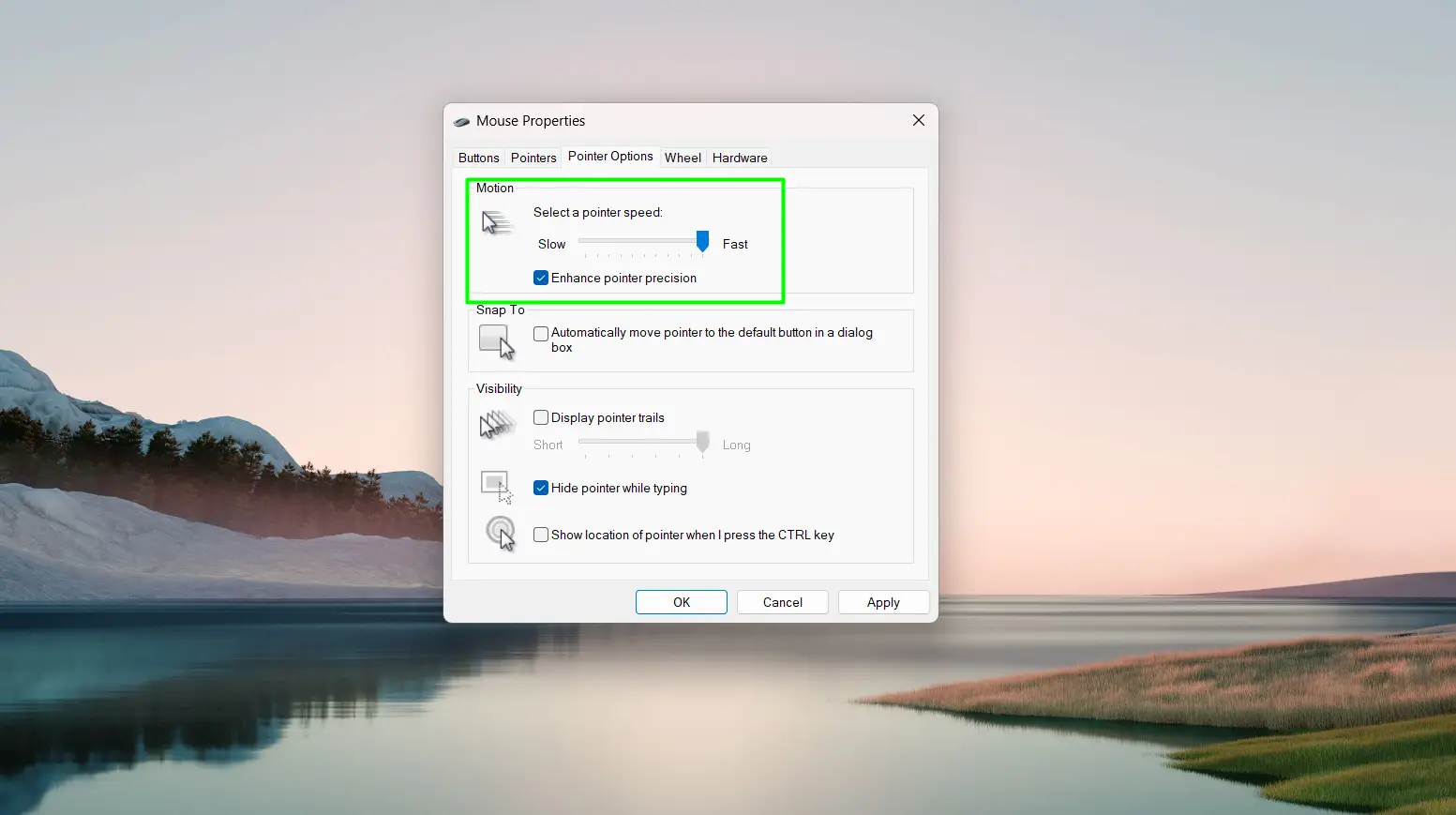
- Press Windows key + R, type main.cpl, and press Enter.
- Click the Pointer Options tab.
- Drag the speed slider under Motion to the desired setting.
- Uncheck Enhance pointer precision if consistent, predictable cursor movement is the goal.
- Click Apply, then OK.
Method 4: Registry Editor (For Setting an Exact Value)
This is a more technical route, useful when an exact number matters or the same setting needs to be copied onto another PC.
- Press Windows key + R, type regedit, press Enter, then click Yes.
- Go to HKEY_CURRENT_USER\Control Panel\Mouse.
- Double-click MouseSensitivity.
- Enter a number from 1 (slowest) to 20 (fastest). Default is 10.
- Click OK and close Registry Editor.
The change takes effect immediately — no restart needed. Back up the Mouse key first by right-clicking it and choosing Export, just in case.
Method 5: PowerShell (For Advanced Users and IT Admins)
The quickest option for anyone who already knows the exact value they want, or for setting this up across several machines at once.
- Open PowerShell as administrator.
- Run this command, replacing 10 with the desired value (1–20):
Set-ItemProperty -Path 'HKCU:\Control Panel\Mouse' -Name 'MouseSensitivity' -Value '10'
To check the current setting, run:
Get-ItemProperty -Path 'HKCU:\Control Panel\Mouse' -Name 'MouseSensitivity'
Recommended Pointer Speed by Use Case
- General use (email, browsing, documents): 9–12, pointer precision on.
- Gaming: 6–9, pointer precision off.
- Design and photo editing: 7–10, pointer precision off.
- Multi-monitor setups: 12–16.
- 4K monitors: 13–17.
Tips for Getting the Right Pointer Speed
- Test with real tasks, not random movement. Try clicking small buttons, selecting text, or navigating a dropdown menu — that’s where bad settings actually show up.
- Set hardware DPI first if the mouse has adjustable DPI buttons, then fine-tune with the Windows slider. Doing it the other way around just causes confusion later.
- Turn off pointer precision if movements feel inconsistent. That setting adds acceleration, which is great for browsing but frustrating for anyone relying on muscle memory.
- Give it a day before deciding. A new speed can feel strange for the first few hours simply because hands are used to the old one.
- Touchpad and mouse speeds are separate. Adjusting one does nothing to the other, so check both if using a laptop with an external mouse.
- Shared computers should aim for a middle setting, somewhere around 10–11, so it doesn’t feel off for anyone using the same account.
Pointer Precision Explained
Pointer precision — sometimes called mouse acceleration — changes how far the cursor travels based on how fast the mouse moves. Slow movements stay precise; quick flicks cover more ground. That’s helpful for everyday browsing, but it can throw off anyone who depends on identical, repeatable movements, like gamers or designers. Turning it off through Control Panel (Method 3 above) makes cursor movement linear and predictable instead.
Mouse DPI vs. Pointer Speed
These two settings often get confused, but they’re not the same thing. DPI is a hardware setting built into the mouse, controlling how many pixels the cursor moves per inch of physical movement. Pointer speed is a software setting in Windows that multiplies that movement further. A 1600 DPI mouse and an 800 DPI mouse will feel completely different even at the exact same Windows speed setting. The best approach is setting DPI on the mouse itself first, then using the Windows slider to fine-tune from there.
Frequently Asked Questions
What is the default mouse pointer speed in Windows 11?
The default is 10 on a scale of 1 to 20, with pointer precision turned on.
How do you make the mouse cursor move faster on Windows 11?
Open Settings, go to Bluetooth & devices → Mouse, and drag the pointer speed slider to the right. Higher numbers mean the cursor covers more screen distance with less hand movement.
Why does the mouse feel too slow on a 4K monitor?
A 4K screen has far more pixels packed into the same physical space as a 1080p display. The default speed of 10 often can’t keep up, which is why most 4K users land somewhere between 13 and 17.
Should pointer precision be turned on or off?
Leave it on for everyday browsing and office work — it helps the cursor slow down near small buttons. Turn it off for gaming or design work, where predictable, linear movement matters more.
Does changing pointer speed affect games?
Most modern games use raw input that ignores the Windows pointer setting entirely once gameplay starts. In-game menus and the desktop, though, still follow whatever speed is set in Windows.
Can pointer speed be changed without a mouse?
Yes. Open Settings with Windows key + I, then use the Tab and arrow keys to navigate to Bluetooth & devices → Mouse and adjust the slider with the arrow keys.
Will a Windows update reset pointer speed settings?
No. Pointer speed is saved to the user profile and survives restarts and updates. It only resets after a factory reset or when logging into a brand-new account.
Can each user account have a different pointer speed?
Yes. Pointer speed is stored per account, so each person who logs into the same PC can set their own speed without affecting anyone else.
Why does a new mouse feel different at the same speed setting as the old one?
That’s almost always a DPI difference between the two mice. Different models ship with different default DPI values, so identical Windows speed settings produce different results on each one.
Is there a way to switch between two pointer speed setups quickly?
Windows doesn’t include a built-in switcher. A workaround is saving two PowerShell commands as desktop shortcuts, each set to a different value, and running whichever one is needed.
