
Quick Answer: Open Settings with Windows key + I, go to Bluetooth & devices > Mouse, and adjust speed, direction, or inactive window scrolling under the Scrolling section. For horizontal scrolling or finer control, use Control Panel. To shut the scroll wheel off completely, Registry Editor is the only route that works.
A mouse wheel that scrolls too fast, too slow, or backwards is annoying enough to deal with every single day. Here’s the thing — most people never touch these settings because they assume there’s nothing to adjust. There’s plenty to adjust, and most of it takes under a minute once it’s found.
This guide covers every way to change mouse scrolling on Windows 11, starting with the easiest option and working toward the more advanced ones.
Quick Overview: All Methods
- Method 1: Settings App — fastest way to change scroll speed and turn on inactive window scrolling
- Method 2: Windows Search — good option when not sure where mouse settings are hiding
- Method 3: Change Scroll Direction — flip scrolling to natural or standard mode
- Method 4: Control Panel — covers horizontal scrolling and more detailed control
- Method 5: Minimize Scroll via Control Panel — drop scrolling to its lowest level (1 line)
- Method 6: Registry Editor — the only way to set scrolling to 0 and stop it entirely
Windows 10 note: The path is Settings > Devices > Mouse instead of Bluetooth & devices > Mouse. Everything else works the same.
Method 1: Change Scroll Speed Through Settings (Easiest)
This is the quickest option for most people, and changes apply right away — no restart, no extra clicks.
- Press Windows key + I to open Settings.
- Click Bluetooth & devices, then select Mouse.
- Under Scrolling, open the dropdown and pick Multiple lines at a time or One screen at a time.
- If “Multiple lines” is selected, drag the slider to set lines per scroll (1 to 100).
- Turn on Scroll inactive windows when hovering over them for scrolling background windows without clicking into them first.
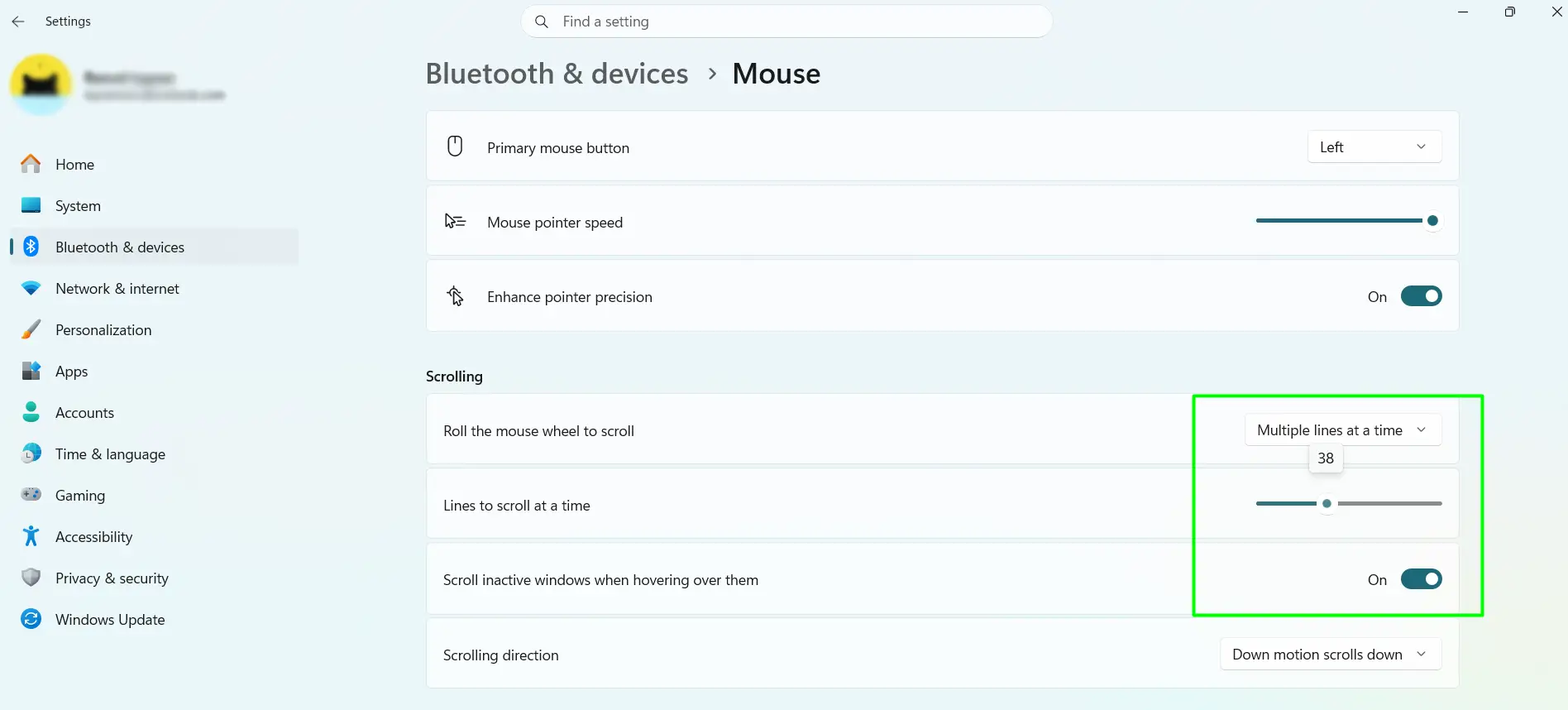
Most people find that 3 to 6 lines per scroll feels right for everyday use. Test it out on a real webpage or document before settling on a number.
Method 2: Find Mouse Settings Through Windows Search
Not sure where mouse settings live? This is the fastest shortcut.
- Press Windows key + S or tap the search icon on the taskbar.
- Type mouse settings and select it from the results.
- Click Additional mouse settings to open the full Mouse Properties window.
- Go to the Wheel tab to adjust scrolling values, then click Apply and OK.
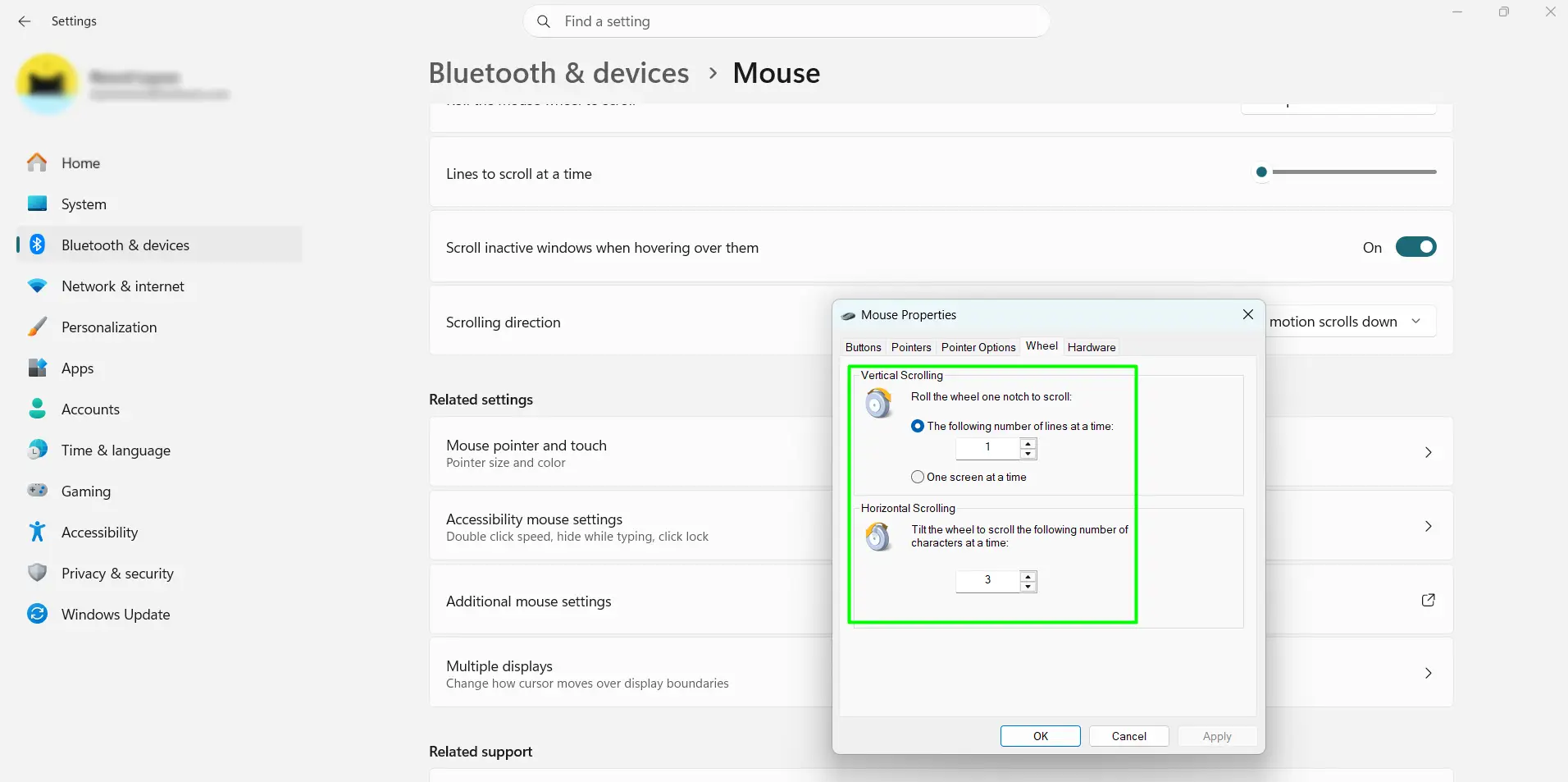
This lands in the same place as Method 4 below, just through a different door.
Method 3: Reverse or Change Scroll Direction
Some people prefer natural scrolling, where content moves the same direction as the wheel — similar to a touchscreen. Windows 11 makes this a built-in toggle, no Registry edits needed.
- Open Settings with Windows key + I.
- Go to Bluetooth & devices > Mouse.
- Find the Scrolling direction dropdown.
- Choose Down motion scrolls down (standard) or Down motion scrolls up (natural).
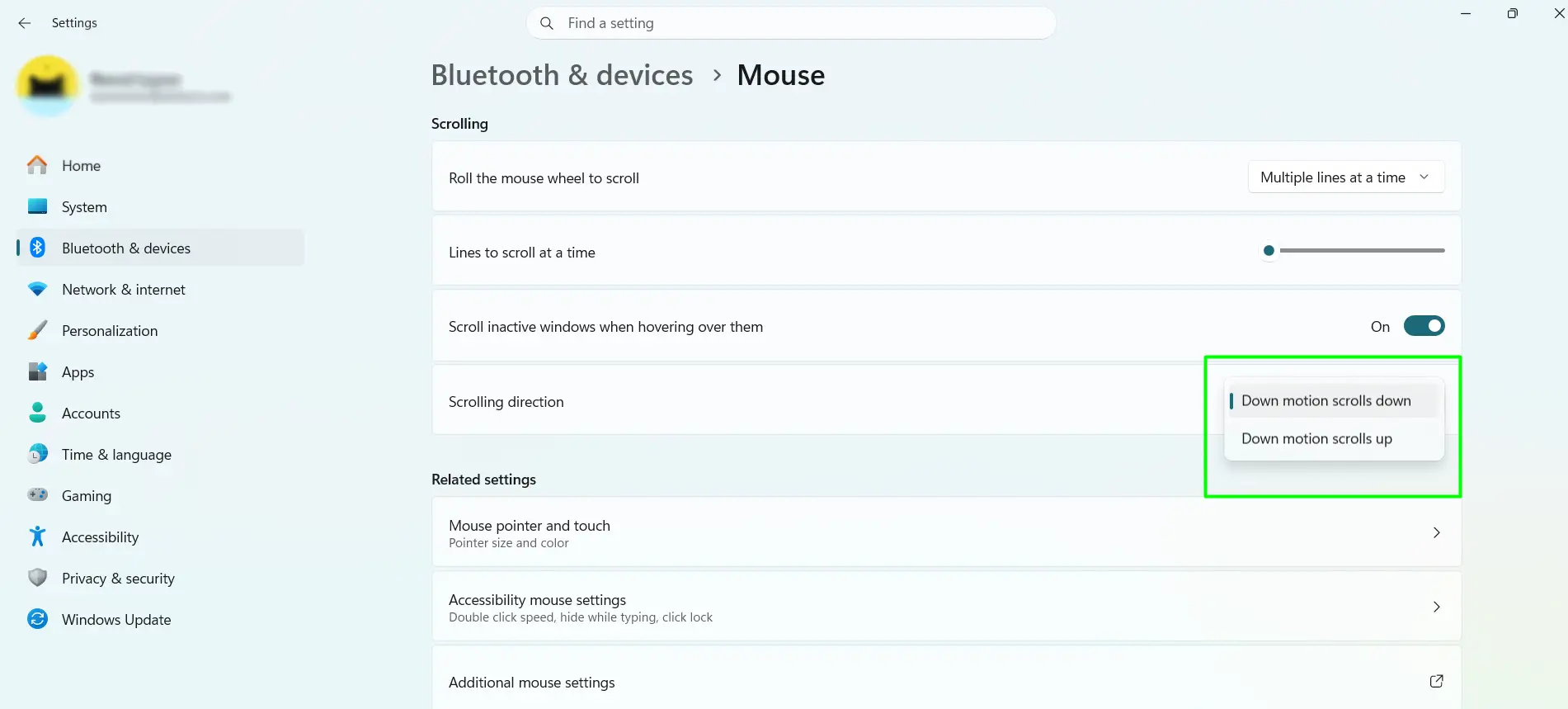
If a gaming mouse with its own software is connected — Logitech Options+, Razer Synapse, that sort of thing — that software can override this setting. Check there first if the toggle doesn’t seem to stick.
Method 4: Use Control Panel for Full Scroll Control
Control Panel covers everything the Settings app does, plus horizontal scrolling for mice with a tilt wheel. This works the same way on Windows 11 and Windows 10.
- Press Windows key + R, type main.cpl, and press Enter.
- Click the Wheel tab.
- Under Vertical Scrolling, select The following number of lines at a time and enter a number from 1 to 100.
- Under Horizontal Scrolling, set characters per tilt for mice that support it.
- Click Apply, then OK.
This is the best stop for anyone who wants both vertical and horizontal scrolling sorted out in one place.
Method 5: Reduce Scroll Speed to the Minimum
Control Panel can bring scrolling down to its lowest setting — 1 line — though it can’t shut scrolling off completely. That part needs Registry Editor (Method 6).
- Open Control Panel from the Start menu.
- Set “View by” to Large icons, then click Mouse.
- Open the Wheel tab.
- Set Vertical Scrolling to 1.
- Set Horizontal Scrolling to 1.
- Click Apply, then OK.
Method 6: Disable Scrolling Completely With Registry Editor
This is the only method that sets scrolling to an actual zero. It’s meant for advanced users, IT setups, or kiosk-style machines where the scroll wheel shouldn’t do anything at all.
Back up first: open Registry Editor, go to File > Export, and save a backup before changing anything.
- Open the Start menu, type regedit, press Enter, then click Yes on the prompt.
- Go to HKEY_CURRENT_USER Control Panel Desktop (paste the path into the address bar).
- Find WheelScrollLines and set its value to 0 to disable vertical scrolling, or any number from 1 to 100 for a custom speed.
- Find WheelScrollChars and set its value to 0 to disable horizontal scrolling.
- Close Registry Editor and restart the computer.
What Scroll Speed Works Best?
- 1 to 3 lines: tight control — good for spreadsheets and code
- 4 to 6 lines: the everyday sweet spot for browsing and email
- 7 to 15 lines: quicker movement through long feeds and articles
- 16+ lines: very fast — most people find anything past 20 hard to control
Tips for Getting Scroll Settings Right
- Test new settings on a real webpage or spreadsheet, not just in the Settings window — numbers feel different in actual use.
- If a gaming mouse or third-party driver is installed, its software can quietly override Windows scroll settings. Check there before assuming something is broken.
- Touchpad scrolling is handled separately under Bluetooth & devices > Touchpad. Changing mouse settings will never touch touchpad behavior, and the reverse is true too.
- Browsers and apps like Office or Adobe products sometimes add their own scrolling behavior — smooth scrolling in Edge or Chrome, zoom on Ctrl+scroll in design apps. That layer sits on top of Windows settings and works independently.
- Lower scroll values tend to suit precision work like code or spreadsheets. Higher values suit casual reading and scrolling through feeds.
- Changing values 1 or 2 lines at a time, rather than jumping around, makes it easier to land on something that actually feels right.
Frequently Asked Questions
How do I change mouse scroll speed in Windows 11?
Press Windows key + I, go to Bluetooth & devices, then Mouse. Under Scrolling, choose “Multiple lines at a time” and drag the slider to the desired speed. The change takes effect right away.
How do I reverse the scroll direction in Windows 11?
Go to Settings > Bluetooth & devices > Mouse and use the Scrolling direction dropdown. Choosing “Down motion scrolls up” turns on natural scrolling, similar to a touchscreen or trackpad.
How do I turn off mouse scrolling completely?
Settings and Control Panel only go as low as 1 line — neither one can fully disable scrolling. Registry Editor is the only way: set both WheelScrollLines and WheelScrollChars to 0 under HKEY_CURRENT_USER Control Panel Desktop, then restart.
Why does my mouse wheel scroll too fast or too slow?
This usually comes down to the line count under Mouse Properties or Settings. A lower number scrolls slower and more precisely; a higher number covers more ground per notch. Most people land somewhere between 3 and 6 lines for daily use.
How do I scroll a window without clicking into it first?
Turn on “Scroll inactive windows when hovering over them” under Settings > Bluetooth & devices > Mouse. Once enabled, hovering the cursor over any open window lets the wheel scroll it directly.
Why do my scroll settings keep resetting or not saving?
Third-party mouse software — Logi Options+, Razer Synapse, Corsair iCUE, and similar tools — can override Windows scroll settings without warning. Open that software and check for a scroll override before assuming Windows is at fault.
Does Windows 11 support horizontal scrolling?
Yes, for mice with a tilt wheel. Open Control Panel, go to Mouse Properties, then the Wheel tab, and adjust the Horizontal Scrolling section. The Settings app does not include this option.
Do touchpad scroll settings affect mouse scroll settings?
No. Windows treats them as completely separate devices. Touchpad scrolling lives under Settings > Bluetooth & devices > Touchpad, while mouse scrolling is configured separately in Mouse settings or Mouse Properties.
What is the fastest way to open mouse settings in Windows 11?
Press Windows key + S, type “mouse settings,” and select it from the results. From there, click “Additional mouse settings” for full control over scroll speed and direction.
Can different apps have different scroll speeds?
Windows itself applies one scroll setting across the whole system. Per-app scroll profiles require manufacturer software like Logitech Options or Razer Synapse, which can assign different behavior to individual programs.
