
A ‘DNS server not responding’ error means the computer cannot translate website names into the IP addresses needed to load them, even though the internet connection itself may be working fine. This guide walks through the real causes of the problem and the exact steps to get browsing back to normal on Windows.
Key Takeaways
- The error almost always points to a DNS lookup failure, not a broken internet connection.
- Restarting the router and flushing the DNS cache solves the problem in a large share of cases.
- Switching to a public DNS server such as Google DNS or Cloudflare DNS is one of the most reliable fixes.
- Outdated network drivers and misconfigured adapter settings are common hidden causes.
- Security software and VPNs occasionally interfere with DNS requests and are worth checking early.
Common Causes of DNS Server Not Responding
Before jumping into fixes, it helps to understand what is actually going wrong behind the scenes. DNS acts like a phone book for the internet, and when that phone book cannot be reached or read correctly, this error appears.
Router or Modem Issues
A router that has been running for weeks without a restart can develop small glitches in how it handles DNS requests. This is one of the most frequent and easiest causes to rule out.
Outdated Network Drivers
Network adapter drivers that have not been updated in a while sometimes mishandle DNS queries, especially after a Windows update changes how the network stack behaves.
Incorrect DNS Server Settings
The DNS server address assigned automatically by an internet provider can go down or become slow, and there is no reason a device has to keep using it.
Security Software or VPN Interference
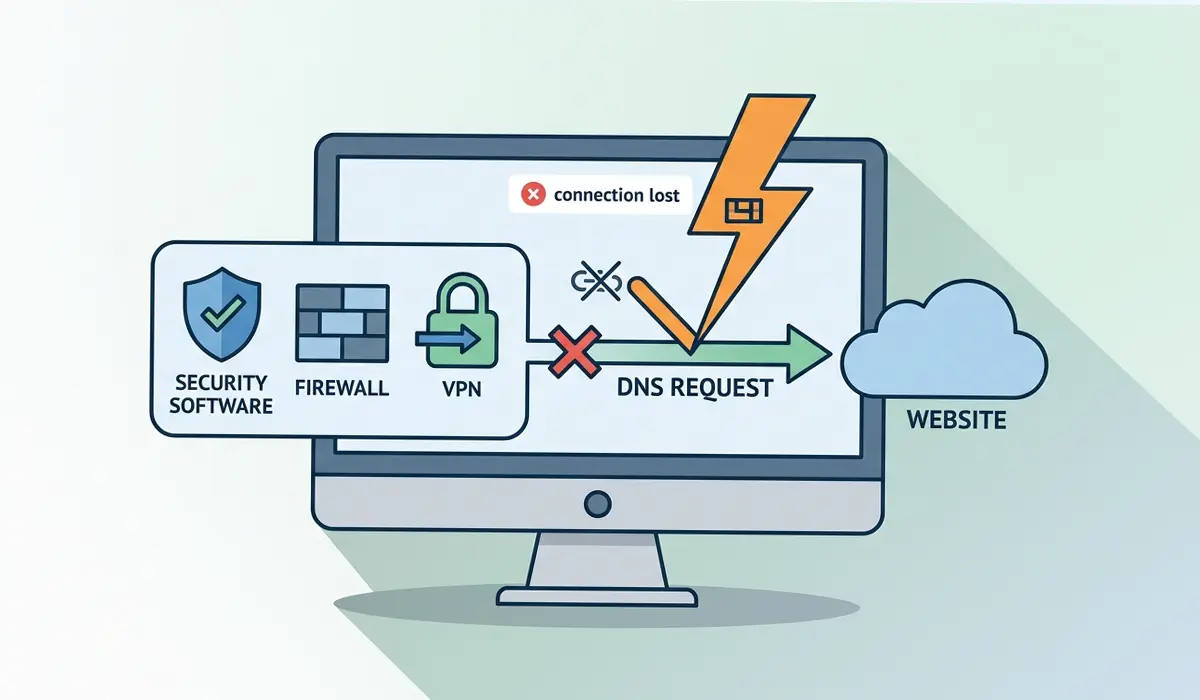
Some antivirus programs, firewalls, and VPN clients route or filter DNS traffic, and a misconfigured rule can block requests entirely.
Corrupted DNS Cache
Windows stores recently used DNS results locally to speed things up. If that cache becomes corrupted, it can keep feeding the system bad information even after the original issue is fixed elsewhere.

How to Fix DNS Server Not Responding
Work through these steps in order. Most people find the issue resolves within the first three or four steps, so there is rarely a need to go through the entire list.
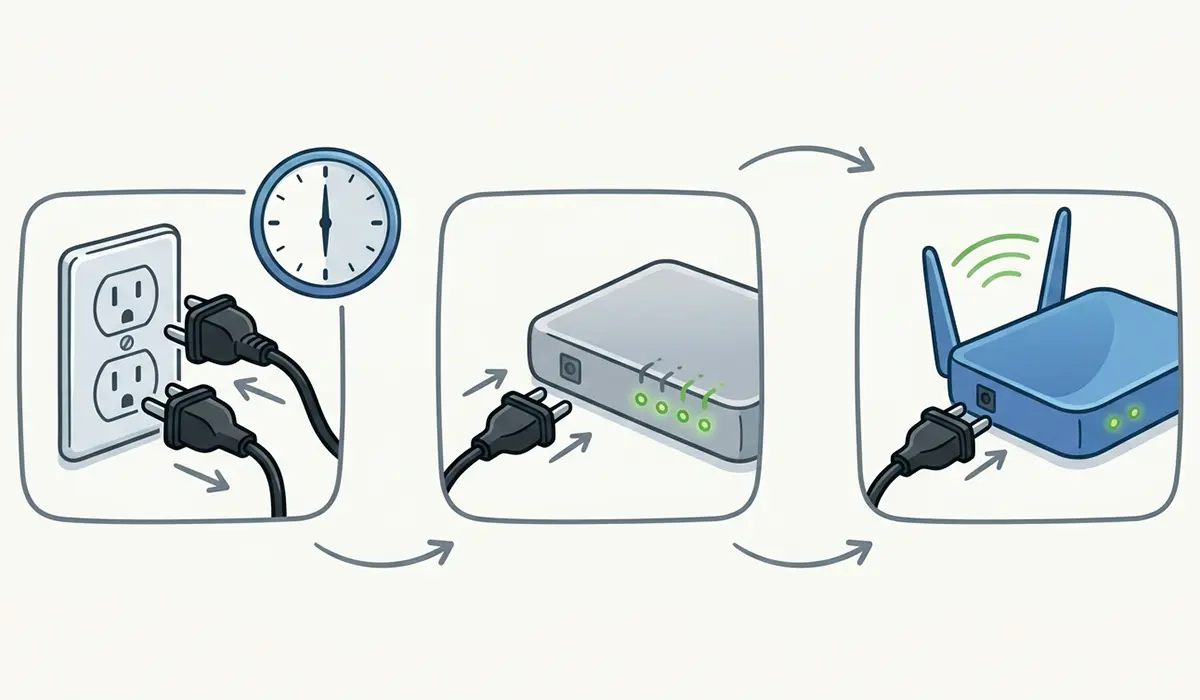
- Step 1: Restart the router and modem. Unplug both for about 30 seconds, plug the modem back in first, wait for its lights to stabilize, then plug in the router.
- Step 2: Restart the computer. This clears temporary network glitches that a simple reboot often resolves on its own.
- Step 3: Try a different browser or device on the same network. If the error only shows up in one browser, the problem is likely browser-specific rather than a true DNS failure.
- Step 4: Flush the DNS cache. Open Command Prompt as an administrator and run ‘ipconfig /flushdns’, followed by ‘ipconfig /registerdns’ and ‘ipconfig /release’ then ‘ipconfig /renew’.
- Step 5: Disable the connection’s secondary or ‘metered’ network settings temporarily, since some configurations quietly block DNS resolution over certain connection types.
- Step 6: Change the DNS server address manually. Go to Settings, then Network and Internet, select the active connection, open its properties, and edit the DNS server assignment to use a public DNS provider such as Google DNS (8.8.8.8 and 8.8.4.4) or Cloudflare DNS (1.1.1.1 and 1.0.0.1).
- Step 7: Update the network adapter driver. Open Device Manager, expand Network adapters, right-click the active adapter, and choose Update driver, then select ‘Search automatically for drivers’.
- Step 8: Temporarily disable antivirus, firewall, or VPN software one at a time to see whether any of them is intercepting DNS traffic. Re-enable each one after testing.
- Step 9: Reset the network stack entirely if nothing above has worked. Run ‘netsh winsock reset’ and ‘netsh int ip reset’ in an administrator Command Prompt, then restart the computer.
Tip: Write down the original DNS settings before changing anything, in case there is a reason to switch back to the internet provider’s default configuration later.
Change Your DNS Server Address
This single change resolves the issue for a large number of users, particularly when the internet provider’s own DNS servers are the ones having trouble. Public DNS services tend to be faster and more reliable, and switching takes only a couple of minutes through the network adapter settings described in Step 6 above.
Common Problems and Fixes
The Error Returns After a Windows Restart
This usually means the DNS settings reverted to automatic. Recheck the adapter properties and confirm the manual DNS addresses are still saved, since some VPN or antivirus tools reset these values on startup.
Flushing DNS Did Not Help
Move on to updating the network driver or switching the DNS server address. A flush only clears cached results, so it will not fix a genuinely unreachable or misconfigured DNS server.
Only One Website Triggers the Error
This points to a problem with that specific site’s DNS records rather than the local network. Testing a few other sites confirms whether the issue is broad or isolated.
Wired Connection Works but Wi-Fi Does Not
This suggests the wireless adapter driver or its specific DNS configuration is the source, rather than the router or modem. Updating or resetting just the Wi-Fi adapter often clears it.
Winsock Reset Did Not Resolve the Issue
At this point, the router itself may need a full factory reset, or the internet provider may be experiencing an outage on their end. Contacting the provider is a reasonable next move.
Frequently Asked Questions
What does ‘DNS server not responding’ actually mean?
It means the device sent a request to translate a website address into an IP address, and the DNS server either did not reply or replied too slowly for the connection to complete.
Does this error mean the internet is down?
Not necessarily. Many other services, such as some apps or games that connect directly by IP address, can keep working even while DNS resolution fails for web browsing.
Is it safe to use Google DNS or Cloudflare DNS instead of the internet provider’s DNS?
Yes. Both are widely used, free, and generally faster and more reliable than many default provider-assigned DNS servers.
Why does flushing the DNS cache sometimes fix the problem instantly?
Old or corrupted cached entries can point to outdated or incorrect information. Clearing the cache forces Windows to request fresh, accurate data.
Can a VPN cause this error?
Yes. Some VPN clients route DNS requests through their own servers, and if that server has an issue, the local connection will show the same error even though nothing is wrong with the router.
Why does this happen more often after a Windows update?
Updates occasionally reset network adapter settings or install new driver versions that have not been fully optimized yet, both of which can temporarily disrupt DNS resolution.
Should the router be reset to factory settings to fix this?
Only as a later step. A factory reset erases custom settings such as Wi-Fi passwords and port forwarding rules, so it is worth trying the earlier steps first.
How can this error be prevented going forward?
Keeping network drivers updated, restarting the router periodically, and using a reliable public DNS server all reduce how often this error shows up.
Does this issue affect both wired and wireless connections the same way?
Not always. Since Windows treats each network adapter separately, it is possible for a DNS problem to affect Wi-Fi but not Ethernet, or the other way around.
When is it time to contact the internet provider instead of troubleshooting further?
If every step above has been tried and the error still appears on multiple devices and networks, the issue is likely on the provider’s side rather than the local setup.
