
A hard drive or SSD pinned at 100 percent in Task Manager turns even simple tasks into a slow crawl. Learning how to fix high disk usage in Windows starts with finding the process behind the spike, then addressing the handful of background services that usually cause it.
Key Takeaways
- High disk usage is almost always caused by a specific background process, not a hardware failure, though a failing drive should still be ruled out.
- Task Manager and Resource Monitor are the fastest way to identify which app or service is hammering the disk.
- SysMain, Windows Search indexing, and antivirus scans are the three most common culprits.
- Most fixes take a few minutes and require no special tools.
- Persistent 100 percent usage after every fix is applied points toward a drive that needs a health check.
Common Causes of High Disk Usage in Windows
Before jumping into fixes, it helps to understand what typically drives disk activity through the roof. A few processes are repeat offenders across almost every version of Windows 10 and Windows 11.
Background Services Doing Too Much at Once
SysMain, formerly known as Superfetch, preloads frequently used apps into memory to speed up launch times. On mechanical hard drives especially, this constant background reading and writing can eat up most of the available disk throughput.
Search Indexing and Updates
Windows Search Indexer catalogs files in the background so search results appear instantly, but a large or corrupted index can keep the disk busy for extended stretches. Windows Update behaves the same way, downloading and installing patches quietly while other apps compete for the same disk bandwidth.
Security Software and Startup Overload
Antivirus programs run real-time and scheduled scans that read through thousands of files, and a machine with too many startup apps forces the disk to load several programs simultaneously the moment Windows boots.
Aging or Failing Storage
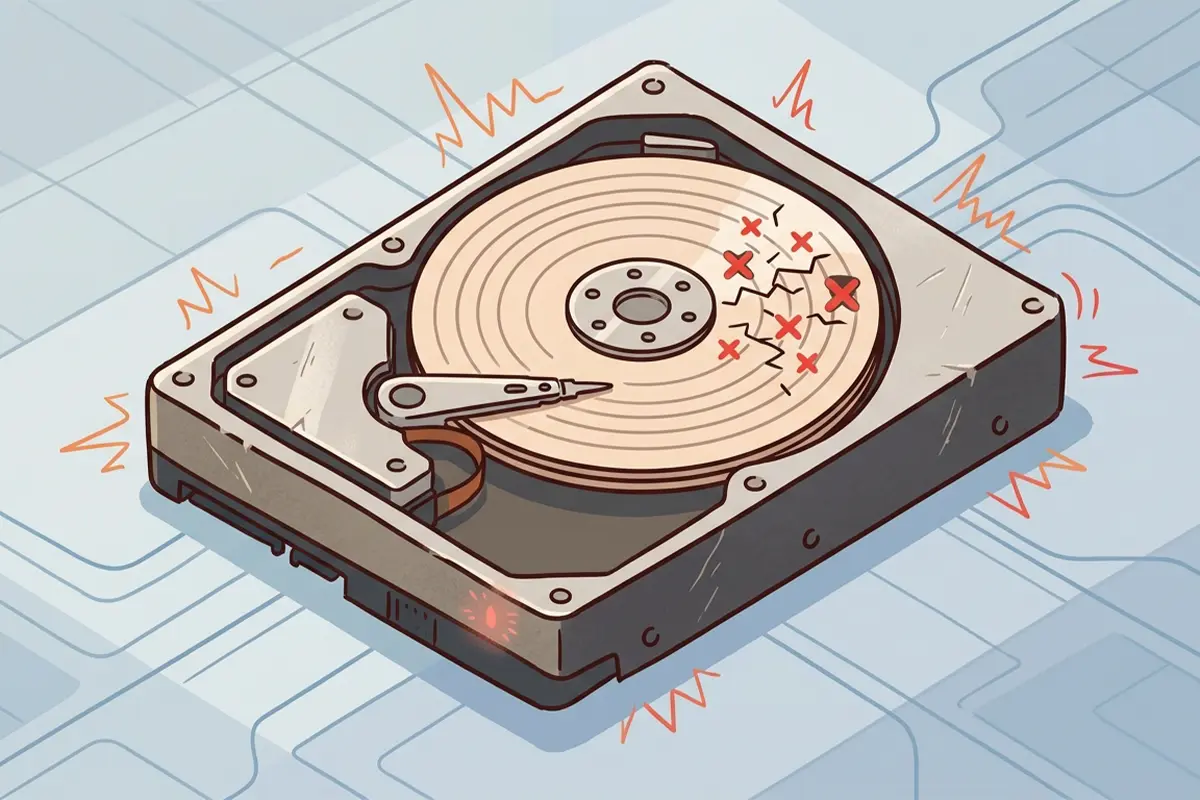
An older mechanical drive naturally struggles more than a solid-state drive under the same workload, and a drive nearing the end of its life often shows disk usage spikes as it retries failed read operations.
Step-by-Step Fixes for High Disk Usage
Tip: Work through these steps in order rather than jumping straight to advanced fixes. Most cases resolve within the first three or four steps.
- Step 1: Open Task Manager with Ctrl, Shift, and Esc, click the Disk column to sort by usage, and note which process sits at the top. This identifies whether the issue is a single runaway app or a system-wide slowdown.
- Step 2: Open Resource Monitor by typing resmon into the Start menu search box, then check the Disk tab for a more detailed breakdown of read and write activity per process.
- Step 3: Disable SysMain by opening the Services app (services.msc), locating SysMain, right-clicking it, choosing Properties, and setting Startup type to Disabled before clicking Stop.
- Step 4: Pause Windows Search indexing temporarily by opening Services, finding Windows Search, and setting it to Disabled if the index appears to be the main source of activity. Re-enable it once the disk usage issue is confirmed resolved, since search indexing does return real value over time.
- Step 5: Check for and complete any pending Windows Update by going to Settings, then Windows Update, and letting any in-progress download or installation finish rather than interrupting it.
- Step 6: Open Task Manager, select the Startup tab, and disable any programs that are not needed the moment the PC boots. Fewer competing startup processes means less simultaneous disk activity.
- Step 7: Run a full scan with Windows Security or the installed antivirus program, then confirm the software is not set to run continuous background scans during active work hours.
- Step 8: Check drive health by opening Command Prompt as an administrator and running chkdsk C: /f to scan for and repair file system errors, restarting when prompted.
- Step 9: Temporarily pause OneDrive or any other cloud sync client from its system tray icon to see if ongoing file synchronization is contributing to the load.
- Step 10: Update the storage controller driver through Device Manager, since an outdated or generic driver can sometimes cause inefficient disk communication.

Common Problems and Fixes
Disk usage still shows 100 percent after all the steps above
This usually points toward a drive that is starting to fail rather than a software conflict. Running a manufacturer diagnostic tool, or checking SMART status through a utility built for that purpose, will confirm whether the drive itself needs replacing.
Disk usage spikes only right after startup
This is often normal behavior as Windows loads startup apps, checks for updates, and lets SysMain preload common programs. If the spike settles within a minute or two, no further action is needed. If it continues well past that window, revisit the startup app list from Step 6.
One specific app causes the spike every time it opens
Some applications, particularly browsers with many extensions or apps with large local databases, generate heavy disk reads on launch. Updating that app to its latest version or checking its own settings for cache size limits often resolves this.
An external or USB drive triggers the high usage warning
Task Manager sometimes attributes overall disk usage to activity happening on an attached external drive. Disconnecting it briefly confirms whether the internal drive is actually the source of the problem.
Disk usage returns a few days after disabling SysMain
Windows occasionally re-enables services after a major update. Checking the Services app again and resetting the startup type back to Disabled resolves this quickly.
Frequently Asked Questions
Why is my disk usage at 100 percent for no obvious reason?
Background services like SysMain, Windows Search, and antivirus scans run silently and often account for spikes that appear to have no clear cause. Sorting Task Manager by the Disk column usually reveals the responsible process.
Is disabling SysMain safe?
Yes, disabling SysMain is safe and reversible. It can slightly slow the initial launch of frequently used apps, but it has no impact on system stability.
Does high disk usage mean the hard drive is failing?
Not necessarily. Most cases trace back to background processes rather than hardware failure, though a drive that stays at 100 percent even when idle should be checked for health issues.
Will an SSD upgrade fix high disk usage?
An SSD upgrade improves overall responsiveness and reduces the impact of background activity, but it does not eliminate the root cause if a specific process is consuming excessive disk resources.
Why does disk usage spike right after Windows starts?
This is typically caused by startup programs loading, Windows Update checking for patches, and SysMain preloading common applications. It should settle within a minute or two under normal conditions.
Should Windows Search indexing stay disabled permanently?
Disabling it permanently is not recommended, since it speeds up file searches significantly. It works best as a temporary troubleshooting step to confirm whether indexing is the cause.
Can antivirus software cause high disk usage?
Yes, real-time scanning and scheduled full scans both generate significant disk activity. Adjusting scan schedules to run during idle periods reduces the impact on regular use.
How can drive health be checked without extra software?
Running chkdsk from an administrator Command Prompt checks for and repairs file system errors, and Windows also reports basic drive status through the Optimize Drives tool found in the Start menu search.
Does more RAM help with high disk usage?
More RAM reduces reliance on the page file for memory overflow, which can lower disk activity in memory-constrained situations, though it does not address background services that are the more common cause.
