
Sorting through a packed inbox to find what hasn’t been read yet wastes time that could go toward actual work. Learning how to search for unread emails in Outlook takes less than a minute once the right search command or filter is in place, and it works the same way whether the inbox has ten unread messages or ten thousand.
Key Takeaways
- Typing ‘is:unread’ into the Outlook search bar instantly filters the view to unread messages only.
- The Home tab’s Filter Email option offers a one-click ‘Unread’ shortcut in desktop Outlook.
- Outlook on the web and mobile use the same ‘is:unread’ search command as desktop.
- A default Search Folder called ‘Unread Mail’ can be pinned for permanent, one-click access.
- Search results can be scoped to the current folder or expanded across all mailboxes and folders.
How to Search for Unread Emails in Outlook
Using the Search Bar (Desktop, Web, and Mobile)
- Step 1: Open Outlook and click into the search bar at the top of the window. On mobile, tap the magnifying glass icon.
- Step 2: Type ‘is:unread’ directly into the search field, with no spaces around the colon.
- Step 3: Press Enter. Outlook immediately narrows the message list to only unread items.
- Step 4: Check the search scope dropdown, usually labeled ‘Current Folder’ or ‘All Mailboxes,’ to decide whether the search should cover just the inbox or every folder, including subfolders and archives.

Tip: This search command works identically across Outlook for Windows, Mac, the web version, and the mobile app, so the habit transfers no matter which device is in use.
Using the Filter Email Button (Outlook Desktop)
- Step 1: Go to the Home tab on the ribbon.
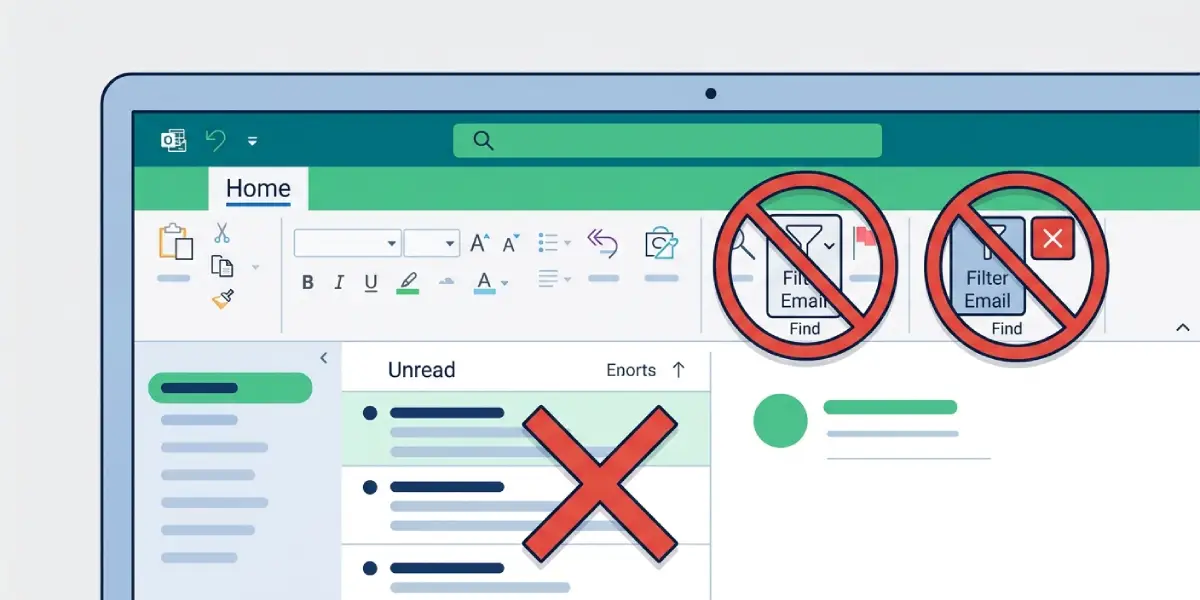
- Step 2: Locate the ‘Filter Email’ button in the Find group.
- Step 3: Select ‘Unread’ from the dropdown menu. This applies a filter icon next to the search bar and shows unread messages only, without needing to type anything.
- Step 4: Click the small ‘X’ next to the filter tag, or select ‘Filter Email’ again and choose ‘Unread’ to toggle it off, once the search is finished.
Using the Default Unread Mail Search Folder
- Step 1: In the folder pane, expand ‘Search Folders’ near the bottom of the mailbox list.
- Step 2: Click ‘Unread Mail,’ a search folder Outlook creates automatically.
- Step 3: Right-click the folder pane and choose ‘New Search Folder’ if ‘Unread Mail’ isn’t visible, then select ‘Unread mail’ from the list and click OK to recreate it.
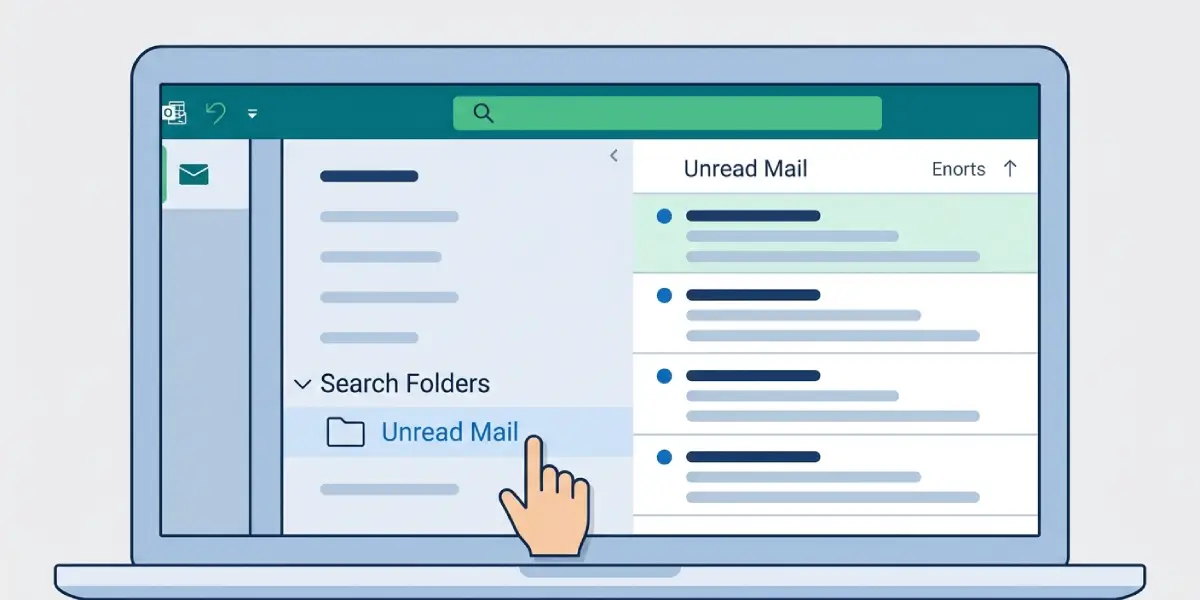
Tip: Pinning the Unread Mail search folder to the Favorites section at the top of the folder pane turns this into a permanent one-click shortcut instead of a repeated search.
Common Problems and Fixes
- Search shows no results despite unread messages existing: Check the scope dropdown. If it’s set to a specific subfolder, switch it to ‘All Mailboxes’ or ‘All Outlook Items.’
- ‘is:unread’ isn’t recognized as a search term: Make sure there’s no space between ‘is’ and ‘unread,’ and that autocomplete suggestions aren’t altering the typed text before Enter is pressed.
- Unread Mail search folder is missing: The folder can be deleted accidentally. Recreate it through ‘New Search Folder’ and select the ‘Unread mail’ template.
- Messages read on another device still show as unread: This usually points to a sync delay. Manually send/receive or wait for the account to sync across devices.
- Filter stays applied after closing Outlook: Clear the filter manually by clicking the ‘X’ on the filter tag before switching tasks, since some views retain the last filter used.
Frequently Asked Questions
What is the exact search command for unread emails in Outlook?
Typing ‘is:unread’ into the search bar and pressing Enter filters the current view to unread messages only.
Does the unread search work in Outlook on the web?
Yes. Outlook.com and Outlook on the web use the same ‘is:unread’ search syntax as the desktop app.
Can unread emails be searched across all folders at once?
Yes. Setting the search scope to ‘All Mailboxes’ or ‘All Outlook Items’ expands the unread search beyond the current folder.
How does the Unread Mail search folder differ from typing ‘is:unread’?
The search folder is a saved, permanent shortcut that updates automatically, while typing ‘is:unread’ runs a fresh search each time it’s entered.
Is there a keyboard shortcut to jump straight to unread messages?
There’s no dedicated shortcut for a live search, but pinning the Unread Mail search folder to Favorites gives one-click access without retyping anything.
Why do some read emails still appear in unread search results?
This typically happens when a message was marked unread manually after being opened. The search reflects the read/unread flag, not just whether the email was previously viewed.
Can the unread search be combined with a sender or subject search?
Yes. Adding terms like ‘is:unread from:name’ or ‘is:unread subject:report’ narrows results further within the unread filter.
Does searching for unread emails work the same on the Outlook mobile app?
Yes. Tapping the search icon and entering ‘is:unread’ filters messages the same way it does on desktop and web.
How can the unread filter be removed after finishing a search?
Clicking the ‘X’ on the filter tag next to the search bar, or clearing the search box entirely, restores the normal inbox view.
