
When a BIOS update fails midway through, a PC can freeze on a black screen, get stuck in a boot loop, or refuse to power on at all. This is one of the more stressful hardware scares a PC owner can run into, but most failed flashes are recoverable without replacing the motherboard.
Key Takeaways
- Most failed BIOS updates are caused by a power interruption or a mismatched firmware file, not permanent hardware damage.
- A blank or unresponsive screen after a failed flash does not automatically mean the motherboard is dead.
- Clearing the CMOS and using built-in backup BIOS recovery tools solves the majority of cases.
- Laptops are far more limited in DIY recovery options than desktop motherboards.
- Prevention (stable power, correct firmware file, no interruptions) avoids almost every one of these situations.
Common Causes of a Failed BIOS Update
Understanding why the update failed makes the fix much easier to identify. A few situations account for nearly every failed flash.
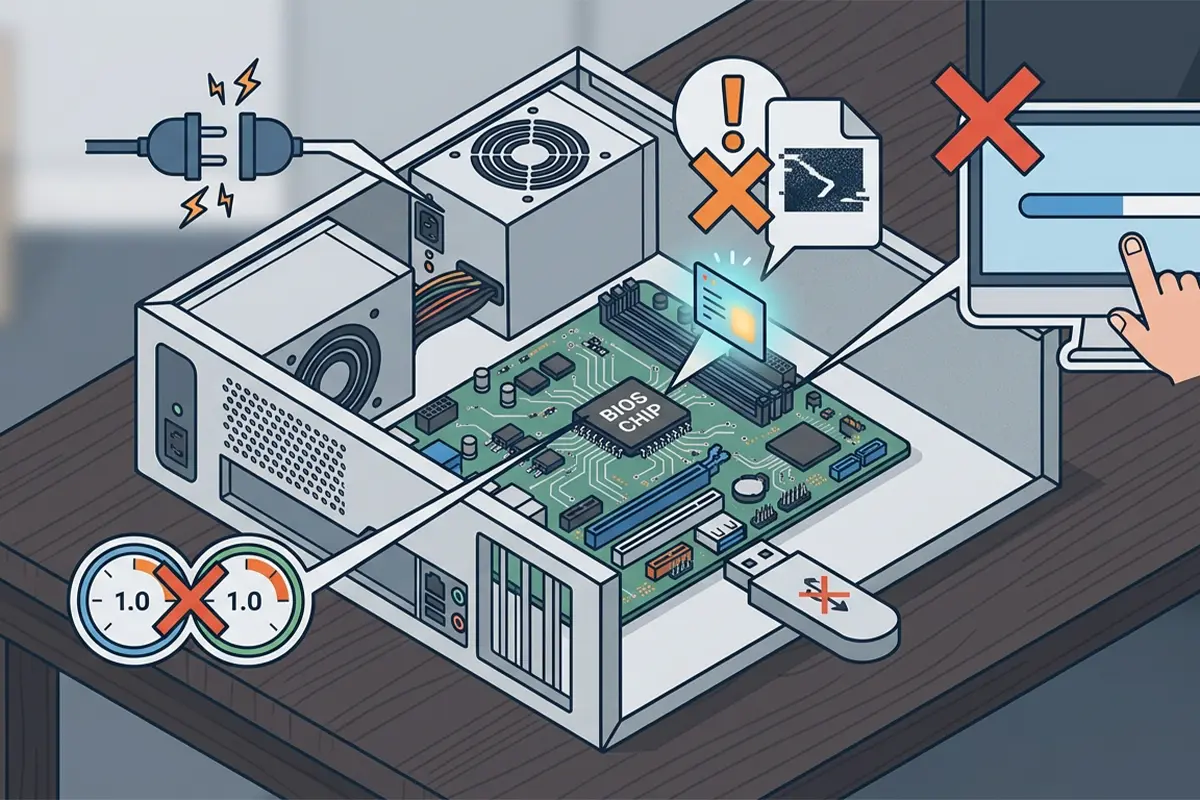
- Power loss during the flash: A sudden shutdown, an unplugged laptop with a dead battery, or an unstable power supply cutting out mid-write is the most common cause of a bricked BIOS.
- Wrong or corrupted firmware file: Downloading a BIOS file meant for a different motherboard revision or model number, or a file that got corrupted during download, will usually fail a checksum check partway through.
- Interrupting the update process: Closing the flashing utility, pressing the reset button, or opening another program that causes a system freeze while the write is in progress can leave the BIOS in a half-written state.
- USB drive problems: When flashing from a USB drive, a drive that is not formatted correctly, has bad sectors, or is not fully seated in the port can cause the update to stall or read incomplete data.
- Flashing an already current or incompatible version: Some boards reject a flash that does not match expected version logic, which can cause the utility to hang instead of exiting cleanly.
Before You Start
Recovering from a failed BIOS update sometimes means opening the case, so it helps to prepare properly before touching any internal hardware.
- Power off the system completely and unplug it from the wall outlet.
- Press and hold the power button for about 10 seconds after unplugging to drain any residual power from the capacitors.
- Touch a bare metal part of the case, or wear an anti-static wrist strap, before handling any internal component.
- Have the motherboard manual or laptop model number ready, since jumper positions and recovery methods vary between models.
Tools and materials needed:
- A Phillips head screwdriver
- A USB flash drive (formatted to FAT32) if a recovery flash is required
- An anti-static wrist strap, or access to a bare metal surface for grounding
- A small flathead screwdriver or plastic pry tool, if a CMOS jumper needs to be moved
Desktop motherboards are generally safe to work on for anyone comfortable opening a case. Laptops are a different story: the BIOS chip is often soldered directly to the board with no jumper access, and many models have no user-facing recovery option. If a laptop shows no signs of life after a failed update, this is the point to stop and contact the manufacturer’s support line or an authorized repair center rather than attempting a DIY fix.
How to Recover From a Failed BIOS Update
Work through these steps in order. Most failed updates are resolved in the first two or three steps.
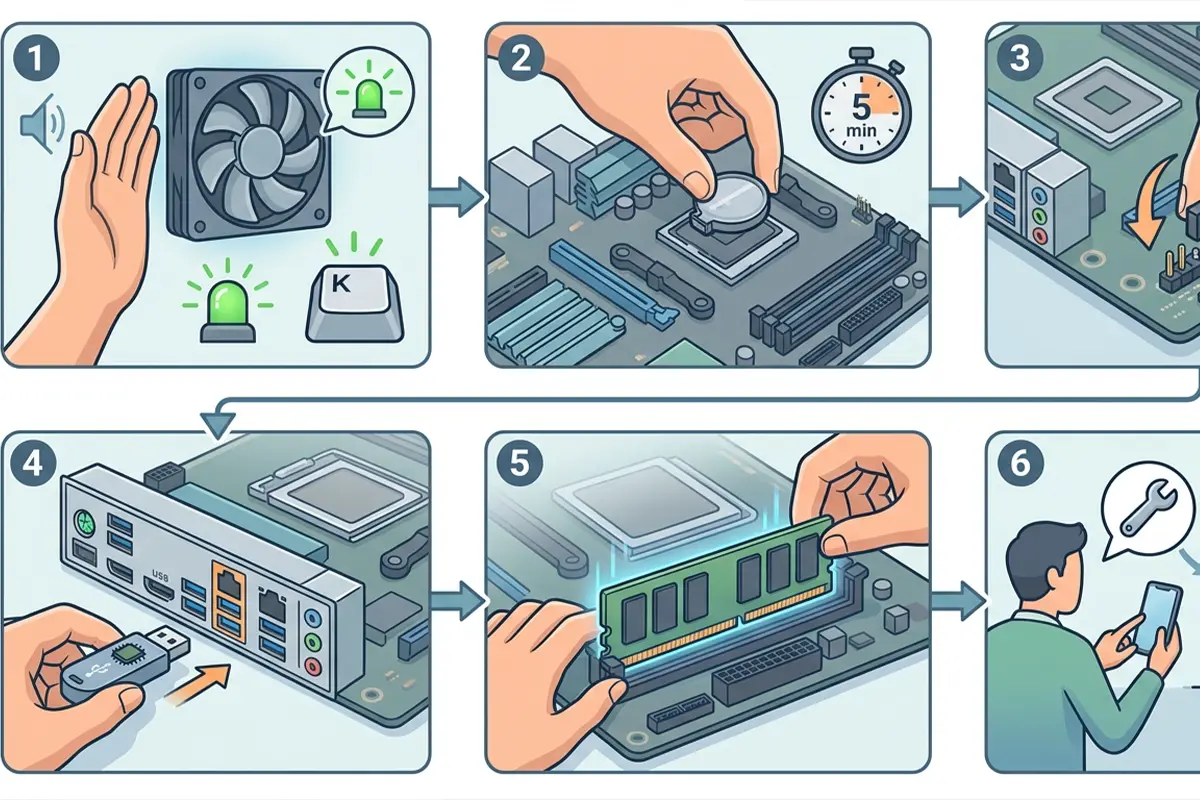
- Step 1: Check for any signs of life. Listen for fans spinning, look for lit LEDs on the motherboard, and check if the caps lock key responds. A system that powers on but shows no video is in a different state than one that will not power on at all, and that distinction changes which fix applies.
- Step 2: Disconnect power completely, then remove the CMOS battery from the motherboard for about 5 minutes before reinserting it. This resets the BIOS settings to default and can clear a corrupted configuration that is blocking a normal boot.
- Step 3: If the board has a CMOS clear jumper (check the manual for its exact location), move it to the clear position for a few seconds, then return it to the normal position and attempt to power on.
- Step 4: Look for a dedicated BIOS recovery feature. Many current motherboards include a backup BIOS chip or a flashback-style port that allows reflashing directly from a USB drive without needing a working CPU or RAM installed. Rename the correct firmware file exactly as the manual specifies, place it on a FAT32 USB drive, plug it into the marked port, and hold the recovery button as instructed.
- Step 5: Reseat the RAM and any graphics card. A loose connection can sometimes present symptoms that look identical to a failed BIOS flash, and reseating components rules this out before assuming the worst.
- Step 6: If none of the above restores video output or a normal boot, the BIOS chip likely needs to be reprogrammed with an external chip programmer, or replaced outright. At this point, a local repair shop or the motherboard manufacturer’s RMA service is the practical next step.
Tip: Before starting any recovery attempt, write down the exact motherboard model and revision number. Recovery jumper locations and flashback procedures differ even between closely related board revisions from the same manufacturer.
Common Problems and Fixes
The system powers on but there is still no display
This usually points to a partially written BIOS rather than a fully bricked one. Try the CMOS clear steps above, and confirm the monitor is connected to the correct video output if a discrete graphics card is installed.
The BIOS recovery flash will not detect the USB drive
Reformat the drive to FAT32, use a different USB port (preferably one directly on the rear I/O panel), and double check that the firmware file name matches exactly what the manual requires, since recovery modes are often strict about naming.
The system boots but settings keep resetting after every restart
This is a common sign of a failing CMOS battery rather than a leftover BIOS issue. Replacing the small coin cell battery on the motherboard typically resolves it.
The recovery process seems to run but the system still will not boot afterward
Some boards need a second full power cycle, including unplugging from the wall, before the newly flashed BIOS takes effect. If a second attempt still fails, this points toward a hardware-level BIOS chip issue rather than a simple flash problem.
Frequently Asked Questions
Can a failed BIOS update actually destroy a motherboard?
Rarely. Most failed updates leave the BIOS chip in a corrupted but recoverable state rather than causing physical damage to the board itself.
Why did the power go out during the BIOS update?
The most frequent cause is an unstable power supply, an unplugged laptop running on a low or worn-out battery, or a sudden outage. This is why BIOS updates should always be done with a laptop plugged in or a desktop on a stable power source.
Is it safe to restart the computer manually if a BIOS update seems frozen?
Forcing a restart mid-flash is exactly what usually causes the failure in the first place. It is safer to wait several extra minutes than assume it has frozen too early, since some flashes legitimately take longer than expected.
Does clearing the CMOS erase personal files?
No. Clearing the CMOS only resets BIOS settings like boot order and fan curves back to factory defaults. It has no effect on the operating system, installed programs, or personal files on the storage drive.
What is BIOS Flashback and does every motherboard have it?
BIOS Flashback (or similarly named features depending on the manufacturer) allows reflashing the BIOS directly from a USB drive without a working CPU or RAM installed. It is common on mid-range and higher motherboards but not universal, so checking the specific board’s manual is necessary.
Can a failed BIOS update on a laptop be fixed the same way as a desktop?
Not usually. Most laptops lack a CMOS jumper or flashback port, and the BIOS chip is often soldered in place. A laptop that fails to boot after an update typically needs manufacturer support or a professional repair service rather than a DIY fix.
How long should a normal BIOS update take?
Most updates complete within a few minutes. A process that appears stuck well beyond the expected time and shows no drive activity or progress indicator may indicate a genuine failure rather than a slow but successful update.
Should the BIOS update be attempted again immediately after a failure?
Only after confirming the system can at least power on and reach the BIOS screen again. Repeating the same update on a system still in a bad boot state can compound the problem instead of fixing it.
How can a failed BIOS update be prevented next time?
Use a stable power source or an uninterruptible power supply, download the firmware file directly from the exact model and revision page, and avoid touching the computer or closing the update utility until it confirms completion on its own.
