
A keyboard backlight not working is usually a settings or driver problem rather than a broken keyboard, and most cases can be solved without opening the laptop. This guide walks through the real causes and the exact steps to get the backlight glowing again, starting with the quick fixes and moving into deeper troubleshooting for stubborn cases.
Key Takeaways
- The most common cause of a keyboard backlight not working is an accidental toggle off, a brightness level set to zero, or a power-saving setting.
- Driver issues and outdated keyboard software are frequent culprits after a Windows update.
- Checking the BIOS or UEFI settings helps determine whether the problem is software or hardware related.
- A backlight that works in BIOS but not in Windows almost always points to a driver or app conflict.
- Physical damage from spills or a loose ribbon cable is the least common cause, but it does happen and usually needs professional repair.
Common Causes of a Keyboard Backlight Not Working
Before diving into fixes, it helps to understand why this happens in the first place. Most laptops handle backlight control through a mix of firmware, a dedicated keyboard shortcut, and sometimes a manufacturer app, and any one of those layers can break the chain.
Software and Settings Causes
The backlight toggle is often bound to a function key combination, and it is easy to bump it by accident while typing quickly. Power plans can also be set to dim or disable the backlight to save battery, especially on battery power rather than while plugged in. A pending Windows update or a fresh driver install can reset these preferences without warning.
Hardware Causes
On the hardware side, a backlight failure can come from a disconnected or damaged ribbon cable beneath the keyboard, corrosion from a liquid spill, or in rare cases a failed keyboard controller. These issues are less common than software glitches, but they are worth ruling out if none of the software fixes work.
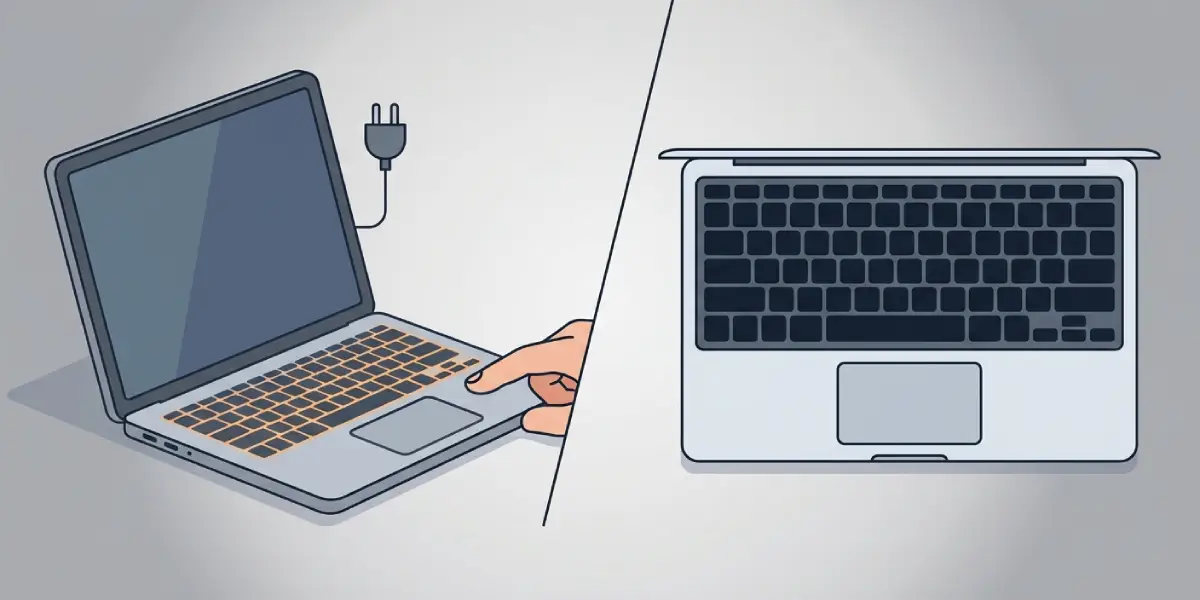
How to Fix a Keyboard Backlight Not Working
Work through these steps in order. Most people find the issue resolves within the first two or three steps, so there is no need to jump straight to disassembly.
Before You Start
Save any open work and close background apps before making changes. If any step later in this guide involves inspecting the keyboard physically, power off the laptop completely, unplug the charger, and remove the battery if it is user-removable. Let the machine cool down if it has been running, and touch a bare metal surface or use an anti-static wrist strap before touching any internal components.
- Step 1: Press the dedicated backlight key or the function key combination, usually Fn plus a key showing a light bulb or keyboard icon in one of the top rows. Press it a few times slowly, since some laptops cycle through off, low, and high brightness levels rather than a simple on-off switch.
- Step 2: Check the keyboard brightness level directly. Some laptops use a slider in the manufacturer’s control app or in Windows settings under keyboard options, and it is easy for this to sit at zero after an update.
- Step 3: Open Power Options in Windows and check the advanced power settings for anything labeled keyboard backlight or illumination. Confirm the setting is not set to turn off on battery, since some manufacturers default to this for battery savings.
- Step 4: Update or reinstall the keyboard driver. Open Device Manager, expand Keyboards, right-click the listed device, and choose to update the driver. If that does not help, uninstall the driver and restart the laptop so Windows reinstalls it fresh.
- Step 5: Confirm any manufacturer keyboard software is installed and running, such as a lighting or command center style app used by many gaming and business laptop brands. These apps often need to be running in the background for the backlight to respond at all, and a corrupted install can silently break the feature.
- Step 6: Restart the laptop and enter the BIOS or UEFI setup, usually by pressing a key like F2, F10, or Delete during startup. Look for a keyboard backlight setting here. If the backlight works inside BIOS but not once Windows loads, the problem is software, not hardware.
- Step 7: Run Windows Update and check for any pending updates, since a missing chipset or firmware update can affect how backlight commands are passed to the keyboard.
- Step 8: If nothing above works and there has been a liquid spill or physical impact near the keyboard, this points toward a hardware fault such as a loose ribbon cable connector. This is where a repair technician should take over, since reseating an internal keyboard cable involves opening the chassis.

Tip: Test the BIOS backlight setting early in the process rather than last. It takes under a minute and immediately tells whether the fault lives in Windows or in the hardware, which saves time on the remaining steps.
Common Problems and Fixes
Backlight Works on Battery but Not When Plugged In, or the Reverse
This points directly at the power plan settings from Step 3. Open the advanced settings for the active power plan and make sure the backlight or illumination setting matches on both battery and plugged-in profiles.
Only One Key or One Zone Does Not Light Up
This is more likely a hardware issue than the other-wide failures covered above, often tied to debris, a spill, or wear under that specific key. Compressed air under the key can clear debris, but a key that stays dark after cleaning usually needs the keycap or switch inspected by a technician.
Backlight Turns Off After Sleep or Wake
This usually traces back to the manufacturer’s keyboard app not restarting properly after sleep. Check whether the app is set to launch on startup, and update it if a newer version is available, since this is a known issue that gets patched over time.
Backlight Flickers Instead of Staying Steady
Flickering during normal use often signals a loose internal connector rather than a settings problem, especially if it happens more when the laptop lid is opened or closed at certain angles. This is a sign to have the internal keyboard cable checked rather than continuing to adjust software settings.
Backlight Setting Keeps Resetting on Its Own
A setting that will not stick, even after being changed, usually means the manufacturer software is conflicting with a Windows update. Reinstalling the latest version of that software directly from the manufacturer’s support page typically resolves this.
Frequently Asked Questions
Why did my keyboard backlight suddenly stop working after a Windows update?
Windows updates sometimes reset the keyboard driver or interfere with manufacturer lighting software. Reinstalling the driver or the keyboard app usually restores the backlight.
How do I turn my keyboard backlight back on?
Look for a function key combination, often Fn plus a key with a light bulb or keyboard icon, and press it a few times to cycle through brightness levels.
Does every laptop have a keyboard backlight?
No, keyboard backlighting is a feature found on many mid-range and higher-end laptops, but budget models frequently do not include it at all.
Can a keyboard backlight be fixed without opening the laptop?
Yes, in most cases the fix is a settings change, driver update, or software reinstall, none of which require opening the chassis.
Why does my keyboard backlight work in BIOS but not in Windows?
This confirms the hardware is fine and the issue lies in a Windows driver or the manufacturer’s lighting software, so the fix should focus there.
Will a spilled drink permanently disable the keyboard backlight?
It can, especially if liquid reaches the ribbon cable or controller beneath the keys. Drying the laptop immediately and having it inspected reduces the chance of permanent damage.
Does keyboard backlight use a lot of battery?
It draws some extra power, particularly at higher brightness, which is why many power plans dim or disable it automatically on battery to extend runtime.
Why does only part of my keyboard light up?
Partial lighting usually points to a hardware issue with that section of the keyboard rather than a software setting, since software toggles affect the whole keyboard at once.
Is it safe to try fixing a keyboard backlight myself?
Software fixes like checking settings and updating drivers are safe for anyone to try. Anything involving opening the laptop to inspect internal cables should be left to a professional if there is no prior repair experience, and doing so may affect the warranty.
How long does it typically take to fix this issue?
Most software-related cases resolve within a few minutes once the correct setting or driver is found. Hardware-related cases take longer since they usually require a technician visit.
