
Quick Answer: Go to Settings > Personalization > Colors, set Windows mode to Dark, pick an accent color, then turn on Show accent color on Start and taskbar. The taskbar updates instantly.
How to Change the Taskbar Color in Windows 11
Here’s the thing — most people get stuck not because the setting is hard to find, but because one toggle stays grayed out the whole time. Windows 11 requires Dark mode to be active before the taskbar color option even becomes available. Get that right first and everything else takes about 30 seconds.
Below are all the ways to change it, starting with the easiest.
Method 1: Pick a Preset Color (Fastest)
This works for most people. Windows 11 includes a full color grid that applies to the taskbar instantly.
- Right-click an empty area of the desktop and select Personalize.
- Click Colors.
- Under Choose your mode, select Custom, then set Choose your default Windows mode to Dark.
- Under Accent color, click the dropdown and choose Manual.
- Click any color swatch from the Windows colors grid.
- Scroll down and turn on Show accent color on Start and taskbar.
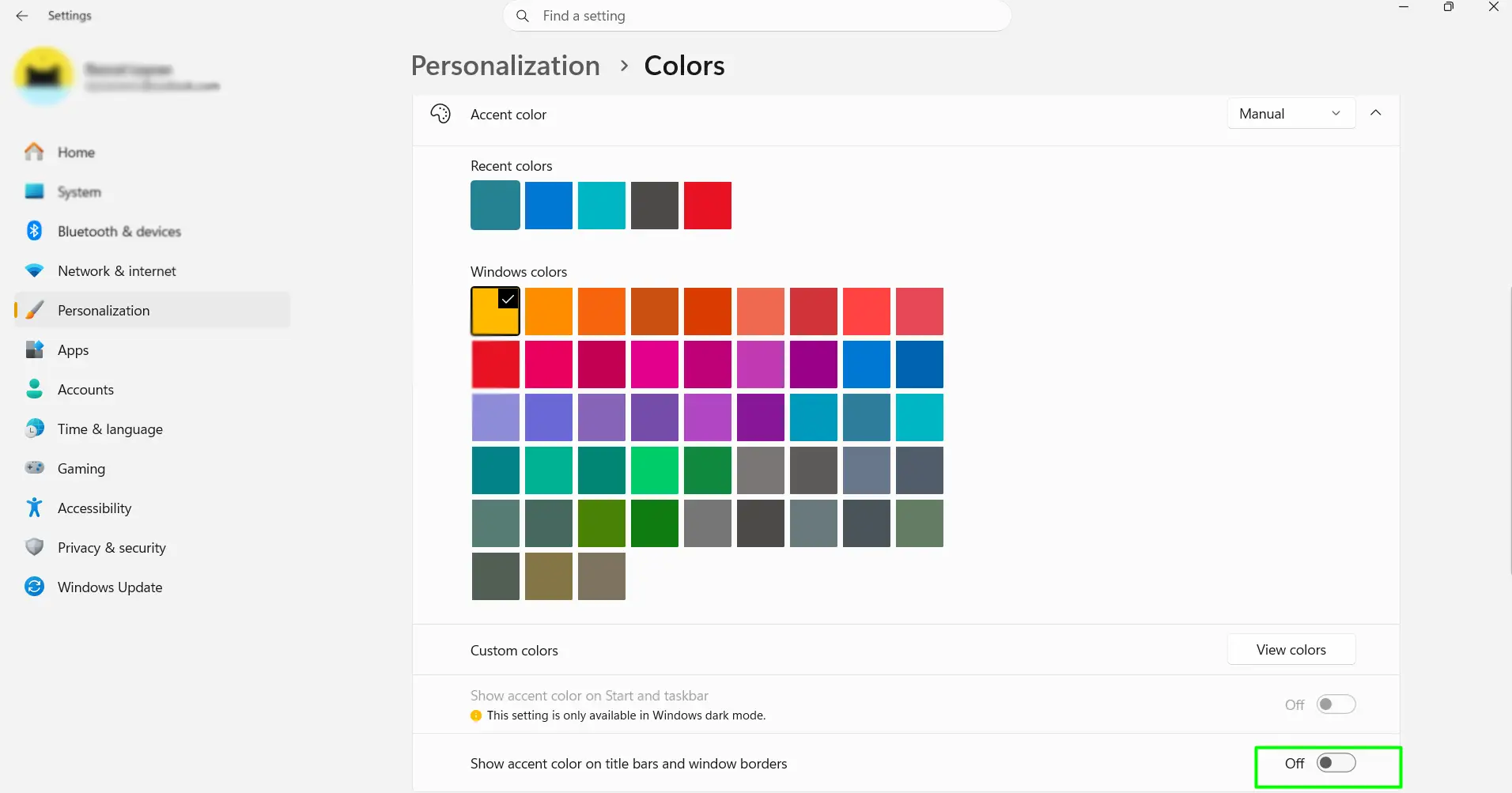
The taskbar updates immediately. No restart needed.
Method 2: Use a Custom Hex Code
Need an exact shade — like a brand color or something the presets don’t cover? Windows 11 supports full hex and RGB input.
- Go to Settings > Personalization > Colors.
- Make sure Windows mode is set to Dark and Accent color is set to Manual.
- Scroll down to Custom colors and click View colors.
- In the color picker, click More to reveal the hex input field.
- Type in the hex code (example:
#0078D4for Windows blue). - Click Done to save.
- Confirm Show accent color on Start and taskbar is turned On.
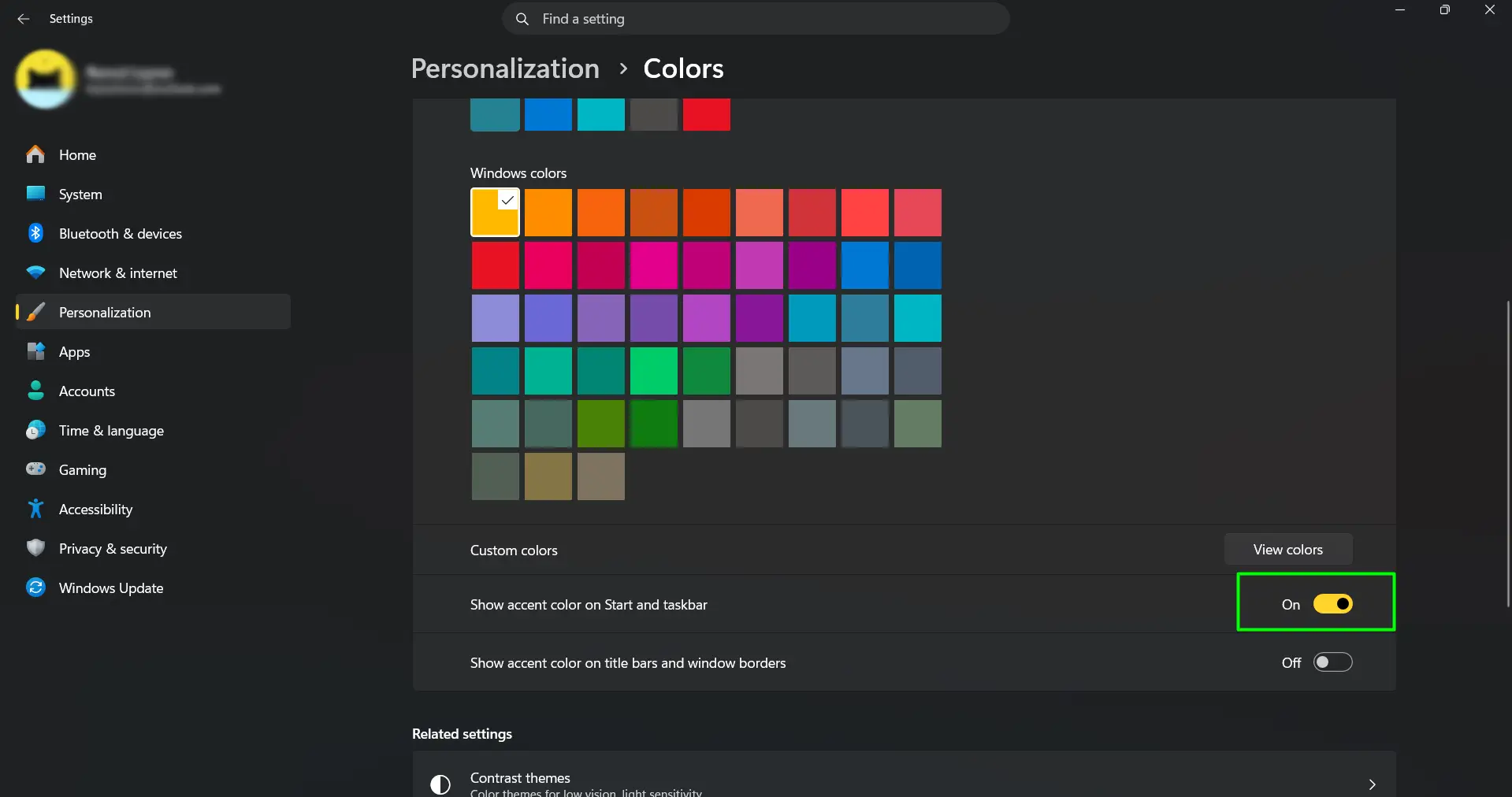
The key is writing down that hex code somewhere. Major Windows updates can occasionally reset personalization settings, and there’s no way to recover a custom color after that without the code.
Method 3: Automatically Match the Wallpaper
Most people find this option really satisfying. Windows samples the current wallpaper and picks a matching accent color automatically — and updates every time the wallpaper changes.
- Go to Settings > Personalization > Colors.
- Set Windows mode to Dark.
- Under Accent color, click the dropdown and select Automatic.
- Turn on Show accent color on Start and taskbar.
Works best with wallpapers that have one clear dominant color. Very busy or multi-colored images tend to produce unpredictable results.
Method 4: Extend the Color to Window Title Bars
Changing the taskbar color doesn’t automatically carry over to app windows. That’s a separate toggle — and it’s worth turning on for a cleaner, more cohesive look.
- Go to Settings > Personalization > Colors.
- Set a taskbar accent color using any method above.
- Scroll down and turn on Show accent color on title bars and window borders.
Open any app and the title bar will match the taskbar color immediately. It makes the whole desktop feel intentional rather than half-finished.
Tips for Getting the Best Results
- Dark or saturated colors work best. Very light shades can make taskbar icons and text harder to read at a glance. If a color looks washed out, go one shade darker.
- Turn on both color toggles. Enable Show accent color on Start and taskbar AND Show accent color on title bars and window borders together. It gives the entire desktop a unified, intentional look.
- Save custom hex codes before major updates. Minor Windows updates won’t touch personalization settings, but large feature updates occasionally do. Keep a note of any custom hex codes just in case.
- Test the color with the Start menu open. The accent color also shows up on the Start menu background. Pick something that looks good there, not just on the taskbar when it’s closed.
- Transparency effects change how colors look. If a color looks different from what was selected, go to Settings > Personalization > Colors and toggle off Transparency effects to see the true color. Turn it back on once the right shade is confirmed.
- Automatic mode pairs well with wallpaper slideshows. When both are active, the taskbar color shifts to match each new wallpaper automatically. No manual updates needed at all.
Frequently Asked Questions
Why is the taskbar color option grayed out in Windows 11?
The Show accent color on Start and taskbar toggle is locked when Windows mode is set to Light. Go to Settings > Personalization > Colors, find Choose your mode, and switch the default Windows mode to Dark. The toggle becomes active immediately.
Do you need Dark mode to change the taskbar color?
Yes. Windows 11 only allows taskbar color customization when Dark mode is active. In Light mode, the option exists in Settings but cannot be turned on. Switching to Dark mode takes one click and unlocks everything.
How do you use a specific hex code for the taskbar color?
Go to Settings > Personalization > Colors, scroll to Custom colors, and click View colors. In the color picker, click More to reveal the hex input field. Type in the code and click Done.
Can the taskbar and Start menu be set to different colors?
No. Windows 11 applies the accent color to both the taskbar and the Start menu through a single toggle. There is no built-in setting to give them separate colors without using a third-party tool.
Will the taskbar color reset after a Windows update?
Minor updates don’t touch personalization settings. However, major feature updates — like an annual Windows 11 version upgrade — can occasionally reset them. Save any custom hex codes before running a big update.
How do you make the taskbar color match the wallpaper automatically?
Go to Settings > Personalization > Colors, set the Accent color dropdown to Automatic, and make sure Show accent color on Start and taskbar is turned on. Windows will sample the wallpaper and update the taskbar color to match — including when the wallpaper changes.
Does the accent color apply to app windows too?
Not by default. There’s a separate toggle for that: Show accent color on title bars and window borders in the same Colors settings page. Turn it on to extend the accent color to every open app window.
Why does the taskbar color look different from the color picked?
Transparency effects blend the accent color with the wallpaper behind the taskbar, which shifts how it looks — especially on dark or colorful backgrounds. To see the exact color without the effect, temporarily turn off Transparency effects in Settings > Personalization > Colors.
Can this be done on Windows 11 Home?
Yes. Taskbar color settings are available on all editions of Windows 11 — Home, Pro, and Enterprise — in the same location under Settings > Personalization > Colors.
Does each user account on the same PC get its own taskbar color?
Yes. Personalization settings in Windows 11 are stored per user account. Each account can have a completely different taskbar color, theme, and wallpaper without affecting other users on the same machine.
Does automatic wallpaper color matching work with a slideshow?
Yes. When Accent color is set to Automatic and a wallpaper slideshow is running, Windows samples each new wallpaper as it appears and updates the taskbar color to match. It happens automatically every time the wallpaper switches.
