
Quick Answer: Right-click an empty spot on the taskbar, choose Taskbar settings, open Taskbar behaviors, and switch Taskbar alignment from Center to Left. The change happens instantly, and nothing needs to be restarted.
Windows 11 centers the taskbar icons by default, and that catches a lot of long-time Windows users off guard. Here’s the thing… it’s an easy fix. Most people find that once they know where the setting lives, they never have to think about it again.
Move the Taskbar to the Left (Easiest Method)
This is the fastest way to do it, and it works the same on every edition of Windows 11.
- Right-click any empty area of the taskbar.
- Select Taskbar settings.
- Scroll down and click Taskbar behaviors to expand it.
- Find the Taskbar alignment dropdown, which is set to Center by default.
- Click the dropdown and choose Left.
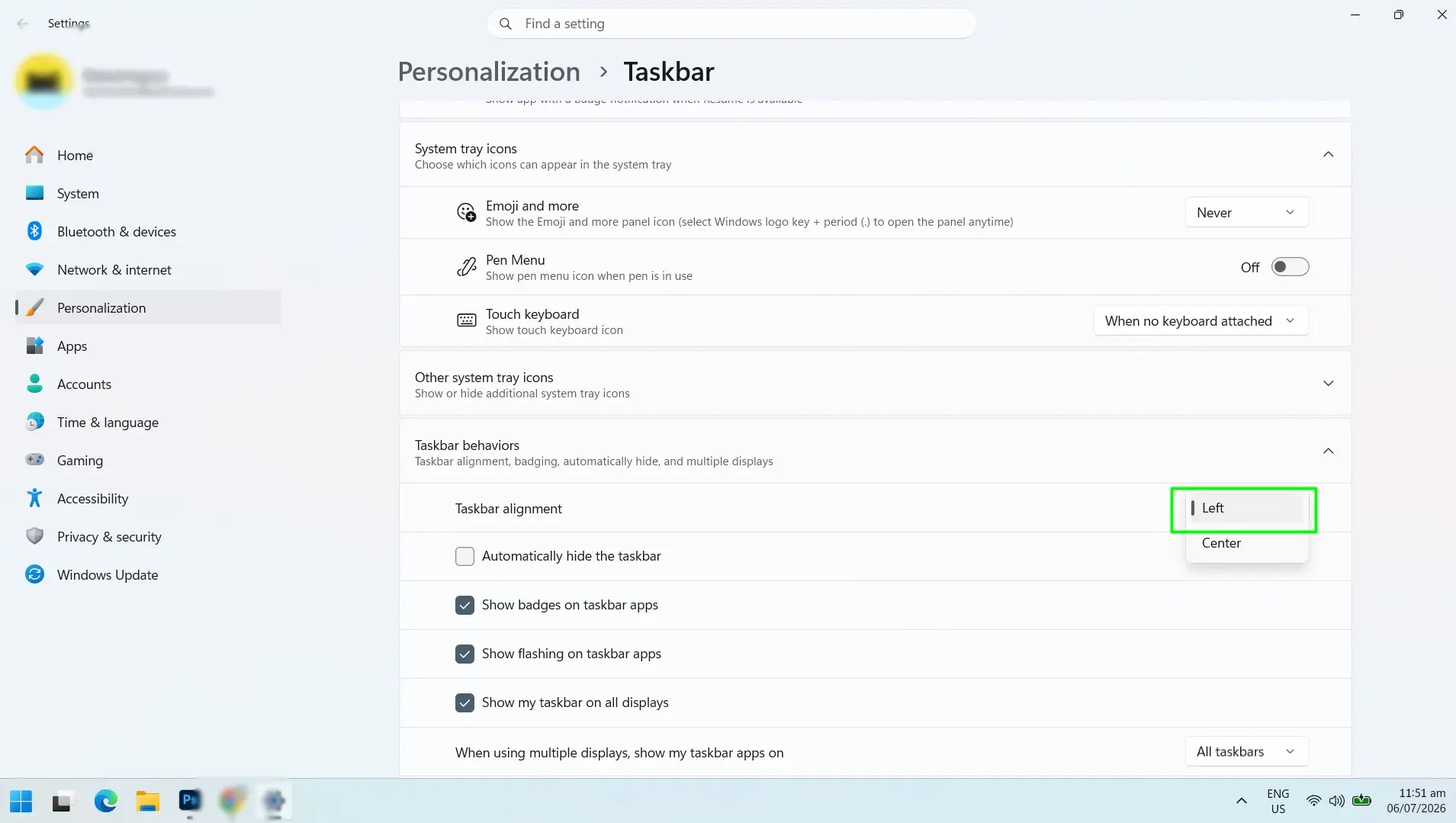
That’s it. The icons shift over immediately, and there’s no save button to click.
Alternative Method: Through the Settings App
Some people prefer opening Settings directly instead of right-clicking the taskbar. Either path lands in the same place.
- Press Win + I to open Settings.
- Go to Personalization, then Taskbar.
- Expand Taskbar behaviors.
- Set Taskbar alignment to Left.
How to Switch It Back to Center
Changed direction? No problem.
- Right-click the taskbar and open Taskbar settings.
- Open Taskbar behaviors.
- Set the alignment dropdown back to Center.
The icons snap back to the middle right away.
Tips for a Better Left-Aligned Taskbar
Once the icons are sitting on the left, a few small adjustments make the setup feel more polished.
- Pin the apps used most. Left alignment puts pinned apps right where the eye naturally lands, so it’s worth pinning favorites for quicker access.
- Try smaller taskbar icons. The same Taskbar behaviors section includes a compact icon option, which helps on smaller laptop screens.
- Turn on auto-hide. Enabling “Automatically hide the taskbar” frees up screen space and pairs well with left alignment.
- Match the accent color. A left-aligned bar tends to look sharper with a custom accent color pulled from the desktop wallpaper.
- Check display scaling. If icons look oddly sized after the switch, a quick look at display scaling settings usually sorts it out.
The key is that none of these tweaks are required. They just make the left-aligned layout feel more intentional instead of just different.
Frequently Asked Questions
Why is my Windows 11 taskbar centered by default?
Microsoft redesigned the taskbar layout starting with Windows 11 and made center alignment the default look. It was a style choice, not a bug, and it can be changed anytime through Taskbar settings.
Does moving the taskbar to the left require a restart?
No restart is needed. The alignment change applies the moment Left is selected from the dropdown, and the icons move instantly.
Will left-aligning the taskbar delete or rearrange pinned apps?
No. Every pinned app, open window, and tray icon stays exactly where it was. Alignment only shifts their position from center to left along the same bar.
Can the taskbar be moved to the top or side of the screen in Windows 11?
Not with built-in settings. Windows 11 only supports a bottom-docked taskbar natively, and the alignment options are limited to Left or Center. Repositioning the whole bar to the top or side requires third-party software, which isn’t officially supported by Microsoft.
Does taskbar alignment apply to all monitors or just one?
It applies to every connected display at once. Windows 11 doesn’t currently allow different alignment settings for different monitors.
Why does the Start menu still open in the center after switching to left alignment?
That’s expected behavior. The Start button itself moves to the left, but the Start menu panel always opens from a fixed center position regardless of taskbar alignment. There’s no built-in setting to change that.
Is left-aligning the taskbar just a Windows 10 style throwback?
Pretty much, yes. It brings back the classic layout that Windows 10 and earlier versions used for decades, which is exactly why so many long-time users switch it back after upgrading.
