
Quick Answer: Right-click any app in the Start menu and select Pin to taskbar. That’s it. The icon stays on the taskbar permanently, even after restarting the computer.
How to Pin Apps to the Taskbar in Windows 11
The taskbar is one of the fastest ways to open anything on a Windows 11 PC. Instead of hunting through menus every time, pinned apps sit right there — one click away. Here are the easiest ways to do it, starting with the simplest.
Method 1: Pin from the Start Menu (Easiest)
Most people find this to be the quickest option, especially if the app already shows up in the Start menu.
- Click the Start button (Windows logo on the taskbar) or press the Windows key.
- Find the app in the pinned section at the top.
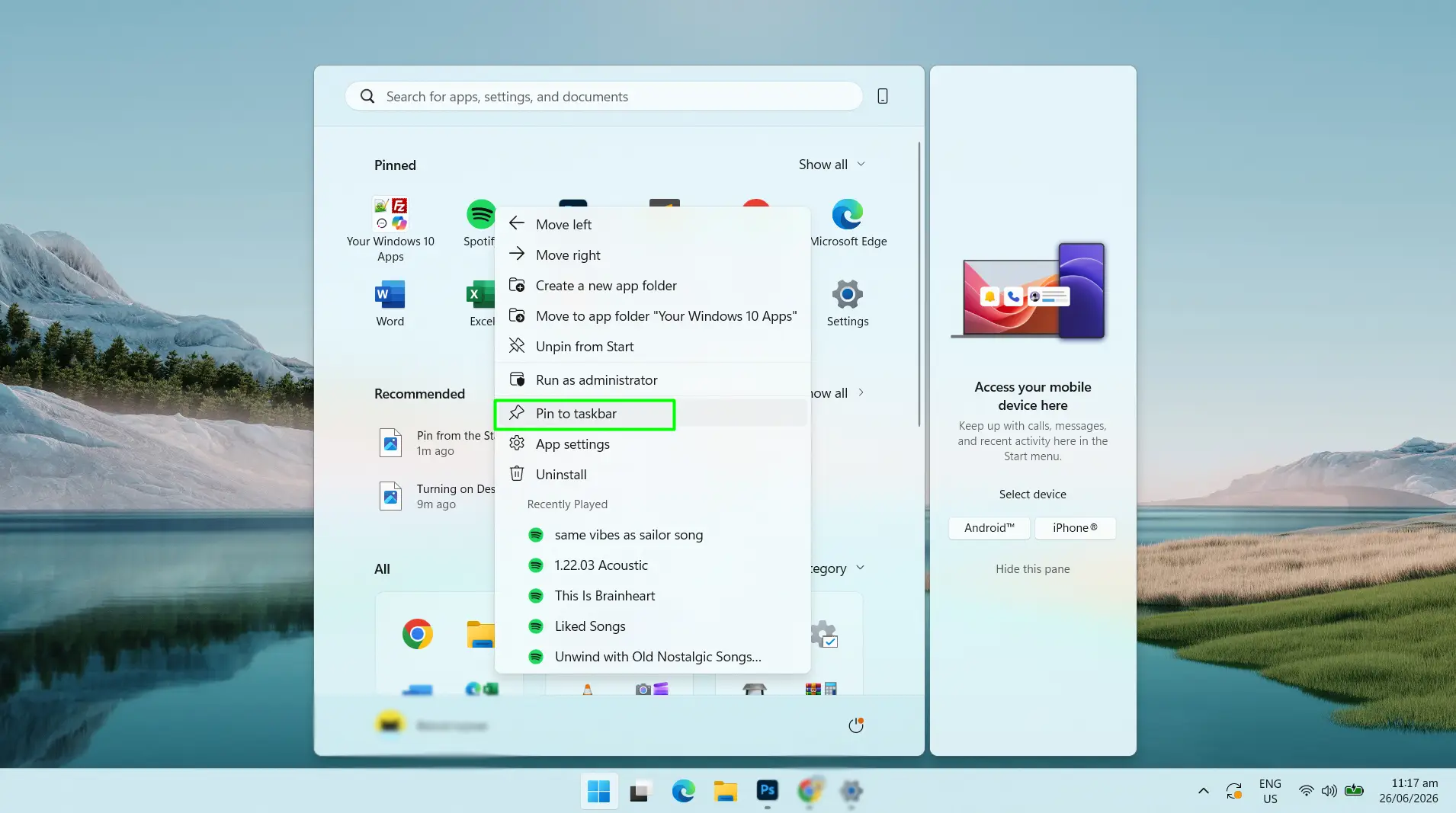
- Right-click the app icon.
- Click Pin to taskbar.
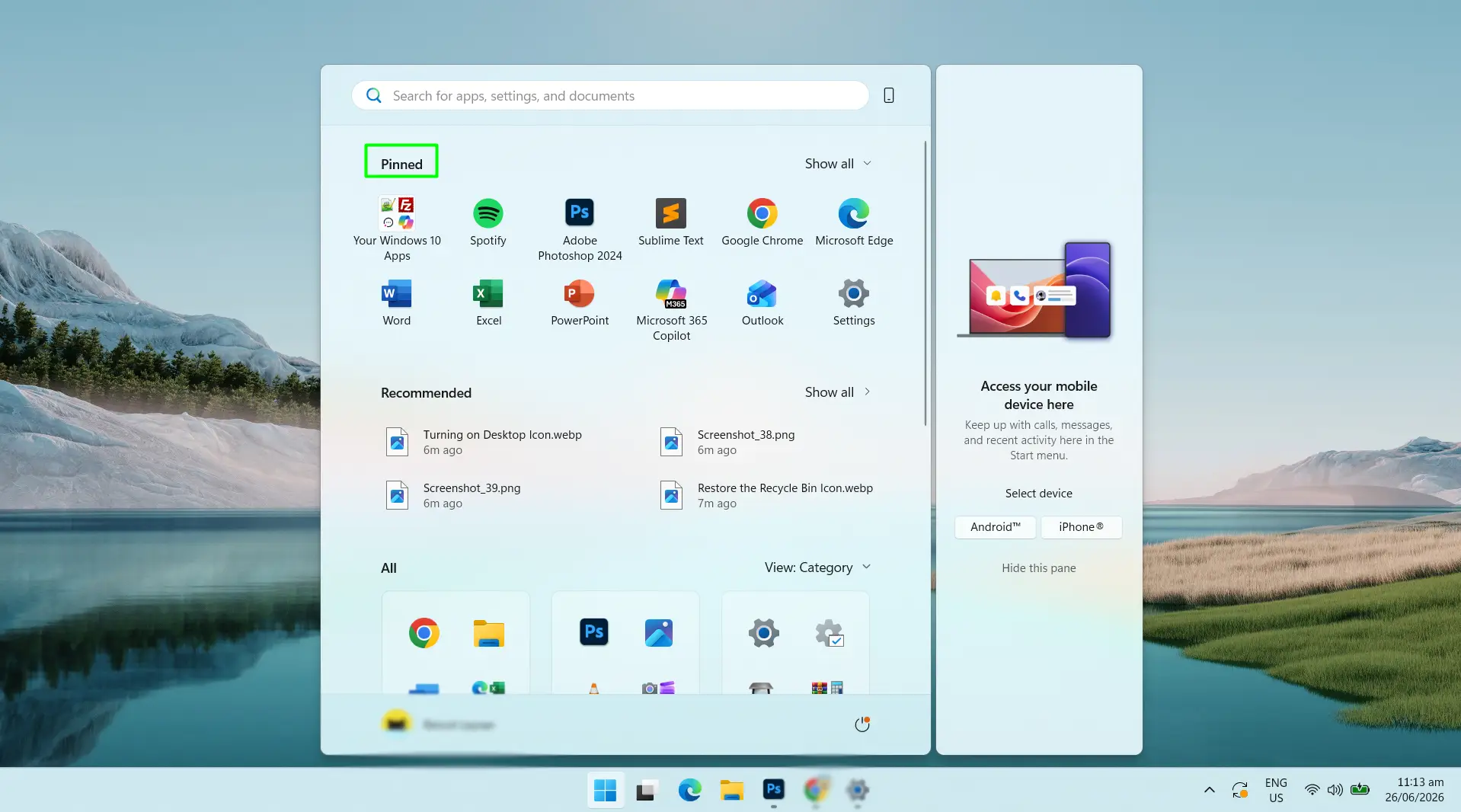
Done. The app icon appears on the taskbar immediately.
Method 2: Pin a Currently Running App
Already have the app open? Here’s the thing — pinning it takes just two clicks from right where it already is.
- While the app is open, look for its icon on the taskbar at the bottom of the screen.
- Right-click that icon.
- Click Pin to taskbar.
Before pinning, the icon disappears when the app closes. After pinning, it stays on the taskbar as a permanent shortcut — no matter how many times the computer restarts.
Method 3: Search and Pin from the Start Menu
Can’t find the app by scrolling? This is faster.
- Click the Start button or press the Windows key.
- Type the app name in the search bar at the top.
- When the app appears in the results, right-click it.
- Click Pin to taskbar.
No need to scroll through categories. Just type and pin.
Method 4: Pin from a Desktop Shortcut
If there’s already a shortcut sitting on the desktop, it can be pinned straight from there.
- Right-click the app shortcut on the desktop.
- Click Show more options.
- Select Pin to taskbar.
If Pin to taskbar doesn’t show up, the shortcut likely points to a document rather than an app. In that case, Method 5 below works better.
Method 5: Pin Using File Explorer (For Apps Not in Start Menu)
This one is worth knowing for older programs or apps installed in unusual locations.
- Open File Explorer and navigate to the folder where the app is saved.
- Find the .exe file for the app.
- Right-click it.
- Click Show more options.
- Select Pin to taskbar.
The key is right-clicking the actual .exe file — not a folder or document file.
How to Pin a Folder to the Taskbar
Windows 11 doesn’t support direct folder pinning out of the box, but there’s a simple workaround that gets the job done.
- Right-click the folder and go to Show more options, then hover over Send to and click Desktop (create shortcut).
- Find the new shortcut on the desktop and right-click it.
- Click Properties.
- In the Target field, add explorer.exe followed by a space before the existing folder path. Example:
explorer.exe C:\Users\YourName\Documents\Projects - Click Apply, then OK.
- Right-click the shortcut again, go to Show more options, and select Pin to taskbar.
The folder opens directly from the taskbar with a single click after this.
How to Pin a Webpage to the Taskbar
Frequently used websites — like dashboards or online tools — can be pinned right to the taskbar. Both Edge and Chrome support this.
Using Microsoft Edge
- Open Edge and go to the webpage.
- Click the three-dot menu in the top-right corner.
- Hover over More tools.
- Click Pin to taskbar and confirm.
Using Google Chrome
- Open Chrome and go to the webpage.
- Click the three-dot menu in the top-right corner.
- Go to Save and share, then click Create shortcut.
- Check Open as window for a cleaner look, then click Create.
- A shortcut will appear on the desktop — right-click it, go to Show more options, and select Pin to taskbar.
How to Unpin Apps from the Taskbar
Keeping the taskbar clean is just as important as setting it up.
- Right-click any pinned app icon on the taskbar.
- Click Unpin from taskbar.
The icon is removed instantly. The app stays installed — only the shortcut is gone. It can be repinned anytime.
How to Rearrange Pinned Apps
The order of apps on the taskbar can be changed anytime to match a preferred workflow.
- Click and hold any pinned app icon on the taskbar.
- Drag it left or right to the preferred position.
- Release the mouse to drop it in place.
The new order saves automatically.
Tips for a Better Windows 11 Taskbar
- Stick to 8–12 pinned apps. More than that and the taskbar starts feeling cluttered. Keep only the apps that get used every single day.
- Group related apps together. For example, keep communication tools like Mail, Teams, and messaging apps clustered side by side. It saves time when switching between them.
- Switch to left-aligned taskbar. If the centered layout feels unfamiliar, go to Settings > Personalization > Taskbar > Taskbar behaviors > Taskbar alignment and switch to Left. Many people switching from Windows 10 prefer this layout.
- Right-click pinned apps for shortcuts. Most apps show a jump list of recently opened files or visited pages when right-clicked from the taskbar. It’s a hidden time-saver most people never notice.
- Clean up the system tray too. The right side of the taskbar can get crowded with icons. Right-click an empty area of the taskbar, go to Taskbar settings, and hide the ones that aren’t needed daily.
- Take a screenshot of the taskbar before major Windows updates. Occasionally, large updates reset taskbar settings. A quick screenshot makes it easy to recreate the setup if needed.
Frequently Asked Questions
How do you pin an app to the taskbar in Windows 11?
Click the Start button, right-click any app, and select Pin to taskbar. Alternatively, right-click a currently running app’s icon on the taskbar and choose the same option. Either way works in seconds.
Will pinned apps stay after restarting the PC?
Yes. Pinned apps remain on the taskbar permanently across restarts and shutdowns. The only way they disappear is if they are manually unpinned or a major system reset clears the taskbar settings.
Why doesn’t “Pin to taskbar” show up when right-clicking?
The option only appears for actual app files (.exe) and valid app shortcuts. If right-clicking a folder, image, or document, the option won’t be there. Navigate to the app’s .exe file in File Explorer, right-click that directly, and try again.
Can a folder be pinned to the taskbar in Windows 11?
Not directly, but there’s a workaround. Create a desktop shortcut for the folder, open its Properties, and add explorer.exe followed by a space before the folder path in the Target field. Then right-click the shortcut and select Pin to taskbar.
How many apps should be pinned to the taskbar?
There’s no hard limit, but 8 to 12 is the sweet spot. More than 15 to 20 and the taskbar starts to overflow. The key is keeping only apps that are opened almost every day.
Does pinning apps slow down Windows 11?
No. Pinning only adds a visual shortcut to the taskbar. The app does not run in the background or use any system resources until the icon is clicked to open it.
How do you remove a pinned app from the taskbar?
Right-click the pinned icon on the taskbar and select Unpin from taskbar. The icon disappears immediately. The app itself stays installed — only the shortcut is removed.
Can a webpage be pinned to the Windows 11 taskbar?
Yes. In Microsoft Edge, use the three-dot menu, go to More tools, and click Pin to taskbar. In Google Chrome, create a shortcut via Save and share > Create shortcut, then pin the resulting desktop shortcut to the taskbar.
How do you rearrange pinned apps on the taskbar?
Click and hold a pinned app icon, drag it left or right to the preferred position, then release. The new order saves automatically — no settings menu needed.
Is there an “All Apps” button in the Windows 11 Start menu?
Not anymore. Recent Windows 11 updates removed the separate All Apps button. All installed apps are now visible by scrolling down within the Start menu itself, grouped into categories like Productivity, Creativity, and Developer Tools.
