
Wondering whether a game is actually leaning on the graphics card or quietly running on the wrong hardware? Learning how to check if GPU is being used in games only takes a few minutes with tools already built into Windows or free monitoring software. This guide walks through the most reliable ways to confirm GPU activity, spot a game that is defaulting to the wrong graphics processor, and read the numbers correctly.
Key Takeaways
- Windows Task Manager shows real-time GPU usage per application under the Performance and Details tabs.
- Laptops and desktops with two graphics processors sometimes run games on the integrated GPU by mistake, which shows up as low dedicated GPU usage.
- Third-party tools like MSI Afterburner, GPU-Z, and HWiNFO give more detail, including temperature, clock speed, and per-engine usage.
- In-game overlays from Nvidia, AMD, and Intel display GPU stats directly on screen without alt-tabbing out of the game.
- Low GPU usage during gameplay usually points to a CPU bottleneck, a background setting issue, or a game running on the wrong graphics processor.
How to Check if GPU Is Being Used in Games
There are several ways to confirm which graphics processor a game is using and how hard it is working. Starting with Task Manager is the quickest route since it comes preinstalled on every Windows machine, and third-party tools add more depth once the basics are confirmed.
Method 1: Check GPU Usage With Task Manager
- Step 1: Launch the game and let it run in either windowed or borderless windowed mode so the desktop stays accessible.
- Step 2: Press Ctrl, Shift, and Escape together to open Task Manager directly.
- Step 3: Click the Performance tab and select GPU from the left-hand list. This panel shows overall usage percentage, memory usage, temperature on supported cards, and separate graphs for each GPU engine.
- Step 4: Switch to the Details tab, right-click the column headers, and choose Select Columns.
- Step 5: Scroll down, check the box for GPU and GPU Engine, then click OK. Task Manager now lists a live GPU usage percentage next to the running game’s process.
- Step 6: Alt-tab into the game, play for a minute, then check the numbers again. Usage should rise noticeably compared to sitting idle at the desktop.
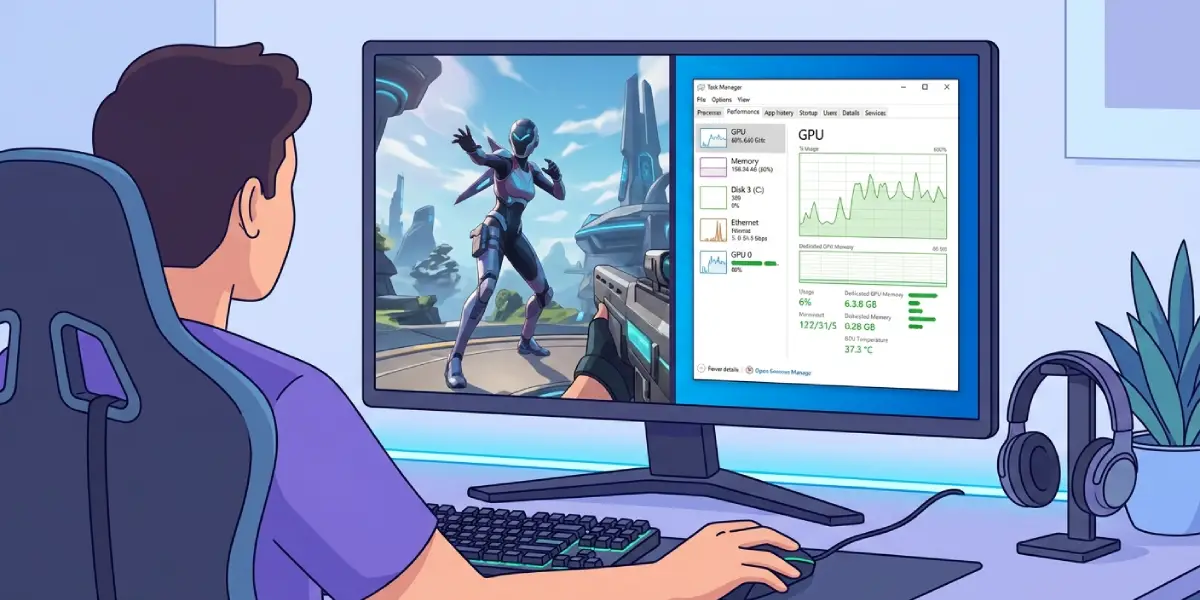
Tip: If a laptop has both an integrated and a dedicated GPU, Task Manager’s Performance tab lists them separately, labeled by manufacturer name. Watch both graphs at once to see which one the game is actually using.
Method 2: Use GPU-Z for Detailed Sensor Data
- Step 1: Download GPU-Z from TechPowerUp, a widely trusted source for this free monitoring utility.
- Step 2: Install and open the program, then click the Sensors tab.
- Step 3: Minimize GPU-Z instead of closing it, then launch the game.
- Step 4: Alt-tab back to GPU-Z periodically and watch the GPU Load reading, along with clock speed and memory controller load.
- Step 5: Check the box for ‘Continue refreshing while in background’ in the Sensors tab so the readings keep updating even when the game window has focus.
GPU-Z is especially useful for confirming that a discrete graphics card is engaging under load rather than sitting idle while a CPU’s built-in graphics handles the workload instead.
Method 3: Use an On-Screen Overlay While Gaming
- Step 1: Open the graphics control panel that matches the installed card, such as Nvidia app, AMD Software Adrenalin Edition, or Intel Graphics Software.
- Step 2: Enable the built-in performance overlay from the settings menu.
- Step 3: Turn on GPU usage, GPU temperature, and GPU clock speed as visible metrics.
- Step 4: Launch the game. The overlay appears in a corner of the screen without needing to alt-tab.
- Step 5: Watch how the percentage changes during intense scenes versus menus or loading screens.

MSI Afterburner paired with RivaTuner Statistics Server works the same way and supports graphics cards from any manufacturer, making it a solid alternative when the card’s own software overlay feels limited.
Method 4: Confirm Which GPU a Game Is Assigned To
- Step 1: Open Windows Settings and go to System, then Display.
- Step 2: Scroll down and click Graphics settings.
- Step 3: Find the game in the list, or add it manually using the Browse button.
- Step 4: Click the game entry, select Options, and choose High Performance to force it onto the dedicated GPU rather than the integrated one.
- Step 5: Save the setting, relaunch the game, and recheck usage in Task Manager to confirm the switch took effect.
Common Problems and Fixes
These are the issues that come up most often once someone starts checking GPU usage on their own system.
GPU Usage Shows 0% Even Though the Game Is Running
This usually means Task Manager is not tracking the correct engine. Right-click the GPU graph area on the Performance tab and try switching between 3D, Copy, and Video Decode engines, since some games load the 3D engine under a different label depending on the rendering API in use.
Game Is Running on Integrated Graphics Instead of the Dedicated GPU
This is common on laptops and some desktops with a CPU that has built-in graphics. Use the Graphics settings steps above to force high performance mode for that specific game, and also check the manufacturer’s control panel for a global default graphics preference.
GPU Usage Stays Low Even During Demanding Scenes
Low usage paired with lower than expected frame rates often points to a CPU bottleneck rather than a graphics card problem. Check CPU usage in the same Task Manager Performance tab; if it is pegged near 100 percent while the GPU sits well below that, the processor is holding performance back rather than the graphics card.
Overlay Tools Will Not Display in the Game
Some games running in exclusive fullscreen mode block third-party overlays. Switching the in-game display setting to borderless or windowed fullscreen usually resolves this and allows overlays like RivaTuner or the manufacturer’s software to appear correctly.
GPU Usage Reads Differently Between Tools
Task Manager, GPU-Z, and manufacturer overlays sometimes report slightly different numbers because they sample at different intervals or measure different engines. This is normal and does not indicate a fault; treat the readings as a general trend rather than an exact match across tools.
Frequently Asked Questions
What GPU usage percentage is normal while gaming?
Usage between 90 and 100 percent generally means the graphics card is being fully utilized, which is desirable in most gaming scenarios. Lower numbers are not automatically a problem, since some lighter or older games simply do not demand full GPU power.
Why does Task Manager not show a GPU option?
Older graphics drivers sometimes lack the reporting support Task Manager relies on. Updating to the latest driver from the GPU manufacturer’s website usually restores the missing GPU tab and usage graphs.
Can a game use both the integrated and dedicated GPU at once?
In most cases a game runs on one GPU at a time, though Windows can technically split rendering tasks across both on some systems with hybrid graphics. Checking both graphs in Task Manager confirms which one is actually doing the heavy lifting.
Is it bad if GPU usage stays at 100% the whole time?
No, that is typically a sign the graphics card is being used to its full potential and is not the limiting factor in performance. It only becomes a concern if temperatures climb outside a safe range at the same time.
Does checking GPU usage affect game performance?
Lightweight tools like Task Manager and manufacturer overlays add a negligible performance cost. Running several heavy monitoring programs at once can introduce a small amount of overhead, so one tool at a time is usually enough for accurate results.
Why is GPU usage low but the game still lags?
This points toward a CPU bottleneck, background processes competing for resources, or a storage drive struggling to load assets quickly enough. Checking CPU and disk usage alongside GPU usage in Task Manager helps narrow down the actual cause.
How can laptop users tell which GPU a game is using?
The Graphics settings page in Windows Settings lists the assigned GPU for each installed game and allows switching it manually. Task Manager’s Performance tab also separates integrated and dedicated GPU graphs, making the active one easy to spot during gameplay.
Do console games have a way to check GPU usage?
Consoles do not expose GPU usage statistics to players the way PCs do, since the hardware and software are fixed and closed off from this kind of monitoring. This kind of check is specific to PC gaming setups.
