
Learning how to open another person’s PST file in Outlook without data loss comes in handy when a colleague shares an export of their mailbox or when taking over someone’s archived emails. The good news is that Outlook lets you add an existing PST file without touching the original data, as long as a few settings are checked first.
Key Takeaways
- Use the ‘Open Outlook Data File’ option instead of copying files into an active mailbox folder structure.
- Always work from a copy of the PST file rather than the original to prevent accidental changes.
- Outlook adds the PST as a separate data file, so nothing merges with the existing mailbox.
- Password-protected PST files will prompt for a password before the folders appear.
- Large PST files may take a moment to index once opened.
How to Open Another Person’s PST File in Outlook
The steps below walk through adding the file safely so the original data stays untouched.
Step-by-Step Instructions
- Step 1: Ask for a copy of the PST file rather than the original, and save it to a local folder such as Documents or a dedicated backup drive. Working from a copy protects the source file if anything goes wrong during import.
- Step 2: Open Outlook and select the ‘File’ tab in the top left corner.
- Step 3: Click ‘Open & Export’, then choose ‘Open Outlook Data File’.
- Step 4: Browse to the location where the PST copy was saved, select the file, and click ‘OK’.
- Step 5: If the file is password protected, enter the password when prompted. Leave the file open only as long as needed if the password was shared temporarily.
- Step 6: Look in the folder pane on the left side of Outlook. The PST file will appear as its own separate entry, usually labeled ‘Outlook Data File’ or with the file name itself, sitting below the primary mailbox.
- Step 7: Expand the new entry to browse folders like Inbox, Sent Items, and any custom folders the other person created.
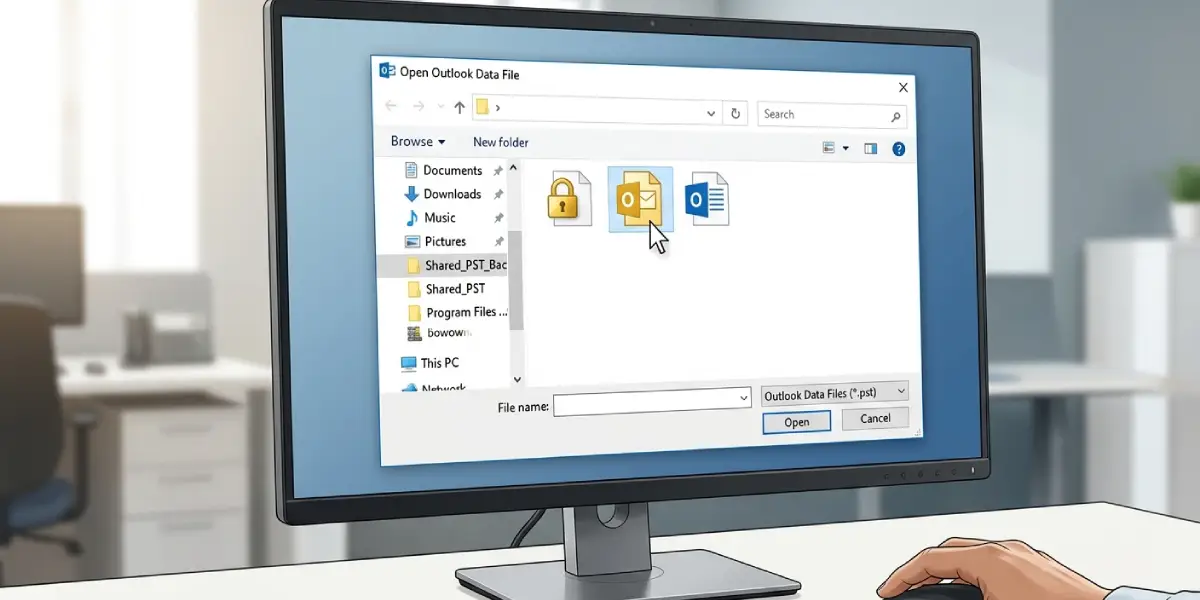
Tip: Right-click the new data file entry and rename it to something recognizable, like the person’s name, so it does not get confused with an active mailbox during daily use.
Removing the File Without Deleting It
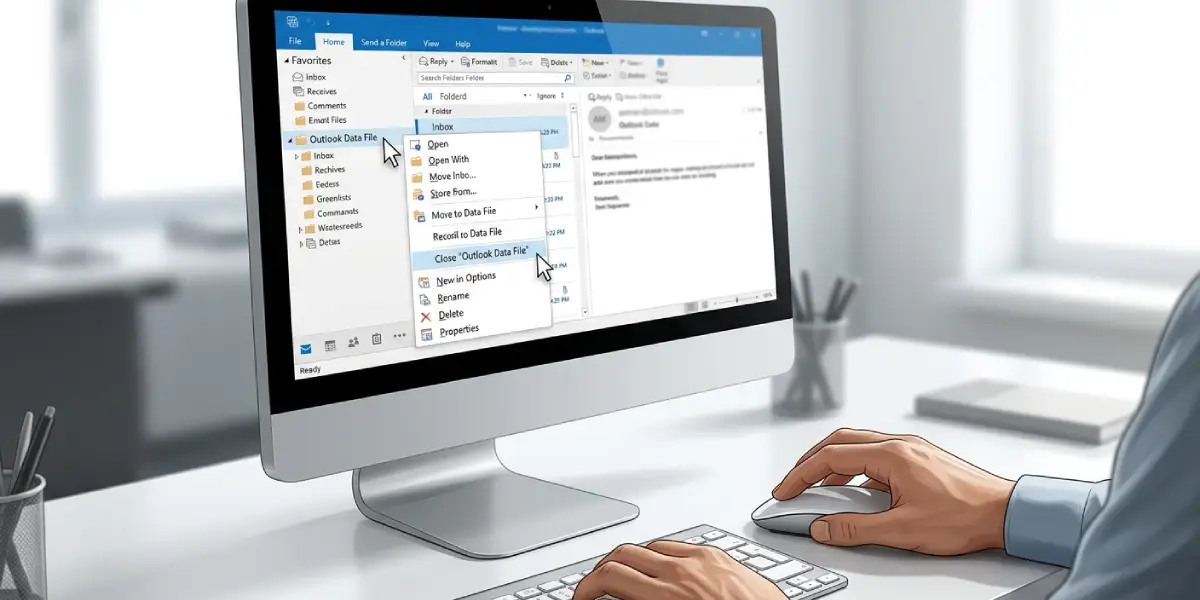
Once the review is finished, the PST can be closed without affecting its contents. Right-click the data file’s name in the folder pane and select ‘Close “[file name]”‘. This removes it from Outlook’s view only; the actual file remains untouched on the hard drive and can be reopened anytime using the same steps.
Common Problems and Fixes
- Outlook says the file is already in use: This usually happens when the same PST is open in another Outlook profile or session. Close Outlook on the other machine or wait until the original user has closed the file, then try again.
- The password is rejected: Double-check for extra spaces or autocorrect changes if the password was copied from an email or chat message. Passwords are case-sensitive, so confirm caps lock is off.
- Folders appear empty after opening the file: This can happen with a very large PST that is still indexing. Give Outlook a minute or two, then click on a folder again to refresh the view.
- Outlook won’t let the file open due to size limits: Older PST formats have a 2GB cap in some configurations. Check the file properties for its size, and if it exceeds the limit, ask for the file to be split or compacted before sharing.
- The file appears corrupted or won’t load: Run the Inbox Repair Tool (scanpst.exe), which ships with Outlook, on the copy of the file. This scans and fixes structural issues without altering the original file the other person still has.
Frequently Asked Questions
Will opening someone else’s PST file change or delete their original data?
No. Opening a PST file through ‘Open Outlook Data File’ only adds a read and write connection to that copy inside Outlook. The original file stays exactly as it was unless changes are actively made and saved within that copy.
Can a PST file be opened without the owner’s password?
If the file is password protected, the password is required to view its contents. There is no built-in Outlook feature to bypass this, so the password must be obtained from the file’s owner.
Does opening a PST file merge it with the main mailbox?
No. The PST file shows up as a completely separate entry in the folder pane. Nothing merges automatically, and mail can only be moved between the two if it is manually dragged into another folder.
Is it safe to email a PST file to open it on another computer?
Most email providers block PST attachments due to their size and file type. A shared drive, USB device, or cloud storage link is a more reliable way to transfer the file.
What Outlook version is needed to open another person’s PST file?
Any desktop version of Outlook, including Outlook 2016 through the current Microsoft 365 version, supports opening external PST files through the same ‘Open Outlook Data File’ option.
Can this be done on Outlook for Mac or Outlook on the web?
PST files are a Windows-specific format tied to desktop Outlook. Outlook on the web and Outlook for Mac do not support opening PST files directly.
Why does the PST file take a long time to load?
Larger files with years of accumulated mail take longer for Outlook to index. Loading time usually depends on file size rather than any problem with the file itself.
Can search be used inside someone else’s opened PST file?
Yes. Once the file appears in the folder pane, clicking into any of its folders and using Outlook’s search bar will search within that data file just like any other mailbox folder.
What happens if Outlook is closed while the PST file is still open?
Closing Outlook automatically closes the data file connection as well. The PST file itself remains saved on disk and can be reopened the next time Outlook starts using the same steps.
