
Need to fix Outlook error 0x800CCC0E in Windows? This error means Outlook cannot connect to the mail server, so messages get stuck in the Outbox and refuse to send. The good news is that the cause is almost always a wrong server setting, a blocked port, or overprotective security software, and each one is quick to correct.
Key Takeaways
- Error 0x800CCC0E is a connection error, usually tied to the outgoing (SMTP) server settings.
- Switching the SMTP port from 25 to 587 (or 465) fixes the problem for most people.
- Turning on ‘My outgoing server (SMTP) requires authentication’ clears a very common cause.
- Antivirus email scanning and firewalls can block the connection and trigger the error.
- If settings look correct but the error stays, a repaired account or a fresh Outlook profile resolves it.
How to Fix Outlook Error 0x800CCC0E in Windows Step by Step
Work through these steps in order. Most people find that the fix lands within the first three, so there is no need to rush ahead. Close and reopen Outlook after each change and try sending a test email before moving on.
Correct the Account and Server Settings
- Step 1: Confirm the internet connection is live. Open a browser and load any website. If pages will not load, the connection itself is the problem, and no Outlook change will help until it is back.
- Step 2: In classic Outlook, go to File, then Account Settings, then Account Settings again. Select the email account that is failing and click Change.
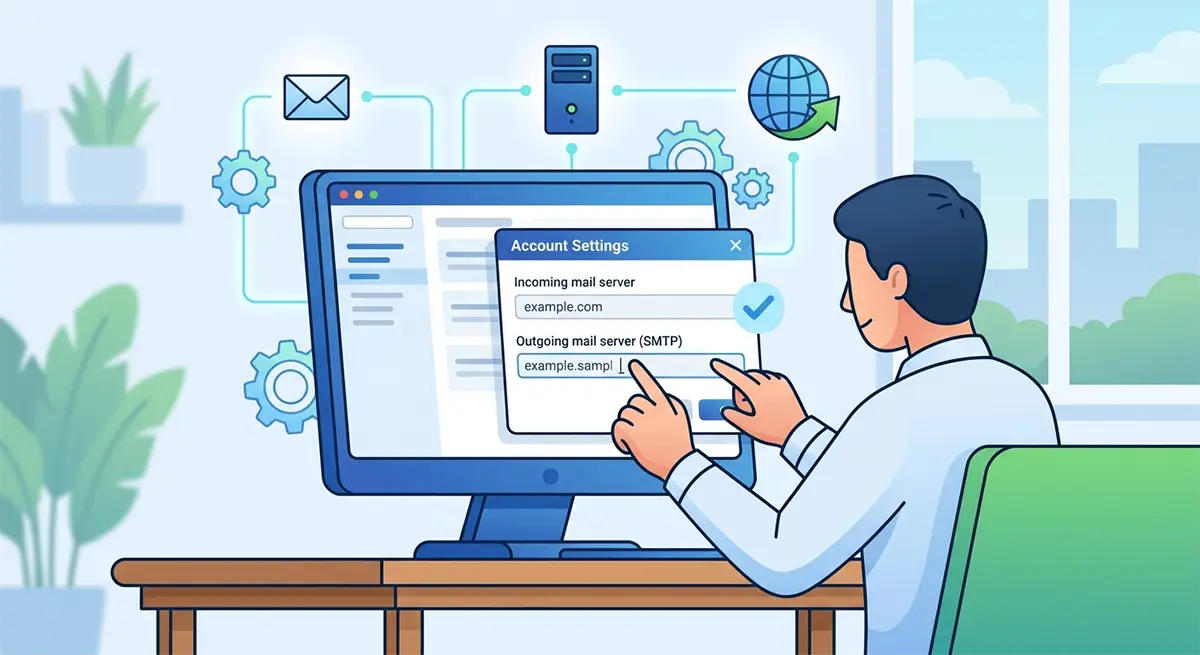
- Step 3: Double-check the incoming and outgoing server names against the details from the email provider. A single mistyped letter here is enough to break the connection.
- Step 4: Click More Settings, open the Outgoing Server tab, and tick ‘My outgoing server (SMTP) requires authentication’. Leave ‘Use same settings as my incoming mail server’ selected. Many providers reject mail without this, which throws 0x800CCC0E every time a message is sent.
- Step 5: Open the Advanced tab. Change the Outgoing server (SMTP) port from 25 to 587, and set the encryption to STARTTLS or TLS. If the provider uses SSL, use port 465 instead. Set the incoming port to match the provider too: 995 for POP3 with SSL, or 993 for IMAP with SSL.
- Step 6: Click OK, then Next to let Outlook run its test. Finish, restart Outlook, and send a test email to confirm the message now leaves the Outbox.
Tip: Port 25 is the single most common culprit, because many internet providers block it to cut down on spam. Moving to 587 sidesteps that block and quietly solves a huge share of these cases.
Rule Out Security Software and Firewalls
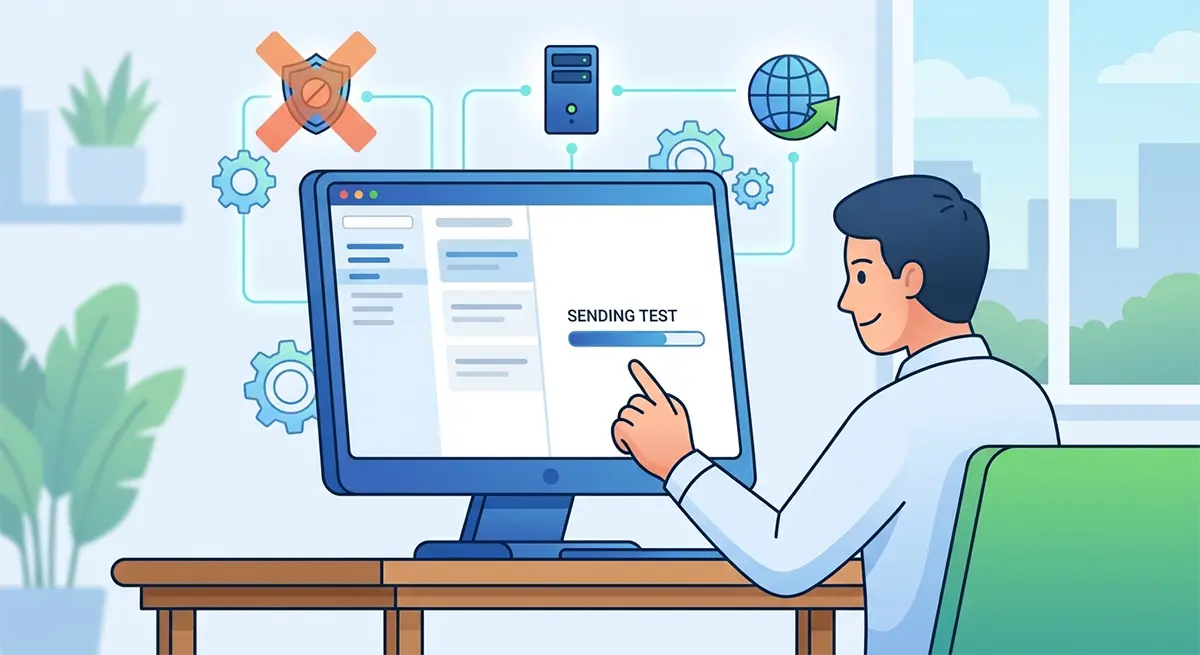
- Step 7: If the settings are correct but the error persists, temporarily disable the email or mail scanning feature in the antivirus program, then send a test message. Think of it as unplugging one appliance to see if it was tripping the fuse.
- Step 8: If that clears the error, leave the antivirus running but keep its email scanning turned off, or add Outlook as an allowed program in both the antivirus and the Windows firewall.
Repair or Rebuild the Account
- Step 9: Still stuck? Go back to File, Account Settings, Account Settings, select the account, and click Repair. Follow the prompts and restart Outlook.
- Step 10: If repair does not help, create a fresh profile. Close Outlook, open Control Panel, search for Mail, click Show Profiles, then Add. Set up the account again with the correct ports and authentication, then set the new profile as the default.

Tip: Before deleting anything, note down every server name, port, and encryption value from the old account. Rebuilding is fast when those details are already in hand.
Common Problems and Fixes
A few snags tend to pop up while working through the steps above. Here is how to handle them without losing momentum.
- The test message keeps timing out: The port or encryption pairing is likely mismatched. Try SMTP 587 with STARTTLS first, then 465 with SSL. Only one combination will match the provider.
- Mail receives fine but will not send: This points straight at SMTP authentication. Re-open the Outgoing Server tab and confirm the authentication box is ticked.
- The error returns after a restart: Security software may be resetting the connection. Add Outlook to the firewall and antivirus allow lists rather than just disabling scanning once.
- Repair option is greyed out or fails: Skip it and build a new profile through Control Panel, then import or re-download the mail.
- Settings will not save: Launch Outlook in safe mode by holding Ctrl while it opens, make the change, then restart normally. A faulty add-in can block edits.
Frequently Asked Questions
What does Outlook error 0x800CCC0E mean?
It is a socket connection error that means Outlook could not reach the mail server. In practice it usually points to a wrong outgoing server port, missing SMTP authentication, or security software blocking the connection.
Which SMTP port fixes Outlook error 0x800CCC0E?
Port 587 with STARTTLS clears the error for most accounts, since internet providers often block the default port 25. If the provider requires SSL, use port 465 instead.
Can antivirus or firewall software trigger error 0x800CCC0E?
Yes. Email scanning features and firewall rules can block Outlook from reaching the server. Temporarily disabling email scanning is a fast way to test, and adding Outlook to the allow list is the lasting fix.
Why does 0x800CCC0E appear only when sending mail?
Sending relies on the outgoing SMTP server, so a send-only error almost always means the SMTP port is blocked or ‘My outgoing server (SMTP) requires authentication’ is not enabled.
Does error 0x800CCC0E mean the email password is wrong?
Not usually. This is a connection error rather than a sign-in error. That said, enabling SMTP authentication is part of the fix, so it is worth confirming the account credentials are current at the same time.
How is 0x800CCC0E fixed when the internet connection is fine?
When the connection works elsewhere, focus on the outgoing server settings. Switch the SMTP port to 587, turn on outgoing authentication, and match the encryption method to the provider.
Will creating a new Outlook profile fix error 0x800CCC0E?
Often, yes. A corrupted profile can keep throwing the error even after the settings look correct. Building a fresh profile through Control Panel and re-adding the account with the right ports resolves those stubborn cases.
Does this error affect the new Outlook for Windows?
The 0x800CCC0E code is tied to classic Outlook with POP or IMAP accounts. If the new Outlook for Windows is in use, the equivalent fix is to remove and re-add the account so the correct server settings are applied.
