
Anyone storing years of email, contacts, and calendar items in a single file needs to know the right way to encrypt a PST file for security in Outlook before that file ends up on a shared drive, a USB stick, or a laptop that could go missing. This guide walks through the exact steps, using the built-in password and encryption options Outlook already provides – no third-party tools required.
Key Takeaways
- Outlook applies encryption to a PST file automatically as soon as a password is added to it.
- Password protection is managed through Account Settings, not through Outlook’s regular Options menu.
- New PST files can be created with a password from the very first setup screen.
- There is no official way to recover a forgotten PST password, so it needs to be stored somewhere safe.
- The new Outlook for Windows and Outlook on the web do not support PST files at all – this process applies to classic desktop Outlook only.
How to Encrypt a PST File for Security in Outlook
This is the core task, and it only takes a few minutes once the right menu is open. Classic desktop Outlook (the version with the traditional ribbon, sometimes called Outlook 2016, 2019, 2021, or the Microsoft 365 desktop app) is required for these steps.
- Step 1: Open Outlook and click File in the top left corner.
- Step 2: Select Account Settings, then click Account Settings again from the dropdown.
- Step 3: Switch to the Data Files tab. This lists every PST and OST file connected to the current profile.
- Step 4: Click on the PST file that needs protecting, then choose Settings.
- Step 5: In the dialog that opens, look for the section labeled Outlook Data File Password and click Change Password.
- Step 6: If the file has no existing password, leave the Old Password field blank. Type the new password into both the New Password box and the Verify Password box.
- Step 7: Click OK to save the password, then click OK again to close the remaining dialog boxes.
- Step 8: Close and reopen Outlook once to confirm the password prompt appears when the data file loads.
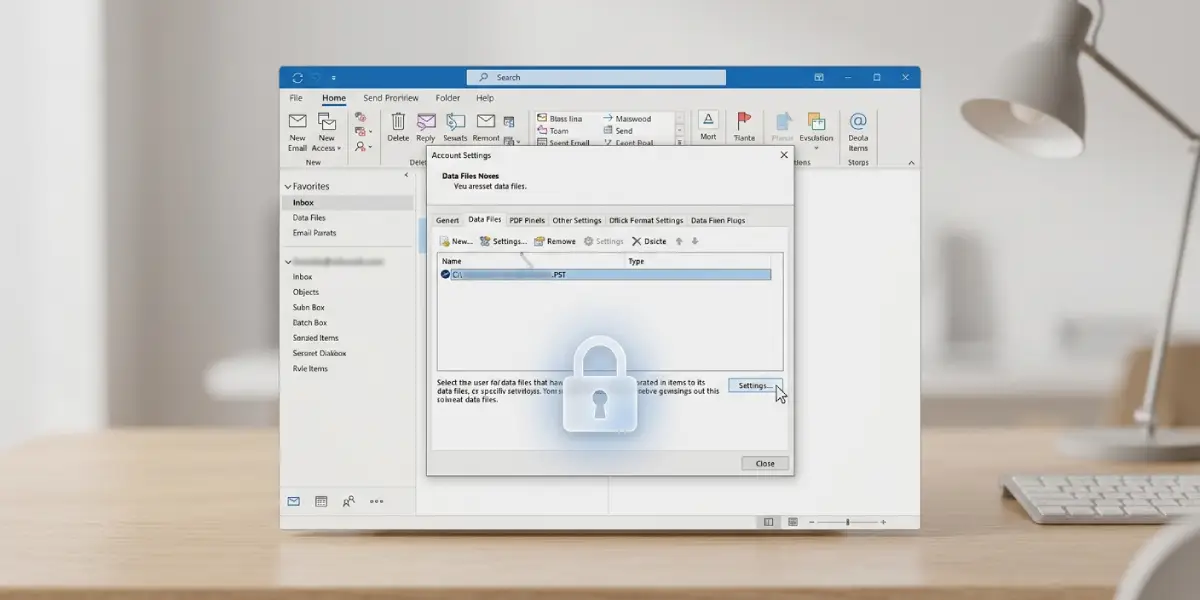
Tip: Once a password is set, Outlook automatically applies compressible encryption to the file in the background. There is nothing extra to turn on separately – the password is what triggers the encryption.
Encrypting a Brand New PST File
Starting fresh works a little differently, and it is often the cleaner option for anyone building a dedicated archive file.
- Step 1: Click File, then New, then Outlook Data File.
- Step 2: Choose a save location and file name, then click OK.
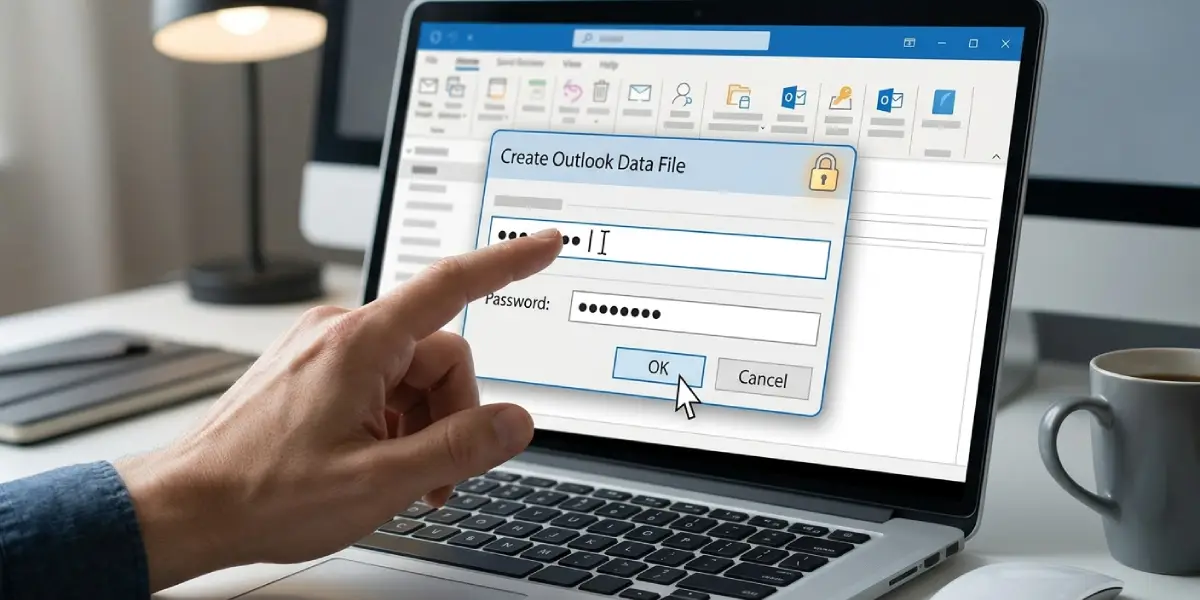
- Step 3: When the Create Microsoft Personal Folders window appears, enter a password in both fields right away.
- Step 4: Check the box to save the password in the password list only on a personal device, never a shared computer.
- Step 5: Click OK. The file is now created with password protection and encryption already active from the first use.
Common Problems and Fixes
Change Password Button Is Greyed Out
This usually happens when the PST file is an older ANSI-format file rather than the newer Unicode format, which does not support passwords the same way. Creating a new Unicode PST and moving the folders into it solves this.
Password Prompt Does Not Appear
Outlook sometimes caches credentials for a session. Closing Outlook completely, including checking the system tray, and reopening it usually brings the prompt back.
Forgotten Password Locks the File
There is no supported Microsoft tool to recover a lost PST password. Tip: store the password in a trusted password manager the same day it is created, since re-creating years of mailbox data is far more painful than resetting a password.
File Appears Corrupted After Setting a Password
This is rare but usually unrelated to the password itself. Running the Inbox Repair Tool, scanpst.exe, found in the Outlook installation folder, checks and repairs the file structure.
Wrong Data File Selected
Profiles with multiple PST files can make it easy to encrypt the wrong one. Checking the file path shown under the Data Files tab before clicking Settings avoids this mix-up.
Frequently Asked Questions
Does adding a password actually encrypt the PST file?
Yes. Outlook automatically applies compressible encryption to the PST file the moment a password is set, so the password step and the encryption step happen together.
What encryption level does Outlook use for PST files?
Modern versions of Outlook apply compressible encryption by default when a password is added, which balances file security with reasonable performance.
Can password protection be removed later?
Yes. The same Change Password screen allows the password to be cleared by entering the current password and leaving the new password fields blank.
Is there a maximum password length for PST files?
Outlook limits PST passwords to a maximum of 15 characters, so it helps to pick a strong but not overly long passphrase.
Does encrypting a PST file protect it if the file is copied to another computer?
Yes. The password and encryption travel with the file itself, so anyone opening it on a different machine still needs the correct password.
What happens if the PST password is forgotten?
The file becomes inaccessible through normal means, since Microsoft does not provide a built-in password recovery option for PST files.
Does new Outlook for Windows support PST password protection?
No. The redesigned new Outlook for Windows and Outlook on the web do not support PST files at all, so this process only applies to classic desktop Outlook.
Should archive PST files also be encrypted?
Yes, especially since archive files often sit untouched on a hard drive for years and can hold just as much sensitive information as the main mailbox file.
Does encrypting a PST slow down Outlook performance?
Most users notice no meaningful slowdown, since compressible encryption is designed to run efficiently in the background during normal use.
Can Outlook mobile or web access a password protected PST file?
No. PST files are a desktop-only file format, so mobile and web versions of Outlook cannot open them regardless of password status.
