
Plenty of longtime AOL users want their inbox sitting right next to their Outlook mail, and the good news is that adding an AOL Mail account in Outlook on the web is still possible in 2026, just not through the old ‘Connected accounts’ menu that used to live inside outlook.com. Microsoft retired that classic sync feature, so the current path runs through the New Outlook experience instead. This guide walks through exactly where to click, what settings to enter, and how to avoid the login errors that trip up most first-time setups.
Key Takeaways
- Microsoft discontinued the old ‘Connected accounts’ feature in classic Outlook on the web, so AOL Mail can no longer be linked through that specific menu.
- The current supported way to add an AOL Mail account in Outlook on the web is through New Outlook, which uses the same browser-style interface and can be opened at outlook.com or installed free on Windows.
- AOL requires an app-specific password for Outlook, not the regular AOL sign-in password.
- Manual IMAP setup uses imap.aol.com and smtp.aol.com with SSL encryption on ports 993 and 465.
- Once connected, new AOL messages usually appear in Outlook within a few minutes.
Step-by-Step Guide to Add an AOL Mail Account in Outlook on the Web
Before starting, generate an AOL app password. AOL has required this for third-party apps like Outlook for several years now, and the setup will fail without it. Log in at mail.aol.com, open Account Security, and select Generate App Password. Choose Outlook from the app list, then copy the password that appears, since it only shows once.
Setting Up the Account in New Outlook
- Step 1: Open a browser and go to outlook.com, or launch New Outlook if it is already installed. Sign in with the Microsoft account that will host the AOL mailbox.
- Step 2: Select the gear icon in the top right corner, then choose Add Account (this may also appear directly on the left navigation pane as a plus icon next to Accounts).
- Step 3: Type the full AOL email address in the field provided and select Continue.
- Step 4: When prompted for a password, paste the app password generated earlier rather than the everyday AOL login password.
- Step 5: If Outlook does not detect the account type automatically, select Advanced options or Show More, then choose IMAP as the account type.
- Step 6: Enter the incoming server as imap.aol.com with port 993, and confirm SSL/TLS is selected as the security type.
- Step 7: Enter the outgoing server as smtp.aol.com with port 465, again using SSL/TLS, and confirm the SMTP username matches the full AOL email address.
- Step 8: Select Connect or Sign In, then wait while Outlook verifies the settings and performs the first sync.
- Step 9: Once the confirmation screen appears, select Done. The AOL inbox should now show up as a separate folder set inside the Outlook account list.
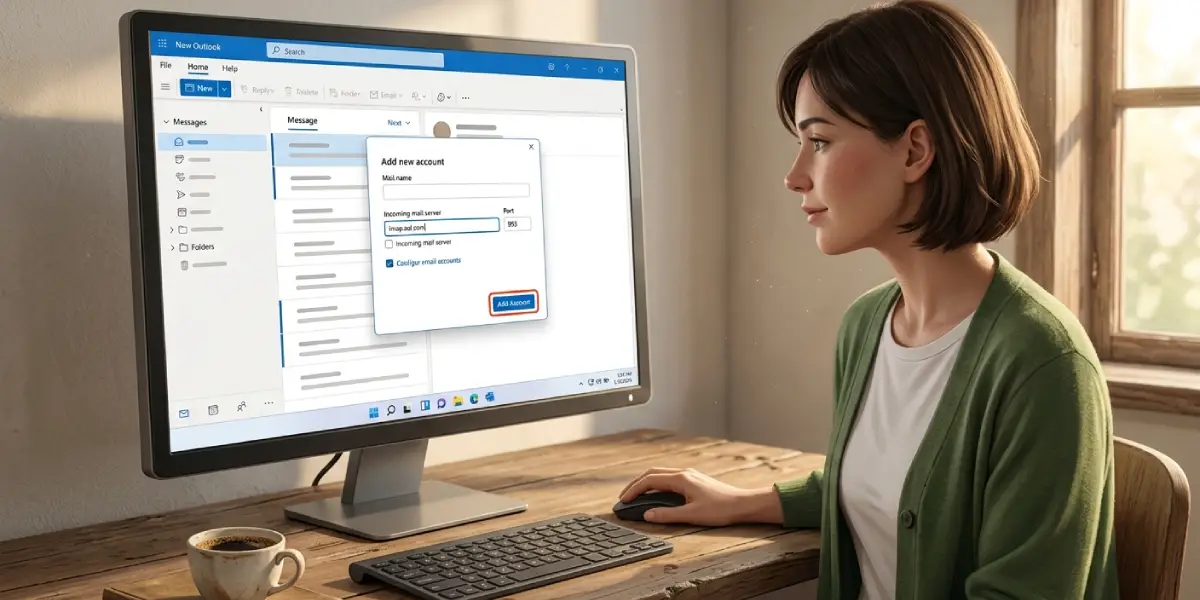
Tip: If the account list only shows a ‘Suggested account’ box with no manual entry option, clear that suggested address first, since New Outlook sometimes hides the IMAP fields until the default suggestion is removed.
Confirming the Sync Worked
Give the account a few minutes after the first connection, especially if the AOL mailbox holds years of stored messages. Click into the new AOL folder in the left pane and check that recent emails match what shows on mail.aol.com. Sending a quick test email from the AOL address confirms the outgoing SMTP settings are correct too.
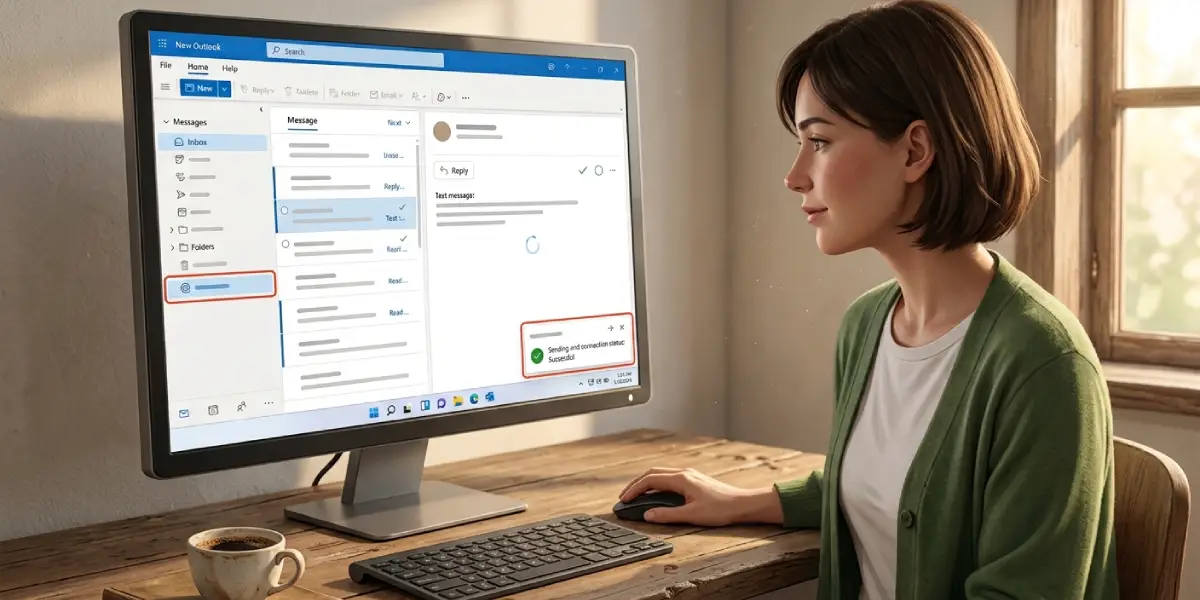
Tip: Star or pin the AOL folder if it will be checked daily, since New Outlook can otherwise bury a secondary account lower in the folder list.
Common Problems and Fixes
- Password rejected repeatedly: This almost always means the regular AOL password was entered instead of the app password. Generate a fresh app password and paste it exactly, since a stray space at the end is a frequent culprit.
- No manual IMAP option appears: Remove any suggested account shown in the Add Account window first, then re-enter the AOL address so the Advanced options link becomes available.
- Emails stop syncing after a few days: AOL app passwords occasionally expire or get revoked during security reviews. Delete the old app password, generate a new one from the AOL Account Security page, and re-enter it in Outlook.
- Outgoing mail fails while incoming works fine: Double-check that the outgoing server is set to smtp.aol.com on port 465 with SSL/TLS enabled and that authentication is turned on for the outgoing server.
- Old messages missing after setup: IMAP typically pulls in existing mail gradually rather than all at once. Leave the account connected and check back after 15 to 30 minutes for large mailboxes.
Frequently Asked Questions
Can AOL Mail still be added through the old Connected Accounts settings in Outlook on the web?
No. Microsoft removed the ability to add new connected accounts in outlook.com in 2021, and stopped syncing any accounts still using that feature in mid-2024. New Outlook is the current supported path for linking an AOL Mail account.
Is a Microsoft 365 subscription required to add AOL Mail in Outlook on the web?
No subscription is required. New Outlook is free to use for personal Microsoft accounts and supports manual IMAP setup for providers like AOL.
Why does Outlook ask for an app password instead of the normal AOL password?
AOL requires app-specific passwords for any third-party email client, including Outlook, as a security measure that keeps the main account password separate from apps that connect over IMAP or POP.
Where is the AOL app password generated?
Sign in at mail.aol.com, open the Account Security section from the profile menu, and select Generate App Password to create one specifically for Outlook.
What are the correct AOL server settings for Outlook?
Incoming mail uses imap.aol.com on port 993 with SSL/TLS, and outgoing mail uses smtp.aol.com on port 465 with SSL/TLS.
Will AOL calendar and contacts sync into Outlook along with mail?
No. Adding AOL Mail through IMAP brings over email messages and folders only. Calendar and contact syncing are not part of this connection method.
Can multiple AOL accounts be added to the same Outlook profile?
Yes. Repeat the same Add Account steps for each additional AOL address, generating a separate app password for every account added.
How long does the first sync usually take?
Small mailboxes often sync within a few minutes. Larger or older AOL mailboxes with years of stored messages can take up to an hour to fully populate.
What should be done if the AOL account disconnects after a password change?
Generate a new app password from the AOL Account Security page and re-enter it in the Outlook account settings, since changing the main AOL password does not automatically update the app password Outlook is using.
