
Getting Yahoo Mail working inside Outlook comes down to entering the right server settings and using an app password instead of a regular one. This guide walks through the process from start to finish, so messages send and receive without the dreaded authentication errors.
Key Takeaways
- Yahoo Mail requires an app password for Outlook, not the regular account password.
- The incoming server is imap.mail.yahoo.com on port 993 with SSL.
- The outgoing server is smtp.mail.yahoo.com on port 465 or 587, with authentication turned on.
- IMAP must be enabled inside Yahoo Mail settings before Outlook can connect.
- Matching outgoing authentication to incoming settings prevents most send errors.
Step-by-Step Guide to Configure Yahoo Mail Server Settings in Outlook
Method 1: Enable IMAP Access in Yahoo Mail
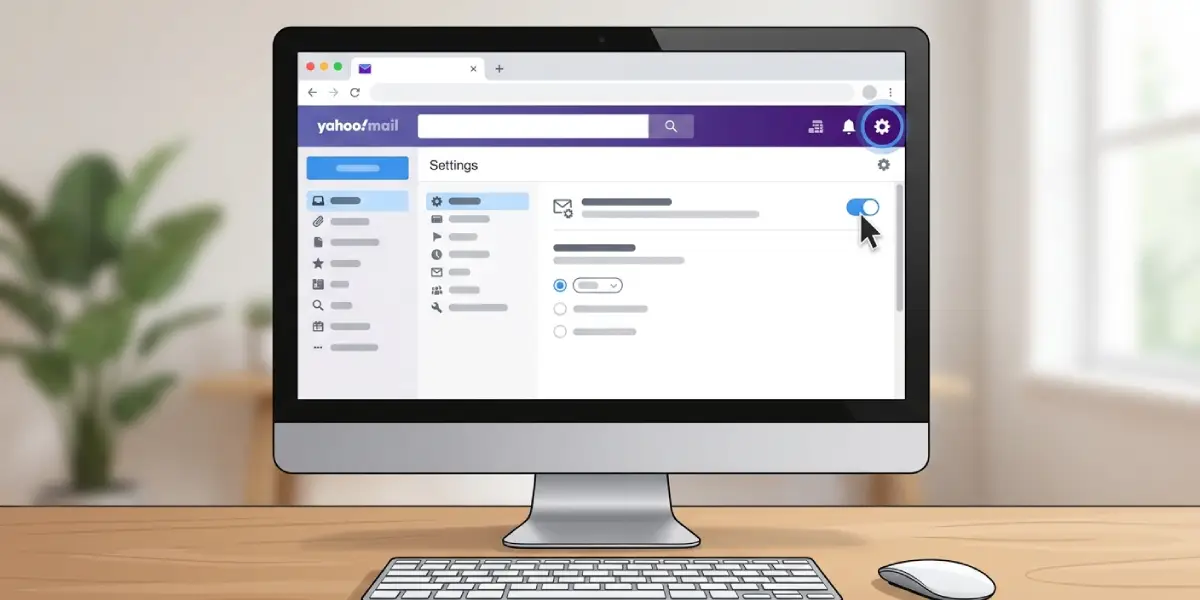
- Step 1: Sign in to Yahoo Mail on a web browser and open the gear icon in the top right corner.
- Step 2: Select ‘More Settings,’ then choose ‘Mailboxes’ from the left menu.
- Step 3: Click the Yahoo account listed, then toggle on the option that allows IMAP access for connected apps.
Method 2: Generate a Yahoo App Password
- Step 4: Go to Yahoo Account Security settings and confirm that two-step verification is turned on. This is required before an app password can be created.
- Step 5: Select ‘Generate app password,’ choose ‘Other App’ from the list, and type a label such as ‘Outlook.’
- Step 6: Copy the generated password immediately. Yahoo shows it only once, so paste it somewhere safe until it’s entered into Outlook.
Method 3: Add the Yahoo Account in Outlook
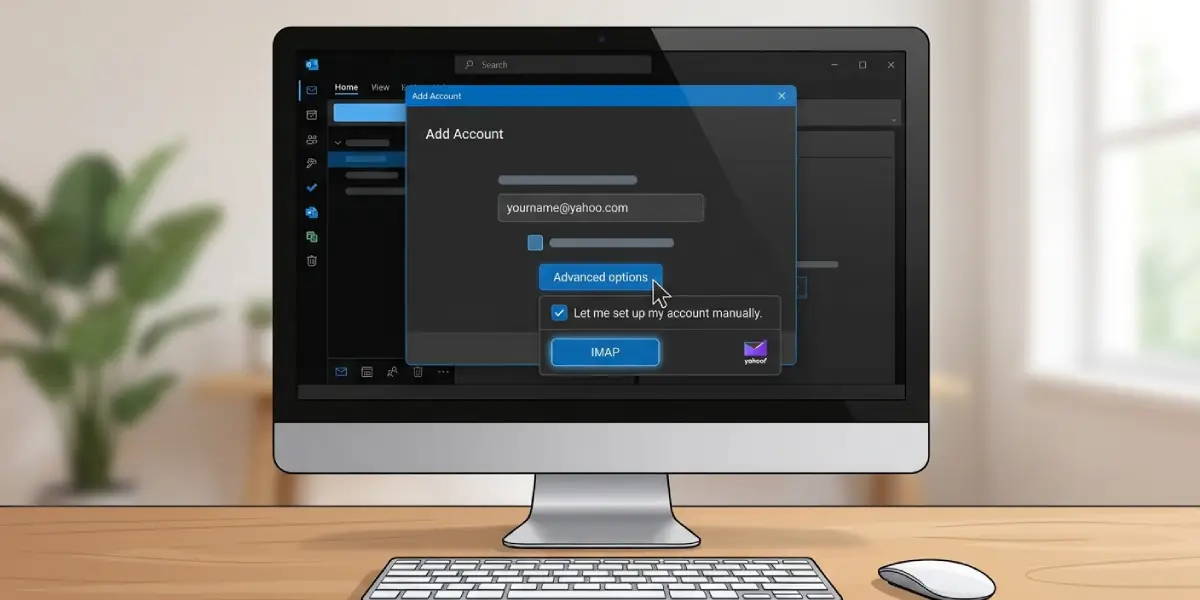
- Step 7: Open Outlook and go to File, then Add Account.
- Step 8: Enter the full Yahoo email address and select ‘Advanced options,’ then check the box for ‘Let me set up my account manually.’
- Step 9: Choose IMAP as the account type.
Method 4: Enter the Server Settings
- Step 10: Under Incoming mail, set the server to imap.mail.yahoo.com and the port to 993, with SSL/TLS as the encryption method.
- Step 11: Under Outgoing mail, set the server to smtp.mail.yahoo.com and the port to 465 or 587, with SSL/TLS enabled.
- Step 12: Confirm that ‘My outgoing server requires authentication’ is checked, and select ‘Use same settings as my incoming mail server.’
Tip: If port 465 doesn’t connect on the first try, switch to 587 with STARTTLS instead of SSL. Some networks and firewalls handle one port more reliably than the other.
Method 5: Finish Sign-In With the App Password
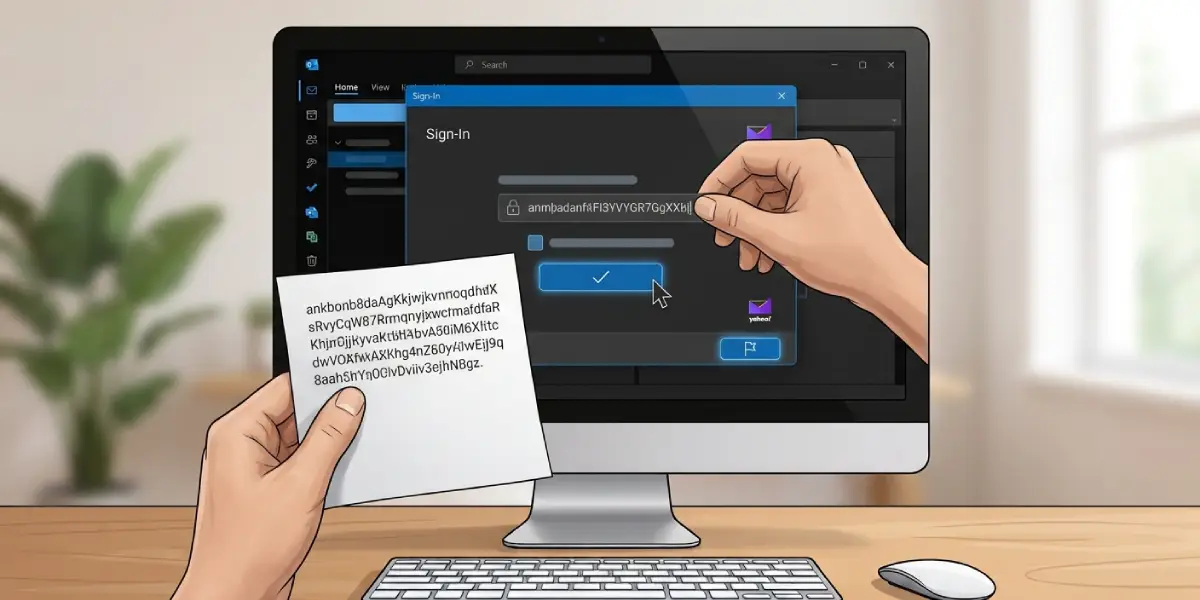
- Step 13: When prompted for a password, paste the app password generated earlier, not the regular Yahoo login password.
- Step 14: Click Connect, then Done, and let Outlook sync the mailbox. This can take a few minutes on accounts with a large amount of mail history.
Common Problems and Fixes
Outlook keeps asking for a password repeatedly
This almost always means a regular password was entered instead of an app password. Generate a fresh app password in Yahoo Account Security and re-enter it in Outlook’s account settings.
Test email fails with ‘cannot find the email server’
Double-check the server names for typos, since imap.mail.yahoo.com and smtp.mail.yahoo.com are easy to mistype. Also confirm the device has an active internet connection.
Emails send but never arrive, or arrive with delay
Verify that port 587 with STARTTLS is selected if port 465 with SSL isn’t working on the current network. Some routers block one port while allowing the other.
IMAP option is missing from Yahoo settings
This usually means IMAP access hasn’t been enabled yet. Head back to Yahoo Mail’s Mailboxes settings and toggle it on before attempting to add the account in Outlook again.
Outlook rejects the app password as invalid
App passwords contain no spaces once copied correctly, so check that no extra character was pasted along with it. Generating a new one usually resolves this quickly.
Frequently Asked Questions
Does Yahoo Mail require an app password for Outlook?
Yes. Yahoo requires an app password for any third-party client like Outlook once two-step verification is active, which is the default for most accounts.
What is the Yahoo Mail incoming server for Outlook?
The incoming IMAP server is imap.mail.yahoo.com, using port 993 with SSL encryption.
What is the Yahoo Mail outgoing server for Outlook?
The outgoing SMTP server is smtp.mail.yahoo.com, using port 465 with SSL or port 587 with STARTTLS.
Can POP3 be used instead of IMAP for Yahoo Mail?
Yes, Yahoo supports POP3 on pop.mail.yahoo.com with port 995 and SSL, though IMAP is recommended since it keeps mail synced across devices.
Why does Outlook say the outgoing server requires authentication?
Yahoo’s SMTP server always requires authentication. Make sure the box for outgoing server authentication is checked and set to use the same login as the incoming server.
How long does it take Outlook to sync a Yahoo Mail account?
Sync time depends on the size of the mailbox. Small accounts finish within a couple of minutes, while accounts with years of stored mail can take significantly longer.
Is a Yahoo app password permanent?
App passwords remain active until manually removed. If Outlook stops connecting after previously working, check whether the app password was revoked and generate a new one if needed.
What should be done if port 465 doesn’t work?
Switch the outgoing port to 587 and change the encryption method to STARTTLS instead of SSL. This resolves most connection issues caused by network restrictions.
Does two-step verification need to stay enabled after setup?
Yes. Disabling two-step verification can invalidate the app password and break the Outlook connection, requiring the whole process to be repeated.
