
The Outlook your server does not support the connection error usually pops up when the encryption method selected in account settings does not match what the mail server actually requires. It is a common snag during manual account setup or after a mail provider updates its security requirements. The fix is quick once the mismatched settings are located and corrected.
Key Takeaways
- This error is almost always caused by a mismatched encryption method (SSL, TLS, or STARTTLS) between Outlook and the mail server.
- Incorrect incoming or outgoing port numbers are the second most common trigger.
- Server address typos, outdated Outlook versions, and blocked ports from antivirus or firewall software can also produce this message.
- Checking the mail provider’s current server settings page before editing anything in Outlook saves a lot of guesswork.
- Most cases are resolved in under five minutes by adjusting the Advanced tab in account settings.
How to Fix the Outlook Your Server Does Not Support The Connection Error
Follow these steps in order. Skipping ahead tends to cause repeat errors, so working through each one methodically gets the account connected without extra troubleshooting later.
- Step 1: Open Outlook and go to File, then select Account Settings, then Account Settings again from the dropdown menu.
- Step 2: On the Email tab, click the account showing the connection error, then select Change.
- Step 3: Click More Settings in the bottom right corner of the account change window.
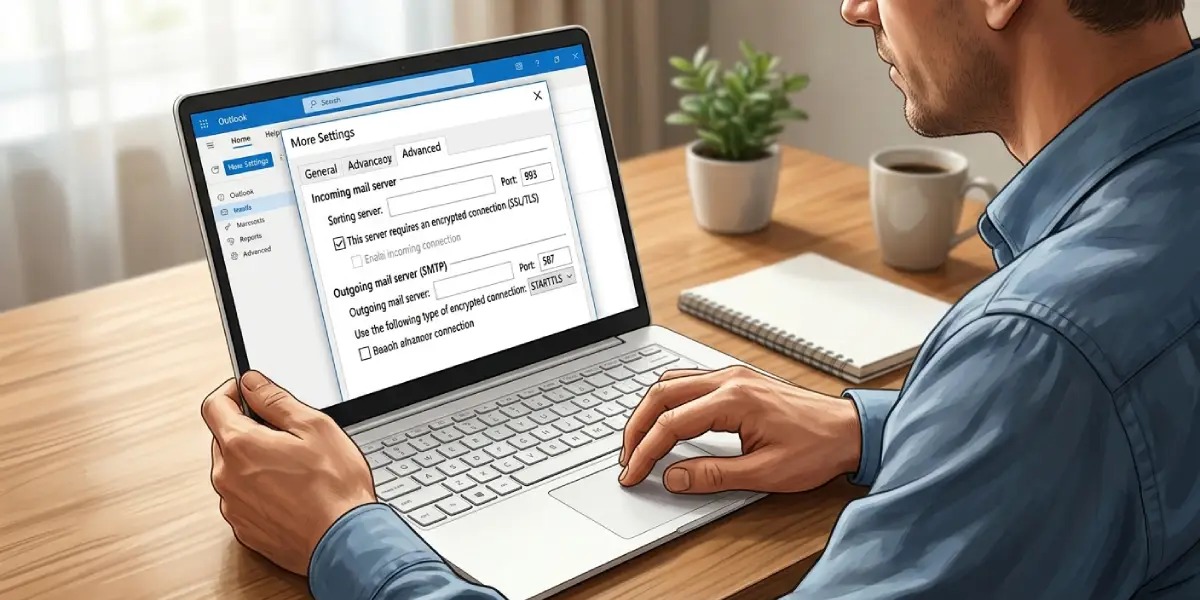
- Step 4: Select the Advanced tab. This is where the encryption type and port numbers for incoming and outgoing mail are set.
- Step 5: Note the current encryption method listed for the incoming server (usually labeled SSL, TLS, or Auto) and compare it against the mail provider’s published settings page.
- Step 6: Update the incoming server port and encryption type to match the provider’s requirements. IMAP typically uses port 993 with SSL/TLS, while POP3 typically uses port 995 with SSL/TLS.
- Step 7: Scroll to the outgoing server (SMTP) section and confirm the port matches the provider’s guidance, commonly 587 with STARTTLS or 465 with SSL/TLS.
- Step 8: Click OK to close the Advanced settings, then click Next on the account change screen to let Outlook test the connection.
- Step 9: If the test passes, select Close, then Finish, and restart Outlook to apply the updated settings fully.
Tip: If unsure which encryption method a provider expects, search for the provider’s name along with ‘IMAP SMTP settings’ – most providers keep an updated support page listing the exact ports and encryption type Outlook needs.
Checking Settings on Mobile or Web Before Editing Desktop Outlook
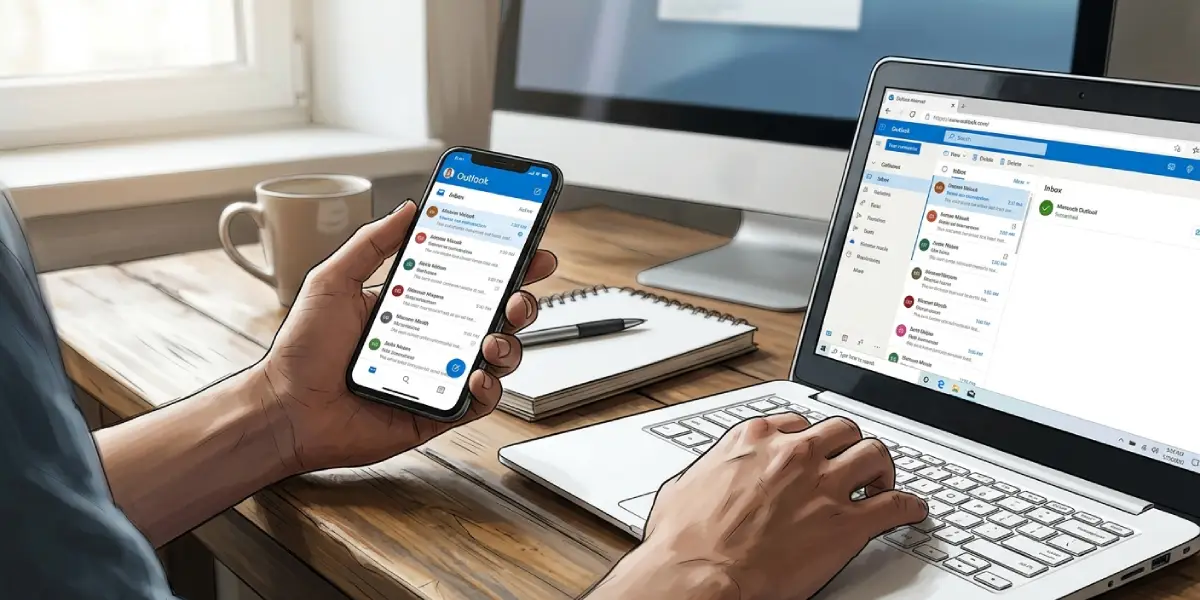
When the same account already works fine in the Outlook mobile app or a webmail client, that confirms the mailbox itself is fine and the problem sits only in the desktop app’s manual configuration. This narrows troubleshooting considerably before touching any settings.
Common Problems and Fixes
Error Persists After Changing Encryption Type
Double-check that both the incoming and outgoing server sections were updated. Outlook treats these as two separate configurations, and updating only one side often leaves the error in place.
Firewall or Antivirus Blocking the Port
Some antivirus email scanning features intercept ports 993, 995, or 465 and can trigger the same error message. Temporarily disabling email scanning, or adding an exception for Outlook, usually clears this up.
Server Address Typos
A single misplaced character in the incoming or outgoing server address (for example, mail.example.com instead of imap.example.com) produces this same connection error. Reconfirming the exact address from the provider’s settings page prevents this.
Outdated Outlook Build
Older Outlook versions sometimes lack support for newer TLS standards required by a mail provider. Running Outlook’s built-in update check (File, then Office Account, then Update Options, then Update Now) resolves this in most cases.
App Password Needed Instead of Regular Password
Providers like Gmail and Yahoo require an app-specific password for third-party clients when two-factor authentication is enabled. Using the regular account password against IMAP or SMTP can surface a connection error even when encryption settings are correct.
Frequently Asked Questions
What causes the Outlook your server does not support the connection error?
It is almost always caused by a mismatch between the encryption method selected in Outlook (SSL, TLS, or STARTTLS) and what the mail server actually requires, though wrong ports and outdated Outlook builds can trigger it too.
Which encryption type should be used for IMAP in Outlook?
Most providers require SSL/TLS on port 993 for IMAP, though this can vary, so checking the provider’s current settings page before configuring Outlook is the safest approach.
Which port should the outgoing SMTP server use?
Port 587 with STARTTLS is the most common configuration for outgoing mail, with port 465 using SSL/TLS as the next most common alternative depending on the provider.
Does restarting Outlook help fix this error?
Restarting Outlook after saving corrected server settings helps apply the changes cleanly and is a recommended final step after any account configuration update.
Can antivirus software cause this specific error?
Yes. Email scanning features in some antivirus programs intercept secure ports and interfere with the encrypted handshake, producing the same connection error message.
Is this error related to the account password?
Sometimes. If the provider requires an app-specific password for third-party email clients, using the standard account password can cause a connection failure that displays this same message.
Why does the same account work in the Outlook mobile app but not on desktop?
Mobile apps often auto-detect the correct server settings, while desktop Outlook may still be using manually entered settings that no longer match the provider’s current requirements.
Should Auto be selected for encryption type or a specific option?
Selecting the specific encryption type the provider recommends, rather than leaving it on Auto, generally produces a more reliable connection and avoids this error.
Does updating Outlook to the latest version fix this error?
In cases where the error stems from outdated TLS support, updating Outlook to the current build often resolves the issue without any further settings changes.
