
Thermal throttling on a desktop CPU happens when the processor gets too hot and automatically slows itself down to protect its internal components. This shows up as sudden frame rate drops, sluggish performance during heavy tasks, or a system that feels fast one minute and sluggish the next. The good news is that most cases trace back to a handful of fixable issues, and clearing them up usually restores full performance within an afternoon.
Key Takeaways
- Thermal throttling is a built-in safety response, not a hardware failure, but it signals a cooling problem that needs attention.
- Dust buildup, dried thermal paste, and poor case airflow are the most common causes.
- Confirming throttling with a monitoring tool before making changes saves time and avoids guesswork.
- Cleaning the cooler, repasting the CPU, and improving airflow solve the vast majority of cases.
- Persistent throttling after these fixes usually points to a mounting issue, a failing cooler, or a power limit set too aggressively in the BIOS.
Common Causes of Thermal Throttling on a Desktop CPU
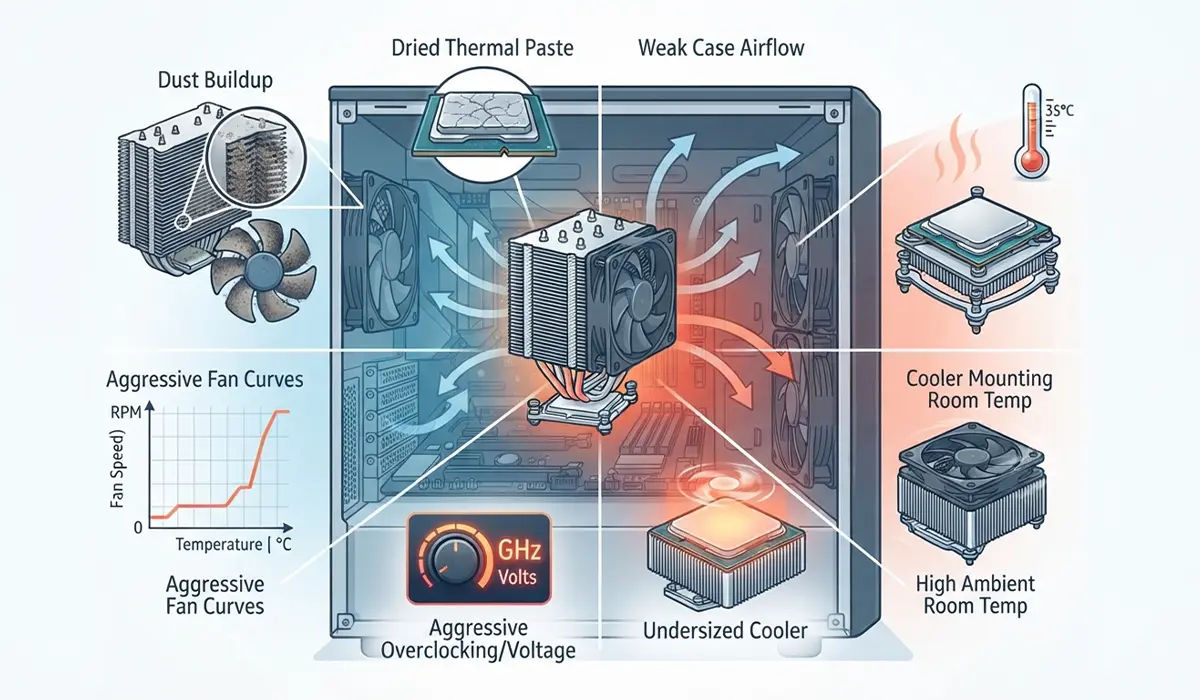
Before jumping into fixes, it helps to understand what typically triggers this behavior. Most desktop thermal throttling issues fall into one of these categories.
- Dust buildup: Dust packed into heatsink fins and case fans acts like a blanket, trapping heat instead of letting it escape.
- Dried or poorly applied thermal paste: Thermal paste degrades over time and loses its ability to transfer heat between the CPU and the cooler’s base plate.
- Weak case airflow: A case with too few fans, or fans fighting each other instead of working together, lets warm air linger around the CPU cooler.
- Cooler mounting problems: A cooler that is not seated evenly, or mounting pressure that is too loose, leaves gaps that reduce contact with the CPU.
- Undersized cooler for the CPU: A stock or budget cooler paired with a high-power CPU may simply not have enough capacity under sustained load.
- High ambient room temperature: A hot room raises the baseline temperature the cooler has to work against, which can push a borderline system into throttling.
- Aggressive overclocking or voltage settings: Pushing a CPU beyond its stable settings generates more heat than the cooling setup was designed to handle.
- Fan curves set too conservatively: If case or CPU fans ramp up too slowly in the BIOS, heat can build up faster than the fans respond to it.
How to Fix Thermal Throttling on a Desktop CPU
Before You Start
Reapplying thermal paste and cleaning inside the case both involve working directly with internal components, so a few basic precautions matter here.
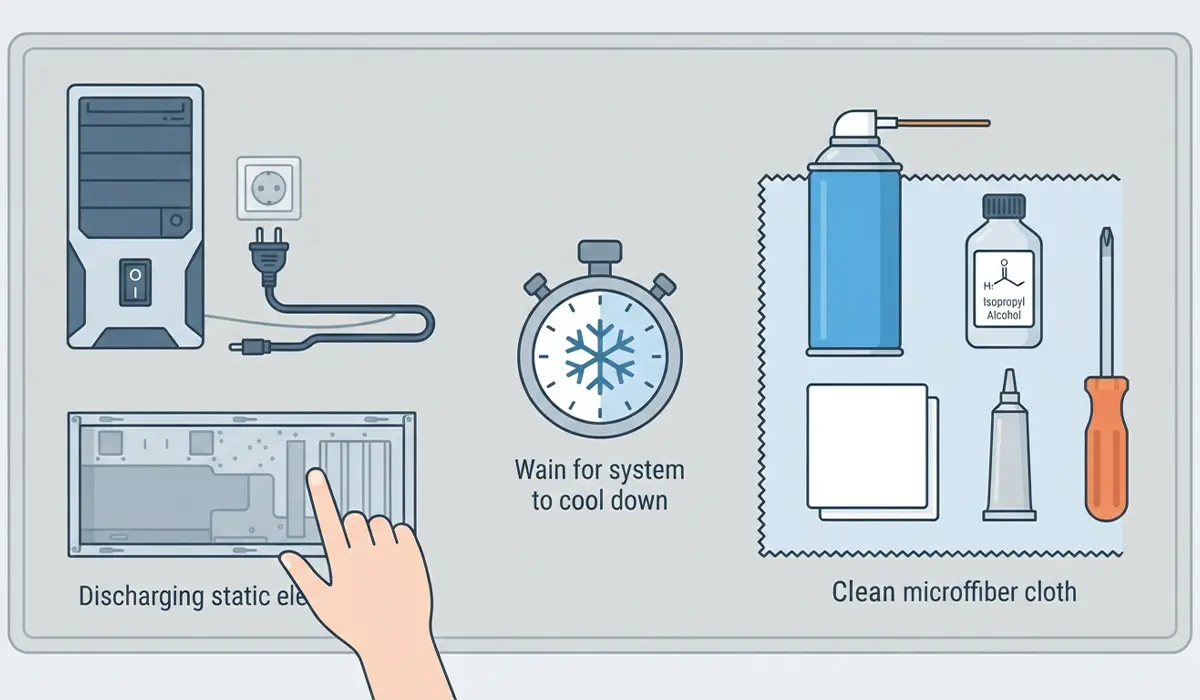
- Power off the system completely and unplug it from the wall outlet.
- Discharge static electricity by touching a bare metal part of the case, or wear an anti-static wrist strap.
- Let the system sit for a few minutes so the heatsink and CPU are fully cool before touching them.
- Have these tools ready: compressed air, a lint-free or microfiber cloth, 90 percent or higher isopropyl alcohol, fresh thermal paste, and a screwdriver matching the cooler’s mounting screws.
Opening the case is generally low-risk on most desktop builds, but if the CPU cooler uses a proprietary bracket or the system is still under warranty, check the manufacturer’s policy first. If temperatures stay dangerously high after trying the steps below, it is worth having a professional technician inspect the build rather than continuing to experiment.
Step-by-Step Fixes
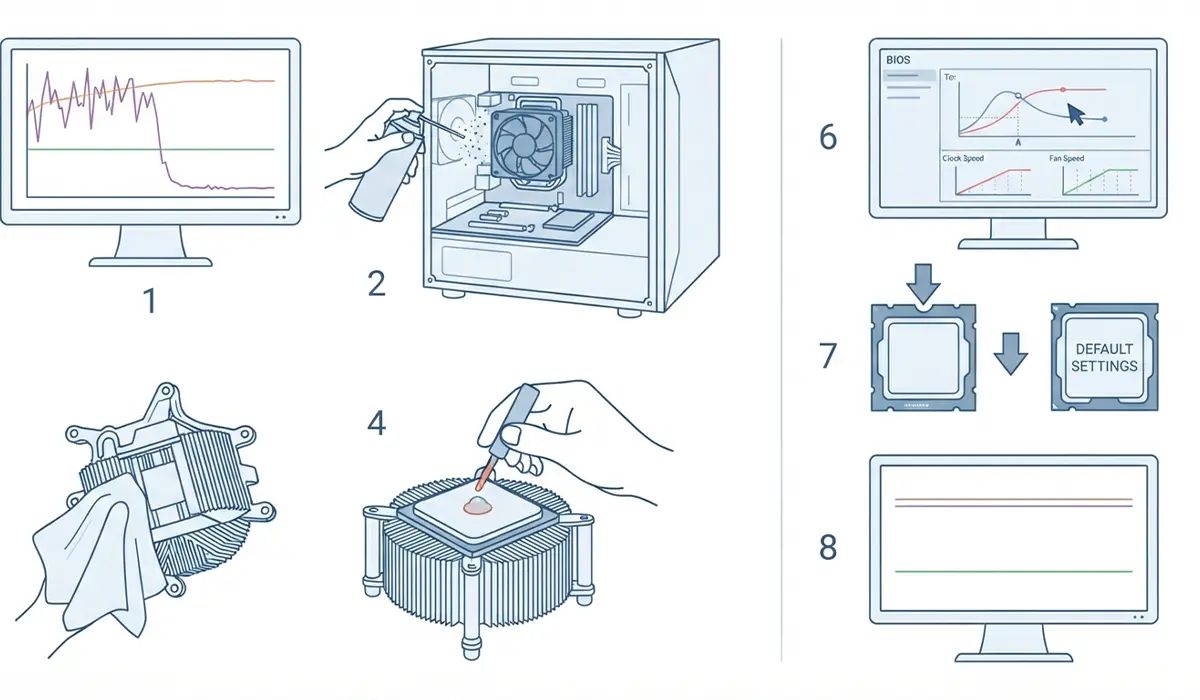
- Step 1: Confirm throttling is actually happening by running a monitoring tool that shows CPU clock speed, temperature, and package power side by side during a demanding task like gaming or video rendering. A sudden drop in clock speed paired with temperatures near the CPU’s rated maximum confirms throttling rather than some other bottleneck.
- Step 2: Power down and open the case, then use compressed air to blow dust out of the CPU cooler’s fins, the case fans, and the front intake filters. Hold fans steady while spraying so they do not spin freely and generate excess voltage.
- Step 3: Remove the CPU cooler carefully, twisting gently if it is stuck to the old paste rather than prying it off. Clean both the cooler’s base plate and the top of the CPU with isopropyl alcohol and a lint-free cloth until no residue remains.
- Step 4: Apply a fresh, pea-sized or thin even layer of thermal paste to the center of the CPU, then reseat the cooler and tighten the mounting screws evenly in a diagonal pattern so pressure is distributed across the whole surface.
- Step 5: Check the case’s fan layout to make sure intake and exhaust fans are working together rather than against each other. Most builds benefit from front and bottom intake paired with rear and top exhaust to create a clear front-to-back airflow path.
- Step 6: Enter the BIOS and review the fan curves for both the CPU cooler and case fans, adjusting them to ramp up sooner under load if they currently stay quiet until temperatures are already high.
- Step 7: If the CPU is overclocked or running an aggressive voltage offset, reset those settings to default or a known stable profile and retest temperatures before reintroducing any tuning.
- Step 8: Run the same monitoring test from Step 1 again under load to confirm clock speeds now hold steady instead of dropping.
Tip: Running the load test for at least ten to fifteen minutes gives a more accurate picture than a quick check, since thermal throttling often only appears once the cooler has been working hard for a while.
Common Problems and Fixes
- Temperatures are still high right after repasting: This usually points to uneven mounting pressure or too much paste spreading unevenly. Remove the cooler, wipe both surfaces clean, and reapply a smaller, more even amount before remounting.
- Fans stay quiet even though temperatures are climbing: Check the BIOS fan curve settings, since a curve set too conservatively will keep fans slow well past the point where they should be speeding up.
- A brand-new build still throttles under load: Double-check that the cooler’s mounting bracket matches the CPU socket and that the cooler is rated to handle that CPU’s power draw, since an undersized cooler will struggle no matter how clean the install is.
- Temperatures are fine at idle but spike during gaming or rendering: This points to sustained load rather than a cleaning issue, so review case airflow and consider adding an extra intake or exhaust fan to keep air moving during long sessions.
Frequently Asked Questions
What causes a CPU to thermal throttle?
Thermal throttling happens when internal sensors detect the CPU approaching its maximum safe operating temperature, prompting it to reduce clock speed automatically to bring temperatures back down.
How can it be confirmed that a desktop CPU is thermal throttling?
A monitoring tool that displays clock speed and temperature together during a heavy workload will show a clear pattern: clock speed drops noticeably right as temperature approaches the CPU’s rated limit.
How often should thermal paste be replaced?
Most thermal paste holds up well for a few years under normal use, but replacing it becomes worthwhile sooner if temperatures have crept up gradually or the cooler has never been serviced since the original build.
Can dust buildup alone cause thermal throttling?
Yes. Dust packed into a heatsink or case fans can significantly reduce airflow on its own, and in many cases a thorough cleaning resolves throttling without needing to touch the thermal paste at all.
Does room temperature affect thermal throttling?
It can. A hotter room raises the temperature of the air the cooler pulls in, which reduces its overall cooling capacity and can push a system that runs fine in a cool room into throttling during a heat wave.
Is thermal throttling harmful to the CPU?
Thermal throttling itself is a protective mechanism, not damage, since it exists specifically to prevent the CPU from reaching temperatures that could cause harm. Frequent throttling is still worth fixing, since it means the system is not performing at its full potential.
What temperature range should a desktop CPU stay within under load?
Every CPU model has its own manufacturer-specified maximum operating temperature, which is listed in that model’s official specification sheet. Staying comfortably below that documented limit during sustained load is the general goal.
Can a BIOS setting cause thermal throttling?
Yes. Power limit settings, fan curves, and overclocking or voltage offsets configured in the BIOS can all contribute to throttling if they push the CPU harder than the cooling setup can handle.
How long does fixing thermal throttling usually take?
A cleaning and repaste typically takes under an hour for someone comfortable opening a case, while airflow adjustments and BIOS changes can often be done in a few minutes once the cause is identified.
When should a professional handle thermal throttling instead?
If temperatures remain dangerously high after cleaning, repasting, and checking airflow, or if there is uncertainty about safely removing the cooler on a specific build, a professional technician can diagnose whether the cooler, motherboard, or CPU itself needs attention.
