
A sluggish PC often has nothing to do with age or hardware. Learning how to reduce background processes in Windows is one of the fastest ways to free up CPU, RAM, and battery life without spending a cent on upgrades. This guide walks through every safe method, from Task Manager to Services, so the system runs lighter and starts faster.
Key Takeaways
- Background processes quietly consume CPU, memory, and battery even when a PC looks idle.
- Task Manager and Startup settings handle most of the cleanup with zero technical risk.
- Disabling background app permissions and unnecessary services frees up even more resources.
- Some processes are essential to Windows and should never be disabled, even if they look unfamiliar.
- A quick monthly check keeps new apps from quietly re-adding themselves to startup.
Step-by-Step: How to Reduce Background Processes in Windows
Method 1: Close Unnecessary Processes in Task Manager
Task Manager is the quickest place to see what is actually running and shut it down on the spot.
- Step 1: Right-click the taskbar and select Task Manager, or press Ctrl, Shift, and Escape together.
- Step 2: Click the Processes tab and sort the list by CPU or Memory to see the biggest resource users.
- Step 3: Right-click any app or background process that is not needed right now and choose End Task.
- Step 4: Avoid ending anything listed under Windows Processes unless it is clearly identified as safe to close.
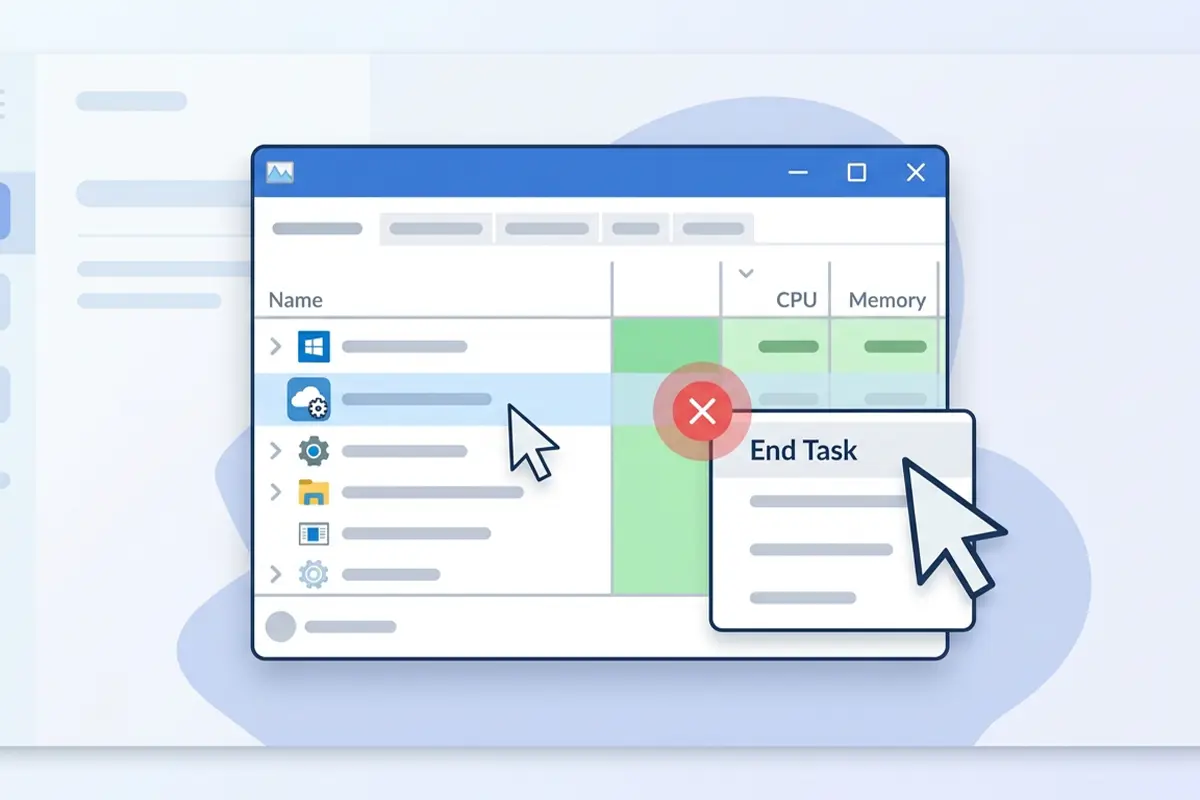
Tip: Ending a task here only stops it for the current session. For a permanent fix, the next two methods matter more.
Method 2: Disable Unneeded Startup Apps
Many background processes exist simply because an app launched itself at startup and never really needed to run constantly.
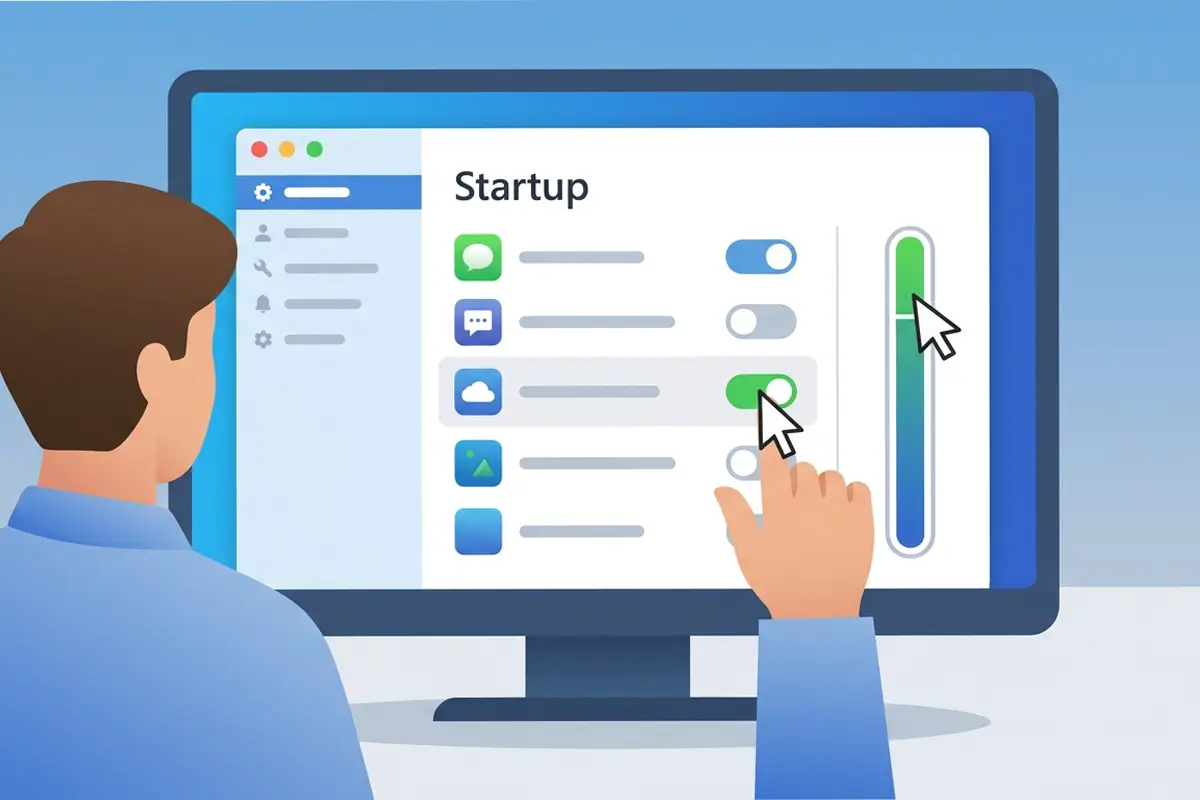
- Step 1: Open Settings and go to Apps, then Startup.
- Step 2: Review the list and note which apps show a high impact rating.
- Step 3: Toggle off anything that does not need to launch automatically, such as chat clients, cloud backup tools, or game launchers.
- Step 4: Restart the PC and confirm that startup feels noticeably quicker.
Method 3: Turn Off Background Permissions for Apps
Windows lets installed apps keep running in the background even after they are closed, which is useful for notifications but wasteful for apps rarely opened.
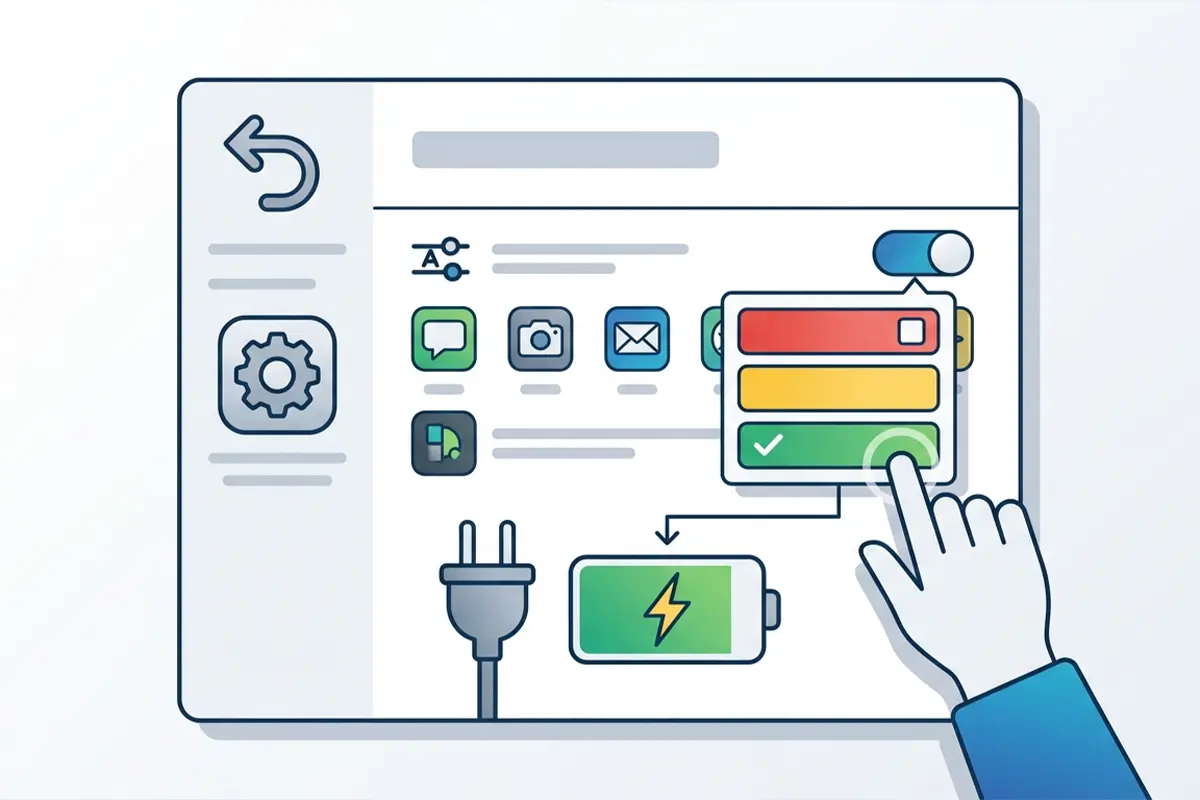
- Step 1: Open Settings, then go to Apps and Installed Apps.
- Step 2: Select an app, click the three-dot menu or Advanced Options, and locate the background permissions setting.
- Step 3: Change the setting to Never or Power Optimized for apps that do not need to update in real time.
- Step 4: Repeat for other rarely used apps, focusing on the biggest offenders first.
Tip: Leave background permissions alone for security software, backup tools, and anything relied on for real-time alerts.
Method 4: Review Non-Essential Services
Some background processes are tied to Windows services rather than visible apps. This method calls for a bit more caution since services often support core features.
- Step 1: Press the Windows key and R, type services.msc, and press Enter.
- Step 2: Look through the list for services tied to hardware or software no longer in use, such as a printer that was removed or an old game service.
- Step 3: Right-click the service, choose Properties, and set Startup Type to Manual instead of Automatic.
- Step 4: Avoid disabling anything related to networking, security, updates, or audio unless the exact function is known.
Method 5: Limit Scheduled Tasks
Scheduled Tasks silently trigger background activity at set intervals, and many come bundled with third-party software.
- Step 1: Search for Task Scheduler in the Start menu and open it.
- Step 2: Expand Task Scheduler Library and browse through any folders created by installed software.
- Step 3: Right-click a task that is not needed and select Disable rather than Delete, which keeps the option reversible.
- Step 4: Skip anything under Microsoft folders unless there is a specific, well-understood reason to change it.
Common Problems and Fixes
An App Stops Sending Notifications After Disabling Background Access
This happens when the background permission was set to Never for an app that relies on real-time alerts, like messaging or email. Switching that specific app back to Power Optimized usually restores notifications while still limiting unnecessary activity.
A Disabled Service Causes a Feature to Stop Working
If printing, Bluetooth, or audio suddenly stops working after adjusting services, the most likely cause is a service that looked unfamiliar but was actually required. Reopening services.msc and setting the Startup Type back to Automatic resolves this immediately.
Startup Apps Keep Re-Enabling Themselves
Some software resets its own startup entry after an update. Checking the Startup tab again after major app updates catches this quickly, and reapplying the toggle usually holds.
Task Manager Still Shows High Background Usage
A single stubborn process consuming resources even after cleanup is often tied to a browser with many extensions or tabs, or a sync tool actively uploading files. Closing the specific culprit in Task Manager confirms whether it was the source before assuming a deeper issue is at play.
Frequently Asked Questions
Does reducing background processes actually speed up a PC?
Yes, especially on systems with limited RAM or an older CPU. Fewer background processes mean more resources available for whatever is actively being used.
Is it safe to disable every Windows service that looks unfamiliar?
No. Many services with generic names support core Windows functions like networking, printing, or security. Only change services with a clearly understood purpose.
Will disabling startup apps delete them from the PC?
No. Disabling a startup entry only stops the app from launching automatically. The app itself remains installed and can still be opened manually anytime.
Why do background apps use battery even when not open?
Some apps keep syncing data, checking for updates, or listening for notifications in the background, which draws power even while the screen shows something else entirely.
How often should background processes be reviewed?
A quick monthly check is usually enough, especially after installing new software, since many programs quietly add themselves to startup during installation.
Can antivirus software be included in background process cleanup?
Antivirus and security software should be left running at all times. Limiting its background access can leave the system exposed to threats.
What is the difference between ending a task and disabling a startup app?
Ending a task in Task Manager only stops the process for the current session. Disabling a startup app prevents it from launching automatically the next time the PC restarts.
Does this process work the same way on both Windows 10 and Windows 11?
The core methods are similar, though menu locations differ slightly. Windows 11 groups most of these settings under Apps in the Settings app, while Windows 10 splits some of them between Settings and Task Manager.
Can too many background processes cause overheating?
Sustained high CPU usage from background processes can raise temperatures over time, particularly on laptops with limited cooling. Reducing unnecessary background activity helps keep temperatures more consistent.
