
Knowing how to check RAM speed and type in Windows makes it much easier to plan an upgrade, troubleshoot slow performance, or confirm that new memory sticks are running at the speed they were bought at. Windows actually includes several built-in tools that reveal this information without installing anything extra. This guide walks through the fastest ways to find both the speed and the type of RAM installed on a PC.
Key Takeaways
- Task Manager shows RAM speed, type, and slot usage under the Performance tab.
- The System Information tool gives a more detailed breakdown, including per-stick speed.
- Windows PowerShell can pull exact manufacturer and speed data for advanced checks.
- The speed shown in Windows may be lower than the rated speed unless XMP or EXPO is enabled in the BIOS.
- No disassembly or physical access to the RAM is required for any of these methods.
How to Check RAM Speed and Type in Windows
Method 1: Use Task Manager
Task Manager is the quickest option for most people, since it is already built into every version of Windows and takes only a few seconds to open.
- Step 1: Right-click the taskbar and select ‘Task Manager’, or press Ctrl + Shift + Esc.
- Step 2: Click the ‘Performance’ tab. If it is not visible, select ‘More details’ first at the bottom of the window.
- Step 3: Select ‘Memory’ from the left-hand list.
- Step 4: Look at the top-right corner of the panel for the memory type, such as DDR4 or DDR5.
- Step 5: Check the ‘Speed’ field, listed in MHz, along with the number of slots used and the form factor.
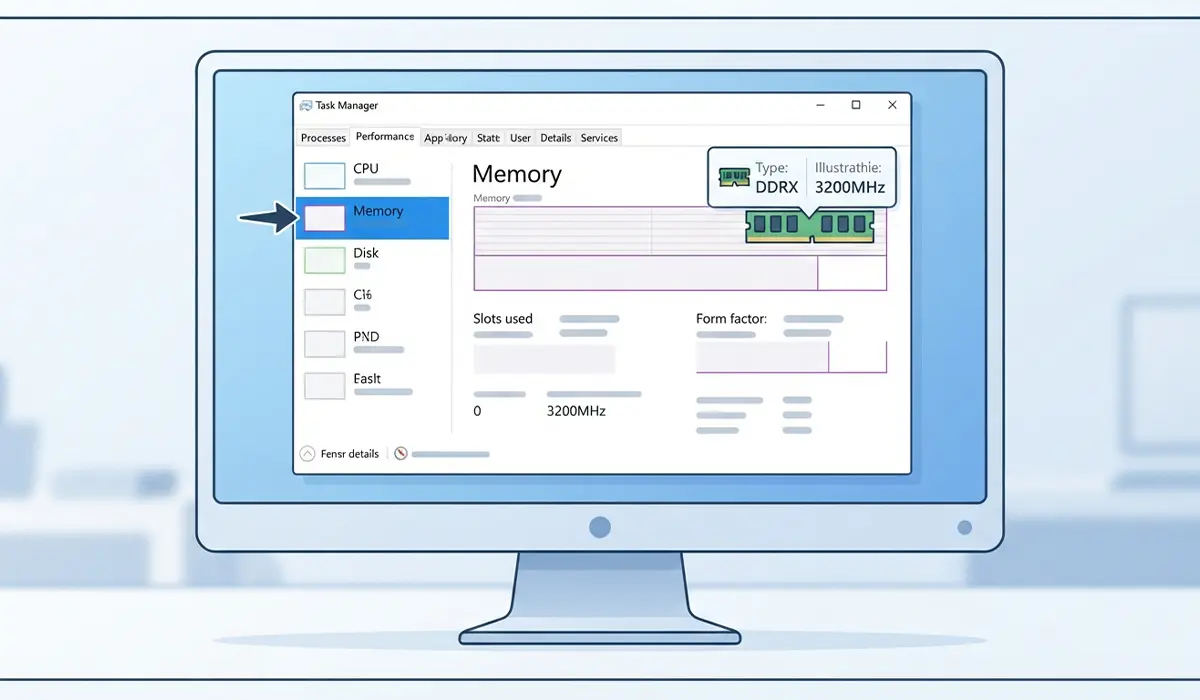
Tip: If the speed looks lower than expected, it is often because the memory profile has not been enabled in the BIOS rather than a fault with the sticks themselves.
Method 2: Use the System Information Tool
System Information digs a little deeper and is useful when a more detailed breakdown of installed memory is needed.
- Step 1: Press the Windows key, type ‘System Information’, and open the app.
- Step 2: Expand ‘Components’, then click ‘Memory’.
- Step 3: Review the listed details, which can include speed, manufacturer, and part number depending on the motherboard and BIOS reporting.

Not every system reports every field through this tool, since it depends on how much data the motherboard firmware exposes to Windows.
Method 3: Use Windows PowerShell
PowerShell is a good option for anyone comfortable with a command-line tool, and it often reports more precise numbers than the graphical utilities.
- Step 1: Press the Windows key, type ‘PowerShell’, and open it (running as administrator is not required for this check).
- Step 2: Type the command Get-CimInstance Win32_PhysicalMemory and press Enter.
- Step 3: Review the output for each installed stick, including ‘Speed’, ‘Manufacturer’, ‘PartNumber’, and ‘Capacity’.
- Step 4: Match the ‘PartNumber’ against the manufacturer’s website if the exact type, such as DDR4-3200 or DDR5-6000, needs to be confirmed.
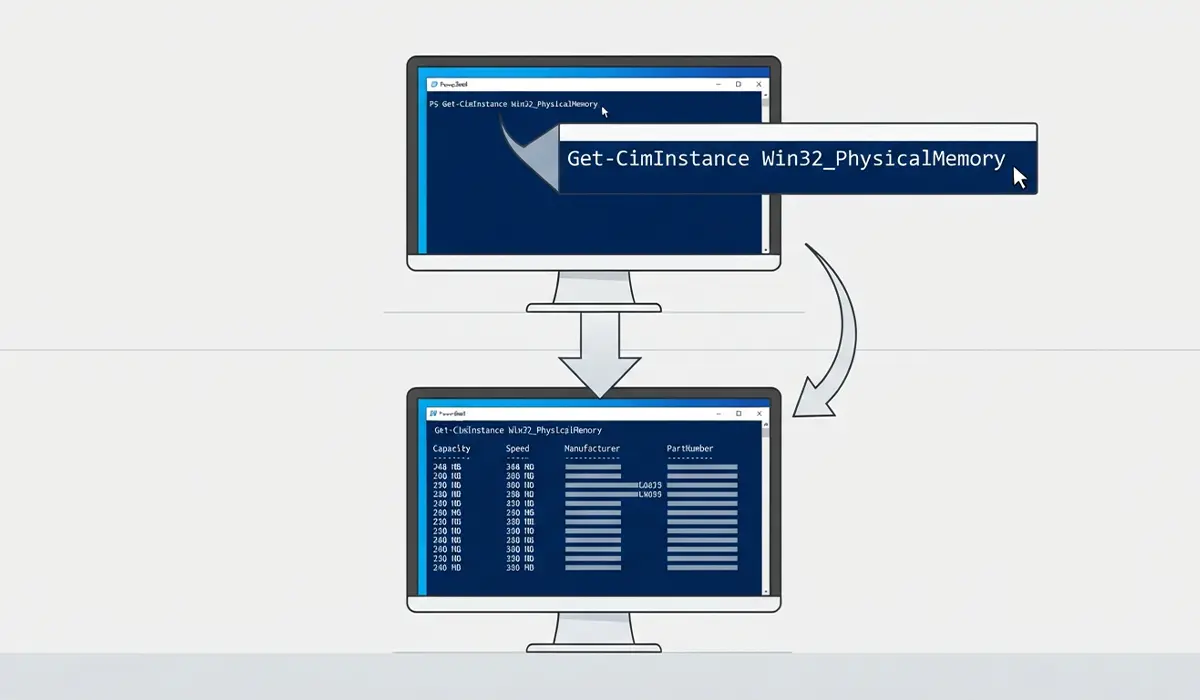
This method is especially handy on systems with more than one memory module, since it lists every stick individually instead of averaging the numbers together.
Common Problems and Fixes
- Speed shown is lower than the rated speed: This usually means the memory is running at a default JEDEC speed instead of its rated profile. Enabling XMP, EXPO, or DOCP in the BIOS applies the faster factory-set speed.
- Task Manager shows ‘Unknown’ for memory type: This can happen on older motherboards with limited BIOS reporting. Checking with PowerShell or the motherboard manufacturer’s own utility usually fills in the gap.
- Different speeds listed for each stick: Mixed-speed kits typically run at the speed of the slowest module installed. Matching sticks by speed and timings avoids this kind of mismatch.
- Slot count looks wrong: Task Manager sometimes shows the total number of physical slots on the motherboard rather than how many are filled. The ‘Memory’ section in System Information or PowerShell output confirms the actual count in use.
Frequently Asked Questions
What is the difference between RAM speed and RAM type?
RAM type refers to the generation of memory, such as DDR4 or DDR5, while RAM speed refers to how fast that memory transfers data, measured in MHz.
Why does Task Manager show a lower RAM speed than advertised?
Most memory kits ship set to a conservative default speed until a faster profile like XMP or EXPO is turned on in the BIOS, so Windows reports the lower default until that setting is changed.
Can checking RAM speed damage the computer?
No. Every method described here is read-only and simply displays existing information, so there is no risk to the hardware or the operating system.
Does Windows always show RAM speed accurately?
In most cases, yes, though the accuracy depends on how much detail the motherboard’s firmware reports to the operating system.
What is the fastest way to check how much RAM is installed?
Task Manager is the quickest option, since the Performance tab shows total installed capacity, speed, and type all in one place.
How can someone tell if RAM is DDR4 or DDR5?
The memory type is listed directly in Task Manager under the Performance tab, as well as in the System Information tool and in PowerShell output.
Why do all RAM sticks need to match speed and type?
Mismatched sticks can still work together in many cases, but the system usually runs all of them at the speed of the slowest module, which limits performance gains from any faster stick installed.
Is PowerShell more accurate than Task Manager for checking RAM speed?
PowerShell often reports more granular, per-stick detail, including manufacturer and part number, which makes it useful when Task Manager’s summary view is not detailed enough.
Can RAM speed be checked without opening the computer case?
Yes. Every method in this guide works entirely through Windows software, so there is no need to open the case or handle any internal components.
Does upgrading to faster RAM require reinstalling Windows?
No. Windows automatically detects new memory speed and capacity after a restart, and no reinstall or additional setup is needed.
