
When Outlook keeps asking for password over and over, it usually points to a saved credential conflict, a sync issue, or an outdated app connection rather than an actual wrong password. This guide walks through the exact steps needed to stop the repeated prompts and get Outlook working normally again.
Key Takeaways
- The repeated password prompt is almost always a credential caching problem, not a forgotten password.
- Clearing saved credentials in Windows Credential Manager fixes this issue in most cases.
- Removing and re-adding the account often resolves stubborn login loops.
- Disabling modern authentication conflicts or outdated add-ins can stop the cycle for good.
- A quick update check prevents this problem from returning after a fix.
How to Fix Outlook Keeps Asking for Password
Work through these steps in order. Most users find the issue resolved within the first two or three steps, so there is no need to jump ahead unless a step does not apply.
- Step 1: Close Outlook completely, including any background processes still running in Task Manager under the Processes tab.
- Step 2: Open Control Panel and go to User Accounts, then select Credential Manager.
- Step 3: Click Windows Credentials, find any entries related to Outlook, Office, or the email account in question, and remove them one by one.
- Step 4: Reopen Outlook and enter the password when prompted, making sure ‘Remember my credentials’ is checked before selecting OK.
- Step 5: If the prompt returns, go to File, then Account Settings, then Account Settings again, select the affected email account, and click Repair.
- Step 6: Let the repair process finish, then restart Outlook to confirm the account connects without a new prompt.
- Step 7: If the issue persists, remove the account entirely through Account Settings by selecting it and clicking Remove, then re-add it using File, Add Account, and enter the credentials fresh.

Tip: Before removing an account, note down the incoming and outgoing server settings if it is a non-Microsoft email account added manually, since some accounts will not auto-configure on re-entry.
Checking for Modern Authentication Conflicts
Some organizations require modern authentication, and an older cached sign-in method can trigger constant prompts even after credentials are cleared.
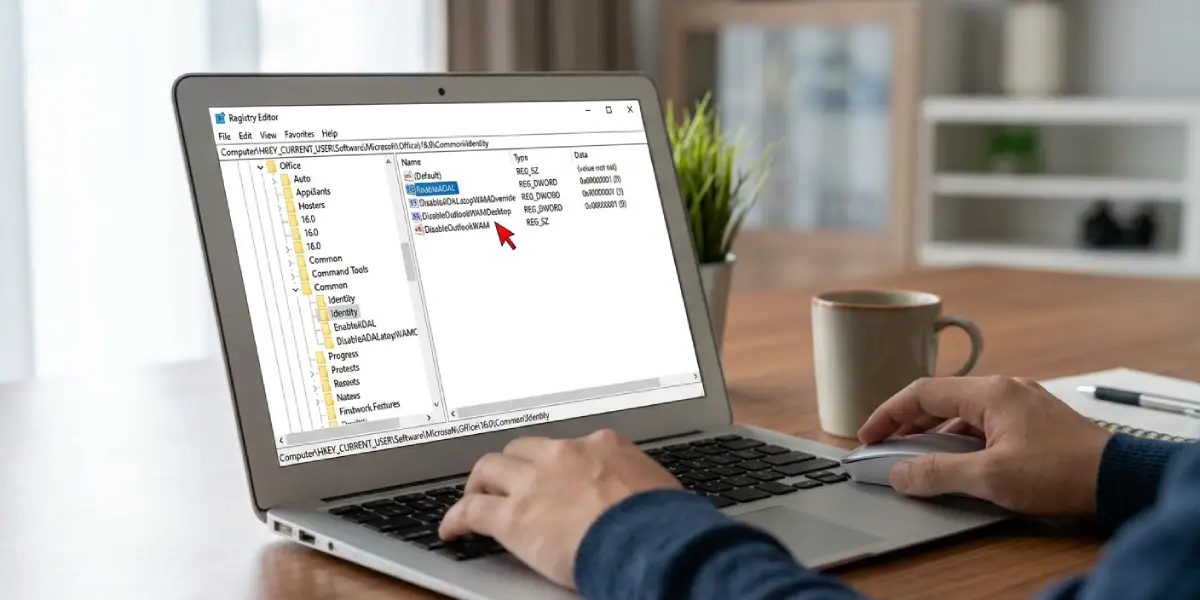
- Step 1: Open the Registry Editor by typing regedit in the Windows search bar.
- Step 2: Navigate to HKEY_CURRENT_USER\Software\Microsoft\Office\16.0\Common\Identity.
- Step 3: Confirm that EnableADAL is set to 1 and DisableADALatopWAMOverride is set to 0.
- Step 4: Close the editor and restart Outlook to apply the setting.
Tip: Skip this section entirely if the account is a personal Outlook.com or Gmail account, since modern authentication settings mainly affect work or school accounts connected through Azure Active Directory.
Common Problems and Fixes
- Password prompt reappears immediately after entering the correct password: This typically means the ‘Remember my credentials’ box was left unchecked. Repeat the sign-in step and confirm the box is selected before clicking OK.
- Outlook accepts the password but still shows a connection error afterward: This points to a server setting mismatch rather than a credential issue. Run the Repair option under Account Settings to reset the connection.
- An add-in causes Outlook to freeze right before the password prompt appears: Restart Outlook in Safe Mode by holding Ctrl while opening the app, then disable any recently added add-ins through File, Options, Add-Ins.
- The prompt only appears on one device but not others: This usually signals an outdated Outlook version on that device. Check for updates through File, Office Account, Update Options, Update Now.
- Credential Manager shows no Outlook-related entries to remove: The credentials may be stored at the operating system level under a generic Microsoft account entry instead. Look for any entry containing ‘MicrosoftAccount’ or the organization’s domain name.
Frequently Asked Questions
Why does Outlook keep asking for a password even though it is correct?
Outlook is likely using an outdated or conflicting cached credential rather than actually rejecting the password entered. Clearing the saved credentials in Credential Manager usually resolves this.
Is it safe to remove saved credentials in Credential Manager?
Yes. Removing them only clears the cached login information. Outlook will simply prompt for the password again on the next launch, and it can be saved fresh from there.
Does repairing the account in Outlook delete any emails?
No. The Repair function only resets the connection settings between Outlook and the mail server. All existing emails, folders, and data remain untouched.
Can an outdated Outlook version cause repeated password prompts?
Yes. Older builds sometimes lack updated authentication protocols required by certain mail servers, which can trigger a login loop. Checking for updates often prevents this.
What if removing and re-adding the account does not fix the issue?
Check the modern authentication registry settings covered above, since a mismatch there can override any credential fix at the account level.
Does this issue only happen with work or school accounts?
No, though it is more common with them due to added security layers. Personal accounts like Outlook.com or Gmail can also be affected by cached credential conflicts.
Will disabling add-ins stop the password prompt permanently?
It can, if a faulty add-in was interfering with the authentication process. Disabling the add-in and restarting Outlook normally is usually enough to confirm whether that was the cause.
How long does the Repair process usually take?
It typically finishes within a minute or two, depending on the size of the mailbox and the connection speed at the time.
Should the computer be restarted after clearing credentials?
A restart is not required, but closing Outlook fully through Task Manager before reopening it helps ensure no cached session data interferes with the fix.
