
The easy way to add a Comcast/Xfinity email account in the Outlook mobile app comes down to two quick jobs: allow third-party access inside Xfinity Email, then sign in through Outlook using the IMAP option. Most people finish in about five minutes. The order matters, because skipping the Xfinity setting is a common reason the sign-in fails.
Key Takeaways
- Turn on Third Party Access Security in Xfinity Email settings before opening Outlook.
- In Outlook mobile, go to Settings, then Add Account, then Add Email Account, and enter the full Comcast/Xfinity address.
- Choose IMAP if Outlook asks for the account type, then sign in with the Xfinity password.
- Manual server settings are only needed if the automatic sign-in fails.
Step-by-Step: The Easy Way to Add a Comcast/Xfinity Email Account in the Outlook Mobile App
Part 1: Allow Third-Party Access in Xfinity Email
Think of this as unlocking the front door before a guest arrives. Outlook is treated as a third-party program, so Xfinity has to permit it first.
- Step 1: Open a web browser on a phone or computer, go to connect.xfinity.com, and sign in to Xfinity Email with the Xfinity ID and password.
- Step 2: Click the gear icon in the top-right corner, then select Settings.
- Step 3: Click Security.
- Step 4: Find Third Party Access Security and check the box to allow third-party programs to access the Xfinity Email account. Save the change if a Save button appears.
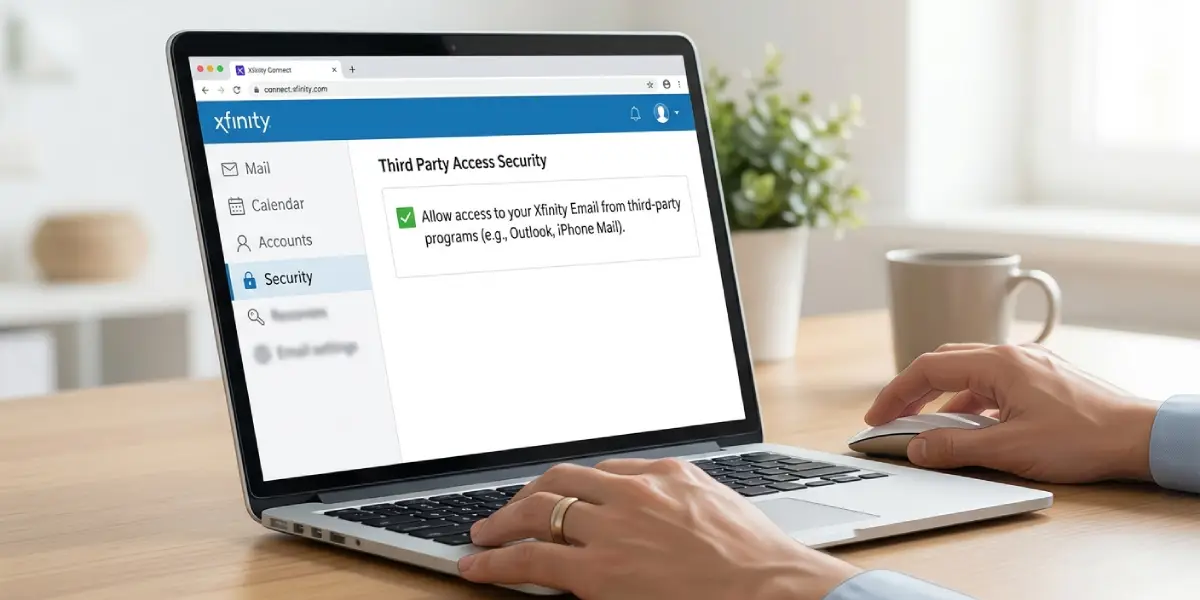
Tip: If the box is already checked, leave it as it is. The setting only needs to be on, and it stays on until someone turns it off.
Part 2: Add the Account in the Outlook Mobile App
This works the same way on iPhone and Android, apart from small differences in icon placement.
- Step 5: Open the Outlook app. If it is the first launch, tap Get Started and move on to Step 7.
- Step 6: Tap the profile picture or Home icon in the top-left corner, tap the gear icon for Settings, then tap Add Account and choose Add Email Account.
- Step 7: Type the full Comcast/Xfinity email address, such as name@comcast.net, and tap Continue.
- Step 8: If Outlook asks which type of account this is, select IMAP.
- Step 9: Enter the Xfinity email password and tap Sign in. Most people find that the email address and password are all that is needed, and Outlook fills in the server details automatically.
- Step 10: When Outlook offers to add another account, tap Maybe Later, and allow notifications if new-mail alerts are wanted.
- Step 11: Open the Inbox and wait a moment. Messages appear once the first sync completes, which confirms the account is working.
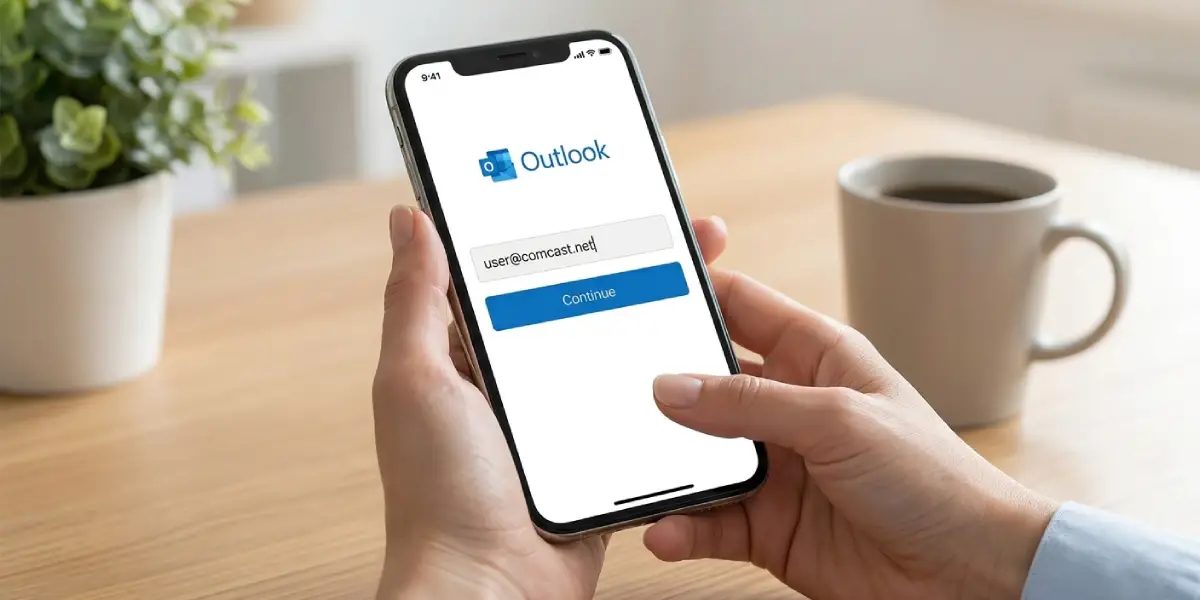
Tip: Send a short test message to another address right away. That confirms both the incoming and outgoing sides work before an important email depends on them.
If Automatic Sign-In Fails: Enter the Server Settings Manually
This is the fallback, not the first choice. On the IMAP sign-in screen, turn on Advanced Settings and enter the following details.
- Email address and username: the full Comcast/Xfinity address
- Password: the same password used for Xfinity Email
- IMAP incoming server: imap.comcast.net, port 993, security SSL/TLS
- SMTP outgoing server: smtp.comcast.net, port 587, security STARTTLS
- If port 587 does not work for sending, use port 465 with SSL/TLS
Once the details are in, tap Sign in (or the checkmark) to finish.
Common Problems and Fixes
Outlook Says the Password Is Wrong
Confirm the same password works at connect.xfinity.com in a browser. If it does not, reset it there first. If it does, retype the password slowly in Outlook, since phone keyboards often add a capital letter to the first character. If the Xfinity account uses two-step verification and the regular password is still refused, look in the Security area of Xfinity Email settings for an application password option and use that in place of the regular password.
The Account Will Not Connect at All
Go back to Part 1 and confirm that the Third Party Access Security box is checked. This single setting is the most frequent cause of a refused connection.
Mail Arrives but Messages Will Not Send
Open the account’s Advanced Settings in Outlook and check the outgoing server. It should be smtp.comcast.net with the full email address as the username. If port 587 with STARTTLS fails, switch to port 465 with SSL/TLS.
Outlook Keeps Asking for the IMAP Password
This usually follows a password change on the Xfinity side. Re-enter the new password when prompted. If the prompt keeps returning, remove the account from Outlook Settings and repeat Part 2 from Step 6 with the current password.
The Advanced Settings Screen Will Not Work
Some people find that entering only the email address and password, with Advanced Settings left off, succeeds where manual entry does not. Remove the account, add it again, and let Outlook fill in the defaults.
Frequently Asked Questions
Can the Outlook mobile app be used with a Comcast/Xfinity email account?
Yes. Outlook mobile connects to Comcast/Xfinity email through IMAP, as long as third-party access is enabled in the Xfinity Email settings.
Which email address should be entered in Outlook?
Enter the complete Comcast/Xfinity email address, such as name@comcast.net. The username is not shortened, and the full address is used for both incoming and outgoing mail.
What are the IMAP settings for Comcast/Xfinity email?
The incoming server is imap.comcast.net, the port is 993, and the security type is SSL/TLS. The username is the full email address.
What are the SMTP settings for Comcast/Xfinity email?
The outgoing server is smtp.comcast.net with port 587 and STARTTLS. If sending fails, port 465 with SSL/TLS is the alternative.
Does Third Party Access Security need to be turned on?
Yes. In Xfinity Email, select the gear icon, then Settings, then Security, and check the box under Third Party Access Security. Without it, Outlook cannot sign in to the account.
Is the regular Xfinity password used in Outlook?
In most cases, yes. If the account has two-step verification and the regular password is refused, an application password created in the Xfinity Email Security settings can be used instead.
Is the setup different on iPhone and Android?
The process is nearly identical. Both use Settings, then Add Account, then Add Email Account. Only the placement of a few icons differs between the two platforms.
Why does Outlook keep asking for the IMAP password?
The saved password is usually out of date, often after a password change on the Xfinity side. Enter the current password, or remove the account and add it again.
What should be done after changing the Xfinity password?
Update the password in Outlook when it prompts for it. If the prompt does not go away, remove the account in Outlook Settings and add it again using the new password.
Can messages be sent from the Comcast/Xfinity address in Outlook mobile?
Yes. Once the account is added with the correct SMTP settings, messages send from the Comcast/Xfinity address. A quick test email to another address confirms it.
