
Outlook error 0x8004010F usually appears as ‘The set of folders cannot be opened’ and stops send/receive dead in its tracks. It almost always points to a damaged or misconfigured Outlook data file, and the good news is that it can be fixed in a few focused steps without losing any email.
Key Takeaways
- Error 0x8004010F is caused by a corrupted, missing, or misconfigured .pst or .ost data file.
- Running the built-in Inbox Repair Tool (SCANPST.EXE) resolves most cases.
- Rebuilding the offline data file (.ost) fixes issues tied to Exchange or Microsoft 365 accounts.
- Checking the default data file location clears up problems caused by moved or renamed files.
- Antivirus software or full-disk conditions can also trigger this error and are worth ruling out.
How to Fix Outlook Error 0x8004010F
Step-by-Step Guide
- Step 1: Close Outlook completely. Check the Task Manager under the Processes tab to confirm OUTLOOK.EXE is not still running in the background, and end the task if it is.
- Step 2: Locate the Inbox Repair Tool. On most installations this is found at C:\Program Files\Microsoft Office\root\Office16\SCANPST.EXE, though the exact path depends on the Office version and whether it is 32-bit or 64-bit.
- Step 3: Find the data file that needs scanning. In Outlook, go to File, then Account Settings, then Account Settings again, and open the Data Files tab. Select the account showing the error and click Open File Location to see the exact .pst or .ost path.
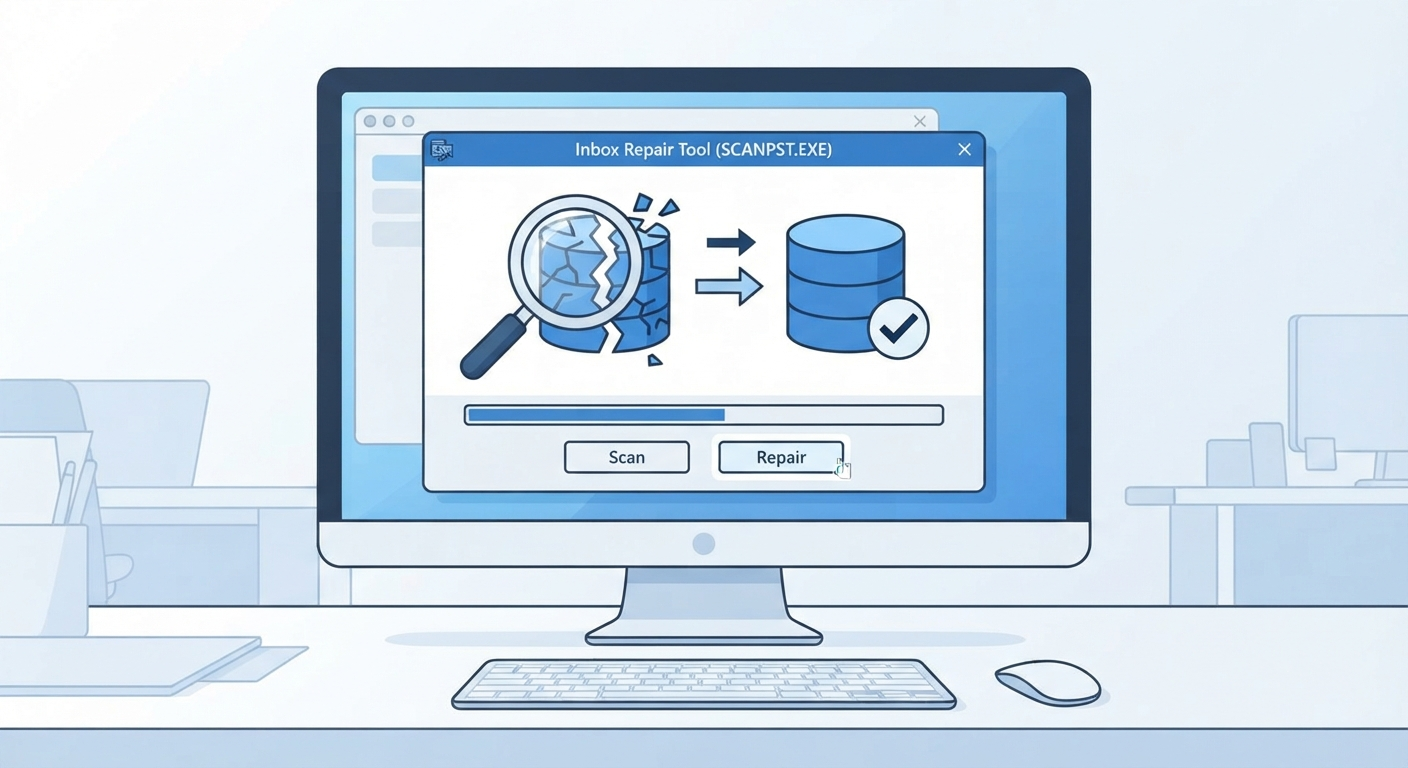
- Step 4: Open SCANPST.EXE, browse to that file path, and click Start. The tool will scan for structural errors in the data file.
- Step 5: If errors are found, make sure the ‘Make backup of scanned file before repairing’ box is checked, then click Repair. This keeps a safety copy in case something needs to be undone later.
- Step 6: Restart Outlook and let it reopen the repaired data file. Give it a minute to reindex the folder structure.
- Step 7: If the error persists and the account is Exchange or Microsoft 365, rebuild the .ost file instead. Close Outlook, go to Control Panel, open Mail, click Show Profiles, select the profile, and click Properties, then Data Files, then remove the .ost entry. Reopening Outlook will regenerate a fresh copy from the server.
Tip: Rebuilding the .ost file downloads mailbox data fresh from the server, so it works best on a stable internet connection, especially for larger mailboxes that could take a while to sync back.
Confirming the Fix Worked
- Step 8: Send a test email or trigger a manual send/receive using F9 to confirm folders load without the error.
- Step 9: Check that all folders, including custom ones, appear correctly in the navigation pane.
Common Problems and Fixes
- SCANPST finds no errors, but the message still appears: The issue is likely tied to a corrupted Outlook profile rather than the data file itself. Creating a new profile through Control Panel, Mail, Show Profiles usually resolves this.
- The data file path cannot be found: This often happens when a .pst file has been moved, renamed, or stored on a drive that is no longer connected. Reattaching the file through File, Open & Export, Open Outlook Data File restores the link.
- Antivirus software is blocking access to the data file: Some security tools lock .pst or .ost files during scans. Adding an exclusion for the Outlook data file folder in the antivirus settings usually clears this up.
- Not enough disk space to complete the repair: SCANPST needs free space roughly equal to the size of the file being repaired. Freeing up space on the drive before running the tool prevents the repair from failing partway through.
- Error returns after rebuilding the .ost file: This can point to a deeper sync issue on the mail server side. Running Outlook in Safe Mode (hold Ctrl while launching Outlook) helps determine whether an add-in is interfering with the sync process.
Frequently Asked Questions
What does Outlook error 0x8004010F actually mean?
It means Outlook cannot access or open the set of folders in the mailbox, which is almost always tied to a corrupted or unreachable .pst or .ost data file.
Will running the Inbox Repair Tool delete any emails?
No, as long as the backup option is selected during the repair process. SCANPST fixes structural errors in the file without removing existing messages.
Where is SCANPST.EXE located on Windows?
It is typically found in the Office installation folder, such as C:\Program Files\Microsoft Office\root\Office16, though the exact folder name varies by Office version.
Is it safe to delete the .ost file to fix this error?
Yes, for Exchange or Microsoft 365 accounts. The .ost file is a local cache, and Outlook rebuilds it automatically from the server without any data loss.
Does this error affect POP or IMAP accounts as well?
Yes, though the fix for those accounts centers on repairing the .pst file rather than rebuilding an .ost, since POP and IMAP accounts store mail locally.
How long does rebuilding the .ost file take?
It depends on mailbox size and internet speed, ranging from a few minutes for small mailboxes to over an hour for large ones with years of stored mail.
What if SCANPST cannot repair the file at all?
This usually indicates severe corruption. Restoring from a recent backup of the .pst file is the most reliable next step in that situation.
Can antivirus software really cause this error?
Yes, real-time scanning can lock the Outlook data file at the exact moment Outlook tries to access it, triggering the same folder-access error.
Does creating a new Outlook profile fix the error permanently?
In most cases it does, since a fresh profile removes any corrupted configuration data while keeping the underlying mailbox data file intact.
