
Learning how to fix inaccessible boot device BSOD starts with understanding what the error means: Windows started loading but could not reach the drive that holds the operating system. The cause is usually a storage setting, a damaged boot file, a bad update, or a drive that is failing. Most cases can be fixed from the Windows recovery environment without wiping anything.
Key Takeaways
- The INACCESSIBLE_BOOT_DEVICE stop code means Windows lost contact with the drive or storage controller during startup.
- Common triggers are a changed BIOS storage mode, a recent Windows update, corrupted boot files, loose connections, and a failing drive.
- Work from the least invasive fix to the most invasive: BIOS check, Startup Repair, update removal, disk and boot repairs, then a reset or reinstall.
- Back up important files as soon as the recovery tools allow it, especially if the drive shows signs of failing.
Common Causes of the Inaccessible Boot Device Error
Knowing the likely cause saves time, because each one points to a different fix.
- A changed storage controller mode in the BIOS or UEFI, such as switching between AHCI and RAID (Intel RST) after a BIOS update or reset.
- A recent Windows quality or feature update that left drivers or boot files in a broken state.
- Corrupted boot configuration data (BCD), a damaged file system, or missing system files.
- A loose or faulty SATA cable, or an M.2 SSD that has shifted in its slot.
- A failing hard drive or SSD with bad sectors or controller problems.
- A missing or incompatible storage driver, often after cloning a drive or moving it to different hardware.
Before You Start
Most of the fixes below are software based, but a few involve checking the drive connection. If the case needs to be opened, shut the PC down fully, unplug it, and on a laptop disconnect the battery if it is removable. Touch bare metal on the chassis to discharge static before handling the drive or cables.
Gather these items first:
- A USB flash drive (8 GB or larger) with Windows installation media, created on another working PC using Microsoft’s Media Creation Tool.
- An external drive or second USB drive for backing up files.
- A small Phillips screwdriver, only if the drive connection needs to be reseated.
Opening a laptop or desktop may affect the warranty on some devices. If the device is under warranty or the internal parts feel unfamiliar, skip the physical steps and let a technician handle them.
How to Fix Inaccessible Boot Device BSOD Step by Step
Basic Fixes to Try First
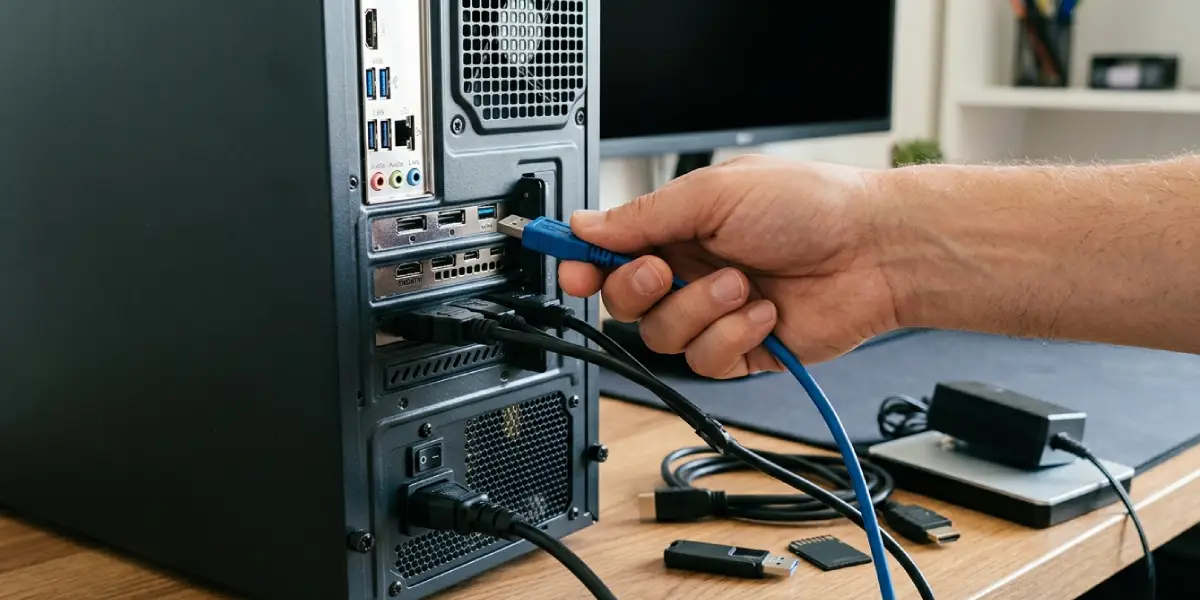
- Step 1: Power the PC off completely and unplug every external device, including USB drives, SD cards, docks, and external disks. A connected device can occasionally be mistaken for the boot drive. Turn the PC back on and see whether Windows starts.
- Step 2: Open the BIOS or UEFI setup (usually by pressing Del, F2, F10, or Esc at power on, depending on the manufacturer) and confirm the system drive is listed. If the drive is missing, shut down, unplug the PC, and reseat the SATA data cable or the M.2 SSD. If it still does not appear, the drive or its connection is likely faulty.
- Step 3: While in the BIOS, check the storage mode (often labeled SATA Mode or Storage Configuration). If it was recently switched or reset, return it to the setting Windows was installed under, which is most often AHCI. Machines installed with Intel RST or RAID must stay in that mode, because changing it without the right driver triggers this exact error. Save and exit.
Tip: Think of the storage mode like the language used between Windows and the drive. If the BIOS suddenly speaks a different one, Windows cannot understand the drive, even though nothing is physically wrong with it.
Use the Windows Recovery Environment
- Step 4: Enter the Windows Recovery Environment (WinRE). Windows usually opens it automatically after two or three failed boots. If it does not, hold the power button to force the PC off during startup three times in a row. Another route is booting from the Windows installation USB, choosing the language, and selecting ‘Repair your computer’.
- Step 5: In WinRE, go to Troubleshoot, then Advanced options, then Startup Repair. Let the process finish and check whether Windows boots normally afterward.
- Step 6: If the error began right after an update, go to Troubleshoot, then Advanced options, then Uninstall Updates. Remove the latest quality update first. If that does not help, try removing the latest feature update.
Advanced Repairs from Command Prompt
- Step 7: Open Command Prompt from Advanced options. Drive letters inside WinRE often differ from the ones used in Windows, so type diskpart, then list volume, then exit, and identify the volume that holds the Windows folder. The steps below assume it is C, so swap in the correct letter if it differs.
- Step 8: Check the drive for file system errors by running chkdsk C: /f /r. This can take a long time on a large or damaged drive, so let it finish. A drive that reports many bad sectors should be backed up and replaced.
- Step 9: Repair system files offline by running sfc /scannow /offbootdir=C:\ /offwindir=C:\Windows. If problems remain, run DISM /Image:C:\ /Cleanup-Image /RestoreHealth to repair the component store.
- Step 10: Rebuild the boot records. Run bootrec /scanos, then bootrec /rebuildbcd, and accept the Windows installation when prompted. If bootrec /fixboot returns an access denied message on a UEFI system, use diskpart to assign a letter (for example S) to the small FAT32 EFI System Partition, then run bcdboot C:\Windows /s S: /f UEFI to recreate the boot files.
- Step 11: If the PC uses Intel RST, RAID, or a newer NVMe controller that Windows does not recognize, load the correct storage driver. Download the driver from the PC or motherboard manufacturer on another computer, copy it to a USB drive, then run dism /image:C:\ /add-driver /driver:D:\ /recurse, replacing D with the USB drive letter shown in WinRE.
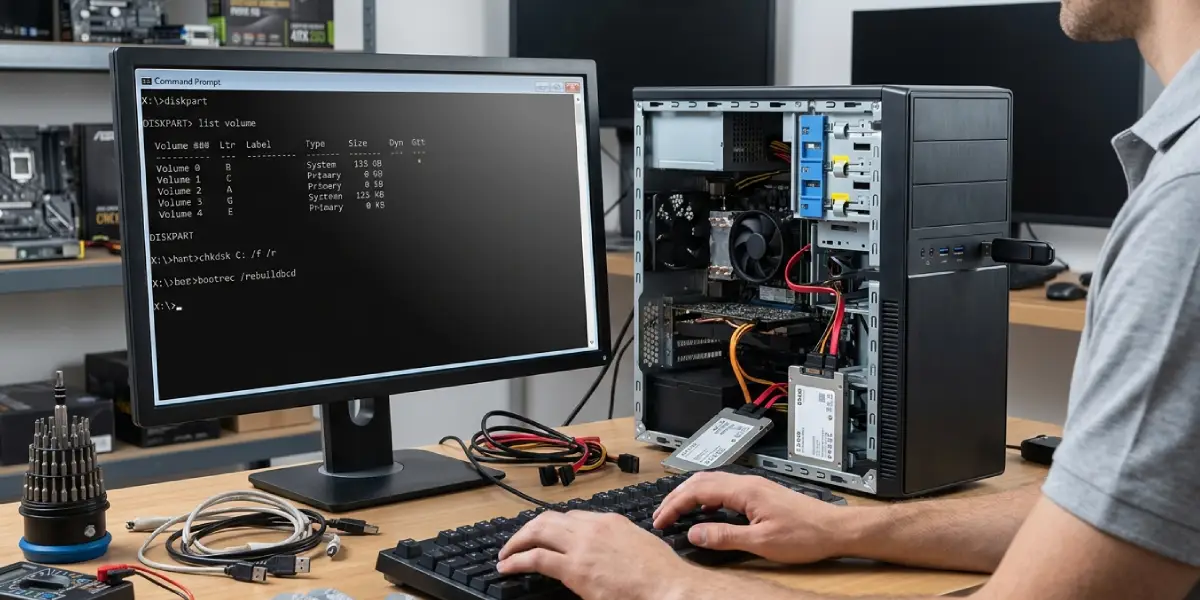
Tip: Before running bigger repairs, copy important documents to an external drive. From Command Prompt, typing notepad and using File, then Open, gives a basic file browser that can copy files to a USB drive.
Last Resort Options
- Step 12: In WinRE, choose Troubleshoot, then Reset this PC, and select the option to keep personal files. This reinstalls Windows while preserving documents, though apps will need to be reinstalled.
- Step 13: If the reset fails or the drive keeps vanishing from the BIOS, back up what can be recovered, replace the drive, and perform a clean installation of Windows from the USB installation media.
Common Problems and Fixes
The error returns after Startup Repair says it succeeded
This usually points to a storage mode mismatch or a failing drive. Recheck the AHCI or RAID setting in the BIOS, then run chkdsk with the /f /r switches and review the drive’s health with the manufacturer’s diagnostic tool.
Startup Repair loops or cannot repair the PC
Skip to the Command Prompt steps. Rebuilding the BCD and repairing system files manually often succeeds where the automatic tool fails.
The drive does not appear in the BIOS or in WinRE
Reseat the data cable or the M.2 SSD, try a different SATA port or cable, and check the BIOS again. A drive that still does not show up is most likely dead and needs replacing.
The Windows installer cannot see the drive
The installer needs the storage driver. Choose the Load driver option on the installation screen and point it to the Intel RST or RAID driver supplied by the PC maker.
Uninstall Updates is unavailable or fails
Try the Command Prompt repairs instead, then consider Reset this PC with the keep files option if the update left Windows damaged.
Frequently Asked Questions
What does the inaccessible boot device BSOD mean?
It means Windows could not access the system partition during startup. The stop code is INACCESSIBLE_BOOT_DEVICE, and it points to a problem with the drive, the storage controller, the drivers, or the boot files.
Does inaccessible boot device mean the hard drive is dead?
Not necessarily. Many cases come from a changed BIOS storage mode, a bad update, or corrupted boot files. The drive is only the cause if it fails to show up in the BIOS or reports serious errors during a disk check.
Can a Windows update cause the inaccessible boot device error?
Yes. A failed or interrupted update can damage drivers or boot files. Uninstalling the latest update from the Windows Recovery Environment often resolves the problem.
Will I lose my files when fixing this error?
Most fixes, including Startup Repair, update removal, chkdsk, and boot repair, do not delete personal files. Reset this PC with the keep my files option also preserves documents, but backing up first is the safest approach.
How do I open the recovery environment if Windows will not start?
Force the PC off by holding the power button during startup three times in a row, and Windows normally opens recovery on the next boot. Alternatively, boot from a Windows installation USB and select Repair your computer.
Should I change SATA mode from AHCI to RAID to fix it?
No, unless Windows was originally installed in that mode. Switching modes without the matching driver causes this error. The correct fix is to return the setting to whatever it was before the problem began.
Can a loose cable or SSD cause an inaccessible boot device BSOD?
Yes. A loose SATA cable or an M.2 SSD that is not seated firmly can interrupt communication with the drive. Powering down, unplugging the PC, and reseating the connection is a quick and safe check.
When should the drive be replaced?
Replace it when it disappears from the BIOS repeatedly, chkdsk reports many bad sectors, or the error returns after software repairs. Back up data first, since a failing drive can get worse quickly.
Is a clean install of Windows always necessary?
No. A clean install is a last resort. Most cases are solved by correcting the BIOS storage mode, repairing boot files, removing a bad update, or loading the right storage driver.
