
Knowing how to fix yellow tint on laptop screen problems saves a lot of frustration, because white backgrounds that look cream or amber are rarely a sign of a dead display. In most cases, a software setting, a color profile, or an outdated graphics driver is behind it. Only a smaller share of cases come from a worn backlight or a faulty panel, and a few quick tests show which one applies.
Key Takeaways
- A yellow tint is most often caused by Night Light, Night Shift, True Tone, or a blue light filter app that is still active.
- A corrupted or wrong color profile and an outdated graphics driver are the next most common culprits.
- Connecting an external monitor is the fastest way to tell a software problem from a failing laptop panel.
- If the tint also shows in the BIOS or startup screen, the cause is hardware, usually an aging backlight or a damaged panel.
Common Causes of a Yellow Tint on a Laptop Screen
The cause usually falls into one of two groups: settings that shift color on purpose, and physical wear. Sorting out which group applies first prevents a lot of wasted effort.
Software and Settings Causes
- Night Light on Windows, Night Shift on macOS, or a similar warm display mode left switched on.
- True Tone on a Mac or an adaptive color feature that adjusts the white point to room lighting.
- A third-party blue light filter or screen dimming app running in the background.
- A wrong or damaged ICC color profile assigned to the display.
- Outdated, corrupted, or mismatched graphics drivers.
- Custom color or temperature values set in the graphics control panel or a manufacturer utility.
Hardware Causes
- An aging LED backlight that has shifted its color output over years of use.
- Degraded layers inside the LCD panel, such as the diffuser or polarizer.
- A loose or damaged display cable (the flat cable between the motherboard and the panel).
- Pressure damage or heat damage to part of the panel, which often shows as a yellow patch instead of an even tint.
How to Fix Yellow Tint on Laptop Screen Step by Step
Work through these fixes in order. They run from the quickest and most common to the more involved, so the problem is often solved within the first few steps.
Fixes That Need No Tools
- Step 1: Restart the laptop. A stuck color setting or a driver glitch sometimes clears after a full restart, and it takes only a minute.
- Step 2: Turn off Night Light or Night Shift. On Windows, open Settings, go to System, then Display, and switch Night light off. On a Mac, open System Settings, choose Displays, and turn Night Shift off. Even when the schedule looks disabled, the strength slider may still be set high, so check that as well.
- Step 3: Turn off True Tone or adaptive color. On a Mac, True Tone sits in the Displays settings. Some Windows laptops have a similar adaptive color or ambient color option in the display settings or in the manufacturer app. Disabling it returns the screen to a fixed white point.
- Step 4: Close any third-party blue light filter apps. Programs that warm the screen at night can keep running in the system tray. Exit them or uninstall them, then check the screen again.
- Step 5: Check the graphics control panel for color adjustments. Open the Intel, NVIDIA, or AMD control software and look at the color, gamma, or temperature sections. Reset anything that has been changed back to its default value. Manufacturer utilities from the laptop brand may also include color modes, so make sure a warm or eye comfort mode is not active.
- Step 6: Remove or reset the color profile. On Windows, search for Color Management, open it, and select the laptop display. Make sure the box for using the profile for this device is not tied to a strange custom profile, then remove any odd profile from the list or choose the standard sRGB profile as the default. Restarting afterward helps the change take effect.
- Step 7: Update or reinstall the graphics driver. Download the latest driver from the laptop maker or the graphics chip maker. If the tint appeared right after an update, a clean reinstall of the driver or a rollback to the previous version may work better. Restart the laptop when the installation finishes.
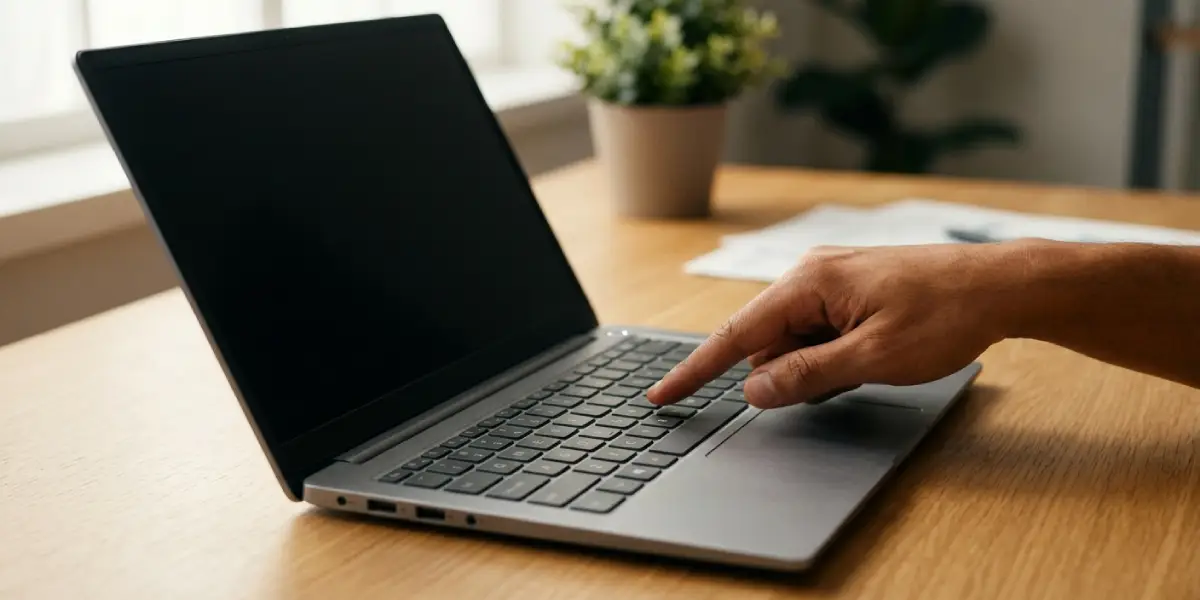
Tip: Take a screenshot of the yellow screen and look at it on a phone or another device. If the screenshot looks normal there, the laptop panel itself is showing the tint, which points toward the display hardware instead of the image the system is producing.
Test Whether the Problem Is Software or Hardware
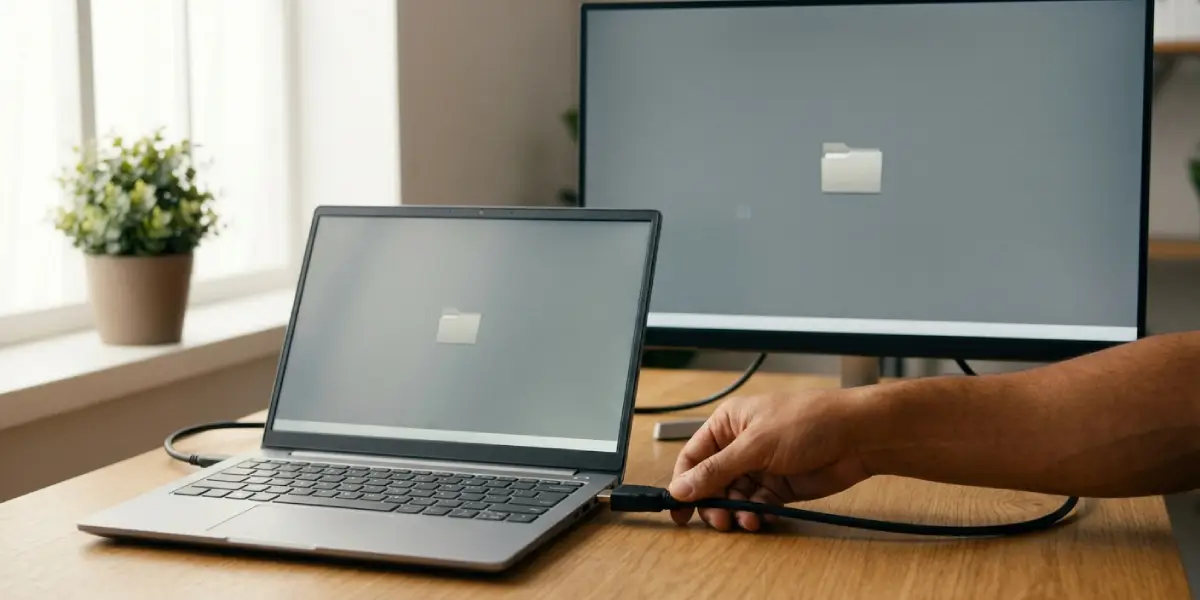
- Step 8: Connect an external monitor or TV through HDMI or USB-C. If the external screen looks normal while the laptop display stays yellow, the system, drivers, and settings are fine and the laptop panel is the source.
- Step 9: Open the BIOS or UEFI setup screen during startup. These screens are drawn before the operating system loads, so Windows and macOS settings cannot affect them. A yellow tint here confirms a hardware cause.
- Step 10: Try booting a different operating system environment, such as a live USB of Linux, to see if the tint follows the operating system. A normal picture there suggests a profile or driver problem in the main installation.
Before You Start a Hardware Check
Checking the display cable or the panel means opening the laptop, and that is where real risk begins. Power the laptop off, unplug the charger, and disconnect the internal battery if the design allows it. Touch bare metal or wear an anti-static strap to discharge static, and let any warm components cool first. A small precision screwdriver set, plastic pry tools, and a clean microfiber cloth are the right tools. Metal tools on the bezel or the thin display cable can crack the panel or tear the connector. Opening a laptop may also affect the warranty, so check the warranty terms first.
Hardware Fixes
- Step 11: Clean the screen surface gently. Smudges and film rarely cause a full yellow cast, but a dirty surface can make the screen look dull and warm. Use a dry microfiber cloth first. If more is needed, lightly dampen the cloth with a screen-safe cleaner. Never spray liquid directly onto the display.
- Step 12: Gently flex the lid and watch the screen. If the tint changes or flickers while the lid moves, the display cable or its connector may be loose. In that case, reseating the cable at the motherboard and at the panel can restore the normal color.
- Step 13: Look for physical damage. A yellow or brown patch in one area, often near a corner or the center, usually points to pressure or heat damage to the panel. This cannot be repaired by software, and the panel needs to be replaced.
- Step 14: Consider a panel or backlight replacement. When the whole screen is evenly yellow on an older laptop, and every setting and test has ruled out software, the backlight or panel layers have likely aged. Replacing the display panel is the lasting fix. Choose a panel that matches the exact part number or the same specifications as the original.
Tip: If the laptop is still under warranty, contact the manufacturer before opening anything. A tint that appears on a young laptop is often covered as a defect.
Stop and hand the laptop to a professional if the screen cable is hard to reach, if the connector is a delicate lock type that is unfamiliar, or if the panel shows cracks. A careless attempt can turn a repairable display into a damaged one.
Common Problems and Fixes
The Tint Comes Back After a Restart
A scheduled warm mode, a startup app, or a manufacturer utility is probably re-applying the color shift at boot. Check the startup list in Task Manager on Windows or Login Items on a Mac, and disable any filter or color tool that should not be there.
The Screen Looks Yellow Only in Some Apps
This usually means the app uses its own color profile or an embedded filter, or that HDR or a color management option is conflicting with the display settings. Test the same content in a different app. If only one program is affected, check that program’s own display or color settings.
The Screen Is Still Yellow After All Software Fixes
If the tint remains on an external monitor test, in the BIOS, and in a screenshot comparison, the cause is physical. Move on to the display cable check, and if that does not help, plan for a panel replacement.
The Tint Appears Only at Low Brightness
Some panels show a warmer cast at the lowest brightness levels. Raising the brightness a little and comparing is a simple test. If the tint disappears at normal brightness, the backlight may be aging, or a power saving feature may be dimming the screen and changing the color balance.
The Color Looks Off After a Windows Update
An update can replace the graphics driver or reset a color profile. Reinstalling the driver from the laptop maker and reselecting the correct color profile in Color Management usually brings the display back to normal.
Frequently Asked Questions
Why does a laptop screen look yellow all of a sudden?
A sudden yellow tint is most often caused by a warm display mode such as Night Light, Night Shift, or True Tone being switched on by a schedule or an update. A changed color profile or a freshly installed graphics driver can also be responsible.
Is a yellow tint on a laptop screen a hardware or software problem?
It is usually a software problem, caused by display settings, color profiles, or drivers. Hardware causes exist, such as an aging backlight or a damaged panel, but they are less common and are confirmed only after software causes are ruled out.
How can a yellow screen be tested to tell hardware from software?
Connect an external monitor and open the BIOS screen. If the external display looks normal, the laptop panel is the problem. If the tint shows in the BIOS too, the cause is hardware, because settings in the operating system cannot affect that screen.
Does Night Light cause a yellow tint?
Yes. Night Light on Windows and Night Shift on macOS deliberately shift the display toward warmer colors to reduce blue light. If either is enabled or set to a strong level, the whole screen looks yellow or orange until the feature is turned off or lowered.
Can an old laptop screen turn yellow with age?
Yes. Over years of use, the LED backlight and the plastic layers inside the LCD panel can change, which gives the screen a warmer, yellowish cast. This type of tint is even across the screen and does not respond to software settings.
Will updating the graphics driver fix a yellow screen?
It can, when the tint comes from a corrupted or mismatched driver or a wrong color setting. Installing the latest driver from the laptop maker or graphics chip maker, or rolling back a bad update, often restores the normal color.
Why does the screen look yellow only in some apps or at certain times of day?
A time-based tint usually comes from a scheduled warm mode or a blue light filter app. A tint in only one app usually comes from that app’s own color settings or from a color management conflict.
Is it worth replacing a laptop screen that has a yellow tint?
It depends on the laptop. If every software fix has failed and the tint is distracting or affects color-sensitive work, a panel replacement is the permanent solution. On a very old laptop, the cost of the panel and the repair should be weighed against the value of the machine.
