
The best cooling upgrades for a budget laptop are usually cheap, simple, and far more effective than most people expect. Budget models often ship with small heatsinks, thin fans, and tight vents, so heat builds up quickly under load. The right upgrades, applied in the right order, can bring temperatures down, quiet the fans, and keep performance steady.
Key Takeaways
- Cleaning the vents and fans is the cheapest and most effective cooling upgrade, and it should always come first.
- A raised stand or a cooling pad with fans improves airflow under the chassis, especially on laptops with bottom intake vents.
- Fresh thermal paste can help a laptop that is several years old, but it involves opening the device and is not for everyone.
- Windows power settings can lower heat without any hardware changes.
- Soft surfaces like beds and couches block intake vents, so a hard, flat surface matters more than any gadget.
Best Cooling Upgrades for a Budget Laptop, Ranked
The list below is ordered by value. Start at the top and stop when temperatures and fan noise are acceptable. Many laptops need nothing beyond the first two or three items.
Clean the Vents, Fans, and Heatsink
Dust acts like a wool blanket inside a laptop. It collects on the fan blades and clogs the fins of the heatsink, so air cannot carry heat away. Cleaning is free, carries low risk when done carefully, and is the single biggest improvement on a laptop that has run for a year or more without maintenance.
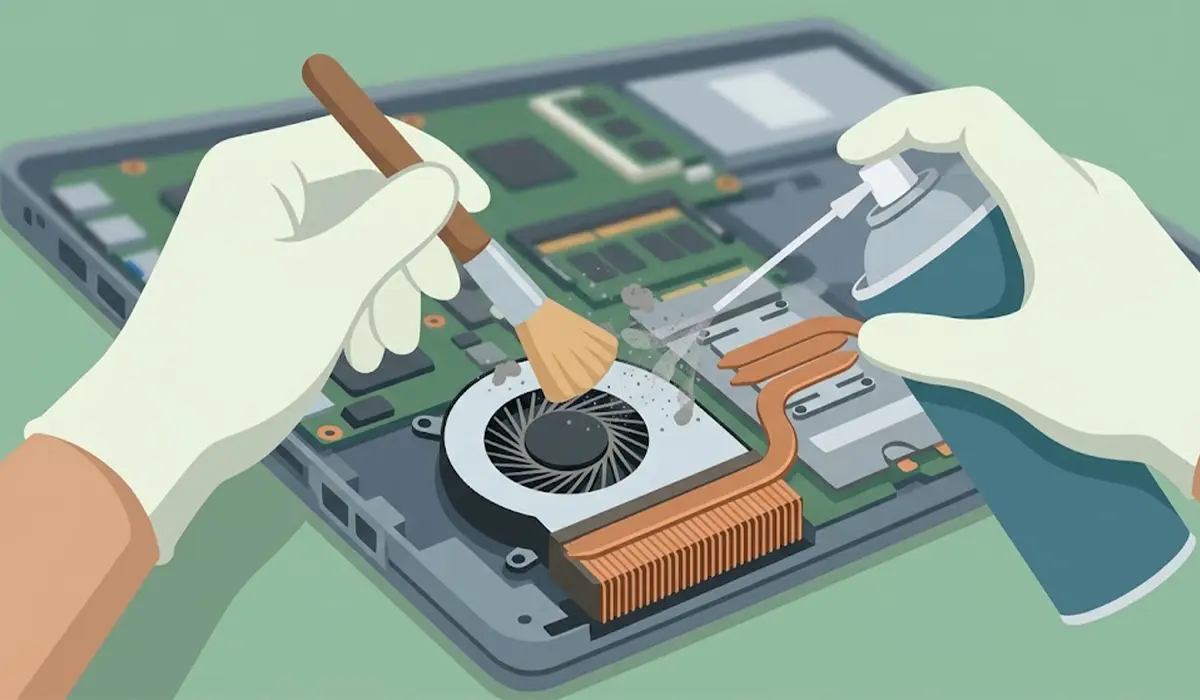
Tip: Hold the fan blades still with a soft brush or a toothpick while using compressed air in short bursts. A fan spun freely by a strong air blast can overspin and get damaged.
Use a Laptop Stand to Raise the Back
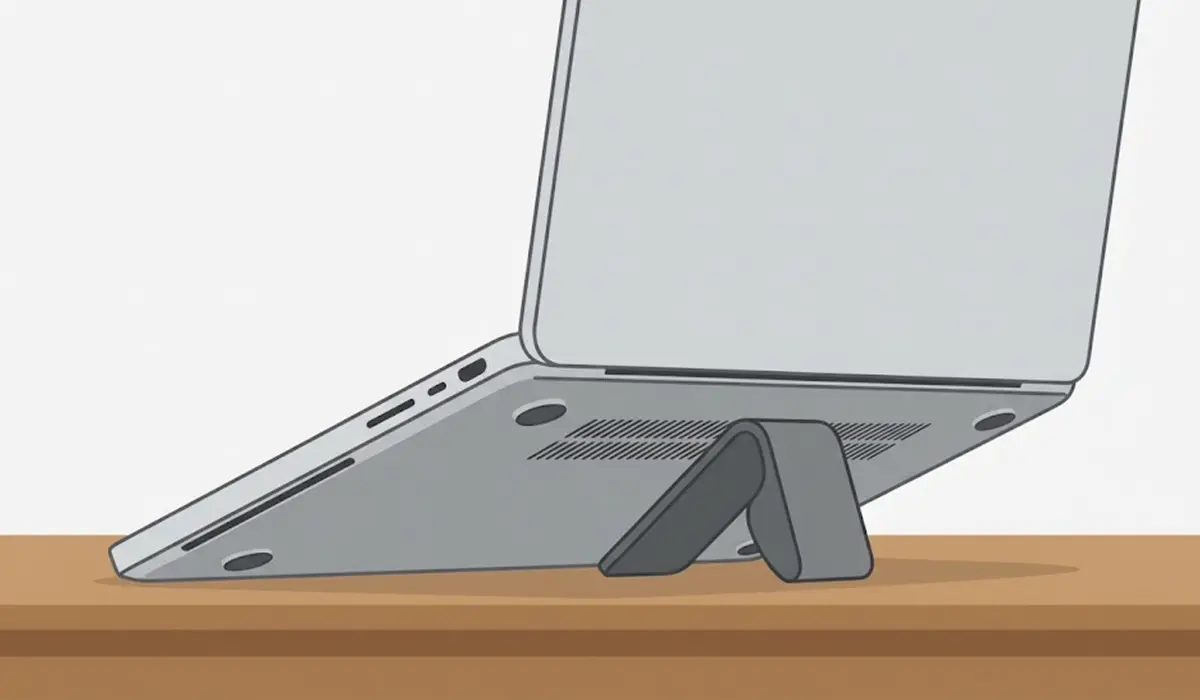
Many budget laptops pull cool air in through vents on the bottom panel. When the laptop sits flat on a desk, those vents have very little room to breathe. A simple stand, or even a pair of small rubber feet that lift the rear edge slightly, gives the intake more air and often makes a noticeable difference with no moving parts and no noise.
Add a Cooling Pad
A cooling pad with built-in fans pushes extra air against the bottom of the laptop. It works best on laptops with large intake vents on the underside and is less useful on models with vents only on the sides or back. Look for a pad with larger, slower-spinning fans for quieter operation, a sturdy mesh or metal surface, and a USB connection that matches the laptop. A pad with no fans, just a ventilated raised surface, is a good quiet option for light workloads.
Replace the Thermal Paste
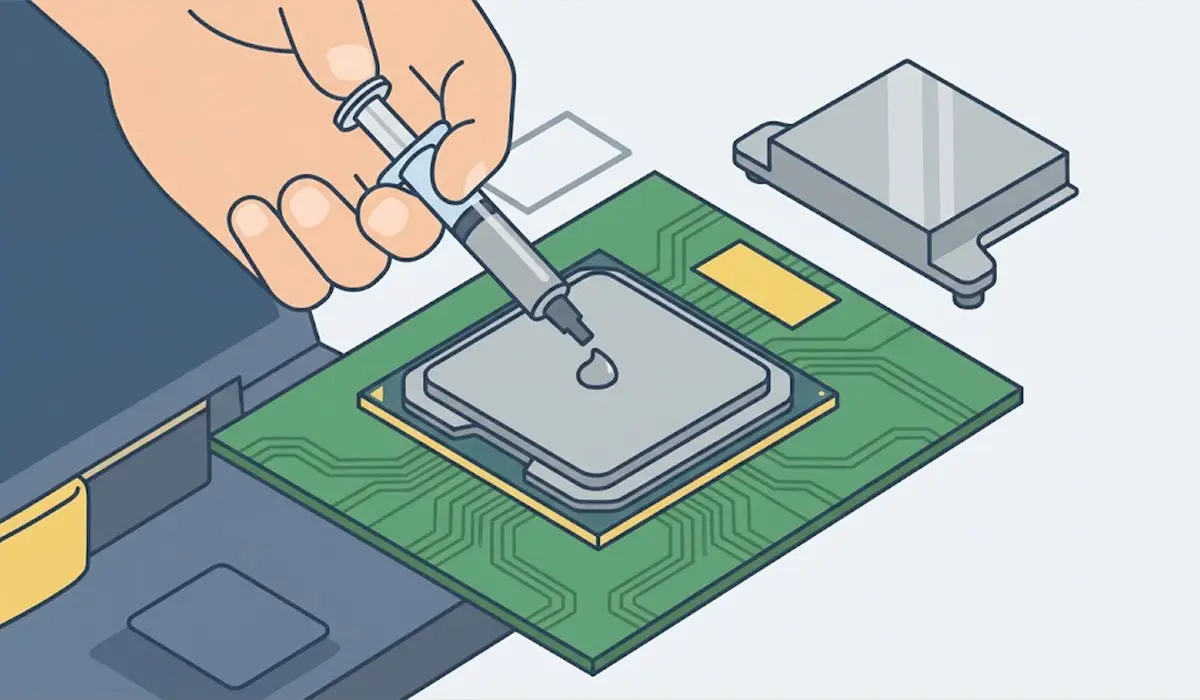
Thermal paste fills the tiny gaps between the processor and the heatsink. Over several years it can dry out and conduct heat less well. Reapplying quality paste is a solid upgrade for an older laptop that still runs hot after a thorough cleaning. Some models also use thermal pads on other chips, and these should be replaced with the same type and thickness, not swapped for paste.
Adjust Windows Power Settings
Less power means less heat. In Windows 11, open Settings, go to System, then Power and Battery, and set Power Mode to Balanced or Best Power Efficiency for everyday tasks. Reserve the performance modes for moments when they are truly needed. This costs nothing and reduces fan noise on light workloads like browsing, documents, and video calls.
Use a Hard, Flat Surface
Soft materials like blankets, pillows, and couches block intake vents completely. A table, a desk, or a lap tray made of rigid material keeps airflow open. This is not an upgrade in the technical sense, but it prevents more overheating than most accessories do.
Before You Start
Cleaning and repasting both involve opening the laptop, so a little preparation goes a long way. Skip this section if only a stand, a pad, or a settings change is planned.
- Shut the laptop down fully, unplug the charger, and let hot parts cool.
- Disconnect the internal battery connector if the laptop design allows it, and touch bare metal or wear an anti-static strap to discharge static.
- Gather a small precision screwdriver set, plastic pry tools, a soft brush, compressed air, lint-free or microfiber cloths, 90 percent or higher isopropyl alcohol, and fresh thermal paste for the repaste job.
- Never use water, a vacuum cleaner, or metal tools on delicate parts.
Opening a laptop may affect the warranty, so check the terms first. If the laptop uses glued or fragile components, or if the repair feels beyond reach, stop and let a professional technician handle it.
How to Clean the Laptop Cooling System
- Step 1: Power off the laptop, unplug the charger, and place it on a clean, well-lit surface.
- Step 2: Remove the bottom panel using the correct screwdriver, keeping the screws organized by location since they are often different lengths.
- Step 3: Disconnect the battery connector if possible, and touch bare metal to discharge static.
- Step 4: Hold the fan blades gently still and blow short bursts of compressed air through the fan and heatsink fins, directing the dust out of the vents.
- Step 5: Wipe remaining dust with a soft brush or a dry microfiber cloth. A cloth slightly dampened with isopropyl alcohol can clean stubborn grime on non-electronic surfaces, as long as it is fully dry before reassembly.
- Step 6: Reattach the bottom panel, reconnect power, and test the laptop under a normal workload to check the fan noise and temperatures.
How to Reapply Thermal Paste on a Laptop
- Step 1: Remove the bottom panel and battery connection as described above, then follow the heatsink screw order marked on the board, usually numbered.
- Step 2: Loosen the heatsink screws gradually and evenly, then lift the heatsink away gently without twisting it.
- Step 3: Clean old paste from the processor, graphics chip, and heatsink using isopropyl alcohol and a lint-free cloth until the surfaces are clean and shiny.
- Step 4: Apply a small, pea-sized dot of fresh thermal paste to the center of the chip. Too much paste can spill onto the board and works worse than too little.
- Step 5: Place the heatsink back in position and tighten the screws gradually in the numbered order, with even pressure.
- Step 6: Reassemble the laptop and monitor temperatures during normal use to confirm the improvement.
Tip: Take clear photos with a phone at each stage of disassembly. These make reassembly much easier, especially for ribbon cables and screw positions.
Common Problems and Fixes
The Laptop Is Still Hot After Cleaning
Check that the fan actually spins and that the heatsink fins are fully clear. If the fan is noisy, wobbling, or not spinning, a replacement fan for the exact laptop model is the fix. If the laptop is several years old, fresh thermal paste is the next step.
The Cooling Pad Makes No Difference
This usually means the laptop has no bottom intake vents or the pad fans do not line up with them. Move the laptop on the pad so the fans sit under the intake area, or switch to a simple raised stand instead.
The Laptop Will Not Turn On After Repasting
Power off, unplug, and reopen the laptop. Check that the battery connector, memory modules, and any ribbon cables are fully seated. If the problem continues, stop and consult a professional.
The Fan Is Louder After Cleaning
A loud fan after cleaning often means a cable or loose screw is touching the blades. Reopen the laptop and check that everything is clear of the fan. A fan that sounds like grinding is worn and should be replaced.
Temperatures Are Higher After Repasting
Too much paste, uneven screw pressure, or a heatsink that was not fully seated are the usual causes. Remove the heatsink, clean both surfaces, and apply a smaller amount of paste again.
Frequently Asked Questions
What is the best cooling upgrade for a budget laptop?
Cleaning the vents, fan, and heatsink is the best first step because it removes the dust that traps heat. After that, a stand or a cooling pad with fans is the most practical low-cost upgrade.
Do cooling pads really work on laptops?
Yes, they can, especially on laptops with intake vents on the bottom panel. Results vary by model, and a pad helps less when the vents are on the sides or back.
How often should a laptop be cleaned inside?
Many laptops benefit from an internal cleaning about once a year, or more often in dusty homes or with pets. Any time the fan runs loudly during light tasks is a good sign that cleaning is due.
Is it safe to replace thermal paste on a laptop?
It is safe for people comfortable with careful disassembly, but it can affect the warranty and carries some risk of damage. A laptop still under warranty is best left to a professional or the manufacturer.
Can Windows settings really lower laptop temperatures?
Yes, because they limit how hard the processor works. Setting Power Mode to Balanced or Best Power Efficiency lowers heat on everyday tasks like browsing and document work.
Does a laptop stand help with cooling?
A stand raises the rear of the laptop and gives the bottom intake vents more room to pull in air. It also keeps the laptop off soft surfaces that block airflow.
Can compressed air damage a laptop fan?
It can if the fan spins freely under strong airflow. Hold the blades still and use short bursts to prevent overspinning.
Should a budget laptop be used on a bed or couch?
No. Soft surfaces cover the intake vents and cause the laptop to overheat quickly. A hard, flat surface or a lap tray keeps the airflow open.
