
When a laptop only lists 2.4GHz networks, learning how to fix 5GHz Wi-Fi not showing on laptop saves a lot of frustration. The cause is usually a disabled router band, a 2.4GHz-only adapter, or a driver and adapter setting that hides the faster band. Each one can be checked in a few minutes, and the order below goes from quickest to most involved.
Key Takeaways
- Check first whether other devices can see the 5GHz network. If they cannot, the router is the problem, not the laptop.
- Some older laptops have 2.4GHz-only Wi-Fi adapters, and no setting can change that.
- The adapter’s ‘Preferred Band’ or ‘Wireless Mode’ setting in Device Manager can hide 5GHz networks.
- A corrupt or outdated Wi-Fi driver is one of the most common software causes.
- A dual-band USB Wi-Fi adapter is a simple fix when the built-in adapter cannot do 5GHz.
Before You Start
Most of the fixes here are software settings, so no tools are needed. Have the router’s login details nearby (often printed on a label on the router), plus the laptop’s exact model name so the correct driver can be found later. A phone or second device is also useful for testing whether the 5GHz network is actually being broadcast.
Opening the laptop to replace an internal Wi-Fi card is the only physical task connected to this topic. It may affect the warranty, and anyone unsure about it is better off leaving it to a repair professional.
Common Causes of 5GHz Wi-Fi Not Showing on a Laptop
- The router’s 5GHz radio is switched off or set to a channel the laptop cannot see.
- The laptop has an older 2.4GHz-only wireless adapter.
- The adapter’s band preference is locked to 2.4GHz or to an older wireless mode.
- The Wi-Fi driver is outdated, corrupt, or was replaced by a generic version during a Windows update.
- The router’s country or region setting does not match the location, which can limit the channels it broadcasts.
- The 5GHz signal is too weak at the laptop’s position, because 5GHz does not pass through walls as well as 2.4GHz.
How to Fix 5GHz Wi-Fi Not Showing on Laptop Step by Step
Confirm the 5GHz Network Exists
- Step 1: Check a phone or tablet known to support 5GHz and look for the 5GHz network name. Some routers label it with a ‘5G’ suffix, while others use one shared name for both bands.
- Step 2: If no device can see it, log in to the router and make sure the 5GHz wireless radio is enabled. Save the change and let the router restart if it asks.
- Step 3: If the router uses one shared name for both bands, look for a separate 5GHz network name in the wireless settings. A distinct name makes it much easier to tell which band the laptop is actually seeing.
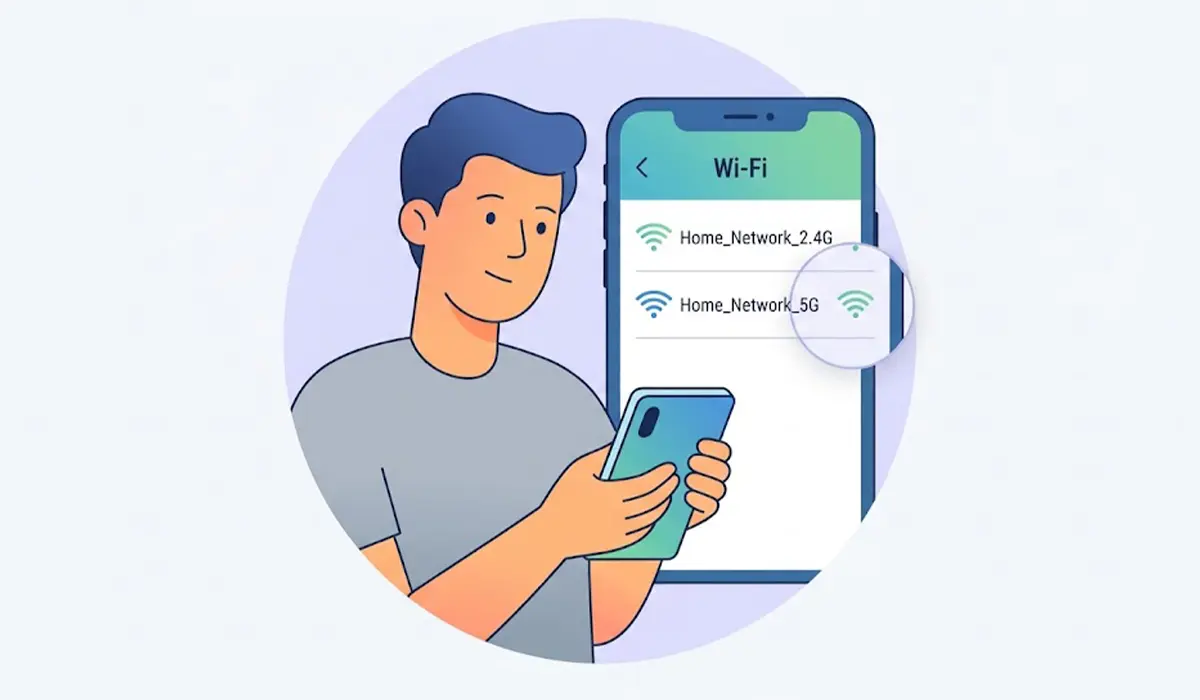
Tip: Stand within a few meters of the router while testing. A weak 5GHz signal can make the network look missing when it is really just too faint to appear in the list.
Check Whether the Laptop Supports 5GHz
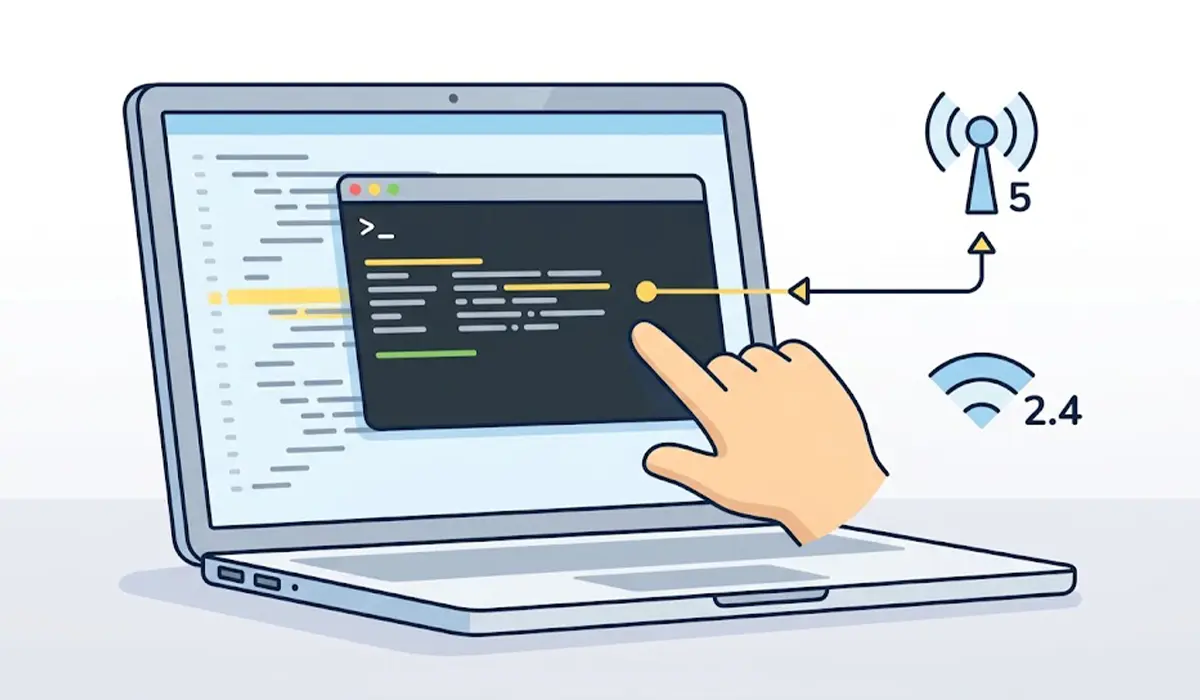
- Step 4: Right-click the Start button, open Command Prompt or Terminal, and type ‘netsh wlan show drivers’ before pressing Enter.
- Step 5: Find the line called ‘Radio types supported’. Seeing 802.11a, 802.11ac, or 802.11ax in that list means the adapter can handle 5GHz. A list with only 802.11b, 802.11g, and 802.11n usually points to a 2.4GHz-only adapter.
- Step 6: If the adapter is 2.4GHz-only, skip ahead to the hardware options below. Settings and drivers cannot add 5GHz to an adapter that was never built for it.
Change the Adapter’s Band Settings
- Step 7: Right-click Start, open Device Manager, and expand Network adapters.
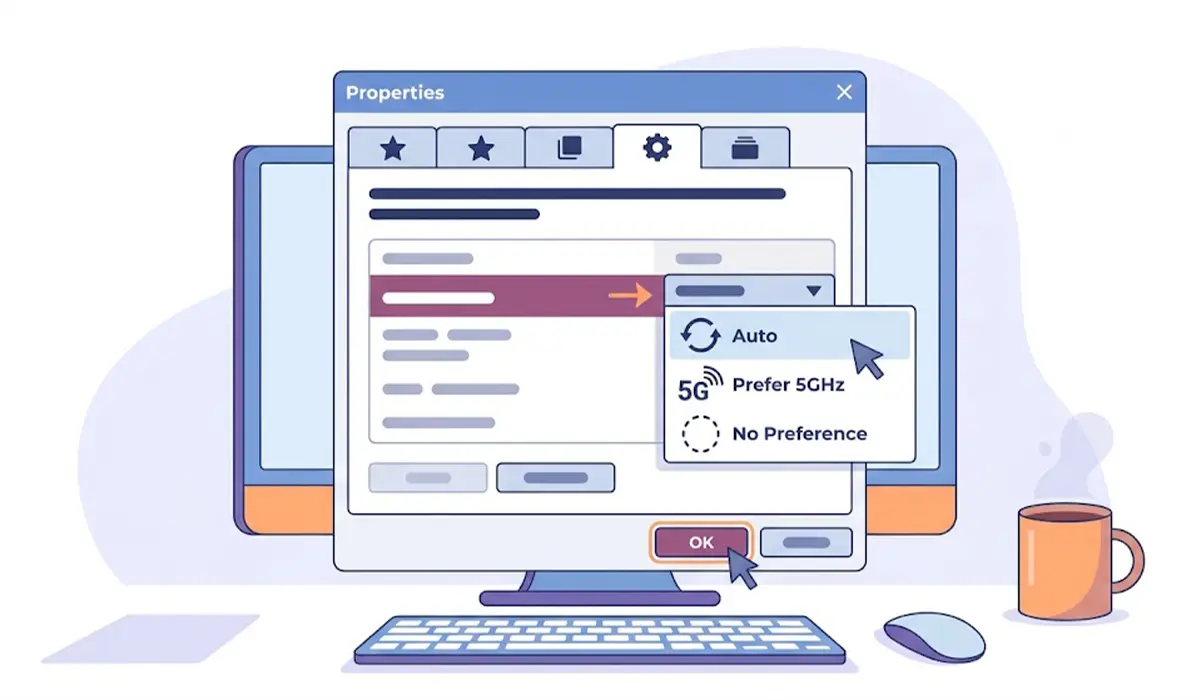
- Step 8: Right-click the wireless adapter, choose Properties, and open the Advanced tab.
- Step 9: Look for an entry named ‘Preferred Band’, ‘Band’, or ‘Wireless Mode’. Set the band option to ‘No Preference’, ‘Auto’, or ‘Prefer 5GHz’.
- Step 10: If a wireless mode setting lists 802.11a, 802.11n, 802.11ac, or 802.11ax options, choose the highest or automatic option so the adapter is not limited to an older mode. Click OK and let the connection reset.
Tip: The names of these settings differ between adapter makers, and some adapters do not offer them at all. A missing setting is not a problem by itself.
Update or Reinstall the Wi-Fi Driver
- Step 11: Visit the laptop manufacturer’s support page, enter the exact model, and download the latest wireless LAN driver. Using the manufacturer’s version is usually safer than a generic one.
- Step 12: Install the driver and restart the laptop, then check the network list again.
- Step 13: If the problem began right after a driver update, open the adapter’s Properties in Device Manager, go to the Driver tab, and choose Roll Back Driver if the option is available.
- Step 14: If the driver still seems faulty, right-click the adapter in Device Manager, choose Uninstall device, and restart. Windows normally reinstalls a working driver on the next boot.
Adjust the Router’s Channel and Region
- Step 15: In the router’s 5GHz wireless settings, set the channel manually to 36, 40, 44, or 48. These are widely supported and avoid the radar-sensitive DFS channels that some adapters struggle to detect.
- Step 16: Check that the router’s country or region matches the actual location. A wrong region can restrict the channels available for 5GHz.
- Step 17: Make sure the wireless mode is not locked to an older standard. A mixed or automatic mode that includes 802.11ac or 802.11ax is the usual choice.
- Step 18: Install any available router firmware update, since these sometimes correct 5GHz broadcast bugs.
Reset the Network Stack
- Step 19: Open Settings, go to Network and Internet, then Advanced network settings in Windows 11 (or Status in Windows 10), and select Network reset.
- Step 20: Confirm the reset and wait for the restart. Saved Wi-Fi networks will be removed, so have the passwords ready before starting.
Hardware Options When the Adapter Cannot Do 5GHz
A dual-band USB Wi-Fi adapter is the easiest answer. It plugs into a free USB port, installs its own driver, and adds 5GHz without opening the laptop. Look for a model that lists dual-band support and 802.11ac or 802.11ax, and check that the manufacturer lists Windows compatibility.
Replacing the internal M.2 Wi-Fi card is another route, but it needs the back panel removed and the battery disconnected first. Some laptops also restrict which cards they accept. If that sounds uncertain, a repair shop can handle it safely.
Common Problems and Fixes
5GHz appears after the router fix but keeps disappearing
This often points to a DFS channel or interference. Set the router to a fixed channel such as 36 or 44 instead of automatic, and move the laptop closer to test.
The Preferred Band setting is missing in Device Manager
Some adapters simply do not expose it. Check for a ‘Wireless Mode’ option instead, and update the driver from the laptop manufacturer in case the newer version adds the setting.
Windows says the driver is up to date but 5GHz is still missing
Windows may be judging only against its own driver library. Download the driver directly from the laptop manufacturer or the adapter maker and install it manually.
5GHz only shows up when standing right next to the router
This is normal behavior for 5GHz, which carries less distance and loses more strength through walls. Moving the router to a more central position, or adding a mesh node or access point, helps more than any laptop setting.
Network reset did not help
At that point the likely causes are an adapter without 5GHz support or a router that is not broadcasting the band. Recheck the radio types with the netsh command and test the 5GHz network with another device.
Frequently Asked Questions
Why can my laptop see 2.4GHz but not 5GHz Wi-Fi?
The most common reasons are a 2.4GHz-only adapter, a router with the 5GHz radio turned off, or an adapter setting that favors 2.4GHz. A driver problem can also hide the 5GHz band.
How do I know if my laptop supports 5GHz Wi-Fi?
Run ‘netsh wlan show drivers’ in Command Prompt and read the ‘Radio types supported’ line. Seeing 802.11a, 802.11ac, or 802.11ax means 5GHz is supported, while only 802.11b, g, and n usually means 2.4GHz only.
Where is the 5GHz setting in Device Manager?
Open the wireless adapter’s Properties and select the Advanced tab. The option is usually named ‘Preferred Band’, ‘Band’, or ‘Wireless Mode’, and not every adapter offers it.
Can a driver update bring back 5GHz Wi-Fi?
Yes, if the cause is a corrupt or incorrect driver. A driver update cannot add 5GHz to an adapter that lacks the hardware for it.
Why does 5GHz show on my phone but not on my laptop?
That points to the laptop side. The adapter may not support 5GHz, its band setting may be limiting it, or the driver may need updating or reinstalling.
Does the router channel affect whether 5GHz shows up?
It can. Some adapters have trouble with DFS channels, so setting the router to a channel such as 36, 40, 44, or 48 often makes the network appear.
Why is my 5GHz signal weaker than 2.4GHz?
5GHz offers faster speeds but a shorter range, and walls and floors weaken it more. A laptop far from the router may only pick up the 2.4GHz network.
Will a USB Wi-Fi adapter add 5GHz to an older laptop?
Yes. A dual-band USB adapter that supports 5GHz adds the band without opening the laptop, as long as the laptop has a free USB port and the adapter has Windows drivers.
