
Learning how to fix PC restarting without warning starts with one idea: a sudden reboot is a symptom, and the cause is usually heat, power, memory, or a driver problem. The screen goes black, the fans spin down, and the machine boots again as if nothing happened. This guide walks through the most likely causes and the fixes in the order that saves the most time.
Key Takeaways
- Random restarts almost always trace back to overheating, an unstable power supply, faulty RAM, bad drivers, or unstable BIOS settings.
- Turning off automatic restart in Windows and checking Event Viewer reveals clues about what actually failed.
- Cleaning dust, reseating RAM and cables, and resetting BIOS overclocks fix a large share of cases at no cost.
- If the restarts continue after software and heat checks, the power supply or RAM is the next suspect to test.
Common Causes of a PC Restarting Without Warning
A PC that reboots with no error message is usually protecting itself or has lost stable power for a split second. Most people find that one of the following is behind it.
- Overheating: A clogged heatsink, a dead fan, or dried thermal paste pushes the CPU or GPU past its safe limit, and the system shuts down or restarts to avoid damage.
- Failing or underpowered power supply: When the PSU cannot deliver steady power under load, the system drops out for a moment and restarts. Gaming and rendering expose this fastest.
- Faulty or unstable RAM: A bad memory stick or an aggressive memory profile can crash the system instantly.
- Driver or Windows problems: A broken graphics driver, a bad update, or damaged system files can trigger a crash that Windows answers with an automatic restart.
- Unstable BIOS settings: Overclocks, undervolts, or memory profiles that are slightly too aggressive often cause restarts only under certain workloads.
- Loose connections: A half-seated power cable, RAM stick, or graphics card can cause restarts when the case is bumped or the parts warm up.
Before You Start
Some of the fixes below involve opening the case, so a little preparation keeps the parts safe.
- Shut the PC down fully, switch off the power supply, and unplug the power cable.
- On a laptop, disconnect the battery if it is removable and the service manual says it is safe to do so.
- Touch bare metal on the case or use an anti-static strap to discharge static before handling parts.
- Let hot components cool before touching them.
Tools and materials that cover most of the steps: a Phillips screwdriver, a can of compressed air, a soft brush, a microfiber or lint-free cloth, 90 percent or higher isopropyl alcohol, and fresh thermal paste if the cooler needs to be removed. Opening a device can affect its warranty, so check the warranty terms first. If a step involves a swollen battery, a burning smell, or a power supply that needs to be opened, stop and let a professional handle it.
How to Fix PC Restarting Without Warning: Step-by-Step Fixes
Gather Clues and Rule Out the Easy Causes
- Step 1: Open Event Viewer, go to Windows Logs, then System, and look for a critical event with the source Kernel-Power and Event ID 41 near the time of the restart. This entry means the system restarted without shutting down cleanly. Reliability Monitor (search for it in the Start menu) shows the same crashes on a simple timeline and often points to a specific driver or app.
- Step 2: Turn off automatic restart so any error screen stays visible. Search for ‘View advanced system settings’, open the Advanced tab, click Settings under Startup and Recovery, and untick ‘Automatically restart’. If a blue screen with a stop code appears next time, that code narrows the search quickly.
- Step 3: Check the basics. Plug the PC directly into a wall outlet instead of a power strip, firmly reseat the power cable at both ends, and unplug extra USB devices, external drives, and other peripherals. A faulty accessory can occasionally trigger a restart.
- Step 4: Reset the BIOS or UEFI to default settings. Enter the BIOS during startup, choose the option to load optimized or default settings, and save. This removes CPU overclocks, undervolts, and memory profiles such as XMP or EXPO that may be unstable. If the PC stays stable on defaults, re-enable the memory profile alone later to see whether it was the cause.

Tip: Write down the exact time of each restart and what the PC was doing. Restarts during gaming point toward the GPU, power supply, or heat, while restarts at idle point more toward RAM, drivers, or power settings.
Check Heat, Memory, and Power
- Step 5: Check temperatures and fans. Install a free monitoring utility such as HWiNFO, then watch CPU and GPU temperatures under load and compare them with the maximum listed by the chip maker. Open the case with the PC off and unplugged, hold each fan still with a finger or a soft tool, and blow dust out of the heatsink fins and filters with compressed air. Confirm every fan spins when the PC is powered on.
- Step 6: Reapply thermal paste if temperatures climb very fast even after cleaning. Remove the cooler, wipe the old paste off the chip and the cooler plate with isopropyl alcohol and a lint-free cloth, apply a small fresh amount, and remount the cooler evenly. On a laptop, the process is more delicate, so a service technician may be the safer option.
- Step 7: Test the memory. Run Windows Memory Diagnostic (search for it in the Start menu) and let it finish. For a deeper test, MemTest86 run from a USB drive can catch faults that the built-in tool misses. If errors appear, reseat the sticks, then test one stick at a time in the first recommended slot to find the faulty module.
- Step 8: Inspect the power supply and connections. With the PC off and unplugged, reseat the 24-pin motherboard connector, the CPU power connector, and the graphics card power cables. Confirm the power supply is rated high enough for the graphics card and the rest of the build, using the graphics card maker’s recommended power supply guidance. If a known-good power supply is available, swapping it in is the most reliable way to confirm or rule out the original.
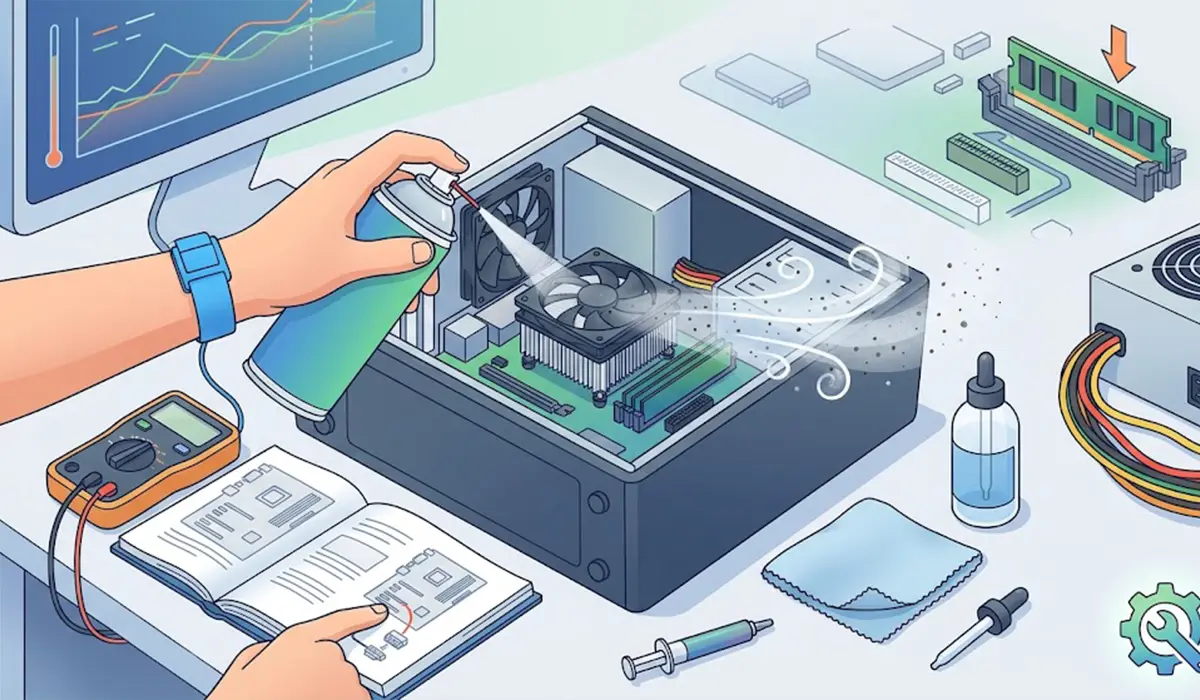
Tip: A power supply that fails only under heavy load can pass every idle test. If restarts happen only during games or renders, test the power supply before replacing other parts.
Fix Software, Drivers, and Windows
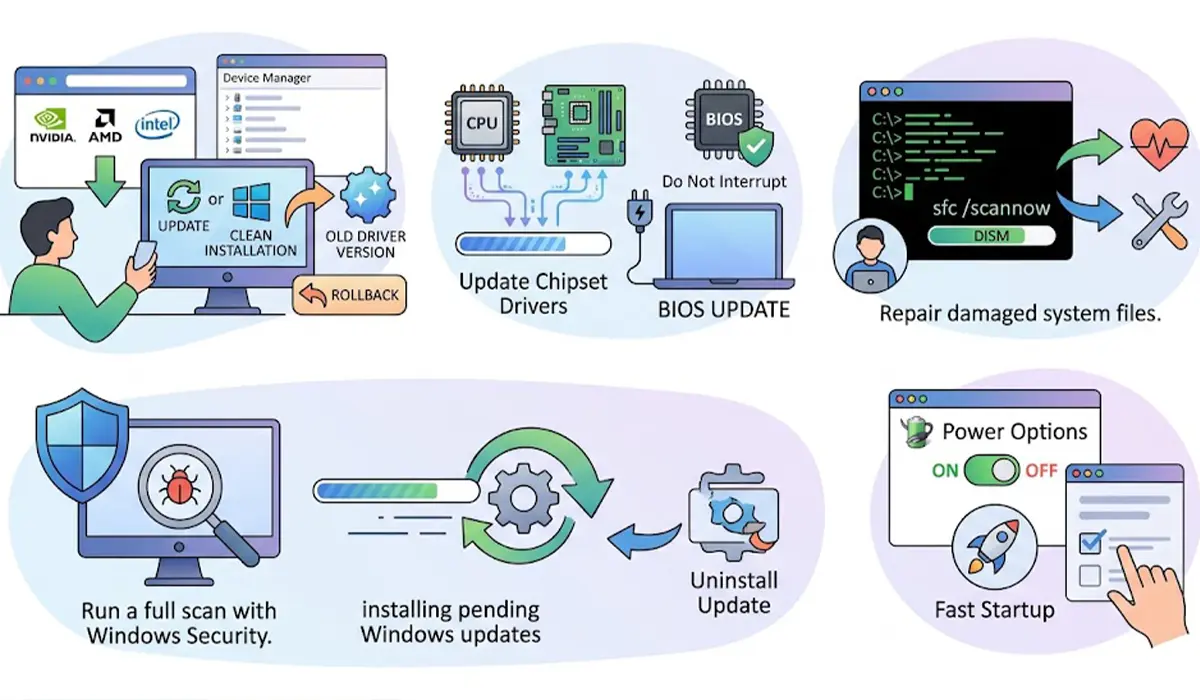
- Step 9: Update or cleanly reinstall the graphics driver. Download the latest driver directly from the NVIDIA, AMD, or Intel website and choose the clean installation option if it is offered. If the restarts began right after a driver update, roll back to the previous version through Device Manager instead.
- Step 10: Update the chipset driver from the motherboard or laptop maker, and install the latest stable BIOS version only if the release notes mention stability or compatibility fixes. A BIOS update should never be interrupted, so make sure the power is steady before starting.
- Step 11: Repair damaged system files. Open Command Prompt as administrator, run ‘sfc /scannow’, and wait for it to finish. If it reports problems it cannot fix, run ‘DISM /Online /Cleanup-Image /RestoreHealth’ and then run ‘sfc /scannow’ again.
- Step 12: Run a full scan with Windows Security to rule out malware, then install pending Windows updates. If the restarts began right after an update, open Settings, go to Windows Update, then Update history, and uninstall the most recent update.
- Step 13: Turn off Fast Startup as a test. Open Control Panel, go to Power Options, choose what the power buttons do, and untick Fast Startup. This setting can leave drivers in a bad state between shutdowns.
Common Problems and Fixes
The PC Still Restarts After Cleaning the Dust
Dust is only one part of the cooling story. Check that the cooler is mounted firmly, the fans spin up under load, and the thermal paste is not dried out. If temperatures stay normal and the restarts continue, move on to the power supply and RAM tests.
The PC Restarts Only During Games or Heavy Tasks
This pattern usually means the system cannot handle peak load. The usual suspects are a weak or aging power supply, a GPU running too hot, or an unstable overclock. Reset the BIOS to defaults, check GPU temperatures, and test with a known-good power supply.
The PC Restarts Even at Idle
Idle restarts lean toward faulty RAM, a driver problem, or a failing power supply rather than heat. Run the memory tests first, then repair system files and reinstall the graphics driver.
No Blue Screen Appears Before the Restart
A restart with no error screen usually points to a hardware-level cause such as a power loss or a thermal shutdown, because Windows had no chance to log a crash. Event ID 41 from Kernel-Power in Event Viewer confirms this pattern.
The PC Won’t Boot After Reseating Parts
A missed connection is the most common reason. Recheck the RAM clips, the CPU power cable, the graphics card power cables, and the 24-pin connector. Remove all but one RAM stick and try again, since a stick that is not fully seated can stop startup.
Frequently Asked Questions
Why does my PC restart by itself without any warning?
The most common reasons are overheating, a weak or failing power supply, faulty RAM, a bad driver, or unstable BIOS settings. Checking Event Viewer for a Kernel-Power Event ID 41 entry helps confirm that the restart was unexpected.
Can a bad power supply cause a PC to restart randomly?
Yes. A power supply that cannot deliver steady power under load can cause the system to lose power for an instant and restart. The problem often shows up only during demanding tasks such as gaming.
Can overheating make a computer restart?
Yes. When the CPU or GPU reaches its thermal limit, the system may shut down or restart to prevent damage. Cleaning dust and confirming that all fans work often solves it.
How do I find out why my PC restarted?
Open Event Viewer, go to Windows Logs, then System, and look for critical events such as Kernel-Power Event ID 41 or error entries near the restart time. Reliability Monitor also lists crashes in a simple timeline.
Can bad RAM cause random restarts?
Yes. Faulty or unstable memory can crash the system instantly. Running Windows Memory Diagnostic or MemTest86 and testing sticks one at a time helps identify the faulty module.
Can a Windows update cause a PC to restart randomly?
Sometimes. A faulty update or driver installed with it can lead to crashes. Uninstalling the latest update or rolling back the driver is a quick way to test this.
Should I update the BIOS to stop random restarts?
Only if the release notes mention fixes for stability or compatibility that match the problem. A BIOS update must never be interrupted, so make sure the power is steady before starting.
When should a PC with random restarts go to a repair shop?
A professional is the better choice if the restarts continue after the power supply, RAM, heat, and software checks, or if there is a burning smell, a swollen battery, or visible damage on the motherboard.
