
Knowing how to add slicers to an Excel PivotTable turns a plain report into a set of clickable filter buttons that anyone can use. No dropdown menus, no hunting through the Filters area. Pick the fields, click the buttons, and the PivotTable updates instantly.
Key Takeaways
- Select any cell inside the PivotTable, then use PivotTable Analyze, then Insert Slicer.
- Tick one or more fields in the dialog box and click OK to create a slicer for each.
- Hold Ctrl while clicking buttons to filter by several items at once.
- Use Report Connections to link one slicer to more than one PivotTable.
- If Insert Slicer is greyed out, click inside the PivotTable or save the file as .xlsx.
How to Add Slicers to an Excel PivotTable Step by Step
Insert the Slicer
- Step 1: Click any cell inside the PivotTable. The slicer commands only appear when the PivotTable is active, so a click on an empty cell outside it will not work.
- Step 2: Open the PivotTable Analyze tab on the ribbon.
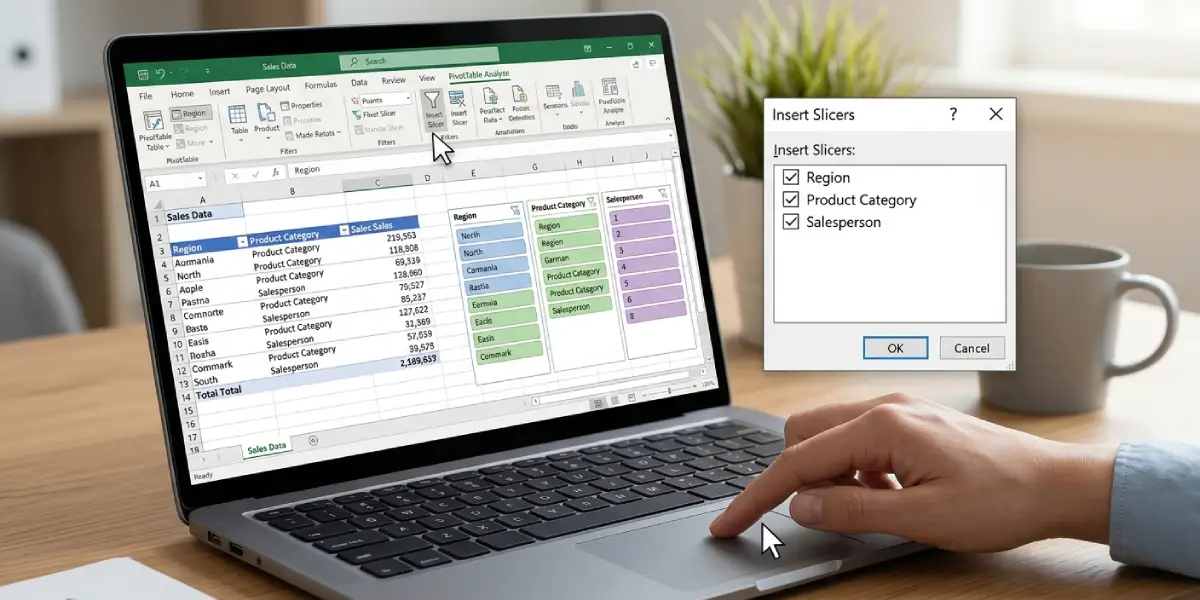
- Step 3: In the Filters group, click Insert Slicer. The Insert Slicers dialog box opens with a checkbox for every field in the source data.
- Step 4: Tick the fields that should become slicers. A sales report, for example, often works well with Region, Product Category, and Salesperson.
- Step 5: Click OK. A slicer appears on the worksheet for each field chosen, with one button per unique item.
Tip: The fields do not need to be placed in the PivotTable itself. A slicer can filter by a field that is not currently in Rows, Columns, or Values, which keeps the report layout clean.
Filter the PivotTable with the Slicer
- Step 6: Click a button in the slicer to filter the PivotTable to that item. The selected button is highlighted and the report refreshes right away.
- Step 7: To select several items, hold Ctrl and click each button, or click the Multi-Select button at the top of the slicer and then click the items.
- Step 8: To remove the filter, click the Clear Filter icon in the top-right corner of the slicer.
Connect One Slicer to Several PivotTables
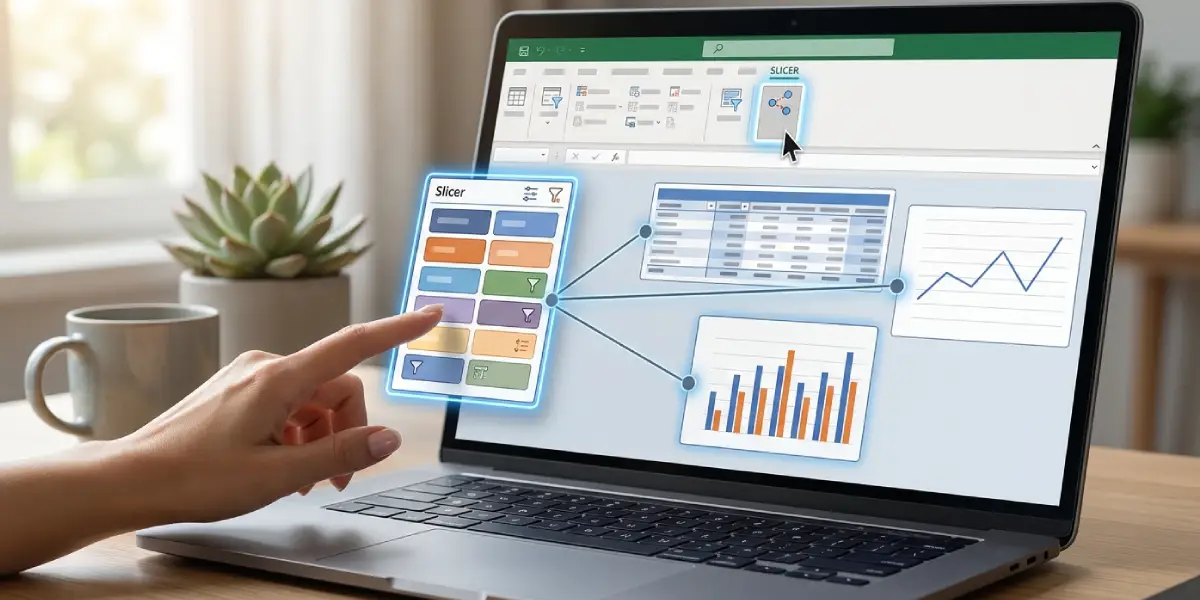
This works best when two or more PivotTables are built from the same data source and should respond to the same buttons, such as a summary table and a matching chart table on a dashboard.
- Step 9: Click the slicer to select it, then open the Slicer tab on the ribbon.
- Step 10: Click Report Connections. The PivotTable Connections dialog box opens with a list of PivotTables in the workbook.
- Step 11: Tick every PivotTable that should be controlled by the slicer, then click OK.
Resize and Arrange the Slicer
- Step 12: Drag the slicer by its title bar to move it next to the PivotTable, or drag a corner or edge handle to resize it.
- Step 13: With the slicer selected, use the Columns box on the Slicer tab to spread the buttons across several columns. A slicer with many items becomes much easier to scan this way.
Tip: Click Slicer Settings on the Slicer tab to change the slicer caption or turn on Hide items with no data, which removes buttons that have nothing to show under the current filters.
Common Problems and Fixes
Insert Slicer is greyed out
The active cell is probably outside the PivotTable. Click a cell inside it and check the PivotTable Analyze tab again. If the button is still unavailable, the workbook may be in Compatibility Mode, which happens with older .xls files. Save a copy as an Excel Workbook (.xlsx), reopen it, and try again.
The slicer does not filter the second PivotTable
A slicer only controls the PivotTable it was created from until it is connected to others. Select the slicer, choose Report Connections on the Slicer tab, and tick the other PivotTables. Both tables must share the same data source for the connection to appear.
Some slicer buttons look faded
Faded buttons mean no records match that item under the filters currently applied in other slicers. Clear the other filters, or hide these buttons by turning on Hide items with no data in Slicer Settings.
The slicer is hidden behind another object
Slicers float above the grid and can end up under charts or other slicers. Select the slicer from the Selection Pane (Home, then Find and Select, then Selection Pane), or right-click it and choose Bring to Front.
The slicer list is too long to use
A field with dozens of unique items creates a tall slicer that is awkward to scroll. Increase the Columns value on the Slicer tab and resize the slicer so more buttons are visible at once.
Frequently Asked Questions
Which Excel versions support slicers for PivotTables?
Slicers for PivotTables are available in Excel 2010 and later, including Excel 2013, 2016, 2019, 2021, 2024, and Microsoft 365.
Where is the Insert Slicer button in Excel?
Click any cell in the PivotTable, open the PivotTable Analyze tab, and look in the Filters group. The Insert Slicer button is there.
Can more than one slicer be added at the same time?
Yes. In the Insert Slicers dialog box, tick as many fields as needed and click OK. Excel creates one slicer for each ticked field.
How do I select multiple items in a slicer?
Hold Ctrl and click each item, or click the Multi-Select button at the top of the slicer and then click the items. Hold Shift and click to select a continuous range of buttons.
How do I clear a slicer filter?
Click the Clear Filter icon in the top-right corner of the slicer. The keyboard shortcut Alt+C does the same thing while the slicer is selected.
Can one slicer control multiple PivotTables?
Yes. Select the slicer, click Report Connections on the Slicer tab, and tick each PivotTable that should respond to it. The PivotTables must be based on the same data source.
Why is Insert Slicer greyed out?
Either no cell inside the PivotTable is selected, or the workbook is in Compatibility Mode. Click inside the PivotTable first, and if the button is still unavailable, save the file as .xlsx.
How do I delete a slicer?
Click the slicer to select it and press the Delete key. Alternatively, right-click the slicer and choose Remove followed by the slicer name. Deleting a slicer does not change the data in the PivotTable.
Can a slicer filter by a field that is not in the PivotTable?
Yes. Any field from the source data can be used as a slicer, even if it is not placed in Rows, Columns, Values, or Filters.
