
Learning how to change keyboard repeat delay and repeat rate in Windows 11 takes about a minute and fixes two common typing annoyances: letters that repeat too quickly when a key is held down, and keys that feel slow to respond. The settings work on every edition of Windows 11, including Home and Pro, and no administrator rights are needed because the change applies to the current user account.
Key Takeaways
- Repeat delay controls how long a key must be held before it starts repeating. Repeat rate controls how fast the character repeats after that.
- The quickest route is Windows + R, then the command control keyboard, which opens the Keyboard Properties window on the Speed tab.
- The Settings app does not include sliders for these two options, so Control Panel is the main built-in method.
- The same two values can be set through the Registry Editor or PowerShell, but those changes apply after signing out and back in.
Step-by-Step Guide to Change Keyboard Repeat Delay and Repeat Rate in Windows 11
Method 1: Use Control Panel (Keyboard Properties)
This is the easiest way to adjust the settings, and changes take effect immediately with no restart. The Settings app has no repeat delay or repeat rate sliders, so the classic Keyboard Properties window is the place to go.
- Click the Search box on the taskbar, type Control Panel, and open Control Panel.
- In the top-right corner, set View by to Large icons or Small icons.
- Click Keyboard. The Keyboard Properties window opens on the Speed tab.
- Under Character repeat, drag the Repeat delay slider between Long and Short. Moving it toward Short makes a held key start repeating sooner.
- Drag the Repeat rate slider between Slow and Fast. Moving it toward Fast makes characters repeat more quickly once repeating has started.
- Click inside the box labeled Click here and hold down a key to test repeat rate, then hold any letter key to check how it feels.
- Click Apply, then click OK.
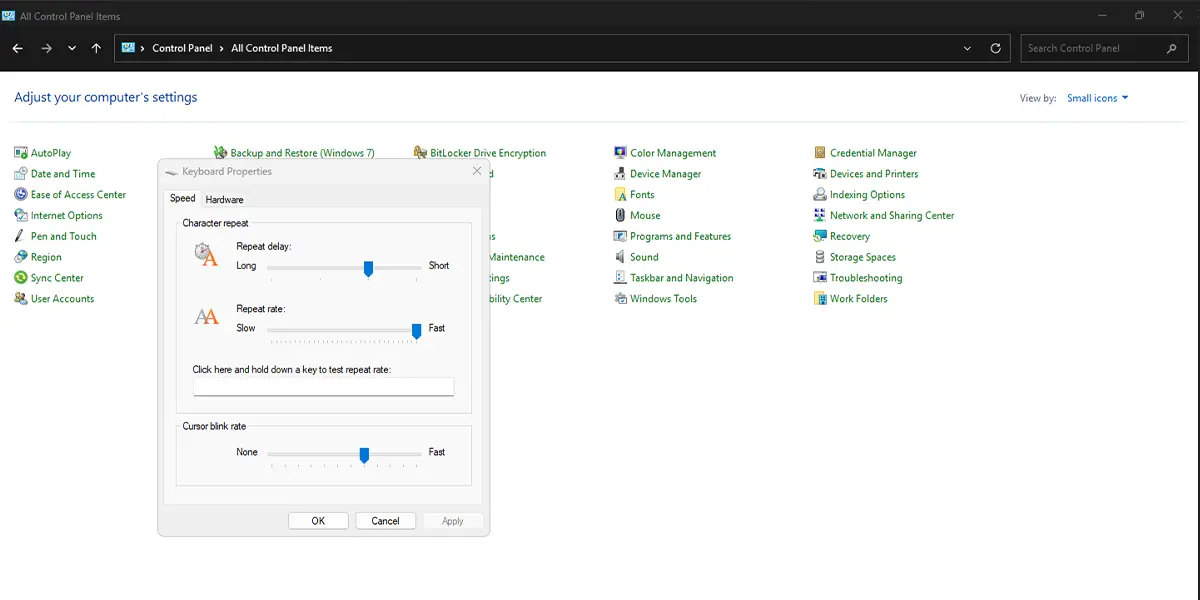
Holding a key in the test box should now behave the way the sliders suggest. A short delay with a fast rate produces a rapid stream of letters, while a long delay with a slow rate makes the key feel deliberate and calm.
Tip: Press Windows + R, type control keyboard, and press Enter to jump straight to the Keyboard Properties window. The same tab also has a Cursor blink rate slider if the blinking cursor is hard to spot.
Method 2: Use the Registry Editor
This method edits the same two values that the sliders control. Editing the registry carries some risk, so create a restore point first and change only the two values listed below. Administrator rights are not needed because the values belong to the current user.
- Press Windows + R, type regedit, and press Enter.
- Go to this key: HKEY_CURRENT_USER\Control Panel\Keyboard
- Double-click KeyboardDelay in the right pane.
- Enter a number from 0 to 3 in the Value data box and click OK. A value of 0 gives the shortest delay, and 3 gives the longest.
- Double-click KeyboardSpeed.
- Enter a number from 0 to 31 in the Value data box and click OK. A value of 0 is the slowest repeat rate, and 31 is the fastest.
- Close the Registry Editor, then sign out of Windows and sign back in.
After signing back in, hold a key in any text field. The new timing should be noticeable straight away.
Method 3: Use PowerShell
This suits anyone who prefers typing a command, or who needs to apply the same values on more than one PC. Because it also edits the registry, create a restore point first. A standard (non-elevated) PowerShell window is enough.
- Press Windows + X and select Terminal.
- Run this command to set the repeat delay (0 is shortest, 3 is longest):
Set-ItemProperty -Path ‘HKCU:\Control Panel\Keyboard’ -Name ‘KeyboardDelay’ -Value ‘0’
- Run this command to set the repeat rate (0 is slowest, 31 is fastest):
Set-ItemProperty -Path ‘HKCU:\Control Panel\Keyboard’ -Name ‘KeyboardSpeed’ -Value ’31’
- Sign out of Windows and sign back in to apply the change.
Tip: Open Keyboard Properties after signing back in. The sliders should sit at the positions that match the values entered.
Choosing Comfortable Values
For Fast Typists and Gamers
A short delay paired with a fast rate suits anyone who scrolls through long documents with the arrow keys or deletes text by holding Backspace. The trade-off is that a light touch can occasionally produce a doubled letter.
For Accidental Repeats
Most people who see stray repeated letters find that moving the Repeat delay slider toward Long solves it. This works especially well on laptops with sensitive keys, or on a shared family computer where typing speeds and habits vary.
How to Undo or Reverse This Change
Open Keyboard Properties again with Windows + R and the command control keyboard, then move both sliders back to where they were and click Apply, then OK. For the registry or PowerShell methods, set KeyboardDelay back to 1 and KeyboardSpeed back to 31, which are the usual Windows defaults, then sign out and back in.
Common Problems and Fixes
The Settings App Has No Repeat Delay Option
The Settings app does not include repeat delay or repeat rate sliders. Use Method 1 and open Keyboard Properties through Control Panel or the control keyboard command instead.
The Change Does Not Apply After Using Registry or PowerShell
Registry values are read when the user signs in. Sign out and sign back in, or restart the PC, and the new values will load. Confirm that the value names are spelled exactly as KeyboardDelay and KeyboardSpeed.
The Sliders Reset After a Restart
A PC managed by work or school may apply keyboard settings through company policy, which can overwrite personal changes at sign-in. On a personal computer, repeat the change and confirm that the window closes with OK or Apply so the values are saved.
Keys Still Repeat Too Fast or Too Slowly
Use the test box on the Speed tab and adjust one slider at a time. Changing both together makes it hard to tell which one is responsible for the feel. Small moves usually work better than dragging a slider to the very end.
Frequently Asked Questions
What is the difference between repeat delay and repeat rate?
Repeat delay is the pause between pressing a key and the moment it begins repeating. Repeat rate is how quickly the character repeats after that pause ends.
Does changing keyboard repeat delay and rate work on Windows 11 Home?
Yes. The Keyboard Properties window, the registry values, and the PowerShell commands are all available on Windows 11 Home, Pro, and Enterprise.
Do I need to restart the computer after changing these settings?
No restart is needed when using Control Panel, because the change applies immediately. The Registry Editor and PowerShell methods need a sign-out and sign-in to take effect.
Why can’t I find repeat delay and repeat rate in the Settings app?
The Settings app does not offer these two sliders. They are found in the Keyboard Properties window, which opens from Control Panel or with the control keyboard command in the Run box.
What is the fastest keyboard repeat rate in Windows 11?
The fastest repeat rate is the far right end of the Repeat rate slider, which equals a KeyboardSpeed value of 31 in the registry. The shortest delay is a KeyboardDelay value of 0.
Does the setting apply to every keyboard connected to the PC?
Yes. The values apply to the whole user account, so the built-in laptop keyboard and any external USB or Bluetooth keyboard share the same repeat delay and rate.
Is the setting saved separately for each user account?
Yes. The values are stored under the current user, so each person who signs in to the PC can keep their own repeat delay and repeat rate.
Will changing the repeat rate affect battery life or performance?
No. The setting only changes how often a held key sends a character, so it has no noticeable effect on battery life or system speed.
How can I open the keyboard speed settings with a shortcut?
Press Windows + R, type control keyboard, and press Enter. The Keyboard Properties window opens directly on the Speed tab.
