
A laptop overheating during everyday use usually points to blocked airflow, worn thermal paste, or a cooling system working harder than it should. The good news is that most causes are easy to diagnose and fix without professional help. This guide walks through why laptops run hot and exactly how to bring temperatures back under control.
Key Takeaways
- Dust buildup in the fans and heatsink is the single most common cause of laptop overheating.
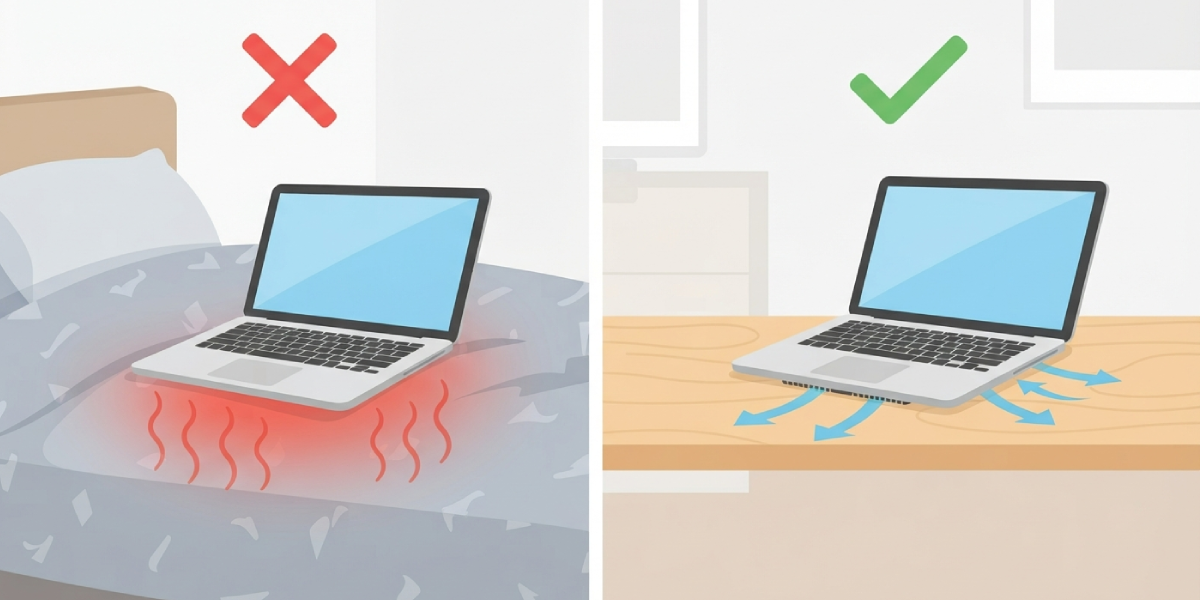
- Using a laptop on soft surfaces like a bed or couch blocks intake vents and traps heat.
- Dried-out or degraded thermal paste loses its ability to transfer heat away from the processor over time.
- Background software, outdated drivers, and demanding apps can push the CPU and GPU harder than necessary.
- Compressed air, a cooling pad, and occasional thermal paste replacement solve the vast majority of overheating cases.
Common Causes of Laptop Overheating
Before jumping into fixes, it helps to understand what actually causes a laptop overheating problem in the first place. Heat has to go somewhere, and when that path gets blocked or degraded, temperatures climb fast.
Dust and Debris Blocking Airflow
Fans pull air through small intake vents and push it across a heatsink, then out through an exhaust port. Over months of use, dust, pet hair, and lint collect on the fan blades and heatsink fins. This narrows the airflow path the same way a clogged furnace filter restricts a home’s ventilation system, and the fan ends up spinning faster while accomplishing less.
Blocked Vents from Surface or Placement
Placing a laptop on a mattress, cushion, or lap for long stretches lets the fabric sink into the intake vents underneath. Many laptops draw air from the bottom panel, so a soft surface effectively suffocates the cooling system even if the fans are perfectly clean.
Degraded Thermal Paste
Thermal paste fills microscopic gaps between the processor and the heatsink so heat transfers efficiently. That paste dries out and loses effectiveness over a few years, especially in laptops that run hot regularly. Once it degrades, the CPU can hit high temperatures even under light tasks.
Heavy Background Load
Browser tabs, cloud sync tools, antivirus scans, and outdated graphics drivers can quietly consume CPU and GPU resources. A laptop overheating during what feels like simple use is often running far more in the background than its owner realizes.
Aging Battery or Poor Ventilation Design
Some ultra-thin laptops simply have limited thermal headroom by design. A battery nearing the end of its life can also generate extra heat during charging cycles, compounding the issue.
Before You Start
A few of the fixes below involve compressed air or light disassembly. Take these precautions first.
- Power off the laptop completely and unplug the charger.
- Remove the battery if the laptop has a user-removable one.
- Let the laptop cool fully before touching internal components.
- Discharge static electricity by touching a bare metal surface or using an anti-static wrist strap before opening any panel.
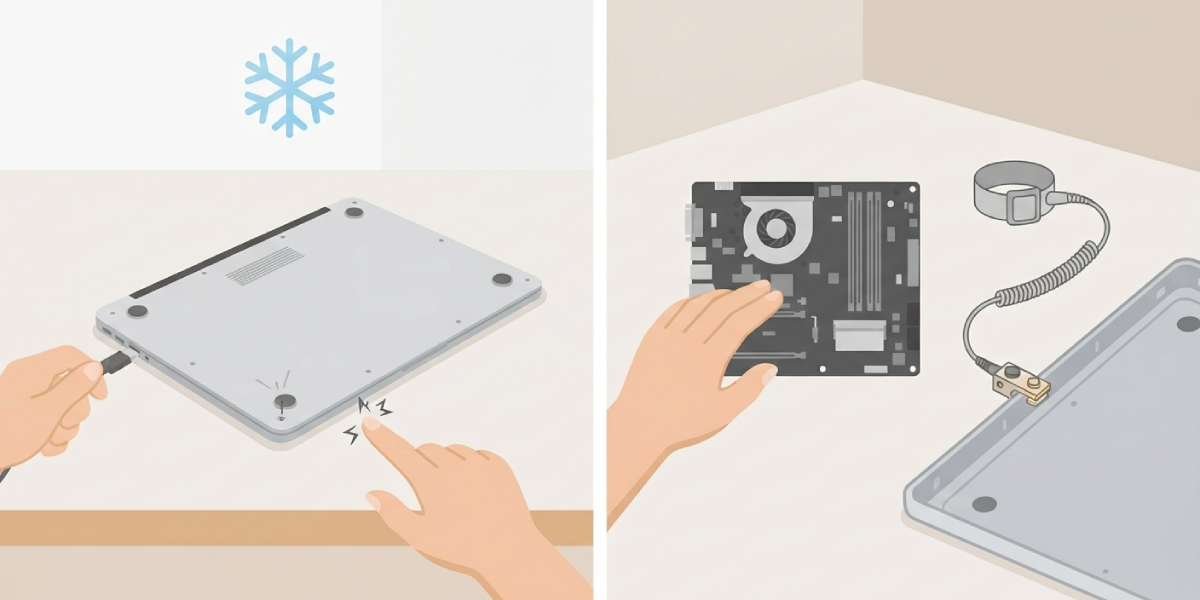
Opening the bottom panel to clean internals or replace thermal paste may affect the manufacturer’s warranty on some models. If the laptop is still under warranty, check the terms first, and if the overheating persists after basic cleaning, letting a professional technician handle deeper repairs is the safer route.
How to Fix a Laptop Overheating Problem
Work through these steps in order. Most laptops improve significantly after the first two or three.
- Step 1: Check the surface the laptop sits on. Move it to a hard, flat surface like a desk or table so the intake vents stay uncovered. Avoid beds, couches, carpets, and laps for extended sessions.
- Step 2: Clean the exterior vents with compressed air. Hold the can upright and use short bursts to blow dust out of the intake and exhaust vents while the fans are visible and accessible, holding the fan blades still with a toothpick or similar tool if they start spinning rapidly.
- Step 3: Open the bottom panel if the design allows it. Remove the screws with the correct screwdriver, gently pry the panel loose with a plastic pry tool, and set screws aside in an organized tray.
- Step 4: Clean the heatsink and fan blades directly. Use a soft brush to loosen embedded dust, then compressed air to clear it out through an exhaust opening rather than deeper into the machine.
- Step 5: Inspect the thermal paste if the processor is exposed and reachable. If it looks dry, cracked, or crusty, wipe the old paste off the CPU and heatsink contact plate using a lint-free cloth dampened with 90 percent or higher isopropyl alcohol.
- Step 6: Apply a small, pea-sized amount of fresh thermal paste to the center of the CPU die, then reseat the heatsink and tighten mounting screws evenly in a diagonal pattern.
- Step 7: Reassemble the laptop, reconnect the battery, and power it on to confirm the fans spin freely and no error tones or warnings appear.
- Step 8: Reduce background load. Open the task manager or activity monitor, close unnecessary apps and browser tabs, and update graphics and chipset drivers to their latest versions.
- Step 9: Adjust power settings. Switching from a maximum performance power plan to a balanced one reduces sustained heat output during everyday tasks.
- Step 10: Add a cooling pad for ongoing support. A cooling pad with active fans improves airflow underneath the chassis, particularly useful for thin laptops with limited internal clearance.
Tip: Running a monitoring tool to watch CPU and GPU temperatures before and after cleaning gives a clear before-and-after picture of how much the fix actually helped.
Tools and Materials Needed
- Compressed air canister
- Soft-bristle brush
- Correct screwdriver set for the laptop model
- Plastic pry tools
- Lint-free or microfiber cloth
- 90 percent or higher isopropyl alcohol
- Fresh thermal paste
- Anti-static wrist strap
Common Problems and Fixes
Laptop Still Overheats After Cleaning the Vents
External cleaning only removes surface dust. If temperatures remain high, the internal heatsink and fan assembly likely still have buildup that needs direct cleaning, or the thermal paste has degraded and needs replacing.
Fans Run Constantly at High Speed
This usually signals the cooling system is compensating for restricted airflow or a heavier-than-normal workload. Check for dust blockage first, then review background processes and driver updates.
Laptop Overheats Only During Gaming or Rendering
Sustained heavy loads push components to their thermal limits faster than everyday tasks. A cooling pad, an undervolted CPU or GPU, and a clean heatsink together make the biggest difference for these workloads.
Won’t Power On After Reapplying Thermal Paste
This typically means a cable was left disconnected during reassembly or a screw was overtightened, warping the board slightly. Power off, reopen the panel, and verify every connector and cable is fully seated before troubleshooting further.
Overheating Returns Within a Few Months
Environments with pets, carpet, or heavy dust exposure clog vents faster than average. Cleaning on a more frequent schedule, roughly every three to four months in dusty environments, keeps the problem from recurring.
Frequently Asked Questions
What temperature is considered too hot for a laptop CPU?
Sustained temperatures above the mid-90s Celsius under load generally indicate a cooling problem worth addressing, though safe limits vary by processor model and manufacturer specification.
How often should a laptop be cleaned to prevent overheating?
Every six months for typical use, or every three to four months in dusty or pet-heavy environments, keeps airflow paths clear.
Can a laptop overheating cause permanent damage?
Yes. Prolonged high temperatures accelerate component wear, can trigger thermal throttling, and in severe cases shorten the lifespan of the processor, battery, or motherboard.
Is it safe to use a laptop on a bed or blanket?
Not for extended periods. Soft surfaces block bottom-mounted intake vents and trap heat around the chassis, so a hard flat surface is a better choice.
How long does thermal paste last before it needs replacing?
Most factory-applied thermal paste performs well for two to four years before it dries out and loses effectiveness, though heavy use can shorten that window.
Does a cooling pad actually reduce laptop temperatures?
Yes, a cooling pad with active fans improves airflow underneath the laptop, which noticeably helps thin or bottom-vented designs.
Why does a laptop overheat even when idle?
Background processes, browser extensions, cloud sync software, or a failing fan can keep temperatures elevated even without active use. Checking the task manager for unexpected CPU usage is a good first step.
Should thermal paste replacement be done by a professional?
It can be done at home with basic tools and care, but laptops with complex disassembly, soldered components, or warranty concerns are safer left to a professional technician.
Does closing background apps really help with overheating?
Yes. Fewer active processes mean less CPU and GPU load, which directly reduces heat generation during everyday tasks.
