
Outlook error 0x8004060C usually shows up during send or receive, and it stops mail from moving in or out of the inbox. The good news is that this error almost always traces back to a data file problem or an oversized attachment, and both are fixable in a few minutes.
Key Takeaways
- Error 0x8004060C is most often caused by an oversized or damaged Outlook data file (.pst or .ost).
- Running the Inbox Repair Tool (scanpst.exe) fixes the majority of cases.
- Compacting the data file and checking attachment size limits prevents the error from returning.
- A corrupted Outlook profile or a conflicting add-in can also trigger this code.
- Most fixes require no reinstall – just built-in Windows and Outlook tools.
Step-by-Step Guide to Fix Outlook Error 0x8004060C
Work through these steps in order. Most users resolve the error at step 2 or 3, so there is no need to jump straight to a profile rebuild.
Method 1: Close Outlook Completely
- Step 1: Right-click the taskbar and open Task Manager, then check the Processes tab for any background Outlook.exe process still running, and end it before continuing.
Method 2: Repair the Outlook Data File with Scanpst.exe
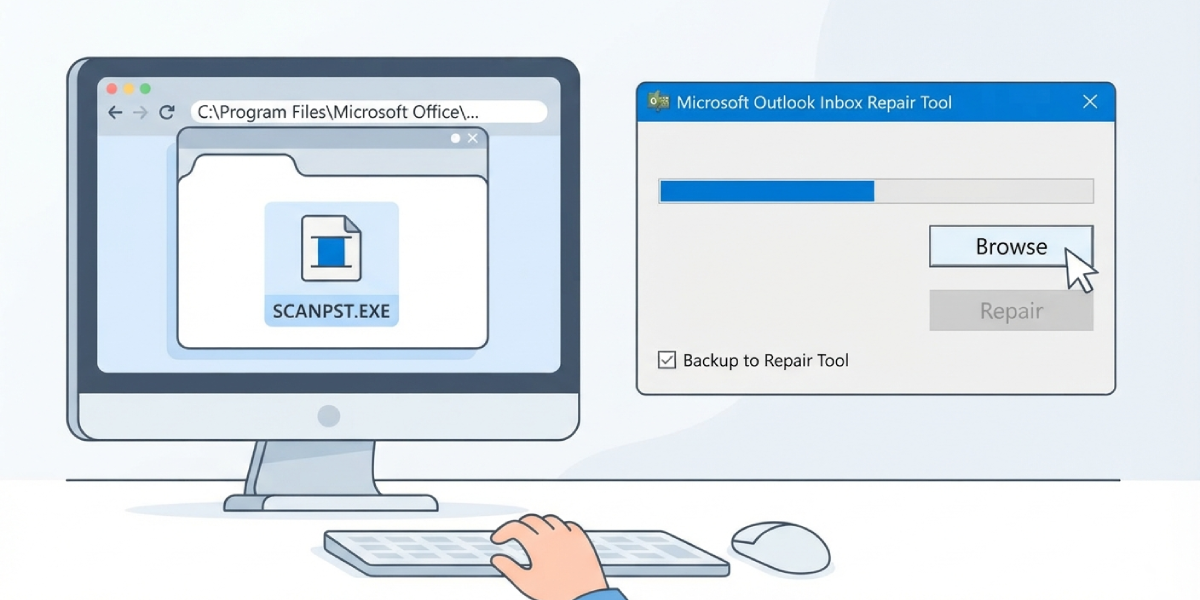
- Step 2: Locate the Inbox Repair Tool, typically found at C:\Program Files\Microsoft Office\root\Office16\SCANPST.EXE (the folder name may differ slightly depending on the Office version installed).
- Step 3: Double-click scanpst.exe and select ‘Browse’ to point it to the data file causing the issue. Find the file path under File > Account Settings > Account Settings > Data Files tab inside Outlook if it is not already open.
- Step 4: Click ‘Start’ to scan the file. If errors appear, tick ‘Make backup of scanned file before repairing’ and click ‘Repair’.
- Step 5: Restart Outlook once the repair finishes and check whether send/receive completes without the 0x8004060C error.
Tip: A damaged .pst file is the single most common cause of this error, so running scanpst.exe first saves time before trying anything else on this list.
Method 3: Check and Reduce the Data File Size
- Step 6: Open File > Account Settings > Account Settings, click the Data Files tab, select the file, and click ‘Open File Location’ to see the current size.
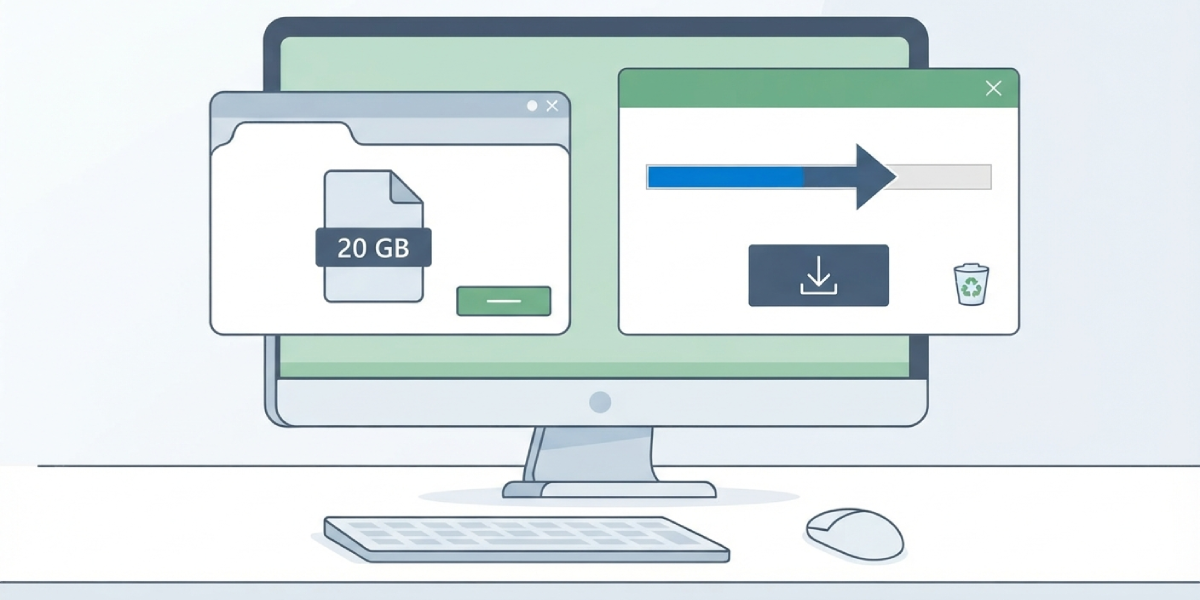
- Step 7: If the .pst file is near or above 20 GB (or 2 GB on older Outlook versions), archive old items through File > Tools > Clean Up Old Items, or move older mail into a separate archive file.
- Step 8: Go back to the Data Files tab, select the file again, click ‘Settings’, then ‘Compact Now’ to shrink the file after archiving.
Method 4: Check the Attachment That Triggered the Error
- Step 9: If the error appeared while sending a specific message, reopen the Drafts folder and check the attachment size. Most mail servers cap attachments between 20 MB and 25 MB.
- Step 10: Remove the large attachment, upload it to OneDrive instead, and share a link in the email body rather than the file itself.
Method 5: Rebuild the Outlook Profile
- Step 11: Open Control Panel, search for ‘Mail’, and select ‘Show Profiles’.
- Step 12: Click ‘Add’, create a new profile, and follow the prompts to reconnect the email account.
- Step 13: Set the new profile to ‘Always use this profile’ and launch Outlook to confirm mail flows normally.
Tip: A fresh profile clears out corrupted registry-linked settings that scanpst.exe cannot touch, which makes it a reliable last resort before considering a full Office repair.
Method 6: Repair the Office Installation
- Step 14: Open Settings > Apps > Installed Apps, find Microsoft 365 or Office, and select ‘Modify’.
- Step 15: Choose ‘Quick Repair’ first. If the error persists after restarting Outlook, run ‘Online Repair’ instead, since it replaces damaged program files that a quick repair skips.
Common Problems and Fixes
- Scanpst.exe cannot find the data file: Open Account Settings in Outlook and copy the exact file path from the Data Files tab instead of searching manually.
- Error returns right after compacting the PST file: The file is likely still oversized. Archive more mail before compacting again, since compacting only reclaims space and does not reduce content.
- New profile does not remove the error: An antivirus program scanning email traffic can also produce 0x8004060C. Temporarily disable email scanning in the antivirus settings and test send/receive again.
- Repair tool freezes on large files: Let it run without interrupting; files above 10 GB can take well over 30 minutes to scan fully.
- Error only happens with one specific email account: Remove and re-add that account under File > Account Settings rather than rebuilding the entire profile.
Frequently Asked Questions
What does Outlook error 0x8004060C actually mean?
It signals that Outlook cannot complete a send or receive action, most often because the data file has hit its size limit or become corrupted.
Is 0x8004060C related to attachment size?
Yes, in many cases. Sending a file larger than the mail server’s limit, usually 20-25 MB, can trigger this exact error code.
Can this error cause lost emails?
Running scanpst.exe with the backup option enabled prevents data loss, so existing emails stay intact during the repair process.
How long does the Inbox Repair Tool take to run?
Small files finish in a few minutes, while data files over 10 GB can take 30 minutes or longer depending on drive speed.
Does compacting the PST file delete any emails?
No. Compacting only removes empty space left behind by deleted items; it does not touch existing messages.
Will creating a new Outlook profile affect existing emails?
Existing emails stored in the data file remain untouched, since a new profile simply reconnects the account to that same file.
Why does the error keep coming back after a repair?
This usually means the data file is still growing past its limit. Regular archiving keeps the file size in check and prevents a repeat occurrence.
Should antivirus software be disabled permanently to fix this?
No. Only disable email scanning temporarily to test whether it is the cause, then re-enable it once send/receive works normally.
Does this error affect both .pst and .ost files?
Yes, though it appears more frequently with .pst files used for POP or IMAP accounts than with .ost files used for Exchange or Microsoft 365 accounts.
