
A laptop battery draining fast usually points to a handful of predictable culprits: background apps, display brightness, aging battery cells, or misconfigured power settings. Most of these are easy to diagnose once the pattern of the drain is understood, and several can be fixed in a few minutes without opening the laptop at all.
Key Takeaways
- Background processes, browser tabs, and startup programs are the most common hidden drain on battery life.
- Display brightness and screen timeout settings have an outsized effect on runtime.
- Batteries naturally lose capacity over time, and a battery health check can confirm whether that is the issue.
- Windows and macOS both include built-in battery usage reports that pinpoint exactly what is consuming power.
- Power plan settings, background app permissions, and connected peripherals all add up faster than most people expect.
Common Causes of Fast Battery Drain
Before jumping into fixes, it helps to understand what is actually eating into runtime. A laptop battery draining fast rarely comes down to one single cause. It is usually a combination of software behavior and battery condition working against each other.
Background Apps and Startup Programs
Many applications keep running in the background even after being closed, syncing files, checking for updates, or refreshing data. Each one draws a small amount of power, but stacked together they can shave hours off a charge.
High Screen Brightness
The display is one of the biggest power consumers on any laptop. Running brightness at or near maximum, especially indoors where it is rarely necessary, drains the battery noticeably faster than a moderate setting.
Battery Age and Wear
Lithium-ion batteries degrade with every charge cycle. A battery that is two or three years old may have lost a meaningful portion of its original capacity, which means the laptop simply cannot hold the same charge it once did, even under identical usage.
Power Plan and Performance Settings
A power plan set to ‘Best Performance’ or ‘High Performance’ keeps the processor and other components running at higher speeds even when they are not needed, which burns through charge much faster than a balanced or power-saving profile.
Connected Peripherals and Wireless Radios
External drives, USB devices, and constantly active Wi-Fi or Bluetooth radios all pull power. A laptop searching for a weak Wi-Fi signal, for example, works harder and drains faster than one connected to a strong, stable network.
How to Fix a Laptop Battery Draining Fast
Once the likely cause is narrowed down, the fixes themselves are mostly quick adjustments. Working through them in order tends to catch the issue without wasting time on unnecessary steps.
Check the Battery Usage Report
- Step 1: On Windows, open Command Prompt and run ‘powercfg /batteryreport’ to generate a detailed HTML report showing battery capacity history and per-app usage.
- Step 2: On macOS, open System Settings, go to Battery, and review the Usage History and Battery Health sections.
- Step 3: Compare the ‘Design Capacity’ to the ‘Full Charge Capacity’ in the Windows report to see how much the battery has degraded over time.
- Step 4: Identify any single app or process using an unusually high share of battery relative to how often it is actually used.
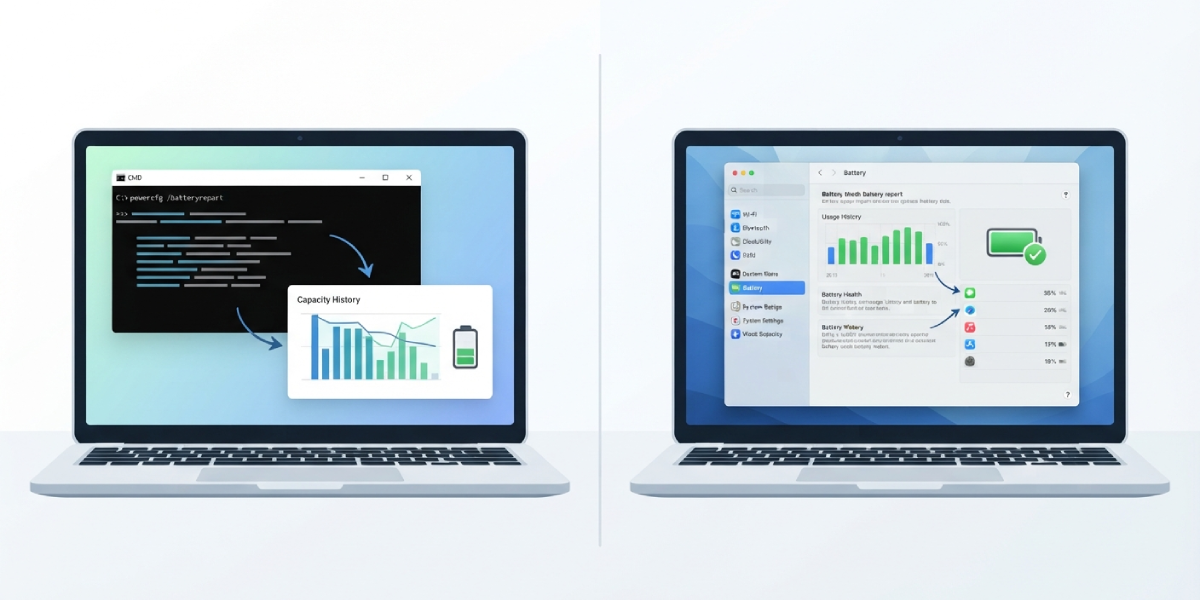
Tip: A battery that has dropped below roughly 80 percent of its original design capacity is a strong sign that age, not software, is the main factor.
Close Background Apps and Adjust Startup Programs
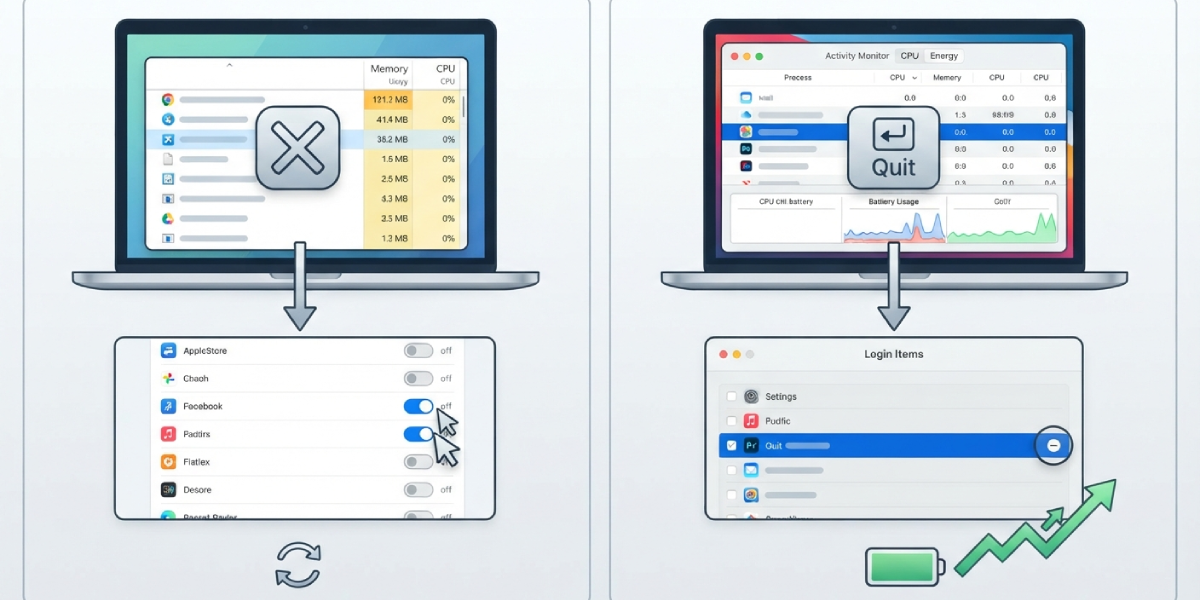
- Step 1: Open Task Manager on Windows or Activity Monitor on macOS and sort processes by energy or power usage.
- Step 2: Close or quit any application that is running but not actively needed.
- Step 3: Open Startup apps in Windows Settings, or Login Items in macOS System Settings, and disable programs that do not need to launch automatically.
- Step 4: Restart the laptop and monitor whether battery drain slows on the next full discharge.
Lower Screen Brightness and Adjust Display Settings
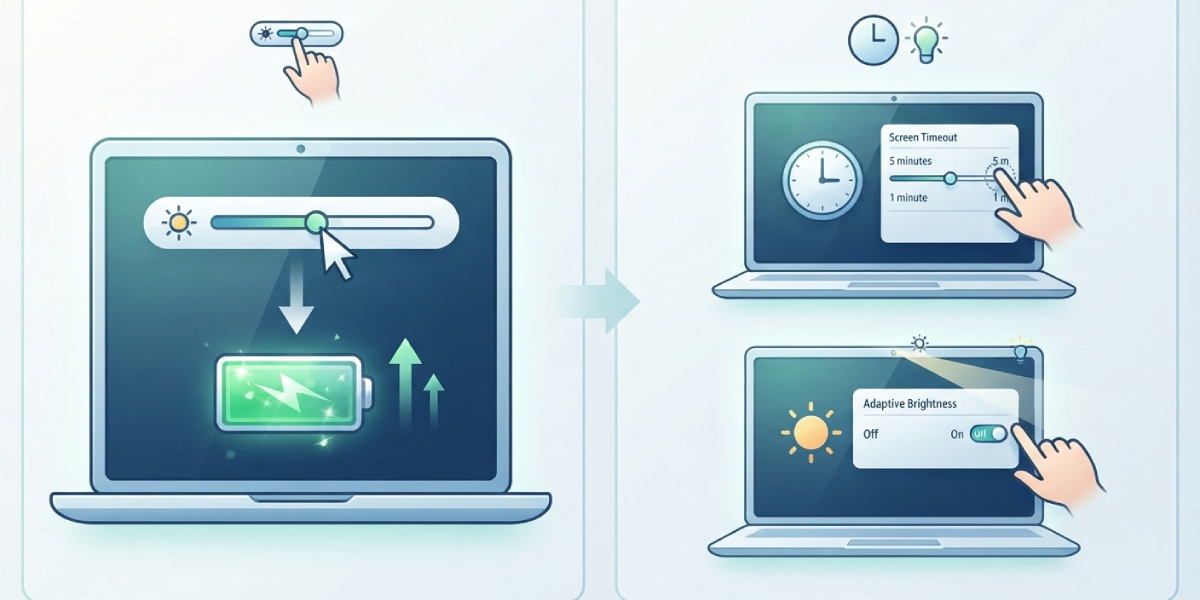
- Step 1: Reduce screen brightness to a comfortable but moderate level, especially when working indoors.
- Step 2: Shorten the screen timeout so the display sleeps sooner when the laptop is idle.
- Step 3: Enable adaptive or automatic brightness if the laptop supports it, so the screen adjusts based on ambient light.
Switch to a Power-Saving Plan
- Step 1: On Windows, open Settings, go to Power and Battery, and select the Battery Saver or Balanced power mode.
- Step 2: On macOS, open System Settings, go to Battery, and enable Low Power Mode.
- Step 3: Disable any performance-focused overrides set through manufacturer utilities, since these often push the system away from efficient defaults.
Tip: Battery Saver or Low Power Mode can be left on permanently while working on battery power, since the performance trade-off is minor for everyday tasks like browsing or document editing.
Disable Unused Wireless Radios and Peripherals
- Step 1: Turn off Bluetooth when no wireless peripherals are in use.
- Step 2: Disconnect external drives, dongles, or accessories that are not actively needed.
- Step 3: Connect to a strong Wi-Fi signal rather than working from the edge of a network’s range whenever possible.
Common Problems and Fixes
These are the situations that come up most often once someone has already tried the basic steps above.
Battery Drains Fast Even in Sleep Mode
This usually points to a background process preventing full sleep, or a peripheral still drawing power. Checking the battery usage report for activity during sleep hours, and disabling wake timers in power settings, typically resolves it.
Battery Percentage Drops Suddenly After Being Stable
A battery that holds steady around a certain percentage and then drops sharply is often showing a sign of cell wear or a battery that needs calibration. If this happens repeatedly, a battery health check is worth running before assuming it is a software issue.
Drain Continues After Switching to Power-Saving Mode
If drain persists after enabling a power-saving plan, an app is likely overriding the setting or running with elevated permissions in the background. Reviewing per-app battery usage again after the switch usually reveals the culprit.
New Laptop Already Draining Fast
A brand-new laptop draining unusually fast is more likely a software or settings issue than a hardware defect, since manufacturing defects are relatively rare. Working through the background app and power plan steps above should be the first move before contacting support.
Frequently Asked Questions
Why does my laptop battery drain fast even when it is not being used?
Background apps, sync services, and wireless radios can keep drawing power even when the laptop is idle or asleep. A battery usage report will show which processes are active during that time.
Is it normal for battery life to get worse over time?
Yes. Lithium-ion batteries lose a portion of their capacity with every charge cycle, so reduced runtime after a year or two of regular use is expected rather than a sign of a defect.
How can I check my laptop’s battery health?
Windows users can run ‘powercfg /batteryreport’ from Command Prompt, and macOS users can check the Battery section in System Settings, both of which show current capacity compared to the original design capacity.
Does closing the laptop lid stop the battery from draining?
Closing the lid typically puts the laptop to sleep, which slows drain significantly but does not stop it completely, since some background activity and hardware components remain lightly active.
Can too many browser tabs drain the battery faster?
Yes. Each open tab, especially ones playing video, running scripts, or auto-refreshing content, uses processing power and contributes to faster battery drain.
Should I keep my laptop plugged in all the time to avoid drain issues?
Keeping a laptop plugged in constantly does not directly cause fast drain, but many manufacturers recommend occasionally letting the battery discharge partially to help maintain long-term battery health.
Does a power-saving mode noticeably reduce performance?
For everyday tasks like browsing, writing, or watching video, the difference is usually minor. The impact is more noticeable during demanding tasks like video editing or gaming.
How do I know if the battery itself needs replacing?
If the battery health report shows significantly reduced capacity compared to its original design, or the laptop shuts down unexpectedly at higher percentages, replacement is likely the right next step.
Can malware cause a laptop battery to drain fast?
Yes. Malicious software running in the background can consume significant processing power and battery life, so running a security scan is a reasonable step if drain is unexplained.
