
Searching for a single email buried across several accounts wastes time, and Outlook’s default search only looks at the folder currently open. This guide shows how to search across all Outlook mailboxes at once, so every connected account, shared mailbox, and archive gets checked in one pass.
Key Takeaways
- The ‘All Mailboxes’ scope only appears in the classic Outlook desktop app, not the new Outlook for Windows.
- Switching the search scope from ‘Current Folder’ to ‘All Mailboxes’ searches every account added to the profile in one search.
- The default scope can be changed permanently through Search Options, so this step never has to be repeated.
- Shared mailboxes and .pst archive files must be open in the profile before they show up in results.
- A corrupted search index is the most common reason ‘All Mailboxes’ returns nothing, and rebuilding it usually fixes that.
How to Search Across All Outlook Mailboxes at Once
This works best in the classic Outlook desktop app for Windows, since that version keeps full control over search scope. Follow these steps in order.
- Step 1: Open Outlook and click inside the search bar at the top of the window, or press Ctrl+E to jump straight into it.
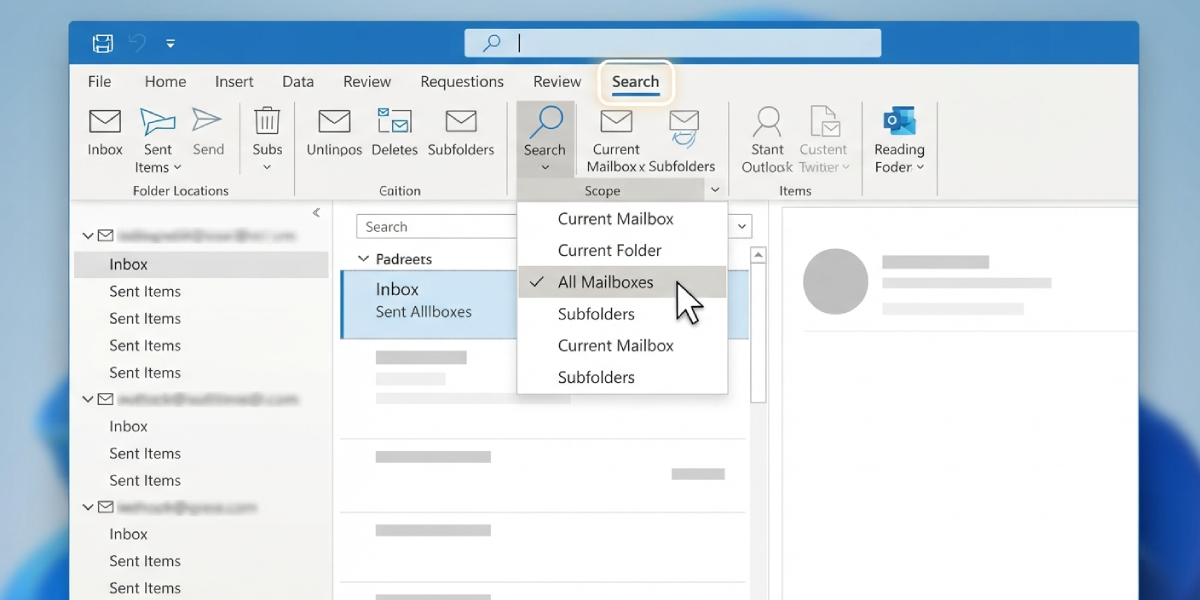
- Step 2: Once the cursor is in the search bar, a Search tab appears in the ribbon. Click it to reveal the Scope group.
- Step 3: In the Scope group, click the dropdown currently showing ‘Current Folder’ or ‘Current Mailbox.’
- Step 4: Select ‘All Mailboxes’ from the list. If multiple accounts or shared mailboxes are attached to the profile, this option searches every one of them at the same time.
- Step 5: Type the search term, sender name, or subject line into the search bar and press Enter.
- Step 6: Review the results list. Outlook groups matches by account and folder, so it’s easy to see exactly where each message lives.
Tip: Clicking on a person’s contact card and choosing to view conversation history often finds messages across mailboxes faster than typing a name manually into the search bar.
Making ‘All Mailboxes’ the Permanent Default
Retyping the scope every time gets old fast. Most people find that setting it once removes the hassle for good.
- Step 1: Click into the search bar so the Search tab appears in the ribbon.
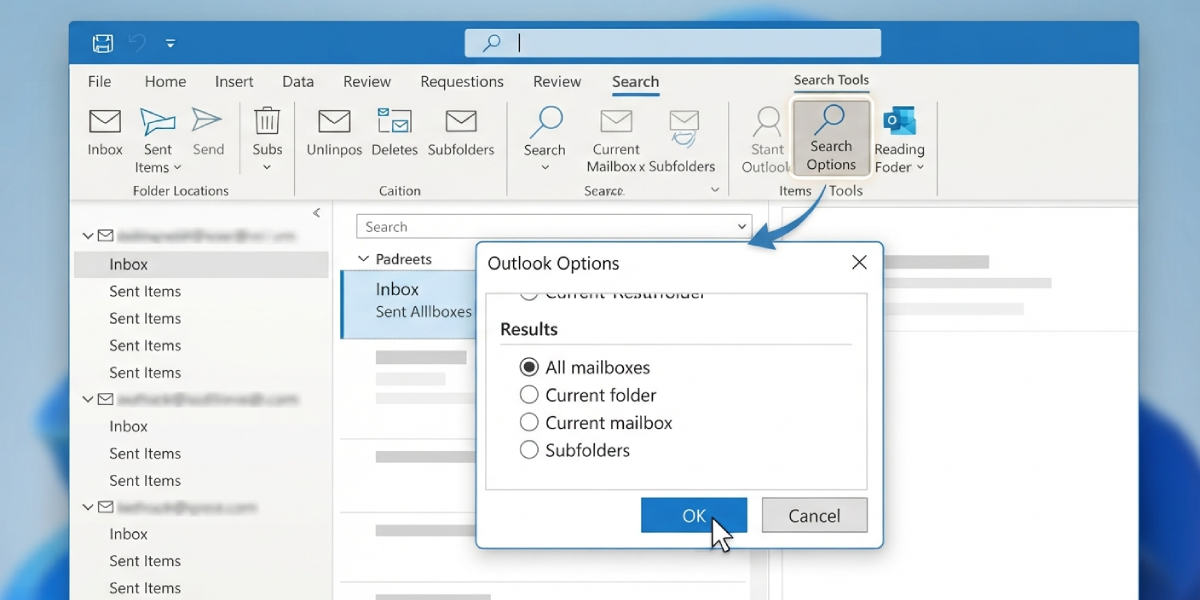
- Step 2: Click the small arrow or three-dot menu labeled ‘Search Tools,’ then choose ‘Search Options.’
- Step 3: Under the Results section, select the radio button for ‘All mailboxes.’
- Step 4: Click OK to save. Every new search now defaults to checking all connected mailboxes automatically.
Including Shared Mailboxes and Archive Files
A shared mailbox or an archived .pst file that isn’t currently loaded in the profile will not appear in an ‘All Mailboxes’ search, no matter how the scope is set.
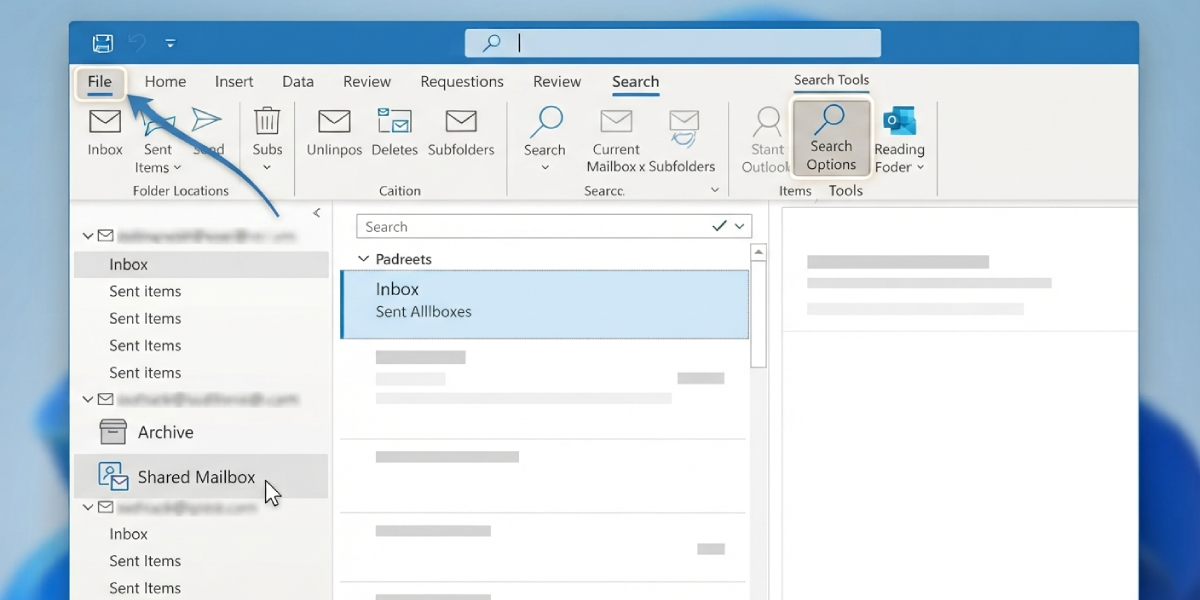
- Step 1: Go to File, then Open & Export, then Open Outlook Data File to add an offline .pst archive to the folder list.
- Step 2: For a shared mailbox, confirm it appears in the left-hand folder pane under its own heading; if it doesn’t, it needs to be added through account settings first.
- Step 3: Once the mailbox or archive shows up in the folder list, run the search again with the scope set to ‘All Mailboxes’ to confirm it’s included.
Common Problems and Fixes
- ‘All Mailboxes’ option is missing from the dropdown: This usually means the new Outlook for Windows is in use, since that version currently searches one mailbox at a time only. Switch back to classic Outlook through Settings, then General, then About Outlook, and toggle ‘New Outlook’ off.
- Search returns zero results even with the correct scope selected: The search index is likely out of date or corrupted. Go to File, then Options, then Search, click Indexing Options, then Advanced, and select Rebuild. This can take a while on large mailboxes, so let it run in the background.
- A shared mailbox never appears in results: The mailbox may be auto-mapped but not fully synced yet in Cached Exchange Mode. Give it time to sync, or manually add it under File, then Account Settings, then adding the mailbox by name.
- Search feels slow across all mailboxes: Large accounts with years of mail take longer to index. Narrowing the search with filters like ‘from:’ or a date range speeds up results without losing the cross-mailbox scope.
- Setting reverts back to ‘Current Mailbox’ after restarting Outlook: Confirm the change was saved through Search Options rather than just changed for a single search session, since only the Search Options setting persists between sessions.
Frequently Asked Questions
Why doesn’t ‘All Mailboxes’ show up in the new Outlook for Windows?
The redesigned, web-based new Outlook for Windows does not currently support searching multiple mailboxes at once. Each mailbox has to be selected and searched individually until Microsoft adds the feature.
Does searching all mailboxes also search calendars and contacts?
Selecting ‘All Outlook Items’ instead of ‘All Mailboxes’ widens the search to include calendar entries, contacts, and tasks alongside email, all across every connected account.
Will ‘All Mailboxes’ search a .pst file that isn’t open?
No. A .pst archive must be opened through File, then Open & Export, then Open Outlook Data File before it appears in the folder list and gets included in results.
Can Outlook on the web search all mailboxes at once?
Outlook on the web typically searches within the mailbox currently signed into. Switching accounts requires signing into that mailbox separately in a browser tab.
Why does a shared mailbox not appear even though it’s set to ‘All Mailboxes’?
The shared mailbox needs to be added to the Outlook profile first, either automatically through permissions or manually through account settings, before search can include it.
Is there a keyboard shortcut to search all mailboxes?
Ctrl+E jumps the cursor into the search bar, but the scope itself still needs to be set to ‘All Mailboxes’ through the Search tab unless that’s already the saved default.
Does rebuilding the search index delete any emails?
No. Rebuilding the index only recreates the searchable catalog of existing messages; it does not remove or alter any mail, folders, or attachments.
Why do results only show the most recent messages first?
Outlook prioritizes recent and frequently accessed items by default. Scrolling further down the results list, or adding a date filter, brings older matches into view.
Can search scope be changed back to a single mailbox afterward?
Yes. The same Scope dropdown in the Search tab allows switching back to ‘Current Mailbox’ or ‘Current Folder’ at any time without affecting the saved default.
