
A GPU driver crash, commonly known as a TDR error (Timeout Detection and Recovery), happens when the graphics driver stops responding and Windows resets it to prevent a full system freeze. This usually shows up as a black screen flicker, a frozen game, or a message that reads ‘Display driver stopped responding and has recovered.’ The good news is that most TDR errors are fixable without replacing any hardware.
Key Takeaways
- A TDR error means Windows detected an unresponsive GPU driver and recovered it automatically, often mid-game or mid-render.
- Overheating, an unstable overclock, outdated or corrupted drivers, and power delivery issues are the most common triggers.
- A clean driver reinstall solves the majority of TDR crashes.
- Adjusting the TDR delay value can help during troubleshooting, but it treats the symptom, not the root cause.
- Persistent TDR errors after software fixes usually point to a thermal, power, or hardware problem that needs closer inspection.
Common Causes of a GPU Driver Crash (TDR Error)
Understanding why the crash happens makes it much easier to pick the right fix instead of guessing. Most TDR errors trace back to one of these root causes.
- Outdated or corrupted GPU drivers: A driver that is missing files, was installed over an older version, or simply has not been updated in a long time is the single most common cause of TDR crashes.
- Overheating: When the GPU runs too hot under load, it can throttle unpredictably or stop responding entirely, which triggers a timeout.
- Unstable overclocks: A core clock, memory clock, or undervolt pushed slightly too far can cause the GPU to hang under specific workloads, even if it seems stable most of the time.
- Insufficient or unstable power delivery: A power supply unit that is aging, underrated, or has a loose PCIe power connector can starve the GPU during demand spikes.
- Software conflicts: Overlay tools, recording software, and background utilities sometimes interfere with the driver and trigger a false timeout.
- Faulty or degraded hardware: In rarer cases, a failing GPU, a bad slot connection, or a damaged cable is the culprit.
Before You Start
None of the fixes below require opening the case, but a little preparation saves time. Save any open work, close background applications, and note the current GPU model along with the driver version currently installed. This makes it easy to compare before and after each fix.
How to Fix a GPU Driver Crash (TDR Error)
Work through these fixes in order. Most people resolve the issue in the first two or three methods, so there is no need to jump straight to the more advanced steps unless the basics do not help.
Method 1: Perform a Clean Driver Reinstall
A partial or conflicting driver installation is behind a large share of TDR errors, so this is the best starting point.
- Step 1: Download Display Driver Uninstaller (DDU) and the latest driver package directly from the GPU manufacturer’s official site (NVIDIA, AMD, or Intel).
- Step 2: Restart the computer into Safe Mode.
- Step 3: Run DDU and select the option to clean and remove the current graphics driver completely.
- Step 4: Restart normally, then install the freshly downloaded driver using a custom or clean installation option if the installer offers one.
- Step 5: Restart once more and test the GPU under the same conditions that previously caused the crash.

Tip: Skip the manufacturer’s bundled extras, such as overlay or recording software, during a clean reinstall. Adding only the core driver first makes it easier to tell whether a companion app was contributing to the problem.
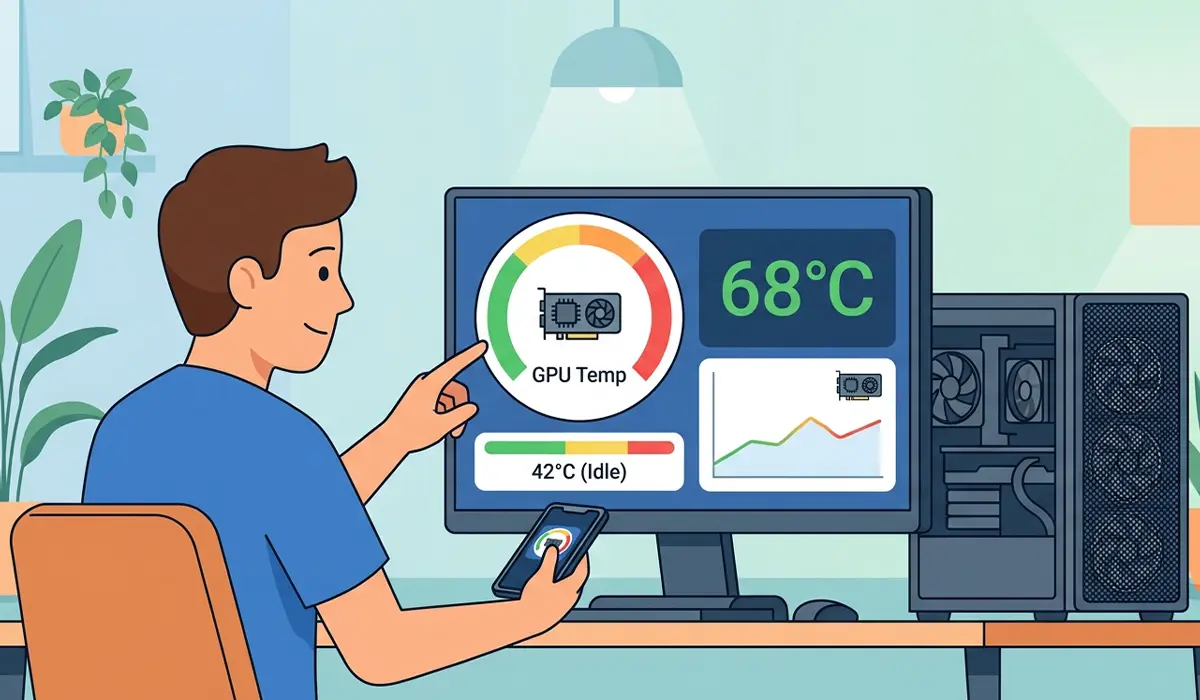
Method 2: Check and Improve GPU Temperatures
If temperatures are climbing too high under load, the driver can lose communication with the card and trigger a timeout.
- Step 1: Install a monitoring tool such as HWiNFO or MSI Afterburner and watch GPU temperature during normal use and under load.
- Step 2: Confirm that case fans and GPU fans are spinning and free of dust buildup.
- Step 3: Improve case airflow by clearing intake and exhaust vents and ensuring cables are not blocking fans.
- Step 4: If temperatures remain high after cleaning, consider reapplying thermal paste on the GPU, since dried out paste loses effectiveness over time.
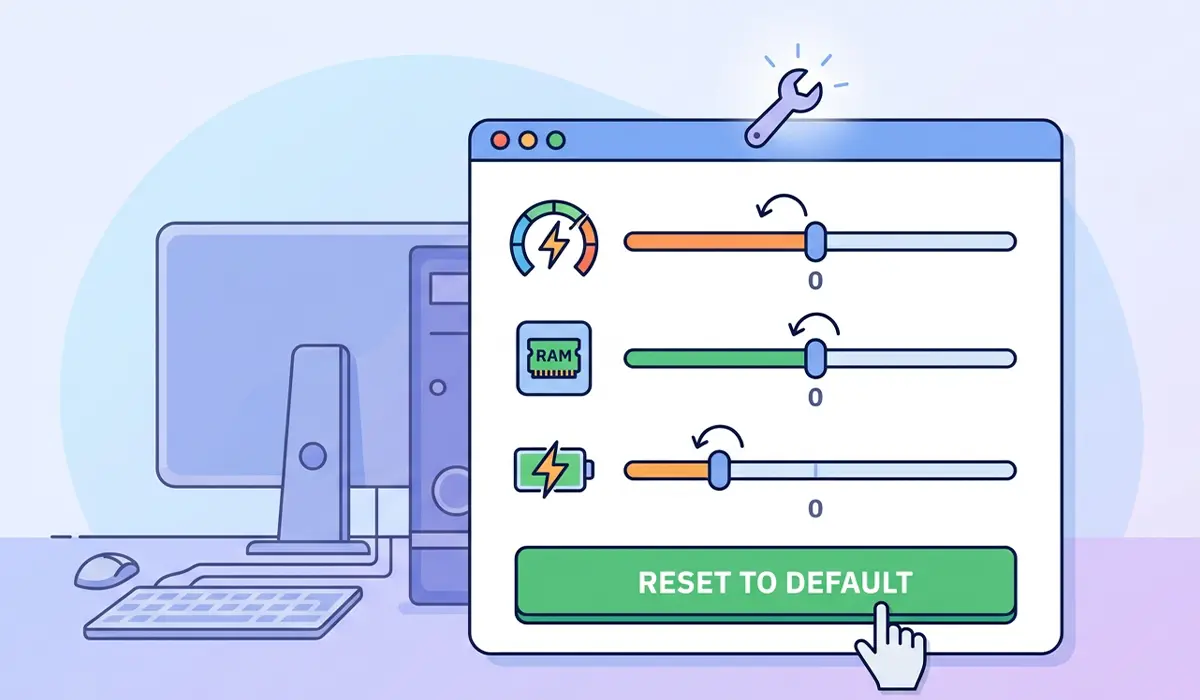
Method 3: Revert Any Overclock or Undervolt
An overclock that felt stable in a benchmark can still crash under a different type of workload, since not every game or application stresses the GPU the same way.
- Step 1: Open the overclocking or tuning software being used and reset all GPU core clock, memory clock, and voltage settings to default.
- Step 2: Test the previously problematic application or game to see if the crashes stop.
- Step 3: If stock settings resolve the issue, reapply the overclock in smaller increments and test after each change to find a stable ceiling.
Method 4: Adjust the TDR Delay Value
Windows gives the driver a short window to respond before triggering a reset. Extending that window slightly can help confirm whether the GPU simply needs more time to finish a heavy task, though this is a diagnostic step rather than a permanent fix.
- Step 1: Open the Registry Editor by typing regedit into the Windows search bar.
- Step 2: Navigate to HKEY_LOCAL_MACHINE\SYSTEM\CurrentControlSet\Control\GraphicsDrivers.
- Step 3: Create a new DWORD (32-bit) value named TdrDelay if it does not already exist, and set its value to 8.
- Step 4: Restart the computer for the change to take effect and test the previous workload.
Tip: Treat a longer TDR delay as a troubleshooting clue, not a solution. If extending the timer stops the crash entirely, the GPU is likely being pushed close to its limit and the underlying cause, such as heat or an overclock, still needs attention.
Method 5: Inspect Power Delivery
A power supply that struggles under transient load spikes can cause the GPU to briefly lose stable power, which the driver interprets as a hang.
- Step 1: Power off and unplug the system, then reseat the PCIe power connectors running to the GPU to rule out a loose connection.
- Step 2: Confirm the power supply unit meets the wattage and connector requirements listed by the GPU manufacturer for that specific model.
- Step 3: If the power supply is several years old or has been showing other signs of instability, such as random reboots, consider testing with a known good unit if one is available.
Method 6: Rule Out Background Software Conflicts
Some overlay tools, capture software, and antivirus programs interact with the graphics driver in ways that trigger false timeouts.
- Step 1: Close overlay and recording software, such as in-game overlays or screen capture tools, before running the affected application.
- Step 2: Test whether the crash still occurs with these programs disabled.
- Step 3: If the crash stops, reintroduce the software one at a time to identify the specific conflict.
Common Problems and Fixes
These are situations that come up after attempting the fixes above, along with the practical way to handle each one.
- The driver reinstall did not fix the crash: Move on to checking temperatures and power delivery, since a clean driver rules out software corruption but not a thermal or hardware cause.
- TDR errors only happen in one specific game or application: This usually points to a software-level bug or an overclock that only fails under that particular workload, so testing with default clock speeds is the next logical step.
- The screen goes fully black and requires a hard reboot instead of recovering: This is a more severe version of the same issue and often signals a deeper thermal, power, or hardware problem that deserves closer inspection.
- Crashes started right after a Windows update: A recent update can sometimes install a generic driver over a proper one. Reinstalling the correct driver from the manufacturer’s site usually resolves this.
- The GPU still crashes after every fix has been tried: At this point, the graphics card itself may be degrading or defective. Testing the card in another system, or a different card in the same system, helps isolate whether the issue follows the GPU or the PC. If neither points to a clear cause, having the system evaluated by a professional technician is the safer next step.
Frequently Asked Questions
What does TDR mean in a GPU driver crash?
TDR stands for Timeout Detection and Recovery. It is a Windows feature that detects when a graphics driver stops responding within a set time and automatically resets it instead of letting the entire system freeze.
Is a TDR error a sign of a dying GPU?
Not always. Most TDR errors come from driver issues, overheating, or an unstable overclock rather than a failing card. A dying GPU is more likely if the crashes continue after drivers, temperatures, and clock speeds have all been checked.
Can overheating alone cause a TDR error?
Yes. When a GPU runs too hot under sustained load, it can become unresponsive long enough for Windows to trigger a timeout and reset the driver.
Does increasing the TDR delay actually fix the crash?
Increasing the delay gives the GPU more time to respond before Windows resets it, which can mask an underlying issue rather than fix it. It is best used as a diagnostic step, not a permanent solution.
Should the GPU driver be updated or rolled back to fix a TDR error?
Both approaches have their place. Updating to the latest stable driver resolves most cases, but if crashes started right after a specific update, rolling back to the previous stable version can confirm whether that update introduced the problem.
Can a weak power supply cause GPU driver crashes?
Yes. If the power supply cannot deliver stable power during sudden load spikes, the GPU can briefly lose consistent power, which the driver may interpret as a hang and trigger a reset.
Why does the GPU only crash during gaming and not everyday use?
Gaming pushes the GPU to sustained high load, which exposes thermal limits, power delivery weaknesses, and unstable overclocks that rarely show up during lighter, everyday tasks.
Will resetting an overclock fix a TDR error?
In many cases, yes. An overclock or undervolt that seems stable in one workload can still cause a timeout in another. Reverting to default clock speeds is one of the fastest ways to confirm whether the overclock is the cause.
How long does it typically take to fix a GPU driver crash?
A clean driver reinstall usually takes fifteen to twenty minutes and resolves most cases. If the cause is thermal or hardware related, diagnosis can take longer since it involves monitoring temperatures and testing components individually.
