
Windows Search not working is one of the most common annoyances on a Windows PC, whether the search bar refuses to open, returns no results, or freezes the whole taskbar. Most of the time this comes down to a corrupted search index, a stuck background service, or a glitch introduced by a recent update. The fixes below walk through the process in order, starting with the quickest and moving toward the more thorough repairs.
Key Takeaways
- A corrupted or outdated search index is the single most common cause of broken Windows Search.
- Restarting the Windows Search service or rebuilding the index solves the issue in most cases.
- System file corruption and third-party antivirus software can also block search results from loading.
- Running the built-in Search and Indexing troubleshooter is often faster than manual fixes.
- A clean reboot or a targeted Windows Update check resolves issues tied to a recent patch.
How to Fix Windows Search Step by Step
Work through these steps in order. Most people find that the problem clears up within the first three or four steps, so there is no need to jump straight to a full index rebuild unless the simpler fixes fail.
Restart the Search Process and Explorer
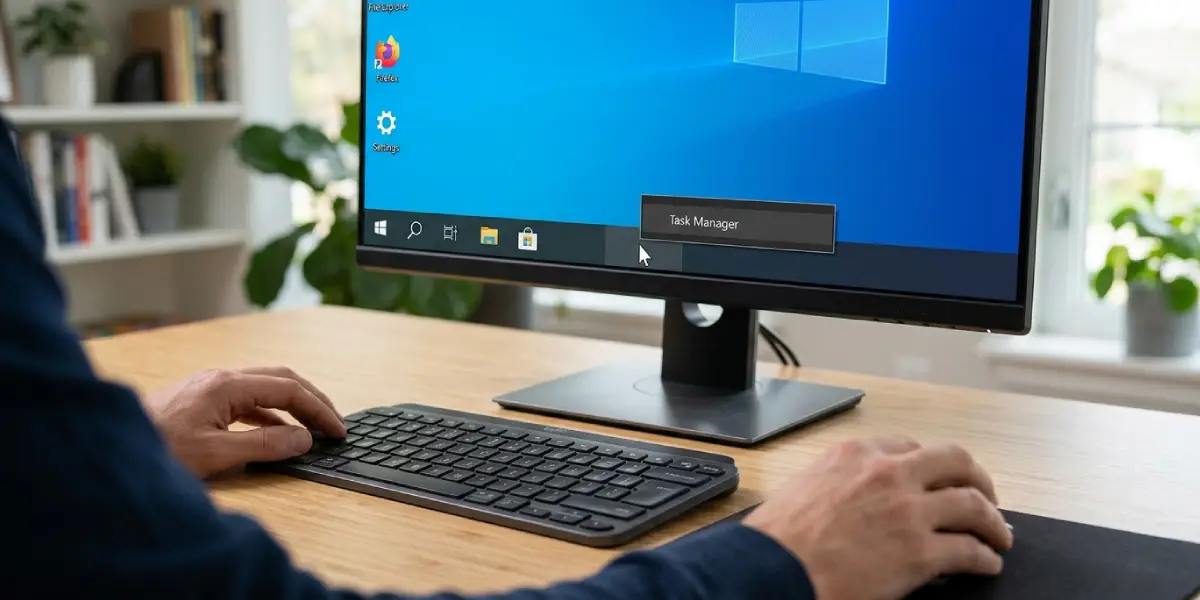
- Step 1: Right-click the Taskbar and open Task Manager, or press Ctrl+Shift+Esc.
- Step 2: Find ‘Windows Explorer’ in the Processes list, select it, and click Restart.
- Step 3: If search still will not open, look for ‘Search’ or ‘SearchHost.exe’ in the same list, select it, and click End Task, then click the search icon again to relaunch it.
Tip: A simple sign-out and sign-back-in often clears a temporary glitch faster than restarting individual processes.
Restart the Windows Search Service
- Step 1: Press the Windows key and R together, type services.msc, and press Enter.
- Step 2: Scroll down to ‘Windows Search’ in the list of services.
- Step 3: Right-click it and choose Restart. If the option is greyed out, choose Start instead.
- Step 4: Right-click the same service, open Properties, and confirm the Startup type is set to Automatic so it launches correctly on every boot.
Run the Search and Indexing Troubleshooter
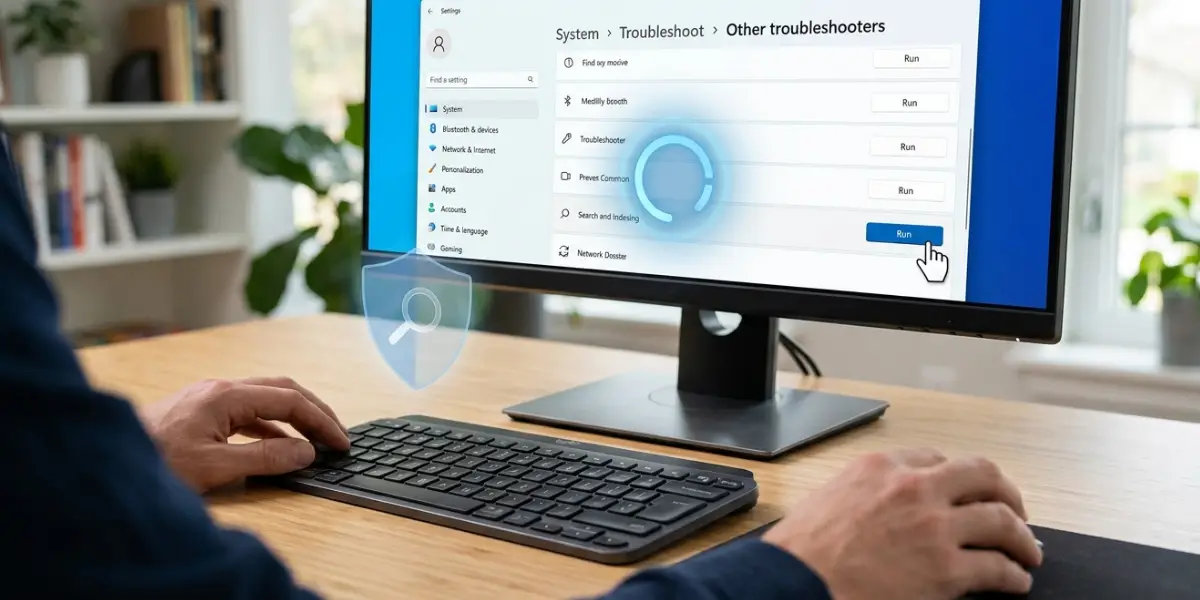
- Step 1: Open Settings and go to System, then Troubleshoot, then Other troubleshooters.
- Step 2: Find ‘Search and Indexing’ and click Run.
- Step 3: Let the tool scan for problems and apply any fixes it suggests, then restart the PC.
Rebuild the Search Index
This is the deeper fix for when search opens fine but results are missing, wrong, or outdated. The index is essentially a catalog of file names and content that Windows Search draws from, and like any catalog it can become corrupted or fall out of sync with what is actually on the drive.
- Step 1: Open Settings, go to Privacy & security, then Searching Windows.
- Step 2: Click Advanced indexing options, then Advanced in the window that opens.
- Step 3: Under the Index Settings tab, click Rebuild and confirm the prompt.
- Step 4: Allow the rebuild to run in the background. This can take anywhere from several minutes to a few hours depending on how many files are on the drive, so leave the PC on and plugged in during this time.
Tip: A laptop rebuilding its index while running on battery will drain noticeably faster, so keep it connected to power until the process finishes.
Check for Windows Updates
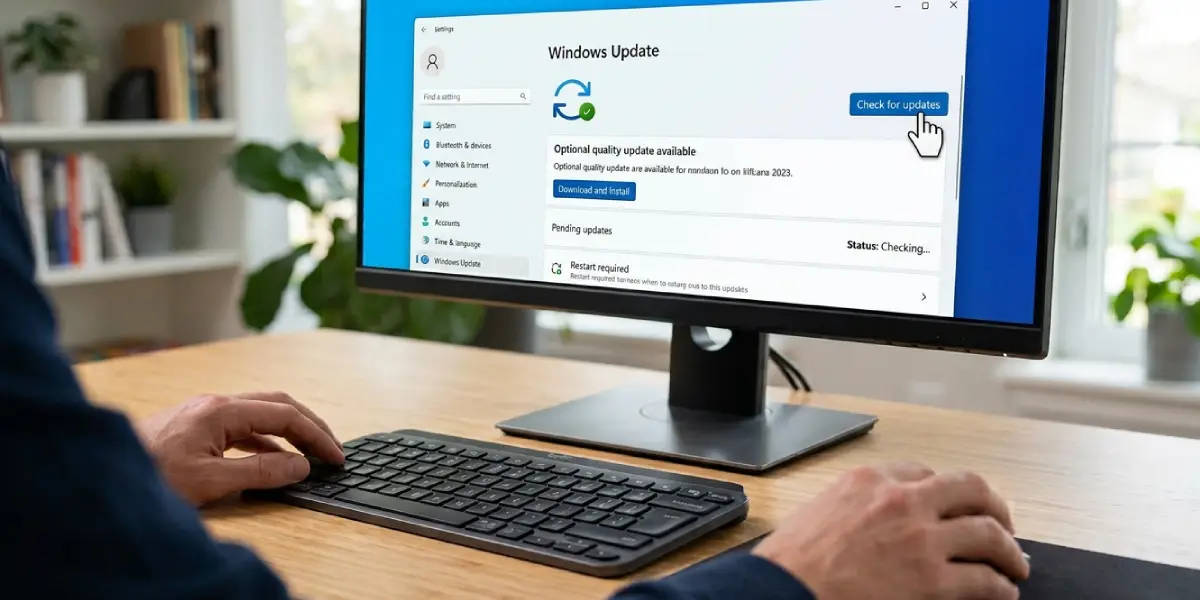
- Step 1: Open Settings and go to Windows Update.
- Step 2: Click Check for updates and install anything pending, including optional updates.
- Step 3: Restart the PC once updates finish installing.
Search bugs are sometimes introduced by a specific update and patched again within a few weeks, so staying current is often the simplest long-term fix.
Run a System File Check
- Step 1: Open the Start menu, type cmd, right-click Command Prompt, and choose Run as administrator.
- Step 2: Type sfc /scannow and press Enter, then wait for the scan to finish.
- Step 3: If issues are found and not fully repaired, type DISM /Online /Cleanup-Image /RestoreHealth and press Enter, then run sfc /scannow again once it completes.
Common Problems and Fixes
- Search bar opens but the window is blank or frozen: This usually points to a graphics rendering issue with the search flyout. Restarting Windows Explorer through Task Manager, as covered above, typically clears it.
- Search works but skips certain folders or file types: Open Advanced indexing options and confirm those locations and file types are included in the indexed list. A common example is a second drive or external folder that was never added to the index in the first place.
- Search stopped working right after a Windows update: Roll back the most recent update from Settings, Windows Update, Update history, Uninstall updates, then check whether search returns to normal.
- Index rebuild seems stuck at the same percentage: This is normal for large drives, since indexing speed slows down on files with heavy text content like PDFs and documents. Leave it running for a few hours before assuming it has actually stalled.
- Third-party antivirus is blocking search results: Some security suites interfere with indexing. Temporarily disable real-time protection to test, and if that resolves it, add an exclusion for the Windows Search process instead of leaving protection off.
Frequently Asked Questions
Why does Windows Search not working happen after an update?
Updates occasionally reset service settings or introduce bugs in the search indexer. Restarting the Windows Search service or rolling back the update usually restores normal function.
How long does rebuilding the search index take?
It depends on the number and size of files on the drive. A typical laptop with a moderate amount of data finishes within an hour or two, while drives packed with large document libraries can take considerably longer.
Is it safe to disable Windows Search entirely?
It is possible through the Services panel, but it is not recommended, since many apps and File Explorer features rely on the search index to function properly.
Will rebuilding the index delete any files?
No. Rebuilding the index only affects the search catalog itself, not the actual files stored on the drive.
Why does search work in File Explorer but not from the Taskbar?
These use slightly different components. If only the Taskbar search fails, restarting the SearchHost process or Windows Explorer usually fixes it without needing a full index rebuild.
Can a slow hard drive cause Windows Search not working?
A mechanical hard drive can make indexing and search noticeably slower compared to a solid-state drive, but it should not cause search to fail outright. Persistent failures point to a service or index issue rather than drive speed.
Does a clean boot help diagnose search problems?
Yes. Starting Windows with only essential services running helps identify whether a third-party app or background program is interfering with the search function.
Why do search results show outdated files that were already deleted?
This is a sign the index has fallen out of sync with the actual drive contents. Rebuilding the index resolves this in nearly all cases.
Should personal files be backed up before rebuilding the index?
It is not strictly necessary since the process only touches the search catalog, but keeping a routine backup of important files is good practice regardless.
