
Setting up a way to add a GoDaddy email account in the Outlook mobile app only takes a few minutes once the correct server settings are on hand. Most sign-in headaches happen because Outlook cannot auto-detect GoDaddy’s mail servers, not because anything is broken. This guide walks through the exact steps that work on both iPhone and Android.
Key Takeaways
- GoDaddy email works with Outlook mobile through an IMAP connection, not a standard Exchange sign-in.
- Outlook usually cannot auto-detect GoDaddy settings, so manual IMAP and SMTP entries are required.
- The incoming server is imap.secureserver.net and the outgoing server is smtpout.secureserver.net.
- A full email address and mailbox password are needed, not a GoDaddy account login.
- These steps apply to Professional Email and Workspace Email plans, not GoDaddy accounts running on Microsoft 365.
How to Add a GoDaddy Email Account in the Outlook Mobile App
These steps apply to the Outlook app on both iOS and Android, since the interface is nearly identical on each platform.
- Step 1: Open the Outlook app and tap the account icon in the top-left corner, then tap the settings gear icon in the bottom-left. If this is the first account being added, tap Add Account instead and skip ahead to Step 3.
- Step 2: Tap Add Mail Account, then tap Add an Email Account.
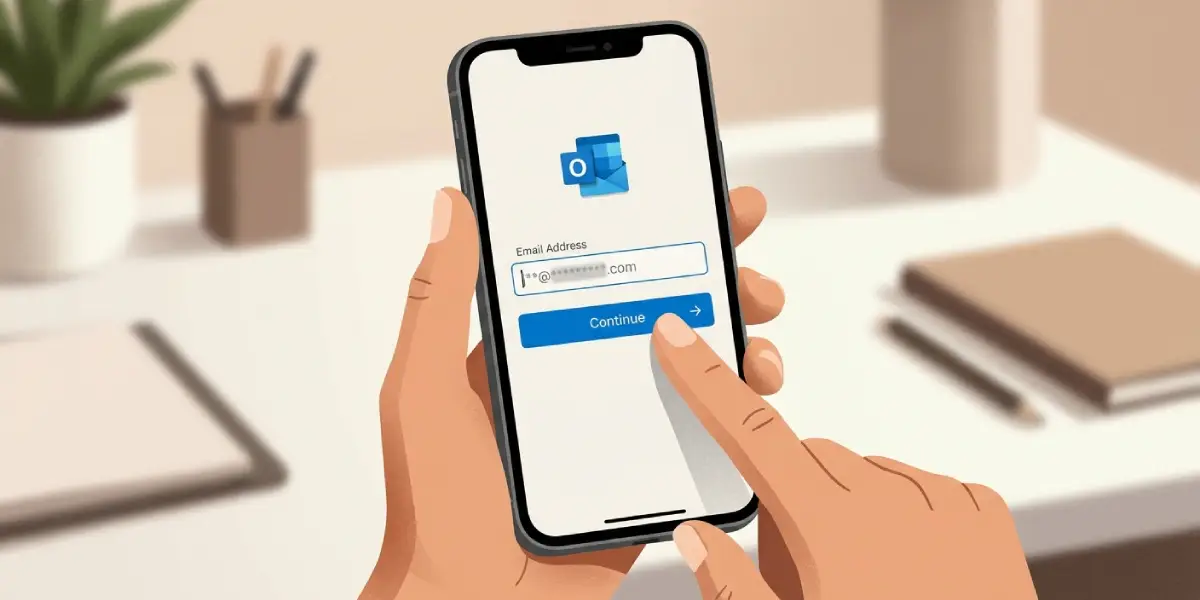
- Step 3: Enter the full GoDaddy email address, then tap Continue. An ‘Accounts found’ screen may appear suggesting a different sign-in method; tap Skip These Accounts to continue with manual setup.
- Step 4: On the account type screen, select IMAP.
- Step 5: Enter the mailbox password (not the GoDaddy account password, if the two differ), along with a display name and description.
- Step 6: If Outlook cannot detect the server settings automatically, tap Advanced Settings and enter the incoming mail details manually.
Incoming Server (IMAP) Settings
- Host name: imap.secureserver.net
- Port: 993
- Security type: SSL/TLS
- Username: the full email address
- Password: the mailbox password
Outgoing Server (SMTP) Settings
- Host name: smtpout.secureserver.net
- Port: 465
- Security type: SSL/TLS
- Username: the full email address
- Password: the mailbox password
Tip: Copy and paste the server names instead of typing them out. A single missing letter in imap.secureserver.net is one of the most common reasons the connection fails on the first try.
- Step 7: Tap the checkmark or Sign In button once both sets of server details are filled in.
- Step 8: Wait for Outlook to verify the connection. This usually takes 10 to 20 seconds, sometimes a little longer on a slower mobile connection.
- Step 9: Once verified, choose whether to enable notifications and add another account, then tap Done or Maybe Later to land in the inbox.
Common Problems and Fixes
Outlook Says the Password Is Incorrect
This almost always means the GoDaddy account password was entered instead of the mailbox password. These are two separate credentials on Workspace Email plans, and mixing them up is an easy mistake to make. Check the mailbox password inside the GoDaddy Email Setup Center and try again.
Advanced Settings Option Does Not Appear
If Outlook jumps straight to a sign-in error without offering an Advanced Settings toggle, back out of the setup screen and start again from Add Mail Account. On some Android versions, this toggle only shows up after the first auto-detect attempt fails.
Emails Are Not Syncing After Setup
Give the account a few minutes to complete its first sync, especially if the inbox holds thousands of messages. If nothing appears after 15 minutes, remove the account and add it again using the manual IMAP steps above rather than letting Outlook auto-detect.
SMTP Server Rejects Outgoing Mail
This usually points to the wrong port or security type on the outgoing server. Double-check that port 465 and SSL/TLS are both selected, since GoDaddy’s outgoing server will not accept connections on the default port Outlook sometimes suggests.
Frequently Asked Questions
Does adding a GoDaddy email account in Outlook mobile require IMAP or Exchange?
It requires IMAP. GoDaddy Professional Email and Workspace Email accounts connect through IMAP and SMTP servers, not through an Exchange or Microsoft 365 connection.
What password should be used when adding the GoDaddy account?
Use the mailbox password set up specifically for that email address, which can be checked or reset in the GoDaddy Email Setup Center. This is not always the same as the main GoDaddy account password.
Why does Outlook fail to auto-detect the GoDaddy server settings?
Outlook’s auto-detect feature works well with major providers but often cannot identify third-party hosted mail like GoDaddy’s. Manual entry of the IMAP and SMTP details solves this every time.
Can a GoDaddy email account running on Microsoft 365 use these same steps?
No. If the GoDaddy domain email is actually hosted through Microsoft 365, sign in using the Exchange or Microsoft 365 account type instead of IMAP, and the app will handle the connection automatically.
What port numbers does GoDaddy email use in Outlook mobile?
Port 993 for the incoming IMAP server and port 465 for the outgoing SMTP server, both using SSL/TLS security.
Is it possible to add more than one GoDaddy email account to Outlook mobile?
Yes. Repeat the same setup steps from the account menu for each additional GoDaddy address, and Outlook will list them separately in the account switcher.
Why does Outlook ask to add the account a second time after it was already set up?
This typically happens after a password change on the GoDaddy side. Remove the account from Outlook and add it again with the updated mailbox password.
How long does it take for a GoDaddy inbox to fully sync in Outlook mobile?
Small inboxes sync within a minute or two. Larger inboxes with years of stored mail can take 15 minutes or more to finish the initial download.
Does this setup work the same way on both iPhone and Android?
Yes. The screen names and button placement differ slightly, but the account type, server settings, and overall flow are identical on both platforms.
