
Changing the default PST for incoming mail in Outlook is a quick fix for anyone whose new messages keep landing in the wrong data file. This guide walks through the exact settings menu, step by step, so new mail arrives exactly where it should.
Key Takeaways
- The default PST is changed from the Account Settings window, under the Data Files tab.
- Outlook must be restarted after the change for new mail to start arriving in the correct file.
- Only .pst data files can be set as default – Exchange or Microsoft 365 mailboxes follow different rules.
- If the ‘Set as Default’ button is greyed out, the selected file is usually already the default.
Step-by-Step: Change the Default PST for Incoming Mail in Outlook
This process works the same way across most recent versions of classic Outlook for Windows. Follow the steps in order and avoid skipping the restart at the end – that last step is where most people get tripped up.
- Step 1: Open Outlook and click on the ‘File’ tab in the top-left corner.
- Step 2: Select ‘Account Settings’, then click ‘Account Settings’ again from the dropdown menu.
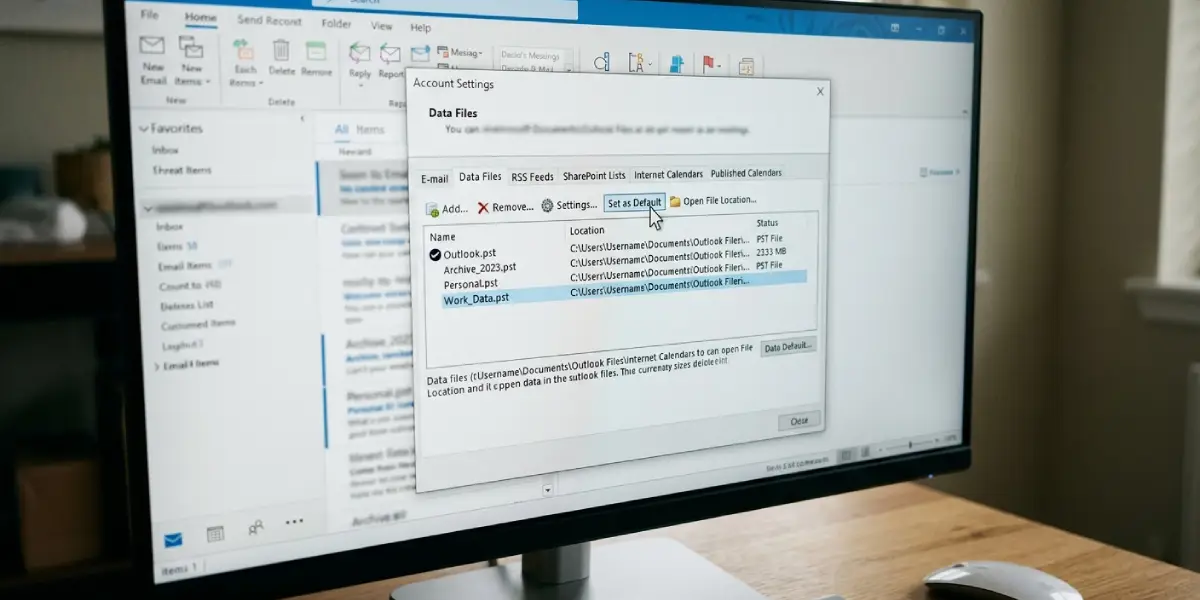
- Step 3: In the window that opens, click the ‘Data Files’ tab. A list of every PST and OST file connected to the profile appears here.
- Step 4: Click once on the PST file that should receive new incoming mail going forward.
- Step 5: Click ‘Set as Default’ near the top of the window.
- Step 6: Click ‘Close’ to exit the Account Settings window.
- Step 7: Close Outlook completely and reopen it so the new default takes effect.
Confirming the Change Took Effect
Once Outlook reopens, send a test email to the account or wait for the next incoming message. It should land in the Inbox of the newly chosen PST file rather than the old one. Checking this right away saves the trouble of digging through the wrong file later trying to find a missing message.
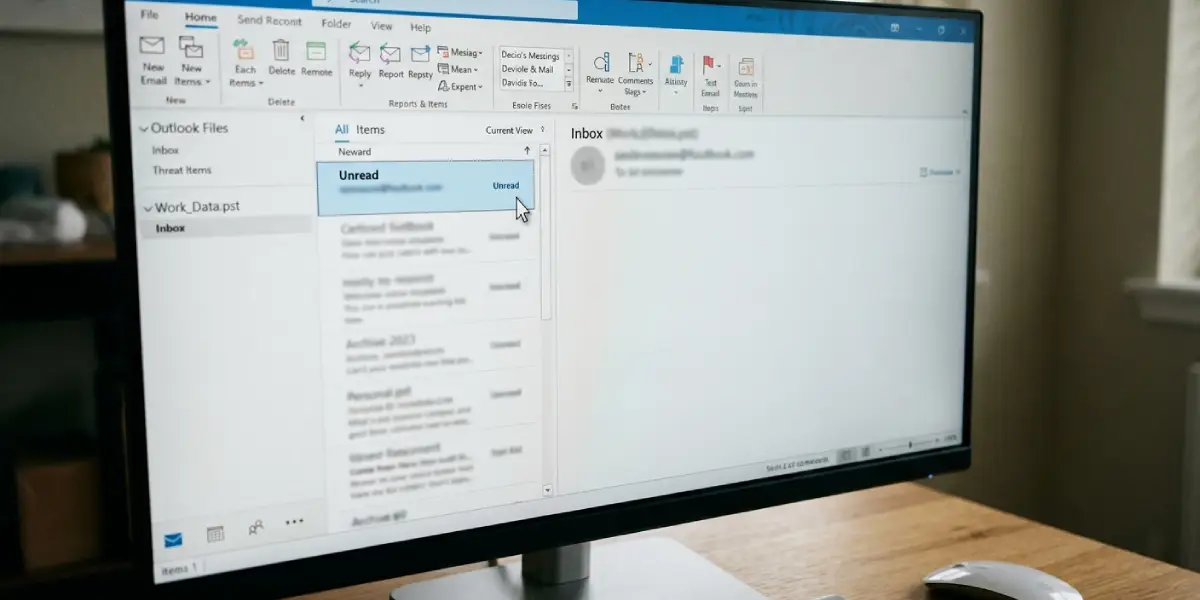
Tip: A small word, often ‘Default’, appears next to the file name in the folder list once it becomes the active default – that little label is the fastest way to confirm the change without reopening Account Settings.
Common Problems and Fixes
‘Set as Default’ Button Is Greyed Out
This usually means the file already selected is the current default. Click a different PST in the list first, and the button becomes active.
New Mail Still Arrives in the Old PST
Outlook sometimes needs a full restart, not just a close of the compose window, for the change to register. Exit Outlook from the taskbar or system tray entirely, then relaunch it.
The Desired PST File Does Not Appear in the List
The file may not be added to the current profile yet. Use ‘Add’ in the Data Files tab, browse to the .pst file’s location, and open it before repeating the default-setting steps.
An Exchange or Microsoft 365 Account Keeps Overriding the PST
When an Exchange or Microsoft 365 mailbox is part of the profile, Outlook often routes new mail to that mailbox regardless of which PST is marked default. Setting a PST as default mainly controls where new mail lands for POP accounts and where items are stored by default when no other delivery location is specified.
Two PST Files Have the Same Name
Hover over each file in the Data Files tab to see its full file path in the details, since the name alone will not show which folder it lives in.
Frequently Asked Questions
Where is the default PST setting located in Outlook?
It is found under File, then Account Settings, then Account Settings again, on the Data Files tab.
Does changing the default PST move existing emails?
No. It only changes where new incoming mail is delivered going forward – existing messages stay in their current file.
Why does the default PST option not apply to a Microsoft 365 account?
Microsoft 365 and Exchange accounts deliver mail directly to their own mailbox by design, so the PST default setting mainly affects POP accounts and manual storage location.
Is it necessary to restart Outlook after changing the default PST?
Yes. The change does not fully take effect until Outlook is closed completely and reopened.
Can more than one PST file be set as default at the same time?
No. Only one PST file can hold the default status within a single Outlook profile at any given time.
What happens if the default PST file is deleted or moved?
Outlook will show an error trying to locate it. The Data Files tab should be used to remove the missing entry and set a different available PST as default.
How can it be confirmed which PST is currently the default?
Open the Data Files tab in Account Settings – the current default file is marked with the word ‘Default’ next to its name.
Does this process work the same way in new Outlook for Windows?
The new Outlook interface handles data files differently and offers limited PST management compared to classic Outlook, so switching to classic Outlook is often needed for this specific task.
