
Setting up a new PC does not have to mean losing years of email history. Anyone who needs to move a PST file to a new computer can do it safely in a few steps, without leaving Outlook data behind or risking a corrupted file along the way.
Key Takeaways
- Locate the PST file using Outlook’s Account Settings before doing anything else.
- Close Outlook completely before copying the file to avoid corruption.
- Transfer the file using an external drive, cloud storage, or a local network connection.
- Import the PST file into Outlook on the new computer using the Import/Export wizard.
- Verify emails, contacts, and calendar items appear correctly before deleting the original copy.
How to Move a PST File to a New Computer
Method 1: Find the PST File on the Old Computer
- Step 1: Open Outlook on the old computer, click ‘File’, then select ‘Account Settings’ followed by ‘Account Settings’ again from the dropdown menu.
- Step 2: Go to the ‘Data Files’ tab. This lists every PST or OST file connected to the Outlook profile, along with its exact file path.
- Step 3: Click on the relevant data file and select ‘Open File Location’ to jump straight to the folder in File Explorer.
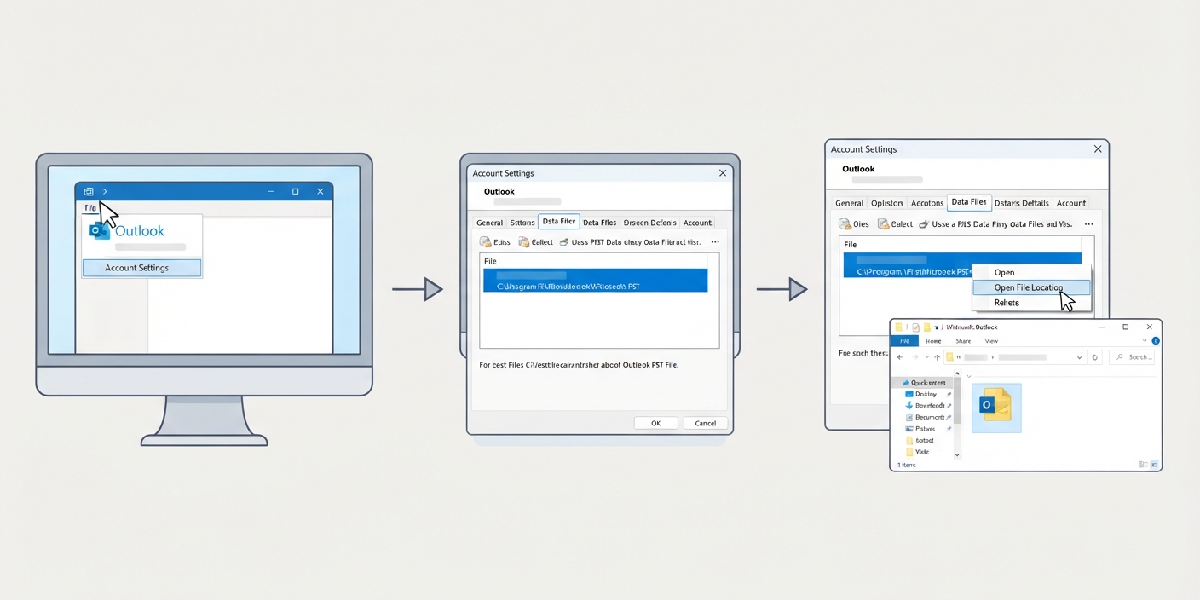
Tip: Most PST files live in a hidden folder under AppData, so if browsing manually instead of using the Account Settings shortcut, hidden items need to be visible in File Explorer first.
Method 2: Close Outlook Before Copying
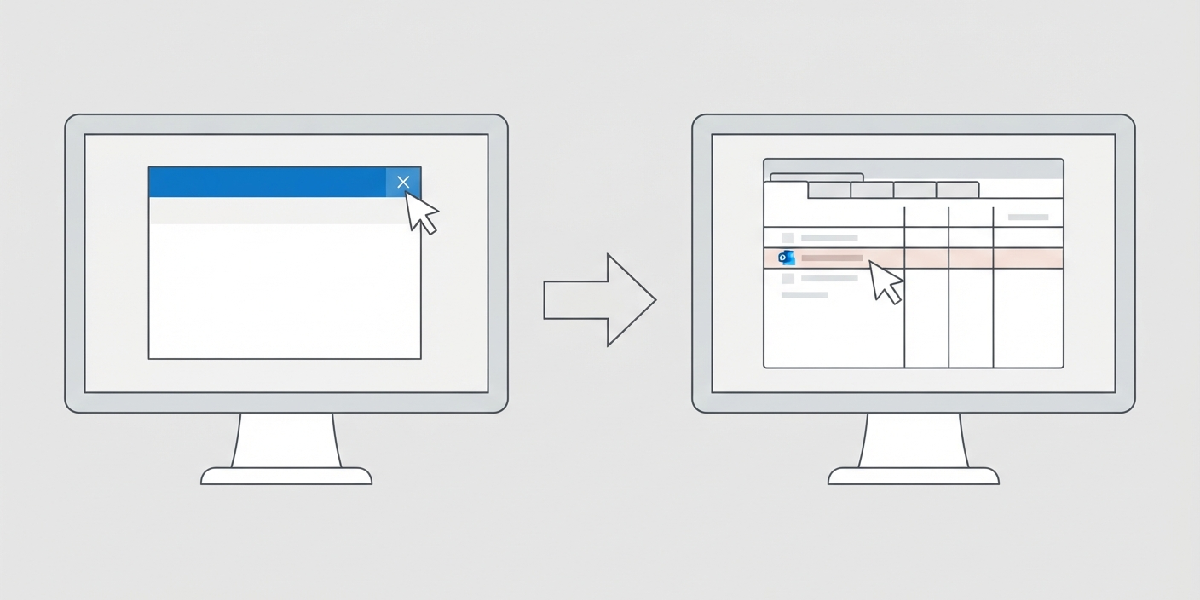
- Step 4: Close Outlook completely, including any background processes. A PST file that is still in use by Outlook can copy incorrectly or become damaged.
- Step 5: Check the Task Manager to confirm Outlook is not still running in the background before moving forward.
Method 3: Copy the PST File to Removable or Cloud Storage
- Step 6: Right-click the PST file and choose ‘Copy’. Avoid ‘Cut’, since that removes the only copy from the old machine until the transfer is confirmed successful.
- Step 7: Paste the file onto a USB drive, an external hard drive, or a cloud storage folder such as OneDrive. For large mailboxes, an external drive usually transfers faster than a cloud upload.
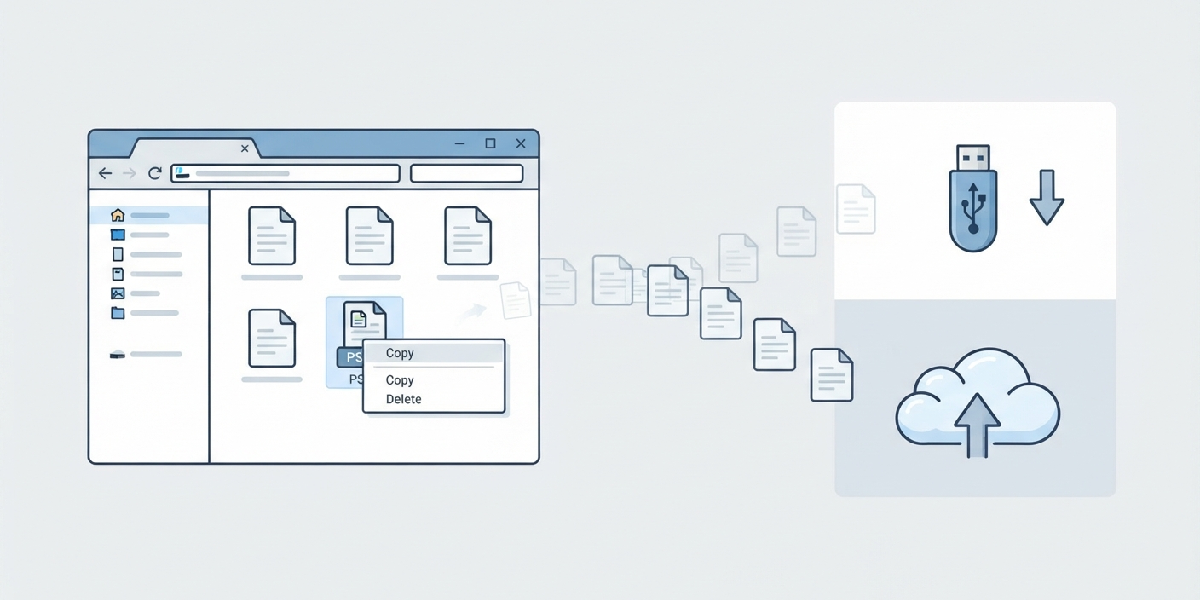
Tip: Rename the file to something identifiable, like ‘Outlook-Backup-2026.pst’, so it is easy to recognize once it reaches the new computer.
Method 4: Move the File to the New Computer
- Step 8: Connect the USB or external drive to the new computer, or sign into the same cloud storage account used earlier.
- Step 9: Create a dedicated folder, such as ‘Documents\Outlook Files’, and copy the PST file into it. Placing it somewhere memorable makes future backups simpler too.
Method 5: Import the PST File Into Outlook
- Step 10: Open Outlook on the new computer. If this is the first launch, complete the initial email account setup first.
- Step 11: Click ‘File’, then ‘Open & Export’, and select ‘Import/Export’.
- Step 12: Choose ‘Import from another program or file’, click ‘Next’, then select ‘Outlook Data File (.pst)’ and click ‘Next’ again.
- Step 13: Browse to the folder created earlier, select the PST file, and choose how duplicates should be handled, usually ‘Do not import duplicates’.
- Step 14: Select the folder to import into, typically the top-level PST entry, and check the box to include subfolders.
- Step 15: Click ‘Finish’. Outlook will begin importing the emails, contacts, and calendar items right away.
Method 6: Confirm Everything Imported Correctly
- Step 16: Expand the newly imported PST folder in the Outlook navigation pane and spot-check a few emails, contacts, and calendar entries.
- Step 17: Once satisfied that nothing is missing, keep the original PST copy stored safely for a week or two before deleting it as a backup precaution.
Common Problems and Fixes
- The PST file will not import: This usually happens when Outlook is still running or the file is marked as read-only. Close Outlook fully, right-click the file, select ‘Properties’, and uncheck ‘Read-only’ before trying again.
- Outlook says the file is ‘not a personal folders file’: This typically means the file got corrupted during transfer. Re-copy it from the original source rather than a duplicate, and run the Inbox Repair Tool (SCANPST.EXE) if the issue continues.
- Import finishes but folders appear empty: Double-check that ‘Include subfolders’ was selected during import. Re-running the Import/Export wizard usually resolves this.
- The file size is too large to copy to a USB drive: Older USB drives formatted with FAT32 cannot hold files larger than 4GB. Reformat the drive to NTFS, or split the transfer across cloud storage instead.
- Duplicate emails appear after import: This happens when ‘Allow duplicates to be created’ was selected by mistake. Delete the duplicated PST folder and re-import using ‘Do not import duplicates’.
Frequently Asked Questions
Where is the PST file normally stored on Windows?
It is typically located in a hidden AppData folder, but the exact path is easiest to find through Outlook’s Account Settings under the ‘Data Files’ tab rather than browsing manually.
Can a PST file be emailed to a new computer?
Most email providers block PST attachments or reject files over their size limit, so a USB drive, external hard drive, or cloud storage transfer is a more reliable option.
Does moving a PST file also transfer email account settings?
No. A PST file only contains data such as emails, contacts, and calendar items. Email accounts still need to be set up separately in Outlook on the new computer.
Is it safe to delete the original PST file after moving it?
Yes, but only after confirming the import completed successfully on the new computer. Keeping the original as a backup for a short period is a smart precaution.
How long does importing a PST file usually take?
It depends on file size. A small file with a few hundred emails imports in seconds, while a multi-gigabyte archive with years of mail can take several minutes.
What is the maximum size a PST file can be?
Modern versions of Outlook support PST files up to 50GB, though keeping files well under that size generally results in better performance.
Can Outlook be open while copying the PST file?
No. Outlook needs to be fully closed before copying the file, since an open PST file can become locked or corrupted during the copy process.
What if the new computer uses a different version of Outlook?
PST files are compatible across recent Outlook versions, so importing into a newer or older version should not cause data loss.
Is a PST file the same as an OST file?
No. A PST file is a portable data file suited for transfers like this one, while an OST file is tied to a specific Outlook profile and mail server, making it unsuitable for moving between computers.
