
Hitting the Outlook PST 50GB size limit usually means Outlook starts lagging, sending fails, or a warning appears about the data file nearing capacity. The good news is that this limit can be resolved without deleting a single email, calendar entry, or contact.
Key Takeaways
- The 50GB ceiling is a hard limit for Outlook data files (.pst), and Outlook will not let a file grow past it.
- Splitting an oversized PST into smaller files is the safest way to fix the problem without losing data.
- AutoArchive can automate the process of moving older items into a separate archive file.
- Compacting a PST file after cleanup reclaims wasted space and can delay hitting the limit again.
- Regularly checking data file size prevents this issue from resurfacing.
Step-by-Step Guide to Fixing the Outlook PST 50GB Size Limit
Follow these steps in order. Each one builds on the last, so skipping ahead can leave folders half-organized.
- Step 1: Open Outlook and go to File, then Account Settings, then Account Settings again. Click the Data Files tab to see every PST file attached to the profile, along with its current size.
- Step 2: Identify which PST file is approaching or has hit 50GB. Double-click it, or select it and click Open File Location, to confirm the exact size shown in File Explorer.
- Step 3: Create a new PST data file. On the Data Files tab, click Add, choose a save location, name the file something clear like ‘Archive 2024’, and click OK.
- Step 4: Move older or less-needed folders into the new PST file. In the folder pane, select a subfolder (older Sent Items or a completed project folder work well), then drag it into the new PST file. Outlook copies every message, attachment, and subfolder structure along with it.
- Step 5: For a faster, automated version of Step 4, use AutoArchive instead. Go to File, Options, Advanced, and click AutoArchive Settings. Set the archive to run on a schedule and choose the new PST file as its destination, then apply the setting to the folders that need it most.
- Step 6: Once items have moved out of the oversized PST, compact it to reclaim the freed space. Go to File, Account Settings, Account Settings, Data Files tab, select the original PST, click Settings, and choose Compact Now.
- Step 7: Close and reopen Outlook, then recheck the Data Files tab to confirm the original PST file now sits comfortably under 50GB.
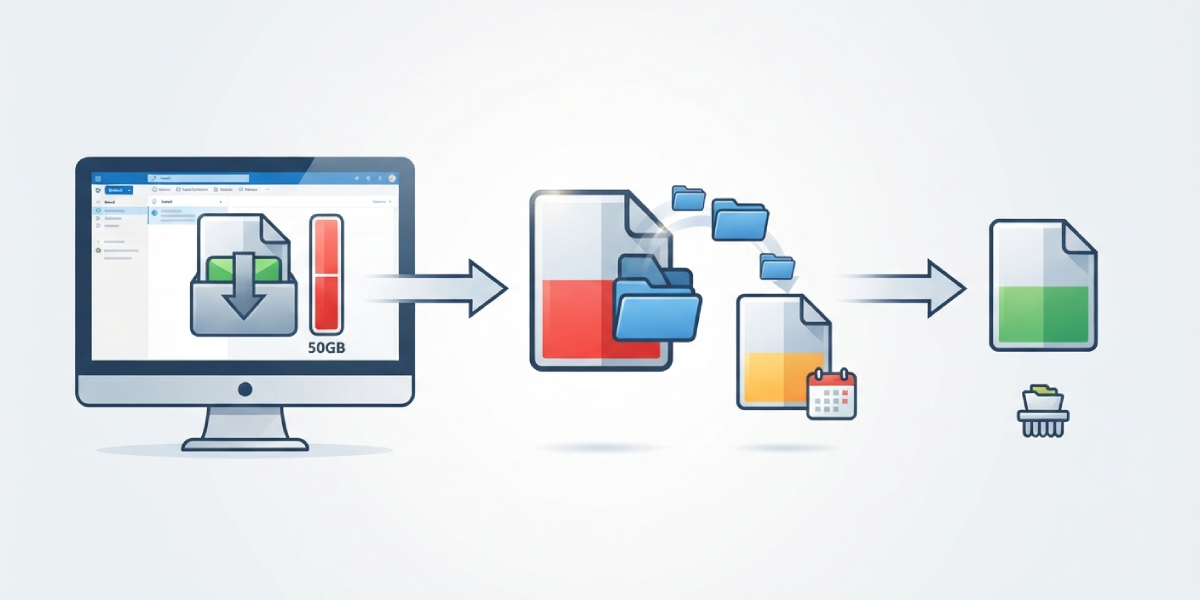
Tip: Move whole folders rather than individual emails when splitting a PST file. It keeps the folder structure intact and finishes the job far faster than dragging messages one at a time.
Setting Up a Long-Term Split Strategy
Most people find that splitting by year or by project works better than splitting by size alone. A PST file named ‘Archive 2023’ is far easier to search later than a generic backup file with no clear boundary.
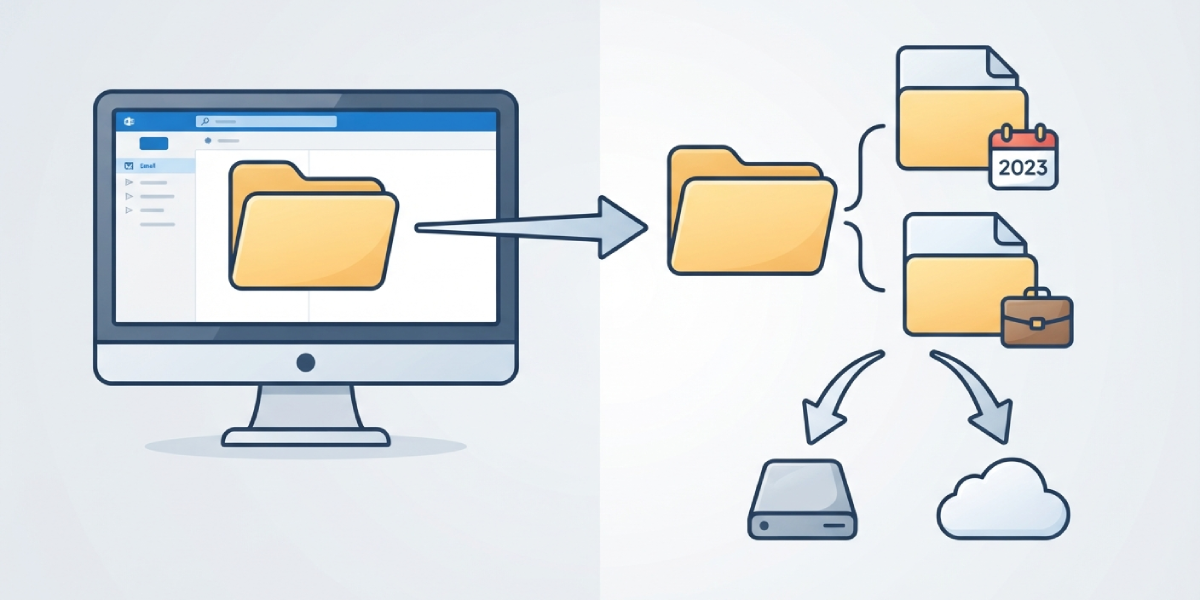
Tip: Keep archive PST files on a separate drive or backed-up folder, not just inside the default Outlook data folder, so a single drive failure cannot affect both the working file and its backup.
Common Problems and Fixes
- Outlook won’t let a folder be dragged into the new PST file. This usually happens when the new PST file is still selected as read-only or hasn’t finished loading. Close Outlook, reopen it, and confirm the new data file appears in the folder pane before trying again.
- Compact Now is greyed out. Compacting only becomes available once Outlook is idle. Wait a minute after a large move operation finishes, or restart Outlook, then try the Data Files tab again.
- The PST file size doesn’t shrink after compacting. Compacting can take a long time on a file that was near 50GB, sometimes over an hour. Let it run in the background and avoid closing Outlook mid-process.
- AutoArchive isn’t moving anything. Check that the folder-level AutoArchive settings weren’t set to ‘Do not archive items in this folder’, which overrides the global setting.
- Search results seem incomplete after splitting. Outlook indexes each PST file separately at first. Give the search index time to rebuild, or check Indexing Options in Windows to confirm the new PST file is included.
Frequently Asked Questions
Why does Outlook stop working exactly at 50GB?
50GB is the built-in maximum size for a Unicode-format PST file in current versions of Outlook. Once a file reaches that size, Outlook blocks further growth to protect the file from corruption.
Will splitting a PST file delete any emails?
No. Moving folders into a new PST file relocates the data rather than removing it. Every message, attachment, and folder stays fully accessible, just inside a different data file.
Can the 50GB limit be increased through the registry?
No. Registry edits can lower the maximum PST size for warning purposes, but they cannot raise it above the 50GB cap that Outlook enforces on Unicode PST files.
Is it safe to use AutoArchive on a PST file that’s already near 50GB?
Yes, as long as there’s enough free disk space for both the original file and the new archive file during the move. AutoArchive reads and writes items gradually, so it works even on files close to the limit.
How long does compacting a large PST file take?
It depends on the file size and how much free space it contains, but a file near 50GB can take anywhere from twenty minutes to a couple of hours. Leave Outlook open and idle until the process finishes.
What’s the best way to decide which folders to move first?
Start with the largest folders that are rarely opened, such as old Sent Items or completed project folders. Sorting folders by size in the Folder Properties window makes this easy to spot.
Can multiple PST files be open in Outlook at the same time?
Yes. Outlook supports several PST files in the same profile at once, and all of them appear in the folder pane for easy access and searching.
Does splitting a PST file affect Outlook’s performance?
It usually improves performance. Smaller PST files open, search, and back up faster than a single file sitting close to the 50GB limit.
How can hitting the 50GB limit again be prevented?
Check the Data Files tab every few months and keep AutoArchive running on a regular schedule. Catching growth early avoids an emergency split later.
