
Adding your first animation in PowerPoint only takes a few clicks once the right object is selected and the Animations tab is open. This guide walks through applying a basic entrance effect to text or an image, adjusting how it starts, and previewing it before moving on to the next slide.
Key Takeaways
- Animations are applied to one selected object at a time, such as a text box, image, or shape.
- The Animations tab sits on the ribbon between Transitions and Slide Show.
- Entrance effects like Appear or Fade are the simplest starting point for a first animation.
- The Start setting controls whether an animation plays on a click, with the previous animation, or right after it.
- Previewing the animation before moving to another slide confirms it looks and times the way it should.
Steps to Add Your First Animation in PowerPoint
- Step 1: Open the slide that contains the object to animate, then click on that text box, image, or shape to select it.
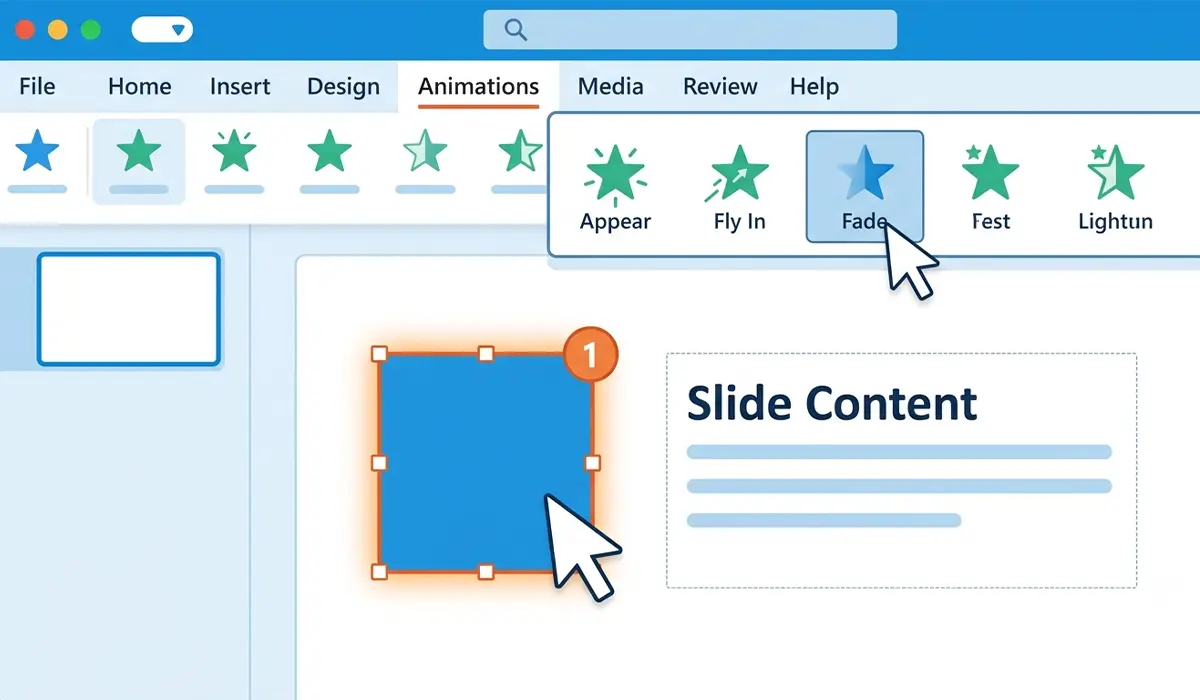
- Step 2: Select the ‘Animations’ tab on the ribbon, located between the ‘Transitions’ and ‘Slide Show’ tabs.
- Step 3: Browse the animation gallery and hover over any effect to preview it directly on the slide before committing to it.
- Step 4: Click an entrance effect, such as ‘Appear’, ‘Fade’, or ‘Fly In’, to apply it to the selected object.
- Step 5: Notice the small numbered tag that appears next to the object. That number shows the order the animation plays in relative to any other animations on the slide.
- Step 6: Use the ‘Effect Options’ button on the ribbon to adjust direction or style, such as choosing which side an object flies in from.
- Step 7: Set the ‘Start’ option to ‘On Click’, ‘With Previous’, or ‘After Previous’ to control when the animation triggers during the presentation.
- Step 8: Adjust ‘Duration’ to control how fast or slow the animation plays, using the seconds field or the up and down arrows next to it.
- Step 9: Click ‘Preview’ on the Animations tab, or press F5 to view the slide show, to see the finished animation in action.
Tip: start with one simple entrance effect like Fade before layering on more animations. A single clean effect on an important element often communicates more clearly than several competing motions.
Applying an Animation Through the Animation Pane
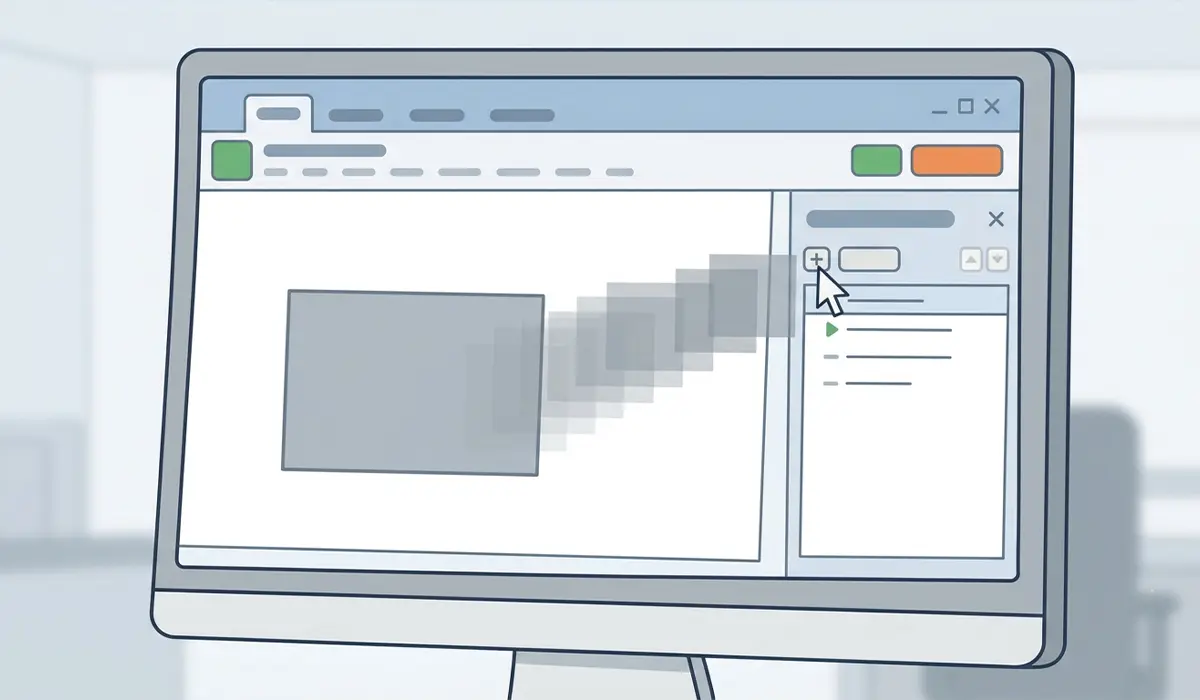
The ‘Animation Pane’, opened from the Animations tab, offers another route into the same process. Selecting an object and clicking ‘Add’ at the top of the pane applies a default animation, such as Fade, which can then be changed to any other effect from the gallery.
Common Problems and Fixes
- The animation gallery is grayed out: this usually means no object is currently selected on the slide. Click directly on the text box, image, or shape first, then try the Animations tab again.
- The animation does not play during the slide show: check the ‘Start’ setting for that animation. An effect set to ‘On Click’ only plays after an actual click during the presentation, not automatically.
- Multiple animations play in the wrong order: open the ‘Animation Pane’ and drag the effects up or down in the list to change the sequence they play in.
- The animation looks too fast or too abrupt: increase the value in the ‘Duration’ field on the Animations tab to slow the effect down.
- Only part of a grouped object animates as expected: select all the individual pieces first, either by holding Ctrl and clicking each one or by grouping them through ‘Shape Format’ then ‘Group’, before applying the animation.
Frequently Asked Questions
What is the easiest animation to start with in PowerPoint?
Fade or Appear are the simplest entrance effects, since they introduce an object cleanly without any complicated motion involved.
Where is the Animations tab located in PowerPoint?
The Animations tab sits on the ribbon between the Transitions tab and the Slide Show tab.
Can more than one object be animated on the same slide?
Yes. Each object can receive its own animation, and the small numbered tags next to each one show the order they will play in.
How does an animation get triggered during a live presentation?
The ‘Start’ setting on the Animations tab controls this. ‘On Click’ waits for a mouse click, while ‘With Previous’ and ‘After Previous’ play automatically based on the animation before it.
What is the difference between Entrance, Emphasis, and Exit effects?
Entrance effects bring an object onto the slide, Emphasis effects highlight an object that is already visible, and Exit effects remove an object from the slide.
How can an animation be previewed before presenting?
Clicking ‘Preview’ on the Animations tab plays the animation directly in the editing view, or pressing F5 starts the full slide show to see it exactly as an audience would.
How is the speed of an animation adjusted?
The ‘Duration’ field on the Animations tab controls how long the animation takes to play, and it can be adjusted using the seconds value or the arrow buttons beside it.
Can an animation be removed after it has been applied?
Yes. Selecting the object, opening the Animations tab, and choosing ‘None’ from the animation gallery removes the effect, or the animation can be deleted from the Animation Pane.
Does adding an animation affect how the slide prints or exports?
No. Animations only affect how a slide plays during a slide show. Printed slides and static exports display the final state of the slide, without the animation motion.
