
Quick Answer: Right-click the speaker icon in the taskbar, select Open volume mixer, and drag each app’s slider to the level needed. Done — no settings menus required.
Windows 11 lets users control the volume of each app separately. So a video call can stay loud while background music stays quiet. No need to keep adjusting the master volume every few minutes. Here’s a look at the easiest ways to do it.
Key Takeaways
- Windows 11 has a built-in Volume Mixer that sets different volume levels per app.
- The quickest access is a right-click on the speaker icon in the taskbar.
- Changes apply instantly — no restart or saving needed.
- Windows 11 remembers each app’s volume level across sessions.
- Audio output device can also be switched per app directly inside the Volume Mixer.
Method 1: Right-Click the Speaker Icon (Easiest)
Most people find this the fastest option. No digging through menus — just two clicks and the mixer is open.
- Right-click the speaker icon in the bottom-right corner of the taskbar.
- Click Open volume mixer.
- Each app currently playing audio shows its own slider.
- Drag any slider left to lower the volume or right to raise it.
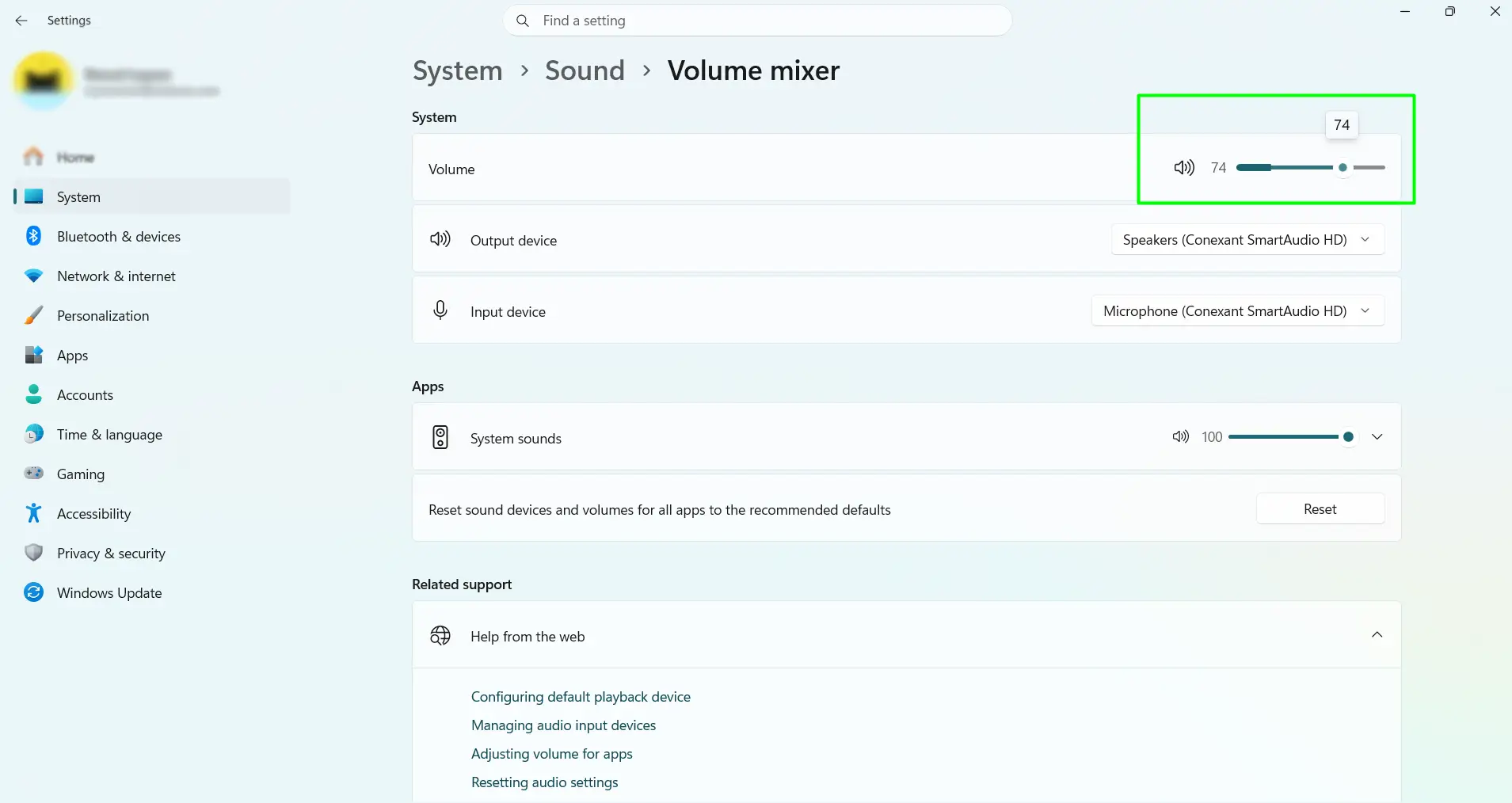
Changes happen immediately. The key is that only apps actively producing sound appear here, so open the app and start playback first if it does not show up.
Method 2: Use the Quick Settings Panel
This works well when already adjusting the main volume and needing to tweak a specific app at the same time.
- Click the speaker icon in the bottom-right corner (single click, not right-click).
- Click the small arrow icon next to the main volume slider.
- Scroll down slightly in the panel that opens to find the Volume mixer section.
- Drag any app’s slider left or right to adjust its volume.
Method 3: Go Through Windows Settings
Here’s the thing — this method shows all apps with audio permissions, even ones not currently playing. It is great for making adjustments before starting a session.
- Press Windows + I to open Settings.
- Click System, then click Sound.
- Scroll down and click Volume mixer under the Advanced section.
- Adjust each app’s slider as needed.
This view also shows a separate slider for system sounds, which is handy for turning off notification pings without affecting music or video.
Method 4: Use the Run Command for the Classic Mixer
This opens the old-style Volume Mixer from Windows 10, which still works perfectly in Windows 11. Some users prefer it because it is simple and shows everything side by side.
- Press Windows + R to open the Run dialog.
- Type sndvol and press Enter.
- Each open app with audio shows a vertical slider.
- Drag the slider up or down to set the volume for that specific app.
This is also a solid backup if the taskbar speaker icon is missing or not responding.
Tips for Managing App Volume on Windows 11
- To mute just one app, click the small speaker icon below its slider in the Volume Mixer — no need to drag it all the way down.
- Apps that are not currently playing audio will not appear in the mixer until playback starts.
- System sounds have a separate slider in Settings and can be lowered independently.
- The Volume Mixer also lets users send each app’s audio to a different output device — handy when both headphones and speakers are connected.
- If an app’s volume keeps resetting on its own, check inside the app for its own internal audio settings, since some apps override Windows controls.
- For gaming, the Xbox Game Bar has a built-in audio mixer that adjusts game and chat volume without leaving the screen.
Frequently Asked Questions
How do you open the Volume Mixer on Windows 11?
Right-click the speaker icon in the taskbar and select Open volume mixer. Or go to Settings, then System, then Sound, and click Volume mixer under the Advanced section.
Can each app on Windows 11 have its own volume level?
Yes. The Volume Mixer shows a separate slider for every app currently producing audio, and each one can be set to a completely different level without affecting the others.
Why is an app not showing up in the Volume Mixer?
Apps only appear in the Volume Mixer when they are actively playing audio. Start playback in the app first, then reopen the mixer and it should appear.
Does Windows 11 remember individual app volume settings?
Yes. Windows 11 saves each app’s volume level and restores it the next time the app opens — unless the app has its own internal audio settings that override Windows.
How do you mute just one app without muting everything else?
In the Volume Mixer, click the small speaker icon directly below that app’s slider. This mutes only that app and leaves all others unaffected.
Can different apps play audio through different devices at the same time?
Yes. In the Volume Mixer through Settings, each app has its own output device selector. One app can play through headphones while another plays through speakers.
What should you do if an app’s volume keeps resetting?
The app likely has its own internal volume controls that override Windows settings. Adjust the volume inside the app directly, or look for an option in the app to sync with system audio.
Is it possible to control volume for individual browser tabs?
Windows 11 treats the whole browser as one app, so the Volume Mixer only shows one slider for it. To control individual tabs, use the browser’s built-in tab mute feature or a browser extension designed for per-tab audio.
Do you need admin access to change app volume in Windows 11?
No. The Volume Mixer works on any standard user account. No administrator privileges are needed to adjust per-app volume levels.
What is the fastest way to open the Volume Mixer using only the keyboard?
Press Windows + R, type sndvol, and hit Enter. The classic Volume Mixer opens instantly without touching the mouse.
