
Quick Answer: Go to Settings > Personalization > Themes > Desktop icon settings, check the box next to Recycle Bin, then click Apply. The icon comes back instantly — no restart needed.
The Recycle Bin icon just vanished from the desktop. Here’s the thing — the deleted files are completely fine. The Recycle Bin is still running in the background. Only the shortcut disappeared, usually after a Windows 11 update quietly reset some settings. This guide gets it back fast.
Why Did the Recycle Bin Icon Disappear?
Windows 11 feature updates often reset personalization settings back to defaults — and that includes desktop icons. It can also happen if “Show desktop icons” accidentally got turned off. Either way, nothing was deleted. The Recycle Bin is still there, just hidden.
Step 1: Make Sure Desktop Icons Are Turned On
Check this first. If all desktop icons are hidden, no fix will work until this setting is on.
- Right-click any empty spot on the desktop.
- Hover over View in the menu.
- Look for Show desktop icons — it should have a checkmark next to it.
- If it’s unchecked, click it to turn it on.
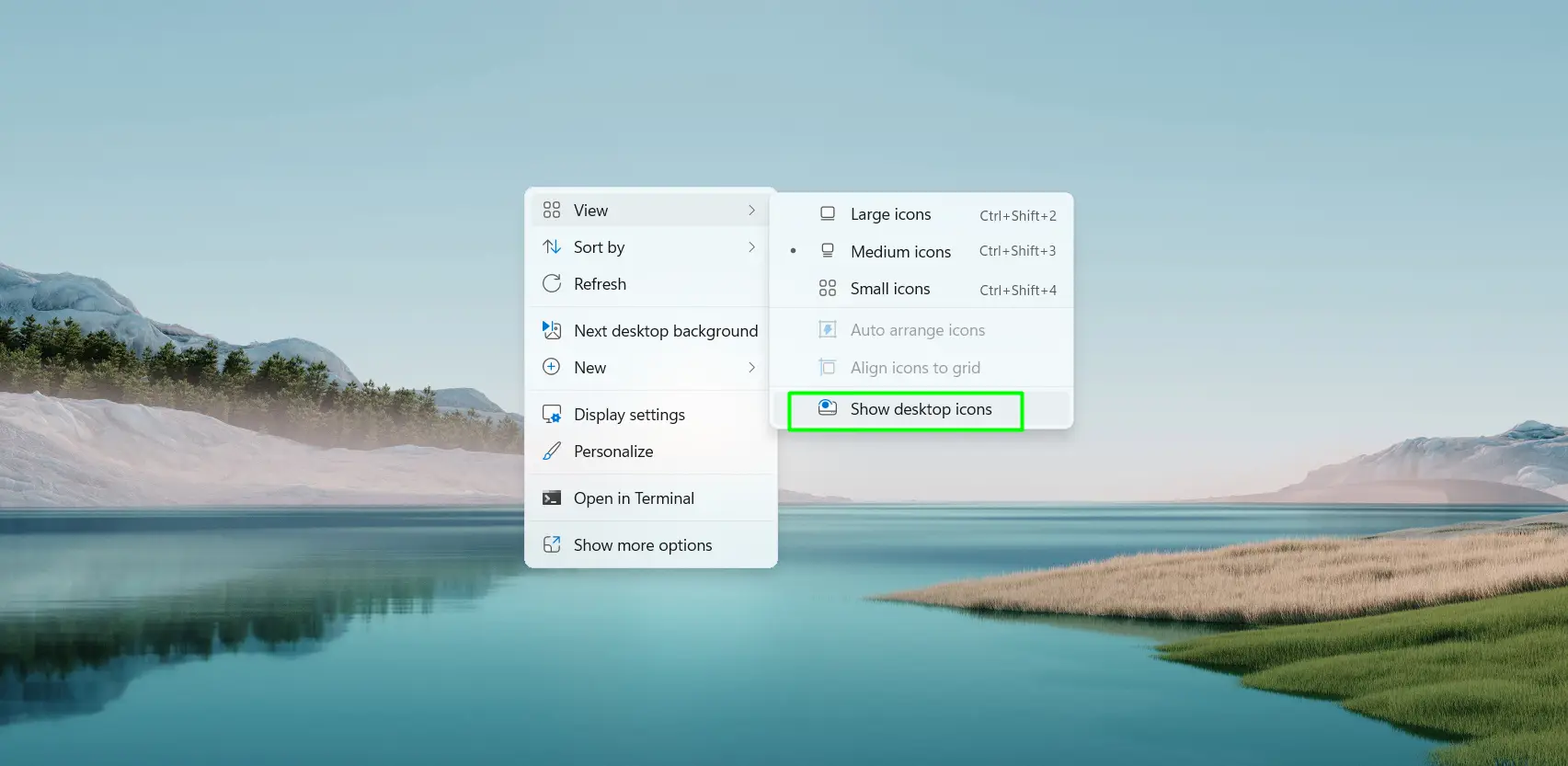
Once that’s confirmed, move to Step 2.
Step 2: Restore the Recycle Bin Icon (Easiest Method)
Most people find that this method works on the first try. No admin access needed.
- Right-click any empty space on the desktop.
- Select Personalize.
- Click Themes from the left panel.
- Scroll down and click Desktop icon settings under Related Settings.
- Check the box next to Recycle Bin.
- Click Apply, then OK.
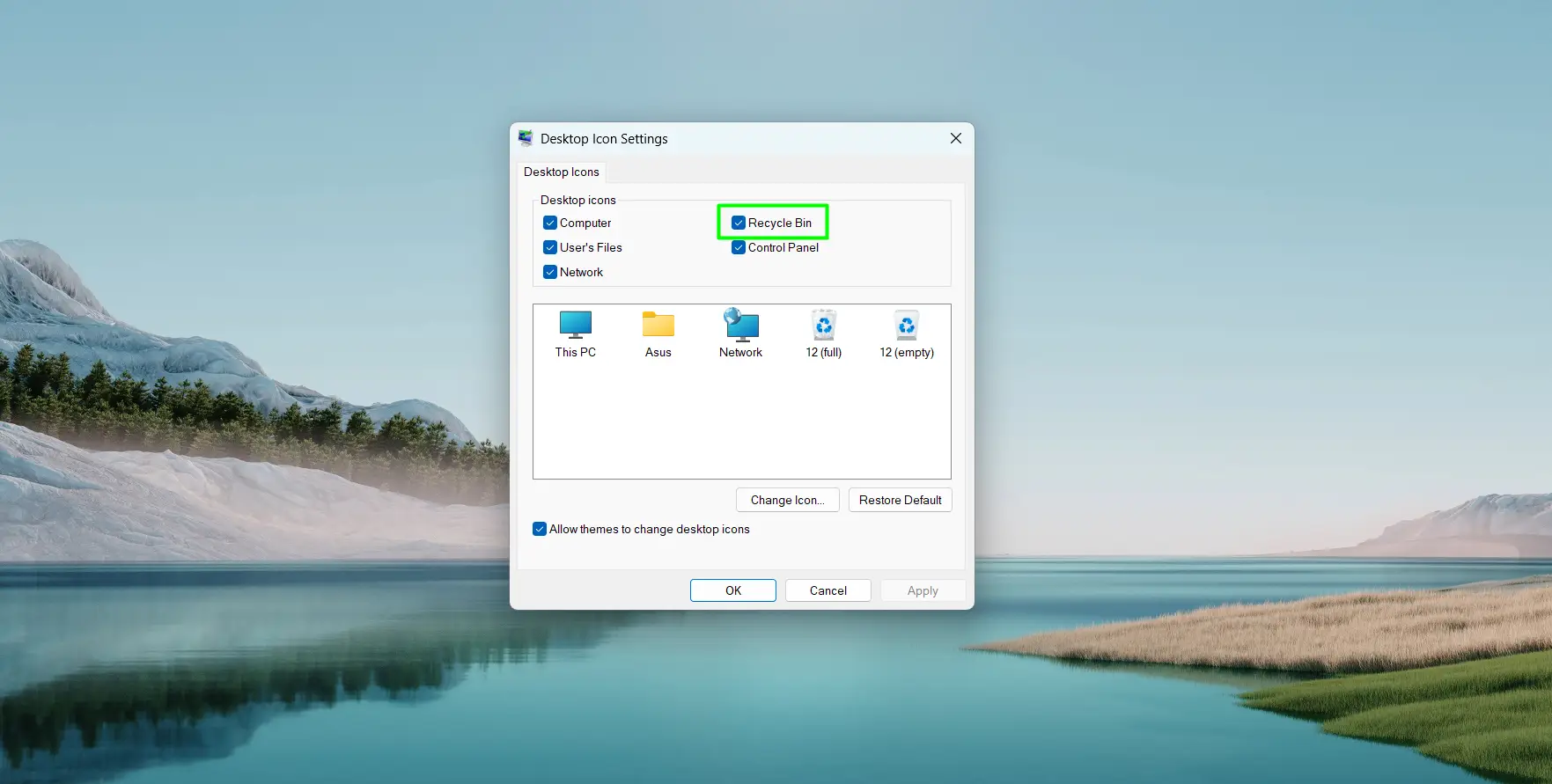
The icon appears on the desktop right away.
Alternative Method: Restore Through Windows Settings
Prefer using the Settings app? This leads to the exact same screen.
- Press Windows key + I to open Settings.
- Click Personalization in the left sidebar.
- Select Themes.
- Click Desktop icon settings.
- Check Recycle Bin, then click Apply and OK.
How to Access the Recycle Bin Right Now (Without the Icon)
Need to get to deleted files before fixing the icon? Three quick ways in:
- Windows Search: Click the search icon on the taskbar, type Recycle Bin, and open it from the results.
- File Explorer address bar: Open any folder, click the address bar, type shell:RecycleBinFolder, and press Enter.
- Pin it for later: After opening via either method, right-click the Recycle Bin in File Explorer and select Pin to Quick access.
Restore Other Missing System Icons at the Same Time
The key is to handle everything while Desktop Icon Settings is already open. The same panel controls This PC, User’s Files, Network, and Control Panel. Tick all the boxes needed and click Apply once. Everything shows up immediately — saves a repeat visit after the next Windows update.
Tips
- After any major Windows 11 update, it’s a good habit to quickly open Desktop Icon Settings and check that nothing else got reset.
- On a work computer with the Desktop Icon Settings panel grayed out, IT has locked it through Group Policy. Only the system admin can change it.
- Files deleted from USB drives or network folders usually skip the Recycle Bin entirely and get permanently deleted — so always double-check before removing files from external storage.
- If icons look tiny on a 4K screen, right-click the desktop, hover over View, and switch to Medium or Large icons so nothing gets missed.
- Desktop icons only appear on the primary monitor. For quick access from a second screen, pin the Recycle Bin to Quick Access in File Explorer instead.
Frequently Asked Questions
Does hiding the Recycle Bin icon delete the files inside it?
No. Hiding or losing the icon has zero effect on the files inside. Everything deleted while the icon was gone is still there and fully recoverable.
Why does the Recycle Bin icon keep disappearing after Windows 11 updates?
Windows 11 feature updates frequently reset personalization settings to their defaults. It’s a known, recurring behavior. After any major update, a quick check of Desktop Icon Settings is all it takes to fix it.
Can different users on the same PC have different Recycle Bin settings?
Yes. Each user account on Windows 11 has its own desktop icon preferences. One user can show the Recycle Bin while another keeps it hidden — the settings are completely independent.
What if the Desktop icon settings option is missing or grayed out?
On personal PCs, this usually points to corrupted system files. Open Windows Terminal as administrator and run sfc /scannow to repair them. On a work computer, it’s almost certainly a Group Policy restriction — contact IT.
Is there a way to open the Recycle Bin without the desktop icon?
Yes. The fastest way: click the taskbar search icon, type Recycle Bin, and open it from the results. Or open any File Explorer window, click the address bar, type shell:RecycleBinFolder, and press Enter.
Does this process work the same on Windows 11 Home and Pro?
Yes. Desktop Icon Settings works identically on both editions. The only real difference between Home and Pro is access to certain enterprise features — the Recycle Bin fix is the same on both.
Will the Recycle Bin icon show on a second monitor?
No. Windows 11 only shows desktop icons on the primary monitor by default. For easy access from a second screen, pin the Recycle Bin to Quick Access in File Explorer.
