
Quick Answer: If the screen locks too fast, turn off the screen saver’s “display logon screen” option. If it never locks, two settings need to work together: the screen-off timer in Power and battery, plus the sign-in requirement in Sign-in options set to “Every time.” If the timeout option is missing from Power settings altogether, a small Registry edit brings it back.
Windows 11’s lock screen timing can be confusing because it isn’t controlled by one single setting. Most people assume there’s just a slider somewhere, but the screen-off timer, the sign-in requirement, the screen saver, and Dynamic Lock all play a part — and they don’t always agree with each other. Below is the most direct way to fix each version of the problem, starting with the simplest fix first.
Method 1: Fix the Screen Locking Too Soon (After 1 Minute)
Here’s the thing — if the lock screen pops up after exactly one minute no matter what timeout is set, the screen saver is almost always to blame. It runs on its own clock, separate from Power settings.
- Right-click the desktop and choose Personalize.
- Select Lock screen.
- Scroll down and click Screen saver.
- Set the screen saver to None, or uncheck On resume, display logon screen.
- Click OK.
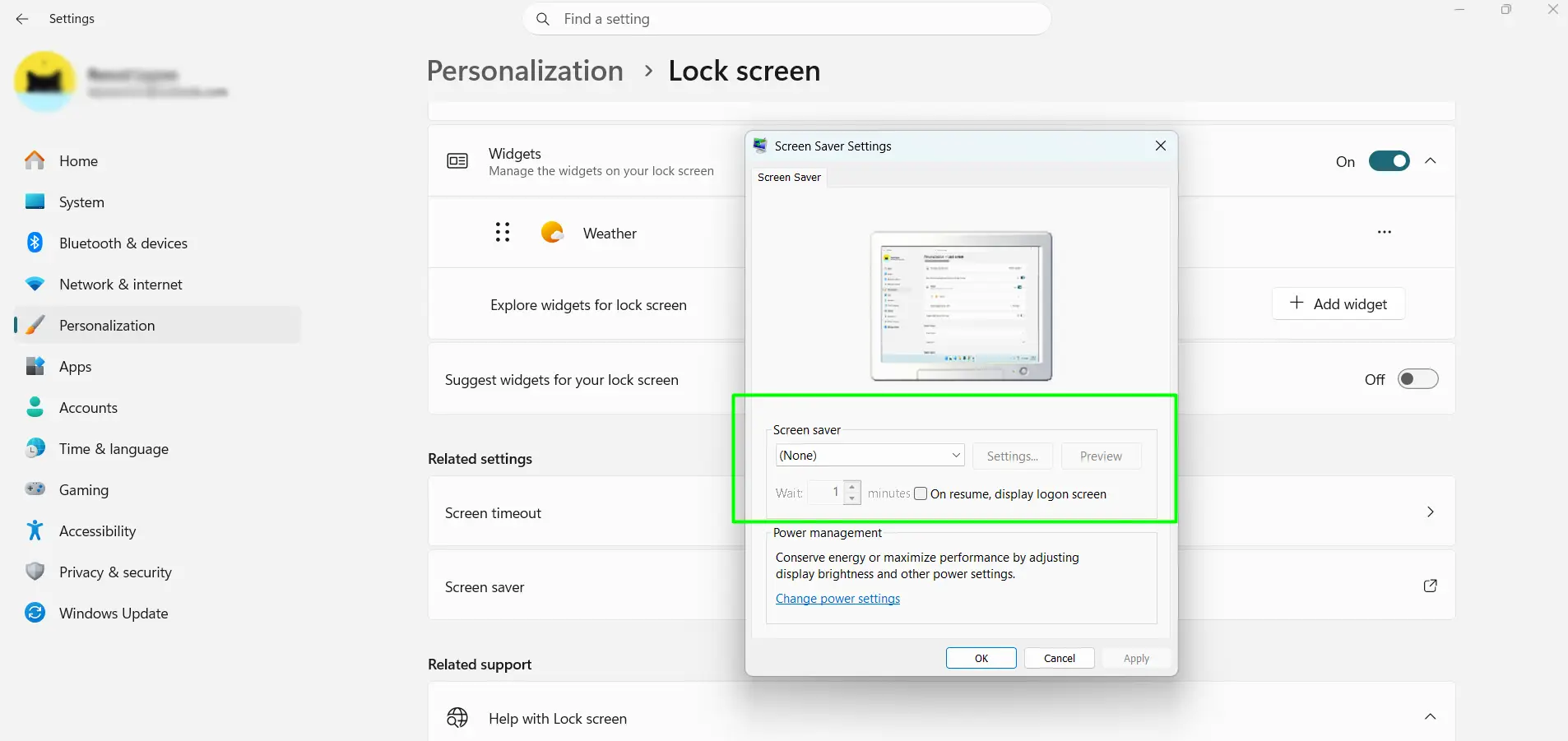
That single checkbox causes more confusion than almost any other setting in Windows 11. Once it’s off, the screen saver stops forcing a sign-in on its own.
Method 2: Stop the Screen From Locking Randomly
If the screen locks at odd moments with no inactivity at all, Dynamic Lock is the likely culprit. It locks the device the moment a paired phone drifts out of Bluetooth range, which can feel completely unpredictable.
- Open Settings and go to Accounts.
- Select Sign-in options.
- Scroll to Additional settings and open Dynamic lock.
- Uncheck Allow Windows to automatically lock your device when you’re away.
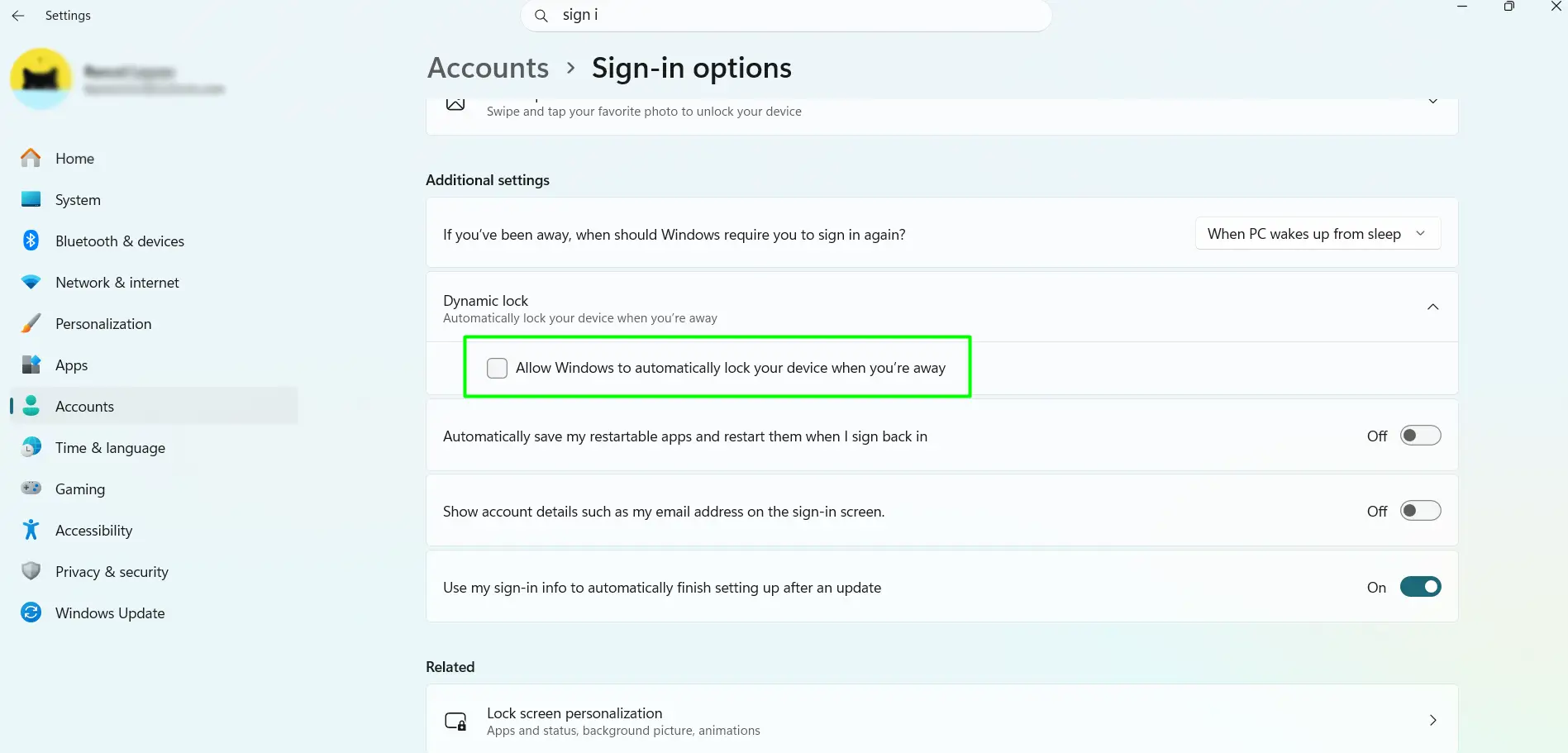
With that turned off, the lock screen only responds to the actual inactivity timer.
Method 3: Fix the Lock Screen Not Appearing After Inactivity
This is the most common complaint, and most people find that they’ve only set up half of what’s needed. The screen turns off fine, but waking the device drops straight back to the desktop with no password prompt. Two separate settings have to be turned on together for this to work.
Step one — set the screen-off timer:
- Open Settings and go to System.
- Select Power and battery.
- Expand Screen, sleep, and hibernate time-outs.
- Under Plugged in, choose a time next to Turn my screen off after.
- Do the same under On battery.
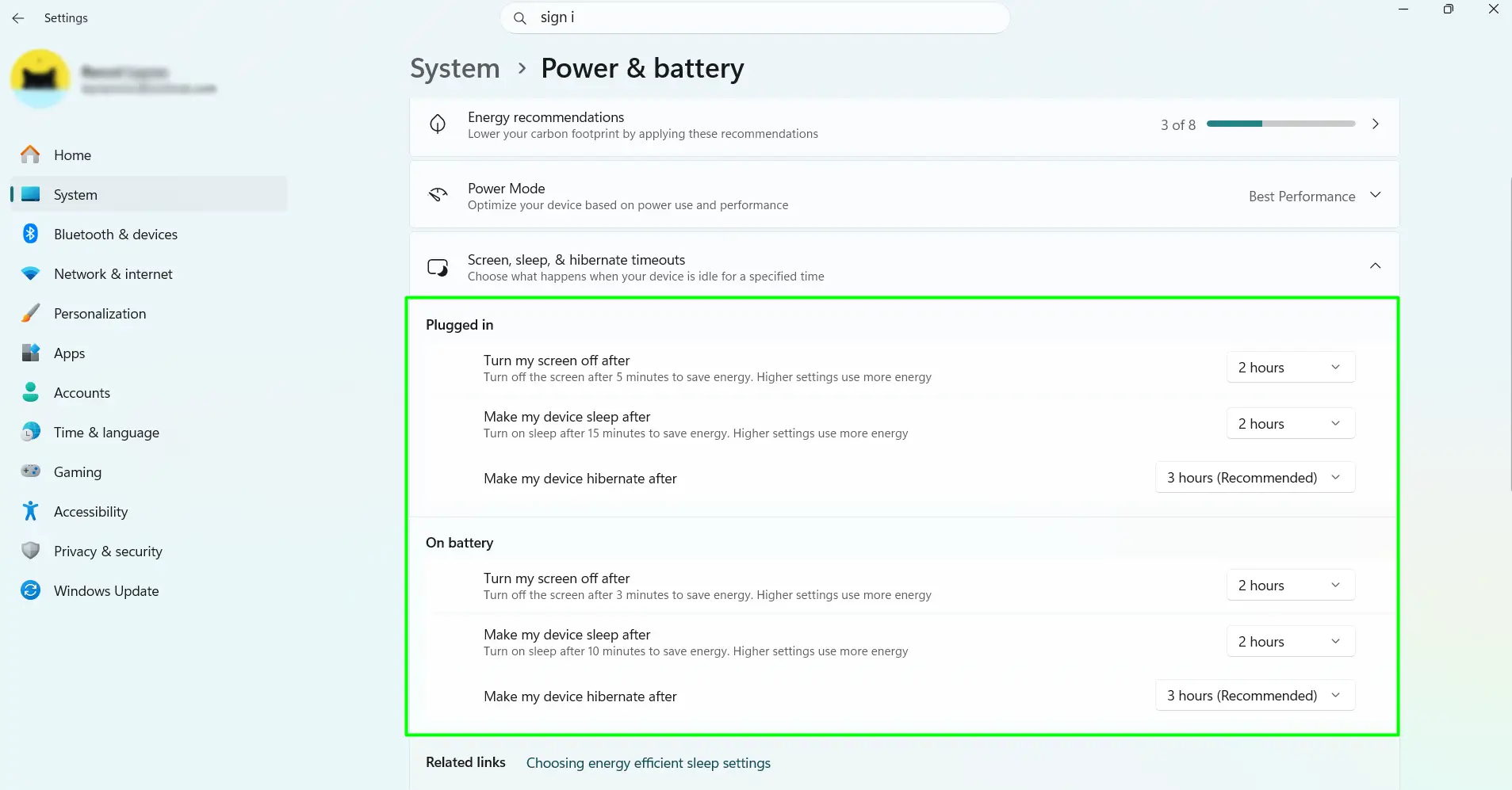
Step two — turn on the sign-in requirement:
- Go back to Settings and open Accounts.
- Select Sign-in options.
- Under Additional settings, find If you’ve been away, when should Windows require you to sign in again?
- Set the dropdown to Every time.
The key is that step two. The screen-off timer only handles the display. Without the sign-in requirement set to “Every time,” Windows has no reason to show the lock screen at all, no matter how the timer is configured.
Method 4: Restore a Missing Timeout Option in Power Settings (Advanced)
On some systems, the Console lock display off timeout option disappears from Power settings entirely, usually after a feature update. This one takes a quick Registry edit, so it’s worth trying the methods above first.
- Press Windows + R, type regedit, and press Enter.
- Navigate to:
HKEY_LOCAL_MACHINE\SYSTEM\CurrentControlSet\Control\Power\PowerSettings\7516b95f-f776-4464-8c53-06167f40cc99\8ec4b3a5-6868-48c2-be75-4f3044be88a7 - Double-click Attributes in the right pane.
- Change the value from 1 to 2, then click OK.
- Close Registry Editor.
- Open Control Panel, then Hardware and Sound > Power Options.
- Click Change plan settings, then Change advanced power settings.
- Expand Display and locate Console lock display off timeout.
- Set the desired number of minutes and click OK.
Once this is done, the option stays visible in Power settings going forward — no need to repeat the edit.
Lock the Screen Instantly Without Waiting
Stepping away before the timer kicks in? Press Windows + L. It locks the screen on the spot, regardless of how any timeout is set up.
Tips
- Set the timer for both “Plugged in” and “On battery” — they’re independent, and skipping one is a common reason the lock screen behaves differently depending on power state.
- The sign-in requirement gets reset more often than people expect, especially after major Windows updates. Worth checking after every update.
- A shorter timeout makes more sense in shared spaces — offices, libraries, dorms — where someone else could walk up to an unattended screen.
- If a Bluetooth phone is paired to the device but rarely carried around, Dynamic Lock is more likely to cause problems than solve them.
- Changes to these settings apply right away. There’s no need to restart the device for any of them to take effect.
Frequently Asked Questions
How do I fix Windows 11 lock screen timeout after inactivity?
Set the screen-off timer under Settings > System > Power and battery, and set the sign-in requirement under Settings > Accounts > Sign-in options to “Every time.” Both have to be active together.
Why does my Windows 11 screen lock after only 1 minute?
The screen saver’s “On resume, display logon screen” option is usually the cause. Turn it off, or set the screen saver to None, under Personalization > Lock screen > Screen saver.
Why won’t my Windows 11 screen lock after sitting idle?
The sign-in requirement is most likely set to “Never.” Go to Settings > Accounts > Sign-in options and change it to “Every time” — otherwise the device wakes straight to the desktop with no password prompt.
How do I stop Windows 11 from randomly locking my screen?
Turn off Dynamic Lock under Settings > Accounts > Sign-in options > Additional settings. A paired Bluetooth phone moving out of range is the usual trigger.
Can I set different lock timeouts for battery and plugged-in use?
Yes. Settings > System > Power and battery lets the “Plugged in” and “On battery” timers be set separately. The sign-in requirement, though, applies to both equally.
How do I lock my Windows 11 screen instantly?
Press Windows + L. It locks the screen immediately, with no need to wait for any timeout.
Why is the lock screen timeout option missing or grayed out?
On personal devices, it’s usually a missing “Console lock display off timeout” entry, fixable with a small Registry edit. On work or school devices, it’s often locked by an IT administrator through Group Policy.
Is there a way to remove the lock screen in Windows 11 entirely?
Setting the sign-in requirement to “Never” stops the lock screen from appearing after inactivity, but it also means anyone can wake the device and reach the desktop with no password. This isn’t recommended for shared or portable devices.
