
A screen that goes dark in the middle of a presentation, a video call, or a slow download is more annoying than it sounds. Windows 11 controls this through a setting called screen timeout, and the good news is it only takes a couple of minutes to set it the way that actually works for the way the device gets used.
Quick Answer: Open Settings, then go to System > Power & battery > Screen, sleep, and hibernate timeouts. Pick a new time for “Turn my screen off after” under both the Plugged in and On battery sections. The change takes effect right away, no restart needed.
Key Takeaways
- Screen timeout settings live in Settings > System > Power & battery.
- Windows 11 keeps separate timeout values for Plugged in and On battery.
- “Turn my screen off after” and “Make my device sleep after” can each be set on their own.
- Choices range from 1 minute up to 5 hours, or Never.
- New settings apply instantly, with no restart required.
- If the screen still shuts off on the old schedule, the other power profile probably still has the old time set.
How to Change Screen Timeout Settings in Windows 11
There are two ways to reach this setting. Either works, so pick whichever feels faster.
Method 1: Search for It (Fastest)
- Click the search icon on the taskbar, or just press the Windows key and start typing.
- Type “screen timeout” or “change when the screen turns off.”
- Select the matching result. This jumps straight to the Power & battery settings.
Method 2: Through Settings (More Control)
- Press Windows + I to open Settings.
- Click System, then Power & battery.
- Expand “Screen, sleep, and hibernate timeouts.”
- Under Plugged in, choose a time for “Turn my screen off after.”
- Still under Plugged in, set “Make my device sleep after” as well.
- Scroll down to On battery and repeat both settings there.
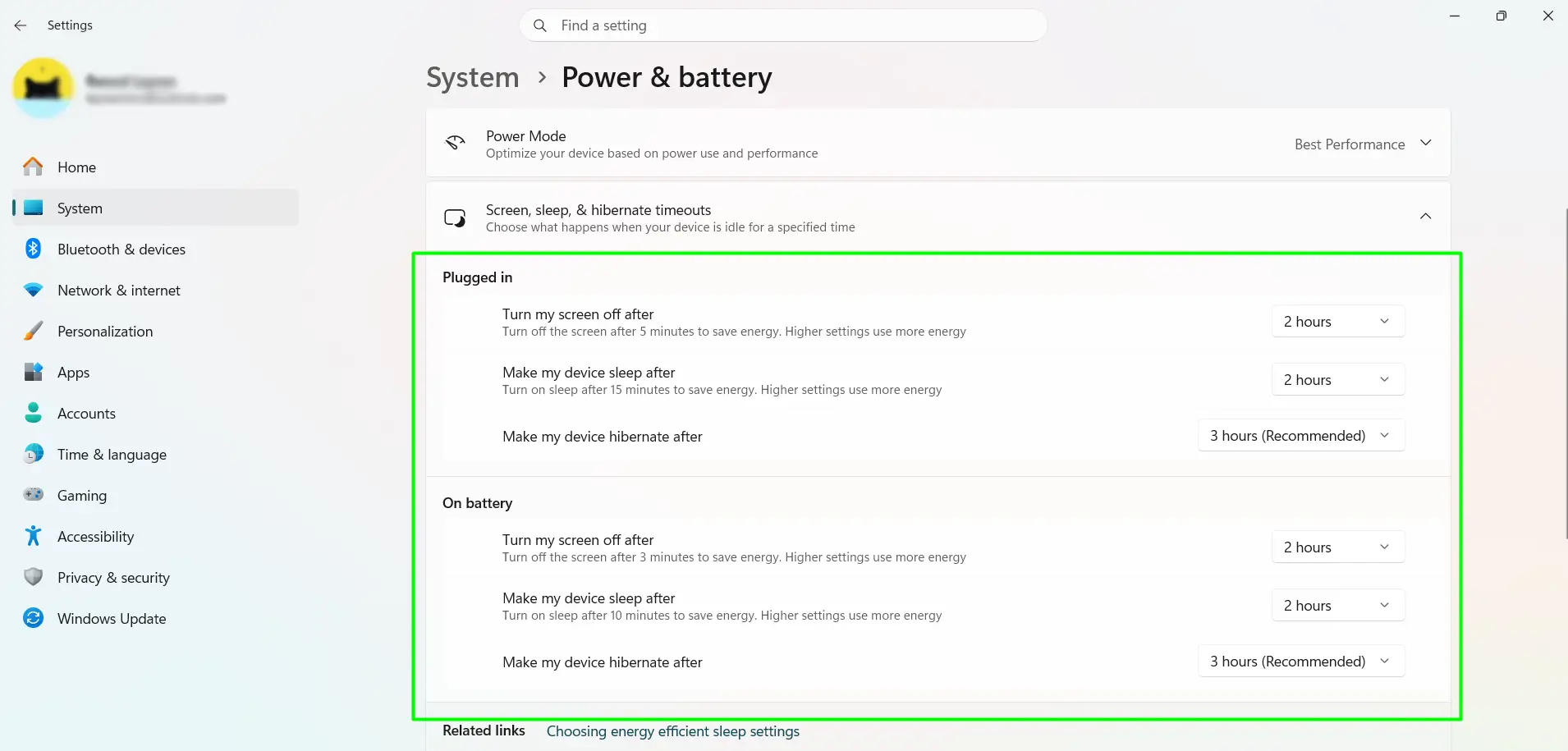
Nothing needs to be saved manually. Picking a new option from either dropdown applies it immediately.
What the Timeout Options Actually Mean
“Turn my screen off after” just shuts the display down while everything else keeps running quietly in the background. “Make my device sleep after” puts the whole system into a low-power state, which saves more battery but takes a moment longer to wake back up. Most people find that setting the screen-off timer a few minutes ahead of the sleep timer works best — something like screen off at 10 minutes and sleep at 30 leaves a comfortable gap between the two.
Battery vs Plugged In: Why It’s Split
Windows 11 treats these as two separate situations, because the ideal timeout really does change depending on where the power is coming from.
- Plugged in: Power use isn’t really a concern here, so longer timeouts of 30 minutes or more are common.
- On battery: Shorter timeouts protect battery life. Windows suggests 5 minutes as a sensible starting point.
Here’s the thing: this split is also the number one reason a setting change doesn’t seem to stick. Updating only the Plugged in profile while the laptop happens to be running on battery means the old battery timeout is still the one calling the shots. Both profiles need their own update, every time.
How to Stop the Screen From Turning Off Completely
Some situations call for the screen to stay on no matter what — video calls, presentations, kiosk displays, or keeping an eye on a long download.
- Open Settings > System > Power & battery.
- Expand “Screen, sleep, and hibernate timeouts.”
- Click the dropdown next to “Turn my screen off after” for whichever profile is in use.
- Scroll to the bottom of the list and choose “Never.”
Setting battery mode to Never will drain it fast, so this is really meant for plugged-in use. Switch it back to a normal timeout once the call or presentation wraps up.
Tips for Getting Screen Timeout Right
The key is updating both profiles every single time. That one step gets skipped more than anything else, and it’s the reason most “it’s not working” complaints happen in the first place.
- Set both the Plugged in and On battery profiles, not just one.
- Keep the sleep timer a little longer than the screen-off timer. Windows won’t let sleep kick in before the screen turns off anyway.
- On battery, 3 to 5 minutes for screen off is a solid starting point if battery life actually matters that day.
- Before a call or presentation, flip the timeout to Never for that session, then set it back afterward.
- Windows + L locks the screen instantly, any time, without waiting on a timeout at all.
- On a work or school managed device, some of these options may be limited or grayed out by company policy.
Frequently Asked Questions
Where are the screen timeout settings in Windows 11?
They’re under Settings > System > Power & battery, inside the “Screen, sleep, and hibernate timeouts” section. Separate dropdowns cover plugged-in use and battery use.
How do I stop my screen from turning off in Windows 11?
Open the same Power & battery page, expand the timeout section, then set “Turn my screen off after” to Never for whichever power mode is currently active.
What’s the difference between screen off and sleep in Windows 11?
Screen off only shuts down the display while the computer keeps doing whatever it was doing. Sleep puts the entire system into a low-power state, which saves more energy but takes a few seconds to wake from.
Can I use different screen timeout settings for battery and plugged-in mode?
Yes, and Windows 11 sets it up this way by default. Each mode has its own dropdown for screen off and sleep, so a laptop can stay awake longer plugged in and shut off faster on battery.
What’s the best screen timeout setting for Windows 11?
There’s no single right answer, but 15 to 30 minutes plugged in and around 5 minutes on battery is a common, sensible starting point. Adjust from there based on how the device actually gets used.
Why does my screen turn off during a video call?
Not every video app reliably tells Windows to stay awake, especially browser-based meeting tools. The safest fix is setting the timeout to Never manually before the call starts.
Is there a faster way to lock the screen instead of waiting for the timeout?
Yes — pressing Windows + L locks the screen immediately, on demand, with no timeout required at all.
Does a longer screen timeout drain the battery faster?
It can. The display is one of the bigger power users on a laptop, so keeping it on longer, especially at high brightness, uses more battery between charges.
Why is the “Make my device sleep after” option grayed out?
This usually shows up on desktop PCs that don’t support sleep mode, certain external monitor setups, or managed work and school devices where group policy controls power settings.
Does changing the screen timeout require restarting the PC?
No. The new setting takes effect as soon as it’s picked from the dropdown, no restart or sign-out needed.
