
Need to check which graphics card you have in Windows 11 before updating a driver, installing a game, or buying an upgrade? Windows 11 shows the exact GPU name in a few built-in places, and no extra software is needed. Standard user rights are enough for every method below, and all of them work on Home, Pro, and Enterprise editions.
Key Takeaways
- The quickest route is Settings > System > Display > Advanced display, where the graphics card name appears under each connected display.
- Task Manager lists every GPU in the PC under the Performance tab, which is ideal for laptops with two graphics chips.
- DxDiag gives a full summary of the graphics card, driver version, and video memory on its Display tab.
- If the name reads Microsoft Basic Display Adapter, the correct graphics driver is not installed yet.
Step-by-Step Guide to Check Which Graphics Card You Have in Windows 11
Method 1: Use the Settings App
This is the easiest route for most people, and it takes about ten seconds.
- Press Windows + I to open Settings.
- Click System in the left sidebar.
- Click Display.
- Scroll down to the Related settings area and click Advanced display.
- Look under the display name at the top of the page, where the line Connected to is followed by the graphics card name.
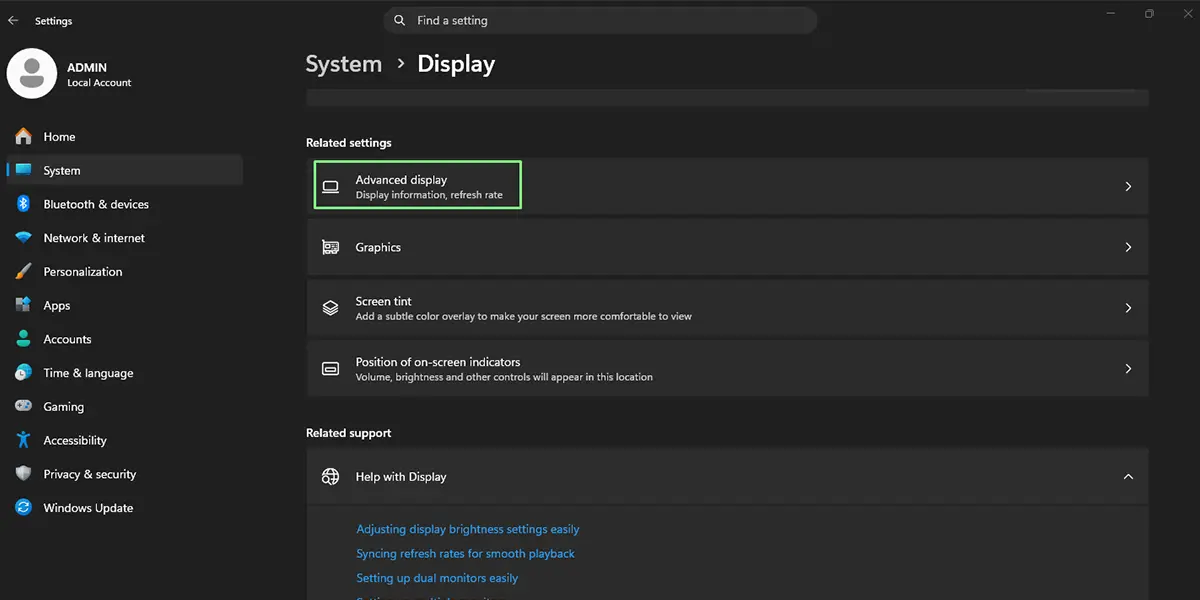
The page now shows the GPU driving that screen, such as an NVIDIA GeForce, AMD Radeon, or Intel graphics chip. On a PC with several monitors, use the display drop-down at the top to see which card each screen is connected to.
Tip: Click Display adapter properties for Display 1 on the same page to see the adapter type, the dedicated video memory, and the driver details in one small window.
Method 2: Use Task Manager
Task Manager is the best choice on a laptop that has both an integrated chip and a dedicated graphics card, because it lists each one separately.
- Press Ctrl + Shift + Esc to open Task Manager.
- Click Performance in the left sidebar. If the sidebar is collapsed, click the menu icon at the top left first.
- Scroll down and click GPU 0. If a second chip exists, GPU 1 appears below it.
- Read the graphics card name in the top right corner of the panel.
The panel also shows live usage, dedicated GPU memory, and the driver version, so it doubles as a quick health check while a game or video editor is running.
Method 3: Use DxDiag
DxDiag is a classic diagnostic window that collects the details most support teams ask for.
- Press Windows + R to open the Run dialog.
- Type the command below and press Enter.
dxdiag
- If a prompt asks about checking for digitally signed drivers, click Yes or No. Either choice shows the same GPU details.
- Click the Display tab. On a PC with more than one GPU, extra Display tabs may appear.
- Read the card name next to Name in the Device section.
The same tab lists the manufacturer, the approximate memory, and the driver version and date. Most people find that this is the easiest place to copy details when asking for help in a forum or from support.
Common Problems and Fixes
The Name Shows Microsoft Basic Display Adapter
This label means Windows is using a generic driver instead of the one made for the graphics card. Open Settings > Windows Update, click Check for updates, and install anything offered. If the generic name stays, download the driver from the graphics card or PC manufacturer and install it, then check again.
Only One Graphics Card Appears on a Laptop
Settings > System > Display > Advanced display only shows the GPU connected to the selected screen, which is often the integrated chip. Use Task Manager or DxDiag instead to see every graphics chip in the laptop.
The GPU Entry Is Missing in Task Manager
Task Manager hides the GPU panel when the installed driver does not report graphics data. Installing the latest driver from Windows Update or the manufacturer usually brings the entry back after a restart.
DxDiag Shows a Blank Display Tab
Wait a few seconds, because DxDiag sometimes needs time to finish gathering information. If the tab stays empty, close the window, run the command again, and let the progress bar finish before clicking Display.
Frequently Asked Questions
Does Windows 11 Home let me check my graphics card?
Yes. Settings, Task Manager, and DxDiag are included in every edition of Windows 11, including Home, Pro, and Enterprise.
Do I need administrator rights to see which graphics card is installed?
No. A standard user account can open all three methods and read the GPU name without any elevated permissions.
Which method is fastest?
Pressing Ctrl + Shift + Esc and opening the Performance tab is usually the fastest, since it takes only a few clicks and shows the GPU name right away.
Why does my laptop show two graphics cards?
Many laptops pair an integrated chip with a dedicated graphics card. Windows switches between them depending on the workload, and Task Manager lists both as GPU 0 and GPU 1.
How can I tell if the graphics card is integrated or dedicated?
Open the Performance tab in Task Manager and select the GPU. Dedicated cards show their own dedicated GPU memory, while integrated chips mostly rely on shared memory from the system.
Where can I find the graphics driver version?
The GPU panel in Task Manager shows the driver version and date. DxDiag lists the same details on its Display tab.
Does checking the graphics card slow down the PC?
No. These tools only read information that Windows already has, so the effect on performance or battery life is negligible.
Why does the card name look different from the box or the specifications sheet?
Windows reports the name supplied by the driver, which can be a shortened or slightly different version of the marketing name. The model number in the name is the part to match against the manufacturer’s details.
Does a restart help if the graphics card does not show up?
A restart can help after a driver installation or update, because Windows reloads the graphics driver and refreshes the information in Settings, Task Manager, and DxDiag.
