
Want to turn on Hardware-Accelerated GPU Scheduling in Windows 11? It takes less than a minute from the Settings app. The option appears only on PCs with a supported graphics card and a recent graphics driver (WDDM 2.7 or later), and a restart is needed before the change takes effect.
Key Takeaways
- The main path is Settings > System > Display > Graphics > Change default graphics settings.
- Switch the Hardware-accelerated GPU scheduling toggle to On, then restart the computer.
- If the toggle is missing or greyed out, the graphics card or driver is usually the cause.
- Two backup methods (Registry Editor and Command Prompt) are covered for stubborn cases.
How to Turn On Hardware-Accelerated GPU Scheduling in Windows 11 Step by Step
Method 1: Use the Settings App
This is the easiest route for most people, and it works the same on a desktop tower or a laptop.
- Press Windows + I to open Settings.
- Click System in the left sidebar.
- Click Display.
- Scroll down and click Graphics.
- Click Change default graphics settings.
- Find Hardware-accelerated GPU scheduling and switch the toggle to On.
- Restart the PC when the change is complete.
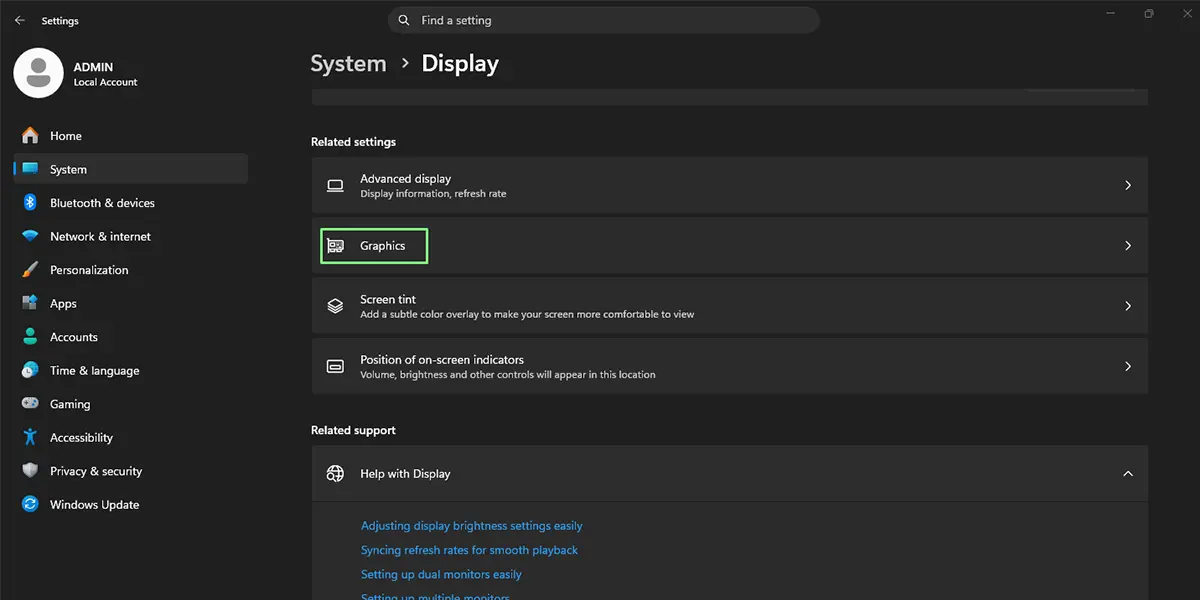
After the toggle is switched, it should show On straight away. The setting only becomes active once Windows restarts, so save any open work first.
Tip: A quick way to reach the same page is to press Windows + I, type GPU scheduling into the search box at the top, and pick the matching result.
Method 2: Use the Registry Editor
This method needs administrator rights. Editing the registry can cause problems if a wrong value is changed, so create a restore point first and follow the steps exactly.
- Press Windows + R to open the Run box.
- Type regedit and press Enter.
- Click Yes if User Account Control asks for permission.
- Go to HKEY_LOCAL_MACHINE\SYSTEM\CurrentControlSet\Control\GraphicsDrivers by pasting the path into the address bar at the top of the window.
- Double-click the HwSchMode value in the right pane.
- Change the Value data box to 2 and click OK.
- Close Registry Editor and restart the computer.
A value of 2 means the feature is on. If the HwSchMode entry is not listed at all, the graphics hardware or driver most likely does not support the feature, so see the fixes further down.
Method 3: Use Command Prompt
This does the same registry change in one line. It must run in an elevated (administrator) window, and the same restore point advice applies.
- Click Start, type cmd, then right-click Command Prompt and choose Run as administrator.
- Click Yes if User Account Control appears.
- Type or paste the command below and press Enter.
- Wait for the message saying the operation completed successfully.
- Restart the computer.
reg add HKLM\SYSTEM\CurrentControlSet\Control\GraphicsDrivers /v HwSchMode /t REG_DWORD /d 2 /f
Tip: Returning to Settings > System > Display > Graphics > Change default graphics settings after the restart is the easiest way to confirm that the toggle now shows On.
How to Undo or Reverse This Change
Switching the feature off takes the same few clicks. Open Settings > System > Display > Graphics > Change default graphics settings, set the Hardware-accelerated GPU scheduling toggle to Off, and restart the PC. Anyone who used the registry or Command Prompt method can also set the HwSchMode value to 1 and restart.
This is handy for a quick comparison. Some people try the feature for a few days on a gaming laptop, then switch back if a favorite game feels no better or behaves oddly.
Common Problems and Fixes
The Toggle Is Missing or Greyed Out
This usually points to a graphics card or driver that does not support the feature. Update the graphics driver through Windows Update or from the card maker’s support page, restart, and check the page again. Very old graphics cards may simply not offer the option. On a work or school PC, an organization’s policies can also hide it.
The Setting Does Not Stick After Restart
If the toggle flips back to Off, the restart may not have completed, since a fast shutdown can skip a full reboot. Choose Restart from the Start menu rather than Shut down, then check the toggle again. If it still resets, reinstalling the graphics driver often resolves it.
The HwSchMode Value Is Not in Registry Editor
Windows creates this entry only when the hardware and driver support the feature. A missing value is a strong sign that the current graphics driver is outdated or the card is not supported, so update the driver first rather than creating the value manually.
Frequently Asked Questions
Does Hardware-Accelerated GPU Scheduling work on Windows 11 Home?
Yes. The feature is not tied to a specific edition. What matters is a compatible graphics card and an up-to-date driver.
Does turning it on require a restart?
Yes. The toggle changes immediately, but Windows applies the new behavior only after the computer restarts.
Is there a keyboard shortcut to turn it on?
There is no direct shortcut for this setting. Pressing Windows + I to open Settings is the fastest starting point, followed by the Graphics page.
Will it make games run faster?
Results vary by graphics card, driver, and game. Some players notice smoother performance, while others see no difference at all.
Does it affect battery life on a laptop?
The impact differs from one laptop to another. Anyone concerned about battery time can use the laptop for a typical session with the feature on, then compare it with the toggle set to Off.
Do the registry methods need administrator rights?
Yes. Both Registry Editor and Command Prompt must be opened with administrator permission, and Windows will show a User Account Control prompt to confirm.
Why is the option missing on my computer?
The most common reasons are an unsupported graphics card, an outdated graphics driver, or a PC managed by work or school. Updating the driver is the best first step.
How can I check that the feature is on?
Open Settings > System > Display > Graphics > Change default graphics settings after restarting. If the Hardware-accelerated GPU scheduling toggle shows On, the feature is active.
Can I turn it off again later?
Yes. Set the toggle back to Off in the same Settings page and restart the computer. Nothing is permanently changed.
