
Knowing how to check Windows event logs for errors is one of the most useful diagnostic skills a PC owner can pick up, especially when a machine crashes, freezes, or throws a vague error message with no obvious cause. Windows quietly records almost everything happening behind the scenes, and that record often holds the exact clue needed to figure out what went wrong. This guide walks through opening the right tool, filtering out the noise, and reading the entries that actually matter.
Key Takeaways
- Event Viewer is the built-in tool for reading Windows event logs, and it opens in seconds using the eventvwr command.
- The Windows Logs section holds the four logs most people need: Application, System, Security, and Setup.
- Filtering by Event Level and Event ID turns a wall of entries into a short, useful list.
- Critical and Error entries deserve the most attention; Warning entries are worth a glance but rarely mean immediate trouble.
- Pairing an Event ID with the source name is the fastest way to research what an error actually means.
Before Checking the Logs
This task does not involve opening the case or touching any hardware, so there is no need to power down or ground out static. A few small things still make the process smoother, though. Log in with an administrator account, since some logs, particularly Security, will not fully display without those permissions. It also helps to note roughly when the problem occurred, such as a crash time or the moment a program froze, because that timestamp narrows the search dramatically once inside the logs.
How to Check Windows Event Logs for Errors
Opening Event Viewer
- Step 1: Press the Windows key and R together to open the Run box.
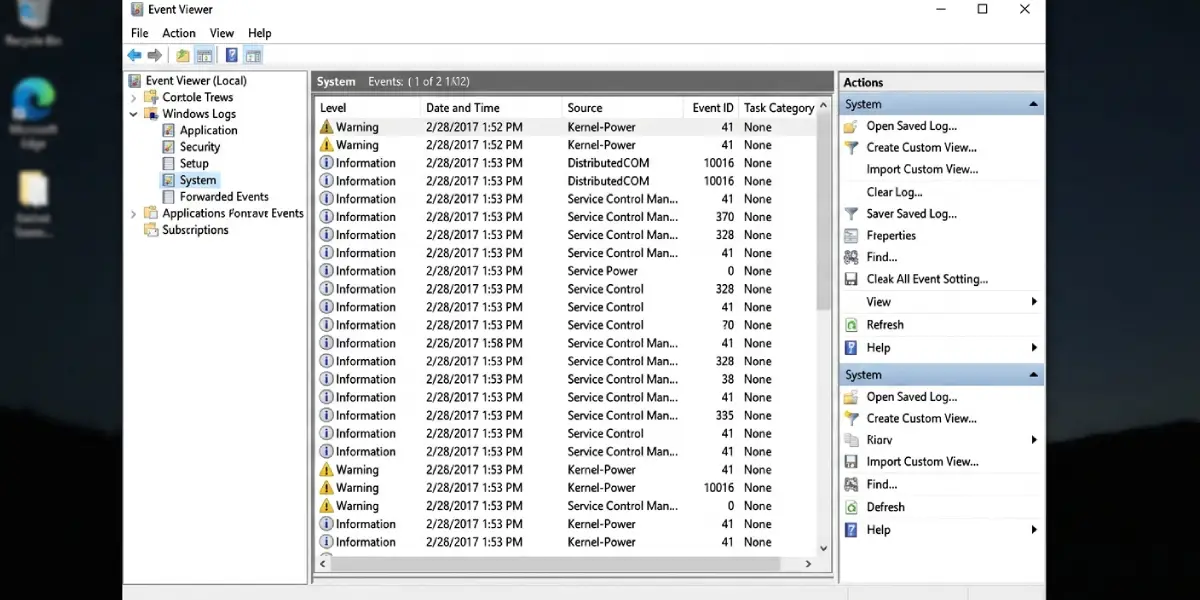
- Step 2: Type eventvwr and press Enter. Event Viewer will open, showing a tree of logs on the left side.
- Step 3: Expand Windows Logs in the left pane. This reveals Application, Security, Setup, System, and Forwarded Events.
- Step 4: Click System to see hardware and driver-related entries, or Application for issues tied to specific programs. These two logs cover the majority of everyday troubleshooting.
Filtering Out the Noise
A typical System log can hold thousands of entries, most of them routine. Filtering trims that down to what actually matters.
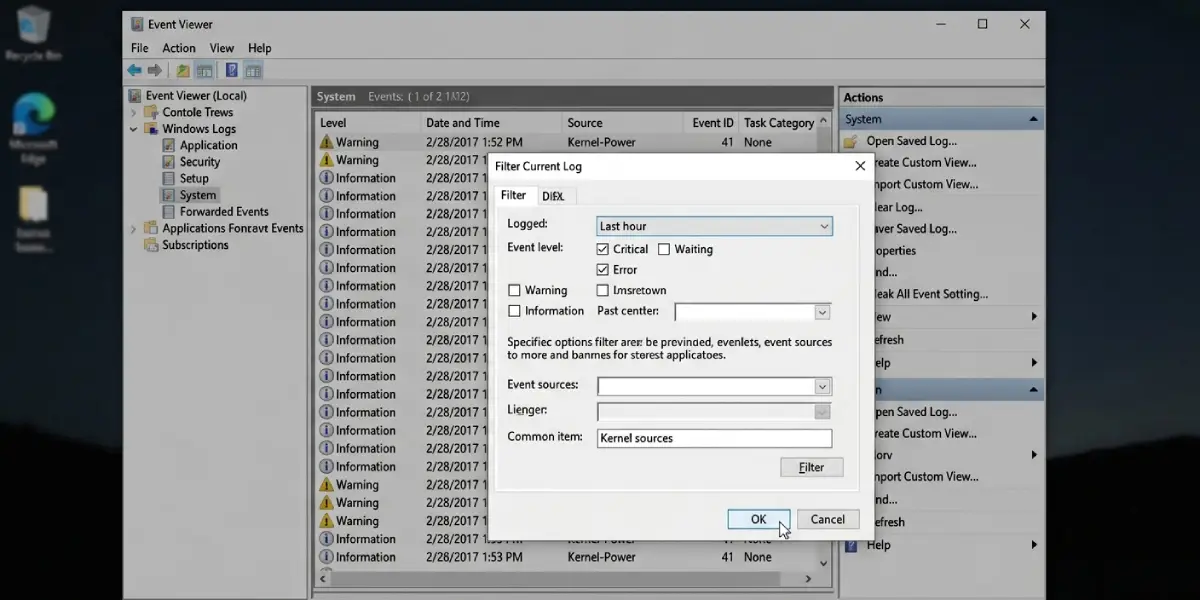
- Step 5: With a log selected, click Filter Current Log in the Actions panel on the right.
- Step 6: Under Event Level, check Critical and Error. Adding Warning is optional and only useful when a Critical or Error entry alone does not explain the issue.
- Step 7: Use the Logged dropdown to narrow results to a specific time range, such as the last hour or a custom range matching when the problem happened.
- Step 8: Click OK. The list now shows only the entries worth reading.
Reading and Researching an Error
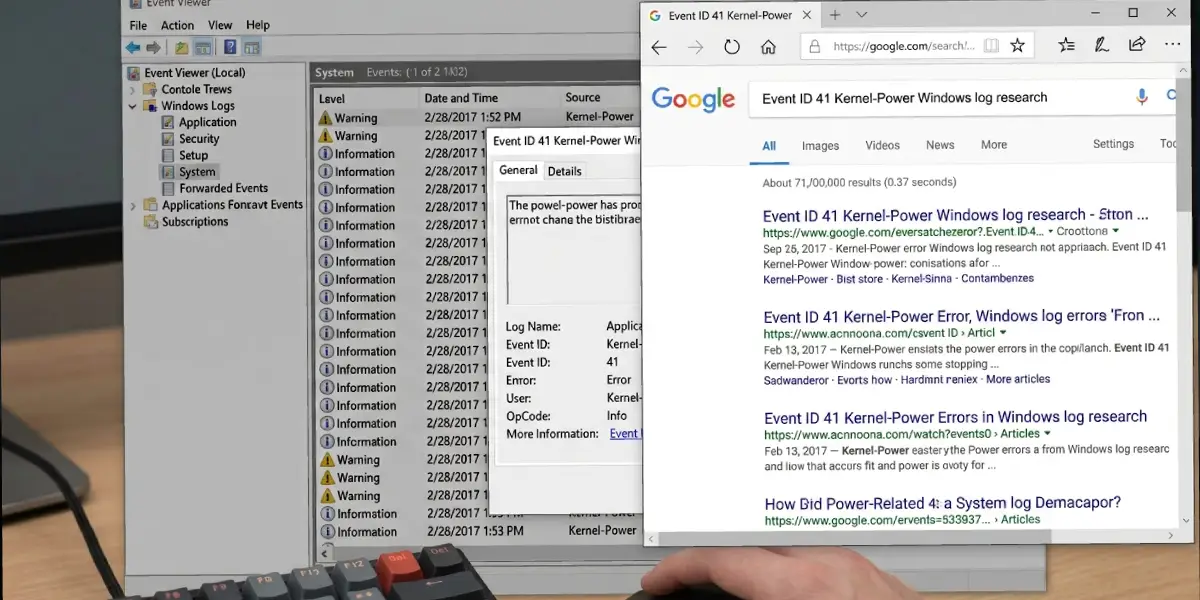
- Step 9: Double-click any entry to open its details. Note the Event ID, the Source, and the description text in the General tab.
- Step 10: Search the Event ID together with the Source name, for example ‘Event ID 41 Kernel-Power’, to find explanations and common causes for that specific entry.
- Step 11: Check whether the same Event ID repeats around the same timestamps across the System and Application logs, since a hardware fault often triggers related entries in both.
Tip: Right-click any log and choose Find to search for a keyword, an Event ID, or a source name directly, which is often faster than scrolling through a filtered list by hand.
Using PowerShell as an Alternative
For anyone comfortable with a command line, PowerShell offers a quicker way to pull the same information without opening the graphical tool. Running Get-WinEvent with a log name and a level filter returns matching entries directly in the console, which is handy for scanning several machines or scripting a recurring check.
Common Problems and Fixes
Too Many Entries to Make Sense Of
This almost always means the filter was skipped or set too broadly. Go back to Filter Current Log, limit Event Level to Critical and Error only, and narrow the Logged time range to the hour surrounding the problem.
Security Log Looks Empty or Incomplete
The Security log depends on audit policy settings and administrator rights. Confirm Event Viewer was opened with an administrator account, and be aware that many systems have detailed security auditing turned off by default.
An Error Keeps Repeating With No Clear Fix
A recurring identical entry, especially one tied to a specific driver or device name, usually points to a hardware or driver problem rather than a one-time glitch. Updating or reinstalling the driver tied to that source is the logical next step, and if the entries reference a specific component such as a disk or memory module, running that hardware’s built-in diagnostic tool is worth doing next.
Event ID Search Returns Nothing Useful
Some Event IDs are reused by multiple sources for unrelated purposes, so the ID alone is not always enough. Always pair the Event ID with the exact Source field, and consider the description text in the General tab, which often names the specific file, service, or device involved.
Log Files Are Too Small and Overwrite Quickly
If entries seem to disappear before they can be reviewed, the log’s maximum size may be set too low. Right-click the log, choose Properties, and increase the maximum log size so more history is retained before older entries get overwritten.
Frequently Asked Questions
What is the fastest way to open Windows event logs?
Press Windows key plus R, type eventvwr, and press Enter. Event Viewer opens directly to the log tree without needing to search through menus.
Which log should be checked first for a system crash?
The System log is the best starting point for crashes, restarts, and hardware-related failures. The Application log is better suited to issues tied to a specific program.
What does Event ID 41 mean?
Event ID 41 with a Kernel-Power source typically indicates the system shut down unexpectedly without a clean restart, often linked to power loss, a driver crash, or a hardware fault rather than a normal shutdown.
Is it normal to see Warning entries in the logs?
Yes. Warning entries appear regularly and often reflect minor, self-resolving issues. They are worth noting but rarely require action unless they line up with an actual symptom.
Can Windows event logs diagnose hardware failures?
They can point strongly toward a hardware issue, especially with repeated disk, memory, or thermal-related entries, but they do not replace dedicated diagnostics like a memory test or a manufacturer’s storage tool.
How far back do Windows event logs go?
This depends on the maximum log size and how much activity the system generates. Busy logs can overwrite older entries within days, while quieter ones may hold weeks of history.
Why does Event Viewer show so many entries with no apparent problem?
Windows logs a large amount of routine, informational activity by default. Filtering to Critical and Error levels removes this background noise and leaves only entries that indicate an actual issue.
Do event logs require administrator access to view?
Application and System logs are viewable without administrator rights in most cases, but the Security log and some advanced details require an administrator account to display fully.
Can event log entries be exported or saved?
Yes. Right-click any log or a filtered view and choose Save Filtered Log File As to export entries, which is useful for sharing details with a technician or keeping a record of a recurring issue.
What is the difference between Event Viewer and Reliability Monitor?
Event Viewer provides the full, detailed technical log of system activity. Reliability Monitor offers a simplified, visual timeline of crashes and failures, making it a good quick overview before diving into Event Viewer for specifics.
