
To configure iCloud Mail server settings in Outlook, only two things are needed: the correct IMAP and SMTP details, and an app-specific password from the Apple Account page. Outlook will not accept the regular Apple Account password for iCloud Mail, and that single detail causes most failed setups. The steps below cover both the password and the server fields, in the order they should be done.
Key Takeaways
- Incoming mail uses IMAP at imap.mail.me.com on port 993 with SSL/TLS encryption.
- Outgoing mail uses smtp.mail.me.com on port 587 with STARTTLS encryption and authentication turned on.
- The password field needs an app-specific password created at account.apple.com, not the regular Apple Account password.
- Two-factor authentication must be active on the Apple Account before an app-specific password can be created.
- Classic Outlook for Windows accepts these details through its manual IMAP setup option.
How to Configure iCloud Mail Server Settings in Outlook
These steps apply to classic Outlook for Windows, including Microsoft 365, Outlook 2021, and Outlook 2019. Everything is done in three short stages: create the password, enter the server settings, and confirm the connection works.
Generate an App-Specific Password First
- Step 1: Confirm that two-factor authentication is turned on for the Apple Account. App-specific passwords cannot be created without it.
- Step 2: Open a browser, go to account.apple.com, and sign in with the Apple Account that owns the iCloud Mail address.
- Step 3: Select ‘Sign-In and Security’, then select ‘App-Specific Passwords’, then select ‘Generate an app-specific password’.
- Step 4: Type a label such as Outlook, select ‘Create’, enter the Apple Account password if prompted, and copy the password that appears.
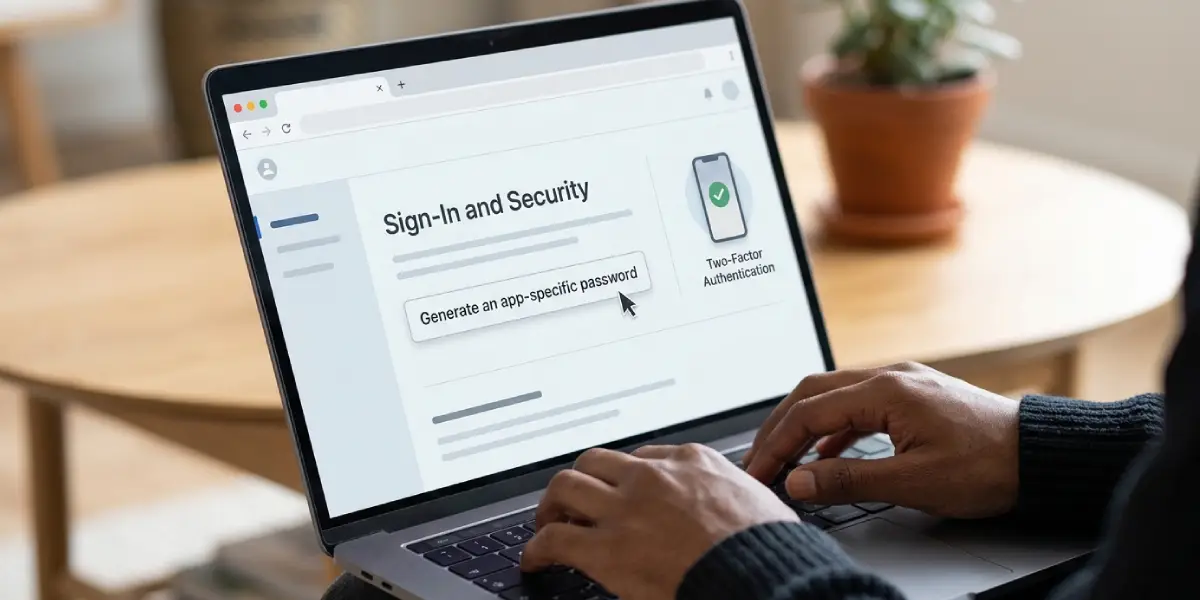
Tip: A clear label like Outlook makes it easy to revoke this one password later without disturbing any other app that uses iCloud.
Enter the iCloud Mail Server Settings in Outlook
- Step 5: Open Outlook and select ‘File’, then ‘Add Account’.
- Step 6: Type the full iCloud email address, such as name@icloud.com. Select ‘Advanced options’, tick the checkbox for setting up the account manually, and select ‘Connect’.
- Step 7: On the account type screen, choose ‘IMAP’.
- Step 8: Under ‘Incoming mail’, enter imap.mail.me.com as the server, 993 as the port, and select ‘SSL/TLS’ as the encryption method.
- Step 9: Under ‘Outgoing mail’, enter smtp.mail.me.com as the server, 587 as the port, and select ‘STARTTLS’ as the encryption method.
- Step 10: Leave the Secure Password Authentication checkbox cleared, then select ‘Next’.
- Step 11: Paste the app-specific password from Step 4 into the password box and select ‘Connect’.
- Step 12: When Outlook reports that the account was added, select ‘Done’. Send a short test message to another address and confirm that the iCloud Inbox fills with mail.
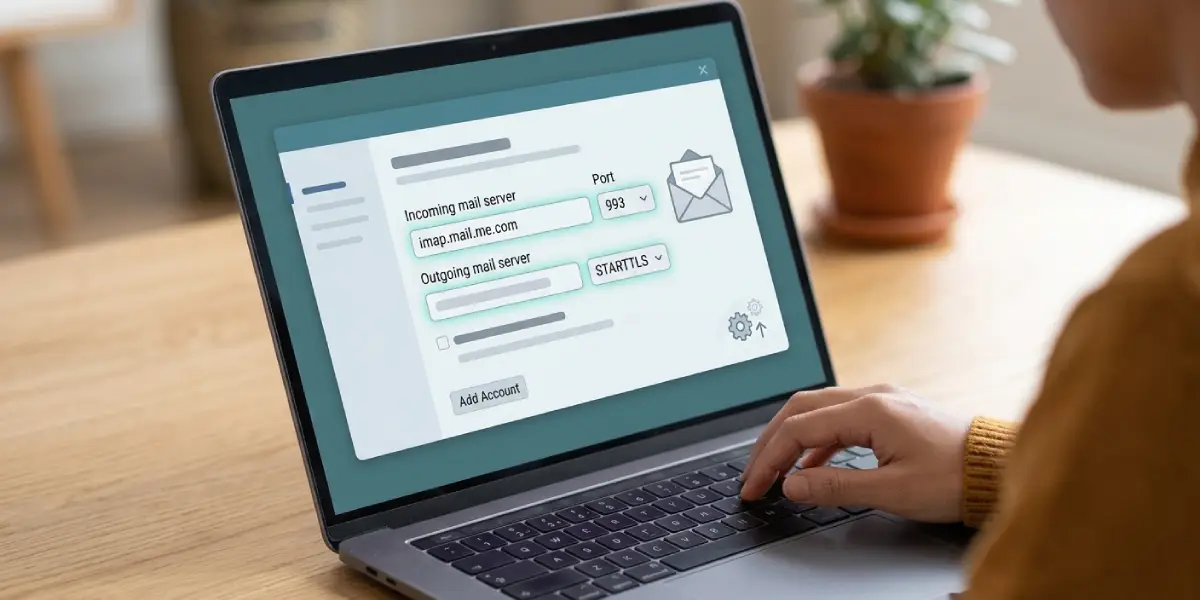
Tip: Paste the app-specific password instead of typing it. The password is a run of lowercase letters grouped by dashes, and a single misread character is enough to trigger a rejection.
iCloud Mail Server Settings at a Glance
- Incoming server: imap.mail.me.com, port 993, SSL/TLS, IMAP
- Outgoing server: smtp.mail.me.com, port 587, STARTTLS, authentication required
- Username: the full iCloud email address
- Password: the app-specific password
Change the Server Settings on an Existing iCloud Account
This applies when the iCloud account is already in Outlook but sending or receiving fails. Fixing the existing account is faster than deleting it and starting over.
- Step 13: Select ‘File’, then ‘Account Settings’, then ‘Account Settings’ again.
- Step 14: On the ‘Email’ tab, select the iCloud account and choose ‘Change’. Confirm that the incoming server is imap.mail.me.com, the outgoing server is smtp.mail.me.com, the user name is the full iCloud address, and the password field holds the app-specific password. Then select ‘More Settings’.
- Step 15: Open the ‘Outgoing Server’ tab, tick the checkbox that says the outgoing server requires authentication, and choose the option to use the same settings as the incoming server.
- Step 16: Open the ‘Advanced’ tab. Set the incoming server port to 993 with SSL/TLS, and the outgoing server port to 587 with STARTTLS. Older Outlook builds label these two encryption choices ‘SSL’ and ‘TLS’.
- Step 17: Select ‘OK’, then ‘Next’, and then ‘Finish’ once Outlook completes its test.
Common Problems and Fixes
Outlook Keeps Asking for a Password or Rejects It
This almost always means the regular Apple Account password was entered. Generate a fresh app-specific password at account.apple.com and paste it into the password box. Also check that the pasted text has no leading or trailing space.
Mail Arrives but Messages Will Not Send
The outgoing server settings are the usual cause. Confirm the server is smtp.mail.me.com, the port is 587, the encryption is STARTTLS (labelled TLS in older builds), and authentication is turned on. The outgoing user name must be the full iCloud email address.
The App-Specific Passwords Option Is Missing
The option appears only when two-factor authentication is active on the Apple Account. Turn on two-factor authentication first, then return to the Sign-In and Security page.
The Incoming Login Fails With the Full Email Address
Apple states that the incoming user name is usually the part before the @ symbol. If the full address fails on the incoming server, try only the name portion, for example name instead of name@icloud.com. Keep the full address for the outgoing server.
Outlook Starts Asking for a Password After It Worked Before
Changing or resetting the Apple Account password revokes every app-specific password automatically. Create a new one and enter it when Outlook prompts for credentials, or update it through ‘File’, ‘Account Settings’, ‘Change’.
Outlook Cannot Connect to the Server
A mismatch between port and encryption is a common cause. Port 993 pairs with SSL/TLS for incoming mail, and port 587 pairs with STARTTLS for outgoing mail. Correct any combination that differs, then run the account test again.
Frequently Asked Questions
What are the iCloud Mail incoming server settings for Outlook?
Choose an IMAP account, enter imap.mail.me.com as the server, use port 993, and select SSL/TLS as the encryption method. The password is an app-specific password.
What are the iCloud Mail outgoing server settings for Outlook?
Enter smtp.mail.me.com as the server, use port 587, and select STARTTLS as the encryption method. Authentication must be on, and the user name is the full iCloud email address.
Is an app-specific password required to add iCloud Mail to Outlook?
Yes. Outlook is a third-party app from the iCloud point of view, so it needs an app-specific password created at account.apple.com instead of the regular Apple Account password.
Does two-factor authentication have to be turned on?
Yes. Apple only allows app-specific passwords on accounts that use two-factor authentication, so it must be active before the password can be generated.
Should the user name be the full email address or just the name?
Outlook uses the full email address by default, and that is the right choice for the outgoing server. For the incoming server, the name portion alone is sometimes needed if the full address is refused.
Can iCloud Mail be added to Outlook as a POP account?
No. iCloud Mail is set up through IMAP, so IMAP is the account type to choose on the account type screen.
Should Secure Password Authentication be turned on?
No. Leave the Secure Password Authentication checkbox cleared. The connection is protected by SSL/TLS on the incoming server and STARTTLS on the outgoing server.
Do me.com and mac.com addresses use the same server settings?
Yes. Addresses ending in icloud.com, me.com, or mac.com all use imap.mail.me.com for incoming mail and smtp.mail.me.com for outgoing mail.
How can the server settings be changed after the account is added?
Select ‘File’, then ‘Account Settings’, then ‘Account Settings’ again. Choose the iCloud account, select ‘Change’, and use ‘More Settings’ to adjust the outgoing authentication, ports, and encryption.
