
Troubleshooting the Outlook ‘A Program Is Trying to Access Email Address’ warning takes only a few minutes once the trigger is clear. The prompt is Outlook’s built-in guard against programs reading address information without permission, and it appears most often when a sync tool, CRM add-in, or mail merge utility starts up. The fix comes down to two things: keeping antivirus current and setting Programmatic Access correctly.
Key Takeaways
- Click Deny on any prompt that was not triggered by a program that was just opened on purpose.
- Outlook stops prompting when Windows sees antivirus software that is active and up to date.
- The setting that controls the warning is found under File > Options > Trust Center > Trust Center Settings > Programmatic Access.
- Greyed-out Programmatic Access options usually point to missing administrator rights or an IT policy.
- Turning warnings off completely is a last resort and only suits software that is fully trusted.
Steps for Troubleshooting the Outlook A Program Is Trying to Access Email Address Warning
Confirm the Program and Update Antivirus
- Step 1: Read the prompt and think about what was launched just before it appeared. A phone sync app, a label printing tool, or a mail merge run are typical culprits. If nothing recognizable was started, click Deny and run a full antivirus scan before doing anything else.
- Step 2: Update the antivirus. For Windows Security, select Start, open Windows Security, choose Virus & threat protection, select Protection updates, and click Check for updates. For third-party antivirus software, open its console, install the latest definitions, and confirm real-time protection is switched on.
- Step 3: Update Office. In Outlook, go to File > Office Account > Update Options > Update Now, and let the installation finish.
- Step 4: Close Outlook completely, reopen it, and then start the program that triggered the prompt. Restarting gives Outlook a clean session to re-check the refreshed antivirus status.
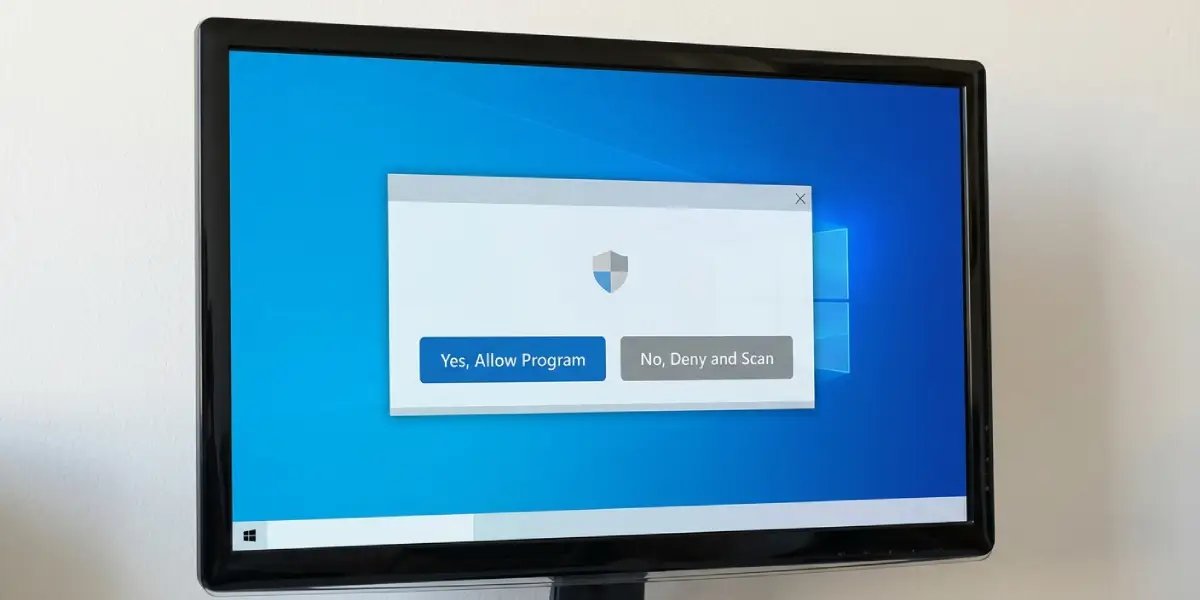
Tip: The warning text itself tells Outlook’s story. It says a program wants e-mail address information stored in Outlook and advises clicking Deny if the request is unexpected, so a prompt with no obvious cause deserves a scan rather than a click on Allow.
Check the Programmatic Access Setting
- Step 5: In Outlook, select File > Options > Trust Center > Trust Center Settings, and then choose Programmatic Access in the left pane.
- Step 6: Select the right option. The first option, which warns only when antivirus software is inactive or out of date, is the recommended choice and the default. The second option warns about suspicious activity every time, so it keeps the prompt alive. The third option turns warnings off completely and is not recommended, so it should only be used for software that is fully trusted.
- Step 7: Click OK, click OK again to close Outlook Options, and restart Outlook so the change takes effect.
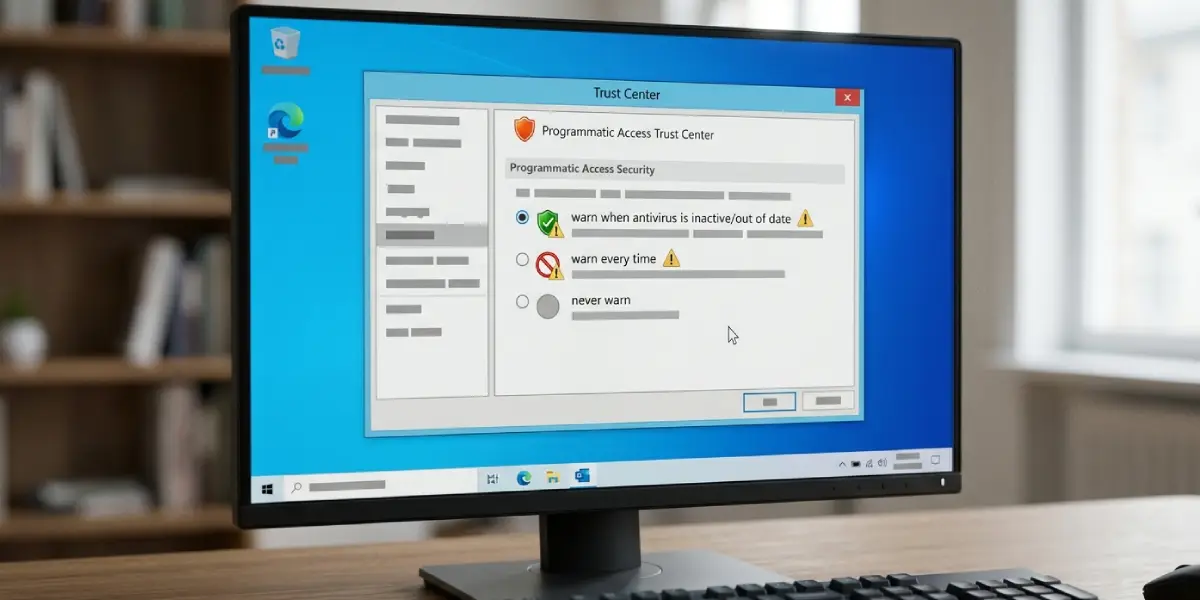
Tip: If the recommended option is already selected and the prompt still appears, the cause is nearly always that Windows does not see the antivirus as current, not the Outlook setting itself. Go back to Step 2 and confirm the antivirus shows no pending actions.
Rule Out an Outdated Program or Problem Add-in
- Step 8: Close the suspected program and see whether the prompts stop. Then check that program’s own update option, since an outdated build is a common reason for repeated requests.
- Step 9: In Outlook, go to File > Options > Add-ins, set Manage to COM Add-ins, and click Go. Clear the checkbox for non-essential add-ins one at a time, click OK, and restart Outlook after each change to find the one causing the prompt.
Common Problems and Fixes
The Programmatic Access Options Are Greyed Out
This usually happens when the Windows account does not have administrator rights on the computer, or when an IT policy controls the setting. Sign in with an administrator account and try again. On a work computer, the policy is managed centrally, so the IT administrator is the right contact to adjust it.
The Warning Still Appears After the Antivirus Was Updated
Outlook relies on Windows to report antivirus status. Open Windows Security and check that Virus & threat protection shows no required actions. If a third-party antivirus is installed, make sure real-time protection is on and that the product is registered with Windows Security. Then restart the computer and open Outlook again.
The Prompt Returns Every Few Minutes After Clicking Allow
The Allow access for option in the prompt only grants a short window, from 1 to 10 minutes. Once that time runs out, the prompt returns. Treat it as a temporary workaround and apply the antivirus and Programmatic Access fixes above for a lasting result.
The Prompt Appears With No Recognizable Program Running
Click Deny, disconnect from the network if the behavior looks suspicious, and run a full scan with the installed antivirus. Review the COM Add-ins list in Step 9 and disable anything unfamiliar.
The Warning Appears Only While One Specific Program Runs
That program is the source of the request. Update it to the latest version from the vendor, and check whether it installed an Outlook add-in that can be disabled or removed if it is not needed.
Frequently Asked Questions
Does the ‘A program is trying to access e-mail address information’ warning mean there is a virus?
Not necessarily. The prompt appears whenever any program asks Outlook for address information, including legitimate sync tools and add-ins. A prompt with no obvious cause is worth a full antivirus scan.
Should the Allow or Deny button be clicked?
Click Allow only when the request came from a program that was just opened on purpose and is known to be trusted. In every other case, click Deny and scan the computer.
Where is the Programmatic Access setting in Outlook?
Go to File > Options > Trust Center > Trust Center Settings, and then select Programmatic Access in the left pane.
Why are the Programmatic Access options greyed out?
The most common reasons are a Windows account without administrator rights or an IT policy that manages the setting. Signing in as an administrator or contacting the IT administrator resolves it.
Does updating the antivirus stop the warning?
Often it does. With the recommended Programmatic Access option selected, Outlook only warns when antivirus is inactive or out of date, so a current and active antivirus removes the trigger.
Why does the warning keep coming back after clicking Allow?
The Allow access for choice only lasts between 1 and 10 minutes. After that period, the next request from the program brings the prompt back.
Is it safe to turn warnings off completely?
It is not recommended. Turning warnings off removes a safeguard against malicious programs reading address information, so it should only be used for software that is fully trusted.
Can the warning be turned off for just one program?
No. The Programmatic Access setting applies to all programs, not a single one. Updating the specific program or disabling its add-in is the better way to stop its requests.
